
This article explains how to obtain a license for the app and to verify its status and pricing.
After completing the evaluation of Worklogs Report and before delving further into the article, you can either:
-
For a monthly Jira subscription – Take no action, once you’ve installed the app from the Marketplace. The app will be charged automatically and included in your next bill, unless you cancel your subscription.
-
For an annual Jira subscription – Purchase the app by either:
-
Contacting Atlassian Sales Support for help with quotes and orders
-
Emailing or submitting a request to our support team for help with pricing
-
If you no longer need the app – Cancel your subscription and uninstall it manually from the Manage apps page.
How is Worklogs Report licensed and billed?
Atlassian handles licensing, billing, and payments for both Marketplace apps—like Worklogs Report—and core products such as Jira, Confluence, and Bitbucket. Starting in 2025, these core products will also be called “apps.”
Because Atlassian controls this process, Colined cannot adjust the billed user count for Worklogs Report. This applies even if only a portion of your Jira users actively use reports, widgets, or gadgets.
To keep costs predictable, choose the subscription type, user tier, and product plan that best match your team’s budget and expected growth.
Which subscription options are available?
You can choose either a monthly or an annual subscription for core products and Marketplace apps. App subscriptions always match the tier of the host product in your Cloud instance.
For example, if your Jira instance is on a Standard plan with a monthly subscription, Worklogs Report will also be billed monthly at the Standard plan.
Monthly subscription
A monthly subscription is priced per user. Atlassian uses a maximum quantity billing model for monthly subscriptions. Here’s what that means for you:
-
Billed user quantity: The card on file is charged each month for the highest number of users in a billing cycle, which are tied to your product plan.
-
Adding users: If you add more users than your current billed quantity, Atlassian automatically increases it and adds prorated charges to your next bill. When users are added, they are automatically counted toward billing, even if they do not accept your invite or log in.
-
Removing users: If you remove users, your bill does not go down during that cycle. Those seats stay open for reassignment until the next billing period.
Monthly pricing works as follows:
-
Up to 10 users – Billed at a flat monthly rate, regardless of the exact number of users.
-
11–100 users – Billed per user at a fixed price, so the monthly amount varies with the number of users.
-
101–50,000 users – Billed per user on a sliding scale, where the per-user price decreases as more users are added.
Annual subscription
An annual subscription is priced according to user tiers. You must purchase the license tier that matches the number of users licensed for your host product, such as Jira.
For example, if you have a 25-user Jira license, you must also purchase Worklogs Report at the 25-user tier.
If you need to add users mid-year, you must upgrade to the next tier. Atlassian provides a prorated quote for the remainder of the 12-month term, evaluated at the higher tier. To do this, you must contact Atlassian. If your user count drops below your current tier during the annual term, your subscription and pricing remain locked at the original tier until your next renewal.
Can you switch your subscription?
Yes. You can switch Worklogs Report from monthly to annual, or annual to monthly, through your billing settings, as mentioned in a related article—but only after switching your Jira subscription first.
Switching to monthly
You can switch to a monthly subscription in your Atlassian billing settings. The annual payment begins on the last day of your current monthly cycle, and Atlassian applies a prorated charge for the remaining days.
A monthly subscription is more flexible and is often chosen when:
-
Your team size may fluctuate. One-time increases in users during a month are billed only for that month. An upgrade quote is not needed when the number of users increase, compared to an annual subscription.
-
You want to avoid a large upfront payment and being locked at a tier. You only pay for the current month rather than committing to 12 months.
-
You want a less costly cancellation. You can cancel at any time. Refunds are available if cancelled within the first paid month after the trial. In comparison, refunds are possible only within 30 days of payment for an annual subscription. After that, the full 12-month cost is non-refundable.
Example: A startup with 12–15 users may choose monthly billing to test Jira Cloud features while headcount changes month to month.
Switching to annual
You can switch to an annual subscription by contacting Atlassian’s Sales team through the online form. An annual subscription provides two main benefits:
-
You can upgrade to an Enterprise plan if your user count exceeds 801.
-
Annual pricing is usually lower than paying for 12 monthly subscriptions.
-
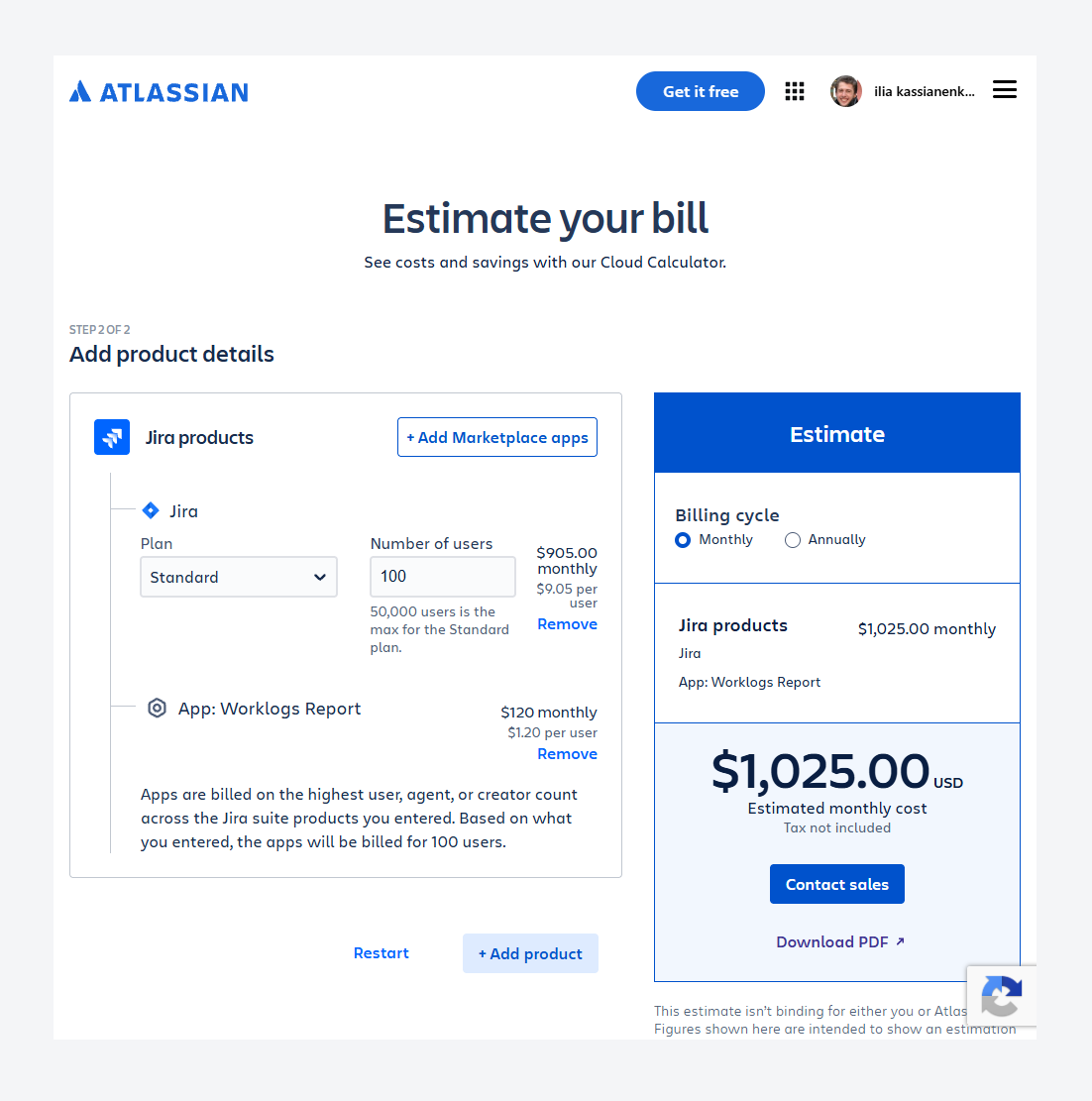
Monthly subscription: 100 users for Jira and Worklogs Report → $1,025 per month → $12,305 over 12 months
-
Annual subscription: Same 100 users → $10,250 per year. For this subscription, you save $2,080 for the same user tier.
-
Example: A company with 100 stable Jira Software users saves money annually compared to paying month by month.
Can you estimate your subscription price?
Yes. You can calculate the exact per-tier and per-user cost for Worklogs Report on top of your Jira plan for any subscription type and user quantity – by using Atlassian’s Cloud Pricing Calculator.
-20260701-160430.png?cb=f155bb3f280ea08194502a5bb84f804f)
What is the app estimate for multiple products?
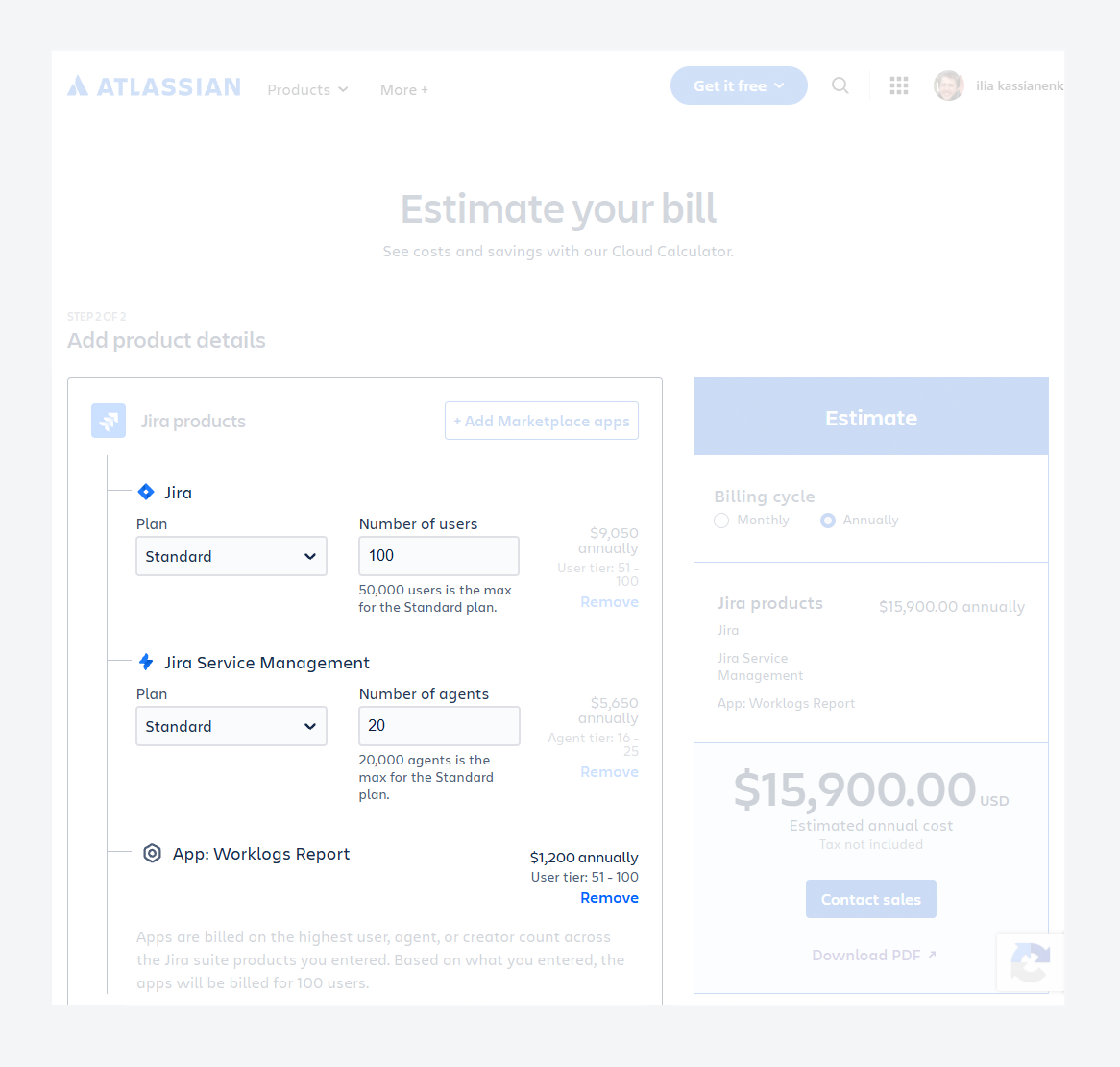
If your Jira Cloud instance includes both Jira and Jira Service Management, the app license must match the highest user tier, on a monthly or annual subscription.
For example, a 100-user Jira license plus a 20-agent Jira Service Management license requires a 100-user app license.
This is reflected in the $USD 120 monthly charge for Worklogs Report, where 100 users are multiplied by the $USD 1.20 per user.
-20260701-160821.png?cb=82bfd4a82ce61fb646021c987a7fc429)
How can you view billing information?
You must be Jira Org & Site Admin, in addition to having Jira Admin access, to open the billing page. Atlassian explains the differences between these permissions in a related article.
How can you access the ‘Billing’ page?
-
Open the Settings menu in Jira’s top navigation bar, by clicking on the gear icon.
-
From the dropdown, choose Billing.
-20251008-225642.png?cb=d71187001b02d81f2b0c242620552cd7)
-
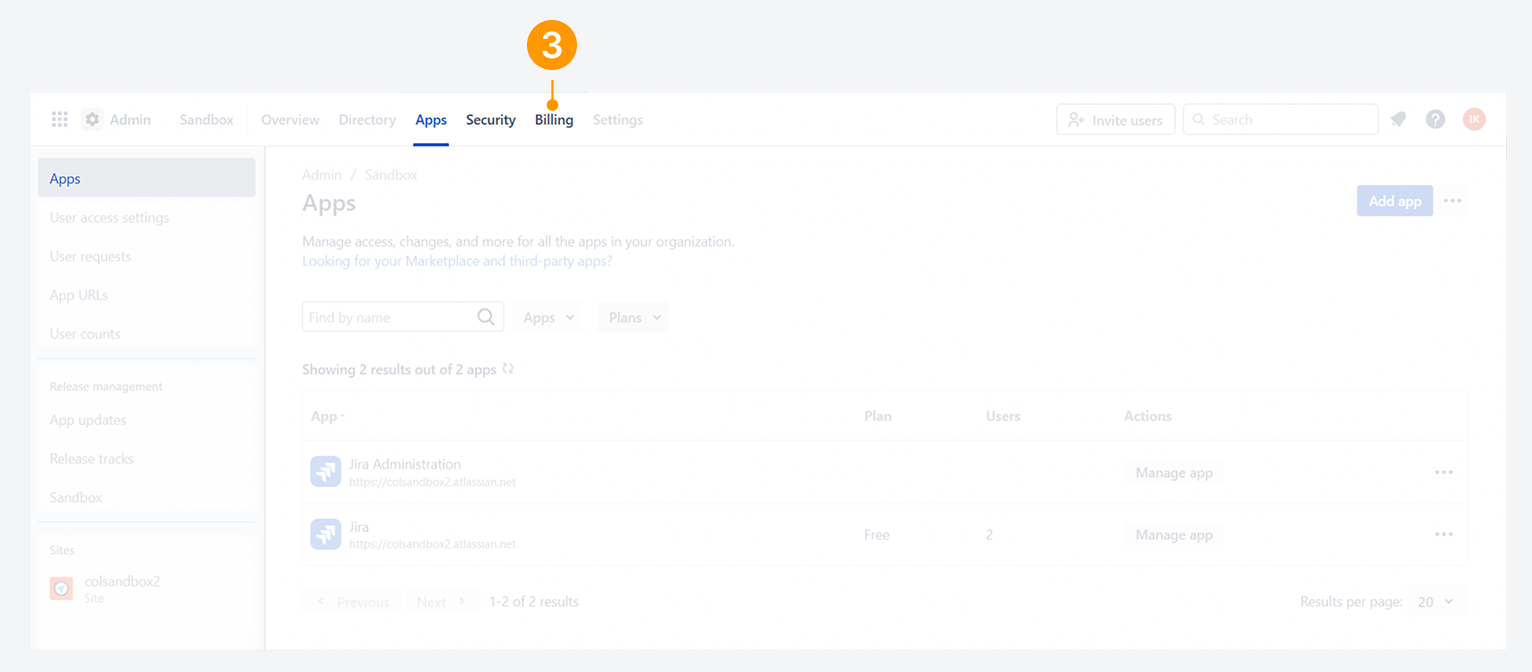
Click on Billing in the header.
-
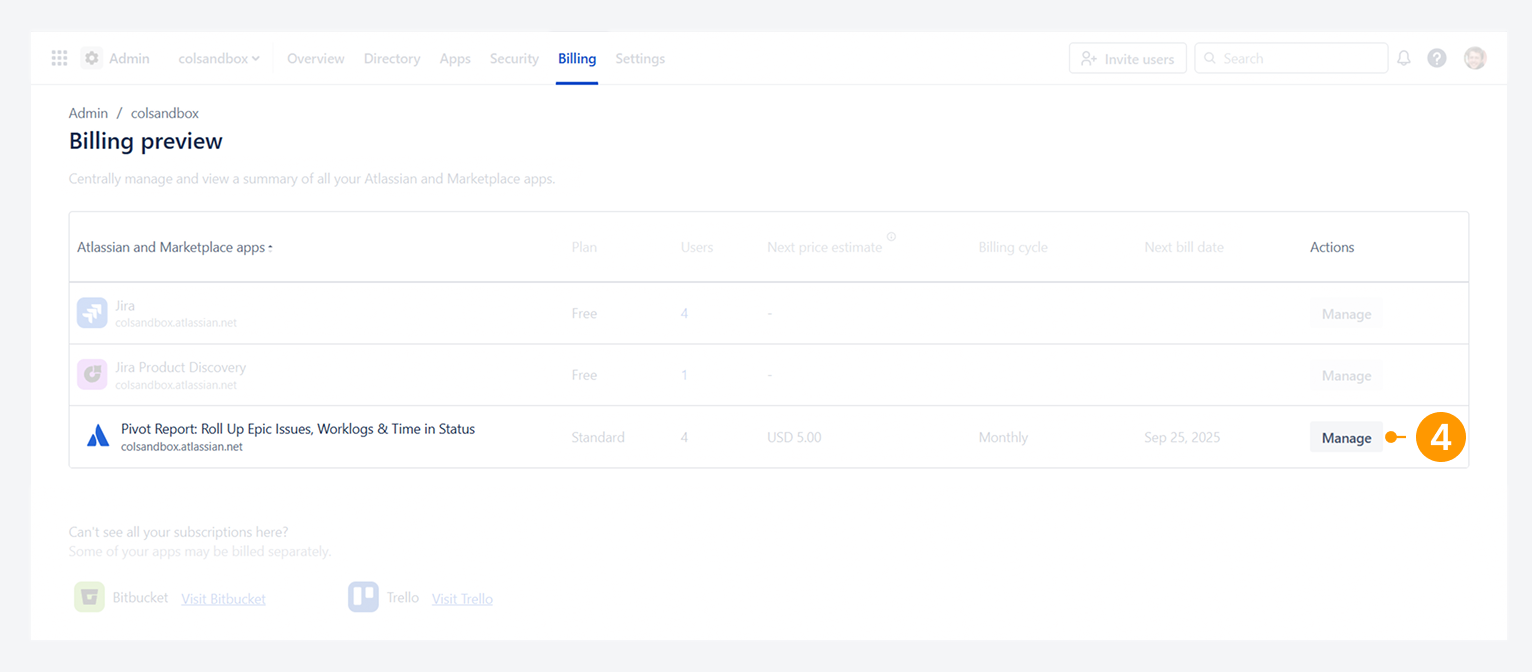
Click on Manage for Worklogs Report in the Billing preview. This will open the subscription details for the app.
-
Alternatively, you can go directly to the Billing Console at admin.atlassian.com/billing.
-
Click Manage for the license tied to the organization you want to review.
-
On the Manage subscriptions page, select Worklogs Report.
-
This will open the subscription details for the app.
-
What subscription details are displayed?
The subscription details page for Worklogs Report display the billing cycle (subscription type), upcoming bill date, plan for instance or environment, and the estimated bill amount.
-20250828-034551.png?cb=c8bea5f86442df965a0b381df71f366b)
How can you set up a license?
The following is a list of options available for setting up an annual license for Worklogs Report and host products on Cloud.
For an annual subscription, the Purchase/Buy button for the app usually does not appear in Apps > Manage Apps > Worklogs Report. In this scenario, you have three options to purchase the license.
Option A: Buy a license using Atlassian’s website
-
Click on https://www.atlassian.com/purchase/addon/biz.epicreport.worklogs.ondemand
-
Check that ‘Order’ and 'Cloud' deployment are selected.
-
Click on Add it.
-20260701-163149.png?cb=64201f4044c6c421f9364bf7e79c6226)
-
On the Marketplace app page, click Try it free.
-
In the pop-up, choose the site (Jira cloud instance) where you wish to install Worklogs Report, and click on Request app.
-20250828-043422.png?cb=1a11abb0e8827922f6813b791bd4b2f4)
Option B: Buy the license at My Atlassian
-
Visit my.atlassian.com, use the search box by entering Worklogs.
-
Select Worklogs Report: Evaluation.
-
Click the Buy button located next to Actions, and then follow the on-screen instructions.
Option C: Request a quote from Atlassian Sales
If option B is unsuccessful, complete the form shown in the screenshot below to request a quote from Atlassian Sales Support.
-
Select Quotes and plan changes.
-
Under 'Choose a topic’, select Create a new quote.
-
Select Worklogs Report.
-
Add remaining details and Submit.
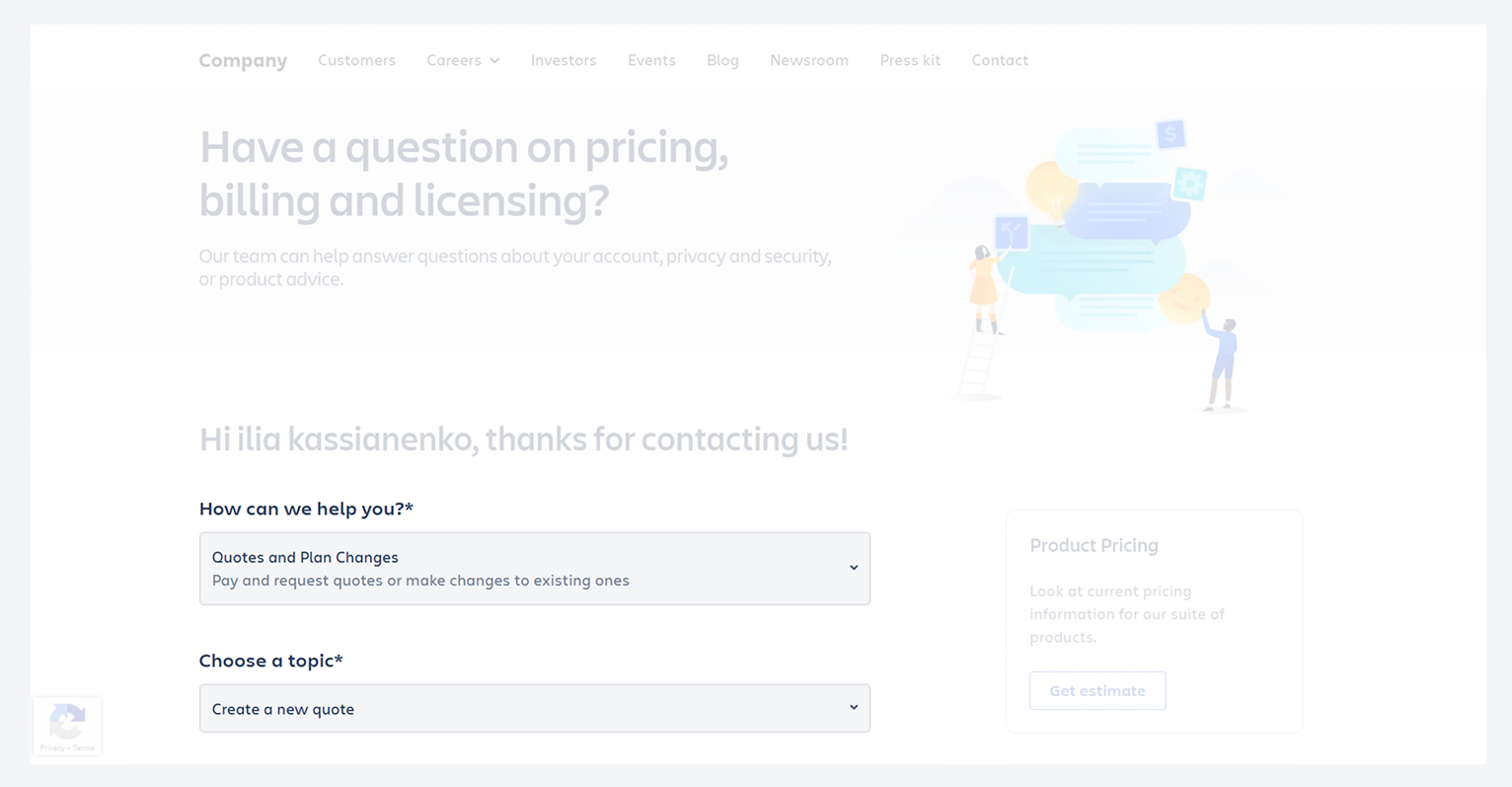
The Sales Support team often responds within one working day. If you have already tried to contact them without success, please inform us.
FAQ
How can you verify your app’s license status and expiration?
You can also verify the app’s license status in your Cloud instance by following these steps:
-
In Jira's top navigation bar, click the Settings gear icon.
-
Select Billing.
-20260916-214143.png?cb=f4fa5ea1a97896c35ee1ef146b0f7b66)
-
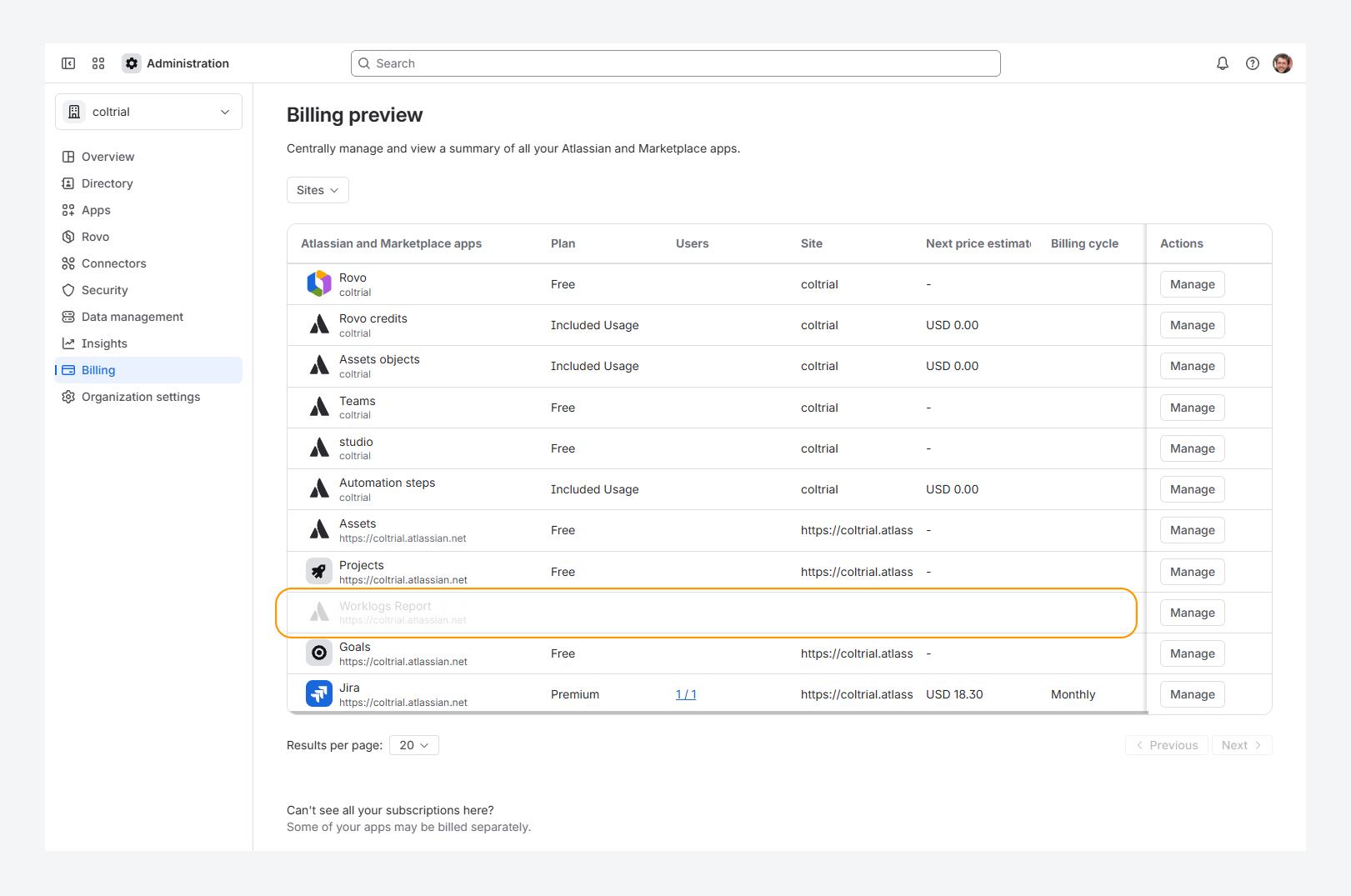
Check the Worklogs Report row on the Billing preview page: if the row is greyed out and does not show billing details, the app license has expired.
The screenshots below show both an active and inactive Worklogs Report license, with pricing as of September 2026.
-20260916-233649.png?cb=8ef6c510febcb143e83afcb07fdac1a1)
How can you enter Colined’s promo code?
To enter a promo code, follow these steps:
-
In Jira's top navigation bar, click the Settings gear icon.
-
Select Billing.
-20260922-032146.png?cb=b77440deeae1e08836ee1d4caa9317d4)
-
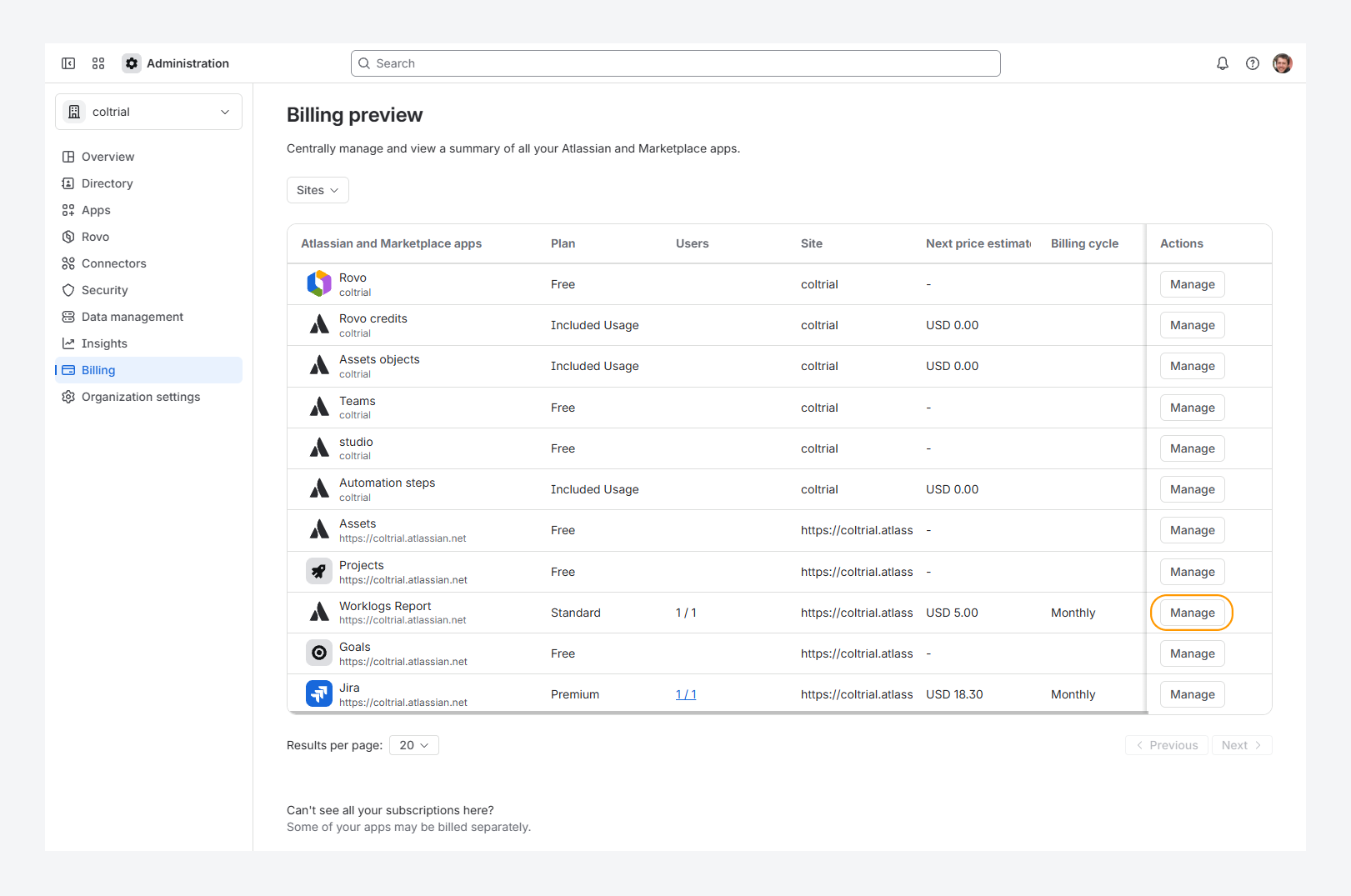
On the Billing preview page, find the Worklogs Report row and click Manage.
The screenshot below shows an active Worklogs Report license, with pricing as of September 2026.
-
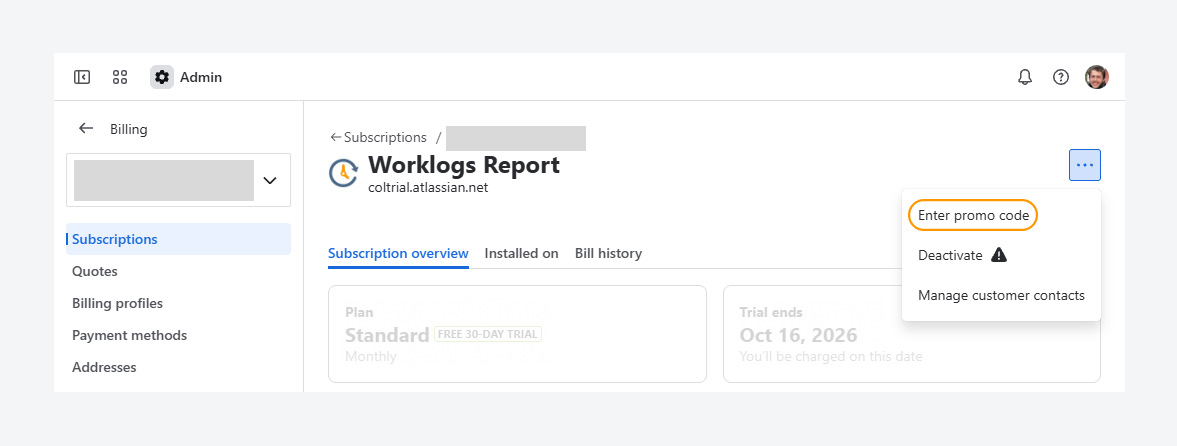
On the Subscription page, click the ••• actions menu and select Enter promo code.
-
Enter the code and click Validate.
Troubleshooting
What should I do if my Cloud license expires?
-20251008-214434.png?cb=d5c285da6b267448ba09deb2a8700a34)
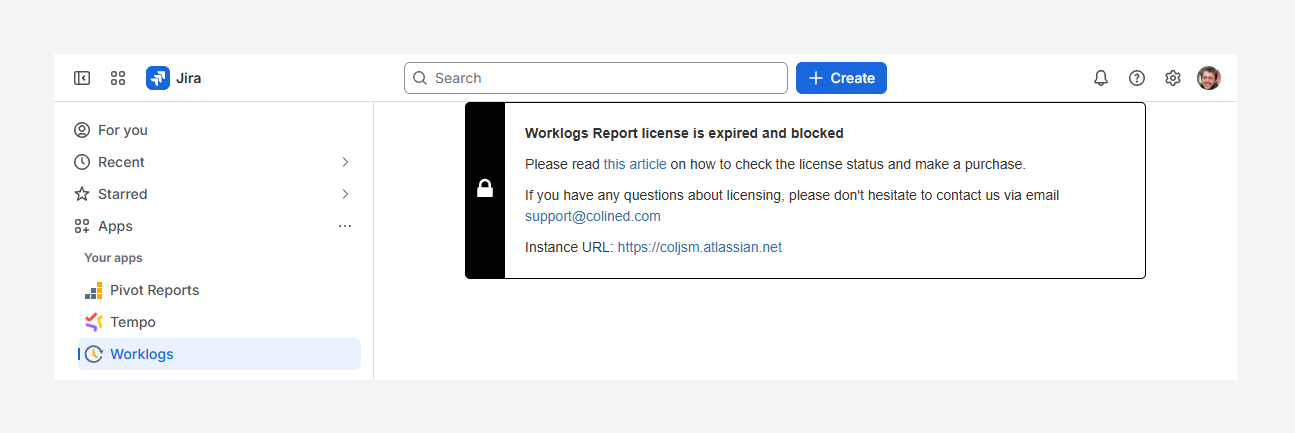
If you’ve failed to make payment towards your Commerce license or if your Evaluation license expired, access to Worklogs Report will be automatically blocked and this error message will appear within the app.
How can you renew your license?
An Evaluation license expires 30 days after installation, or sooner if the extension token is not renewed. A Commercial license expires if your monthly or annual subscription is not renewed.
When your license expires, you have a 14-day grace period to pay for Atlassian Marketplace Apps. During this time, you can also update your billing details or, for an Evaluation license, request a new extension token from Colined.
What happens to your data?
Your data remains safe and will not be deleted. If you do not pay within 14 days, you can still make the payment or contact us at support@colined.com to request an extension.
Note: Atlassian may take up to 24 hours to update license and transaction data. In rare cases, Marketplace incidents can cause delays of several days. If this happens, email us with your case details and we will assist you.
If you have questions or need assistance, contact our support team via email or service desk. Our team is available Monday through Friday (9:00 AM to 7:00 PM GMT+7) to help with technical challenges or discuss improvements.