
You may have reached this article because part or all of your team has moved to a different time zone. This guide explains how Jira is affected and how to adjust app configurations to reduce any impact.
This article describes how time zones work in Jira and how they are applied within the Worklogs Report, depending on your team’s location.
How do time zones impact worklogs?
When you log work, Jira converts the entered time to server time but does not store your time zone. As a result, when someone in a different time zone views the same worklog, the date and time adjust to their local time.
This can make it appear as though work was logged on a different day or at a different time.
Example:
The default Jira time zone matches the time zone of a data center in Montreal (EDT, UTC-4).
A user in Jakarta (WIB, UTC+7) logs work on April 9 at 7:30 AM.
The time difference is 11 hours.
From the Jakarta user’s perspective, the worklog appears on April 9 at 7:30 AM.
From the Montreal user’s perspective, the same worklog appears on April 8 at 8:30 PM.
Why should you use the app to address these impacts?
Time zones can change how worklogs, capacity, and warnings appear in reports in Jira. To manage these differences, the app provides three configuration options. Each option defines whether report data is displayed based on:
-
the viewer’s local time zone
-
Jira’s default time zone
-
the worklog author’s time zone
Local Time Zone of the user
All worklogs are converted to the viewer’s local time. As a result, the same worklog may appear on different dates depending on who views the report.
This is the default setting when the Worklogs Report app is installed.
Example:
The default Jira time zone matches the time zone of a data center in Montreal, where the time is April 8 at 8:30 PM.
A user in Jakarta logs work on April 9 at 7:30 AM and includes the local timestamp in the worklog comment.
From the Jakarta user’s perspective, the worklog appears in the Work item view as April 9 at 7:30 AM. Likewise, the Worklog Date column in the report shows April 9, as shown in the screenshot above, because it matches the user’s local time in Jakarta.
From the perspective of another user in Montreal, the same worklog appears in the Work item view as April 8 at 8:30 PM because of the time zone difference. Likewise, the Worklog Date column in the report shows April 8, as shown in the screenshot below, because it matches the user’s local time in Montreal.
Note that the Worklog Date column displays the date and the time.
Jira Time Zone
Worklogs are aligned with Jira’s default time zone, regardless of the author’s settings. This ensures consistent dates across all users, but it may be confusing if the server time differs from users’ local time.
Example:
The default Jira time zone matches the time zone of a data center in Montreal, where the time is April 8 at 8:30 PM.
A user in Jakarta logs work on April 9 at 7:30 AM and includes the local timestamp in the worklog comment.
From the Jakarta user’s perspective, the worklog appears in the Work item view as April 9 at 7:30 AM. However, the Worklog Date column in the report still shows April 8, as shown in the screenshot above, because it follows the default Jira time zone in Montreal.
From the perspective of another user in Montreal, the same worklog appears in the Work item view as April 8 at 8:30 PM because of the time zone difference. The Worklog Date column in the report also shows April 8, as shown in the screenshot above, because it follows the default Jira time zone in Montreal.
Note that the Worklog Date column displays the date and the time.
Worklog author Time Zone
Worklogs are displayed based on the time zone of the user who created them. This keeps the original context of when the work was logged, but the value displayed is still adjusted for viewers.
Example:
The default Jira time zone matches the time zone of a data center in Montreal, where the time is April 8 at 8:30 PM.
A user in Jakarta logs work on April 9 at 7:30 AM and includes the local timestamp in the worklog comment.
From the Jakarta user’s perspective, the worklog appears in the Work item view as April 9 at 7:30 AM. Likewise, the Worklog Date column in the report shows April 9, as shown in the screenshot above.
From the perspective of another user in Montreal, the same worklog appears in the Work item view as April 8 at 8:30 PM because of the time zone difference. However, the Worklog Date column in the report still shows April 9, as shown in the screenshot above.
Note that the Worklog Date column displays the date and the time.
If the worklog author changes their account time zone, the appearance of their past worklogs may also change for other users in Jira. This can make older entries harder to interpret, especially after a relocation.
How can you change worklogs appear in reports?
By using app-level time zone settings, you can control how worklogs appear in reports in Jira. To do so, follow these steps as a Jira admin:
-
Open the Settings menu in Jira’s top navigation bar, by clicking on the gear icon.
-
From the dropdown, choose Marketplace apps.
-
Within the Apps settings page, click on Settings from the list of Worklogs Report configuration options.
-
On the Worklogs Report Settings page, select the General tab.
-
Access the Time Zone section and select a configuration option.
FAQ
Troubleshooting
How can Daylight Saving Time impact your worklogs?
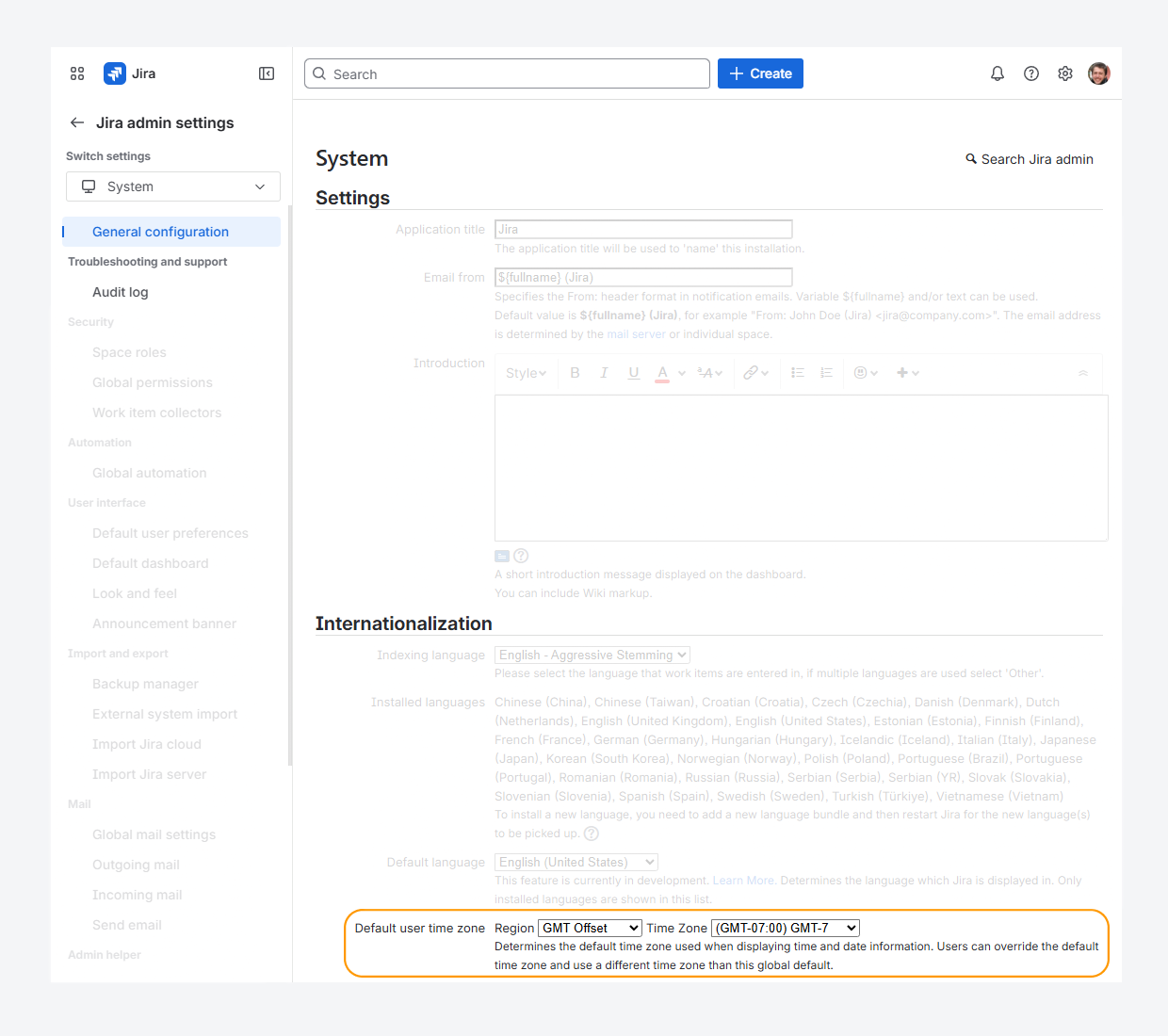
If you operate across regions that observe Daylight Saving Time (DST). Its accuracy depends on your defined Jira default time zone (called the Default user time zone).
Atlassian recommends to set this setting to match your team’s geographic location rather than a GMT offset, shown in the screenshot above, by following these steps:
-
As Jira admin, Click the Settings (gear) icon in the top navigation bar.
-
Select System.
-
On the General configuration page, click Edit settings.
-
Go to the Internationalization section.
-
For the Default user time zone, select the region that matches your computer time, such as America.
-
Select the desired the Time zone field, such (GMT-05:00) Toronto.
-20260408-210146.png?cb=fa6a2e7a42aec96337df7aba67670501)
-
Click Update.
Notes for Jira Data Center
-
If you notice that Jira does not reflect the expected time offset for your region, you can resolve this by updating the time zone data used by your environment. To do so, replace the Joda-Time file and run the tzupdater tool, by following the steps mentioned in a related article.
It is also recommended that you update your Java Runtime Environment to ensure accurate time zone handling. To do this, change the Java Virtual Machine (JVM) time zone by following the steps provided in the separate article and related article. -
If you want Jira to ignore daylight saving time (DST), you can configure a fixed GMT offset instead, as suggested by Atlassian.
-
If you are using Tempo Timesheets, you may also need to update the
JVM_SUPPORT_RECOMMENDED_ARGSsettings, as described in Tempo’s documentation.
If you have questions or need assistance, contact our support team via email or service desk. Our team is available Monday through Friday (9:00 AM to 7:00 PM GMT+7) to help with technical challenges or discuss improvements.