
Worklogs Report is a paid subscription app for Jira and Jira Service Management (JSM), available on the Atlassian Marketplace. To start your free trial or subscribe to the app, click on Try it free on the Marketplace page or follow the steps below.
How can you install Worklogs Report?
Jira Server
As of February 15, 2024, Atlassian no longer provides assistance with purchasing, renewing, upgrading, or promotion creation for any server apps for Jira, Confluence, Bitbucket, Bamboo, and Crowd.
Existing customers using Jira Software 9.13 or earlier will continue to receive Worklogs Report app updates. However, new installations on Jira Server are not possible, as the app requires a valid license to install.
Jira Data Center
As of the latest release, Worklogs Report is compatible with Data Center version 8.0.0 and above.
The steps below may vary slightly depending on your Data Center version and the Universal Plugin Manager in use. For more details on installing Marketplace apps on Data Center, refer to Atlassian’s documentation.
-
Open the Administration menu in Jira’s top navigation bar, by clicking on the gear icon.
-
From the dropdown, choose Manage apps.
-
Search for Colined.
-
Click on the Worklogs Report app in the listed results.
-20260701-152317.png?cb=d8636c968598b7287f274962ed9b02e0)
-
Click on Free trial.
-
You will be redirected to My Atlassian to get a license.
-
Enter your information and click Generate license.
-
Click Apply license or copy and paste the license key manually.
-
Once you’re ready to order Worklogs Report, please see our related article.
Can Colined help with these steps?
If you have questions or need assistance, contact our support team via email or service desk. Our team is available Monday through Friday (9:00 AM to 7:00 PM GMT+7) to help with technical challenges or discuss improvements.
FAQ
You've installed the app. Now what?
As a regular user, you can now:
-
Export reports into Excel
Once you install the app, a Jira admin can click Manage apps in the pop-up shown in the screenshot to access the app settings, which are described in a separate article.
-20260701-154913.png?cb=c25c178d69aa90cdb4defc9c9c9e3216)
For step-by-step instructions, refer to the user guide.
Troubleshooting
How can you resolve the “Something went wrong” error while loading Worklogs Report?
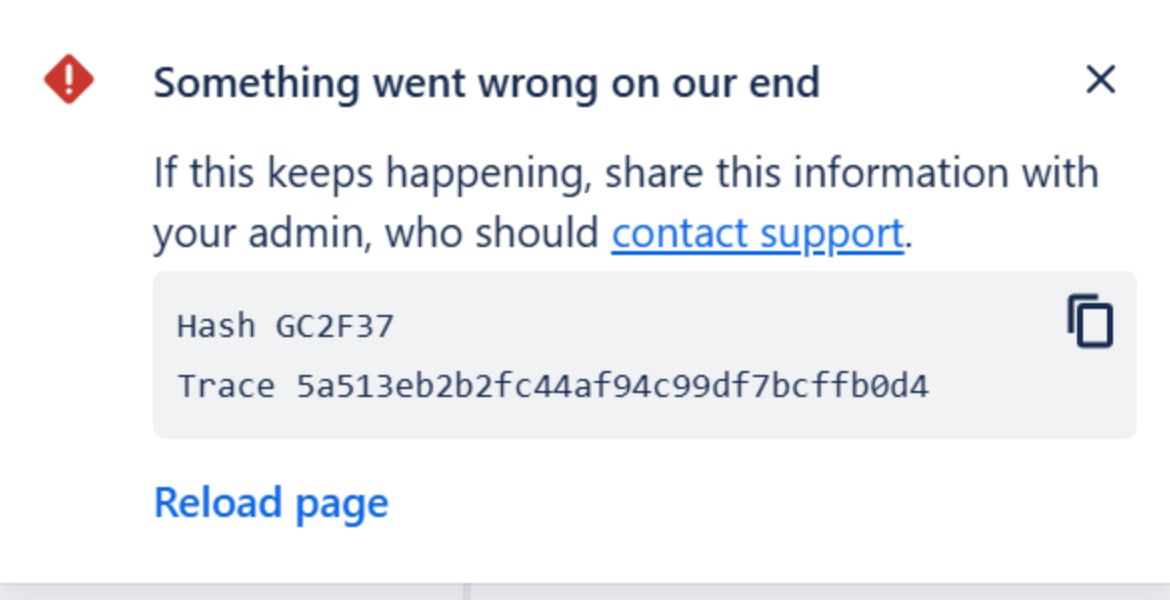
This error may appear when the app loads slowly and then fails. Common causes include:
-
Expired access token – Reload the page to see if the error no longer appears.
-
Firewall restrictions – Your firewall may be blocking the atlassian.net domain. Although .net is a common top-level domain, some customers have recently needed to explicitly allow it.