
Access to Cloud apps might be limited by your office or home network settings. This restriction can result in an error message, the content of which may vary based on your browser cache.
You might see a random assortment of text from buttons like Delete, Create, or Cancel.
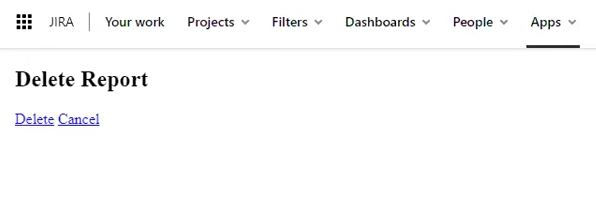
These are potential reasons causing this behavior:
-
Colined's IP address is blocked or blacklisted.
-
Domains used by Colined apps are blocked or blacklisted.
-
DNS setup is not functioning properly.
How can verify if the app is running?
-20260916-172614.png?cb=c5cebc94df34ce1df13c9cdb4b6a67b4)
When the app is operational, as indicated by a green checkmark in the screenshot above, it is functioning as expected withing your Cloud instance. You can check the app's status or determine whether an incident is causing a service disruption by visiting the status page.
If you experience slow response times or another disruption while the app is operational, follow the steps below.
How can you verify access to Colined Servers?
To verify access to Colined servers, simply click on this link: pr.colined.app/check.html
The result should be like this screenshot provided.
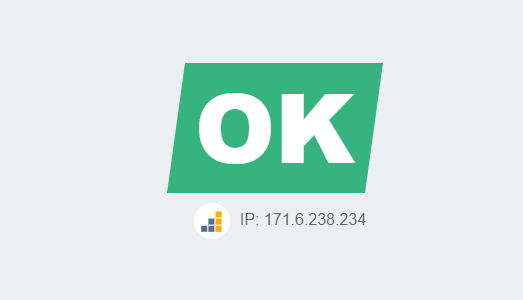
If you don't see a green text box indicating access, it may be due to your corporate network connection with a firewall or whitelisting enabled.
To check if this is the case, try using a different internet connection, such as your mobile phone's data. Switch to mobile data and re-check the link above.
Which servers should you whitelist?
Colined’s servers are hosted in DigitalOcean. More information can be found in our Cloud Security and Privacy Policy.
-
In order to use Colined apps, the follow IP has to be unblocked/whitelisted. Please check with your IT-department that IP 198.199.106.217 is available from your office network.
-
Please confirm with you IT-department that these domains are unblocked/whitelisted, as they are being used by Colined cloud apps.
-
pr.colined.app: Pivot Report app files
-
s.colined.app: CDN for static resources (CSS, images, etc.)
-
How can you resolve DNS errors?
In rare cases, access to the Colined servers might be blocked due to incorrect DNS setup, causing your network to translate URLs used by the apps to the wrong IP address.
This can be resolved through a custom DNS setup, often using a user-generated hosts file.
Steps for Windows 10
-
Press the Windows key [⊞ Win] within Microsoft Windows 10.
-
Type Notepad in the search field.
-
In the search results, right-click on Notepad and select Run as administrator.
-
From Notepad, open the following file path:
c:\Windows\System32\Drivers\etc\hosts -
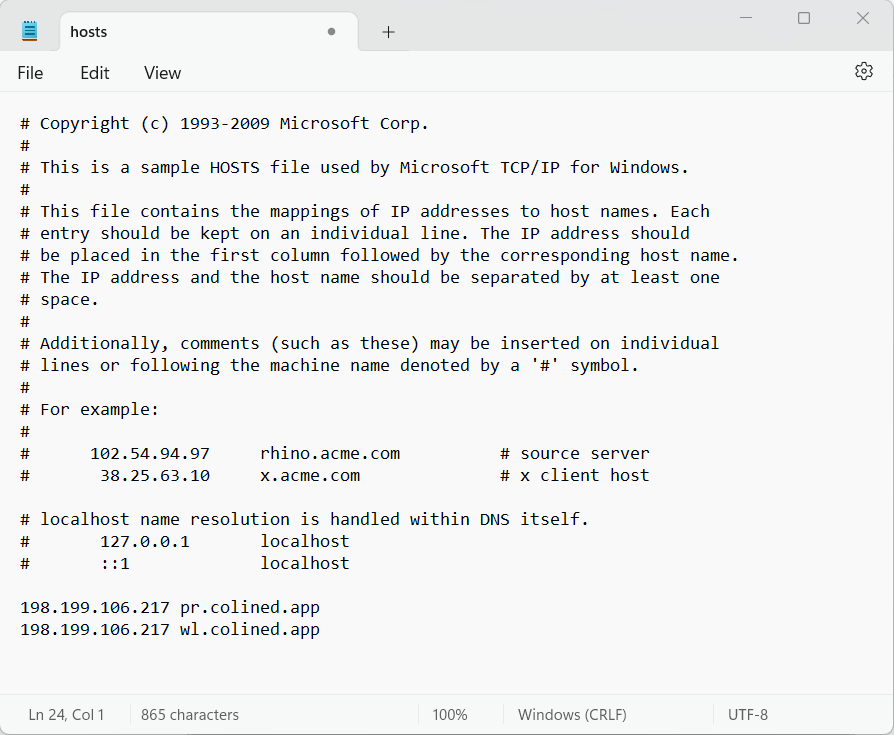
Make the necessary changes to the file, by including at the bottom of the notepad:
198.199.106.217 pr.colined.app
198.199.106.217 wl.colined.app
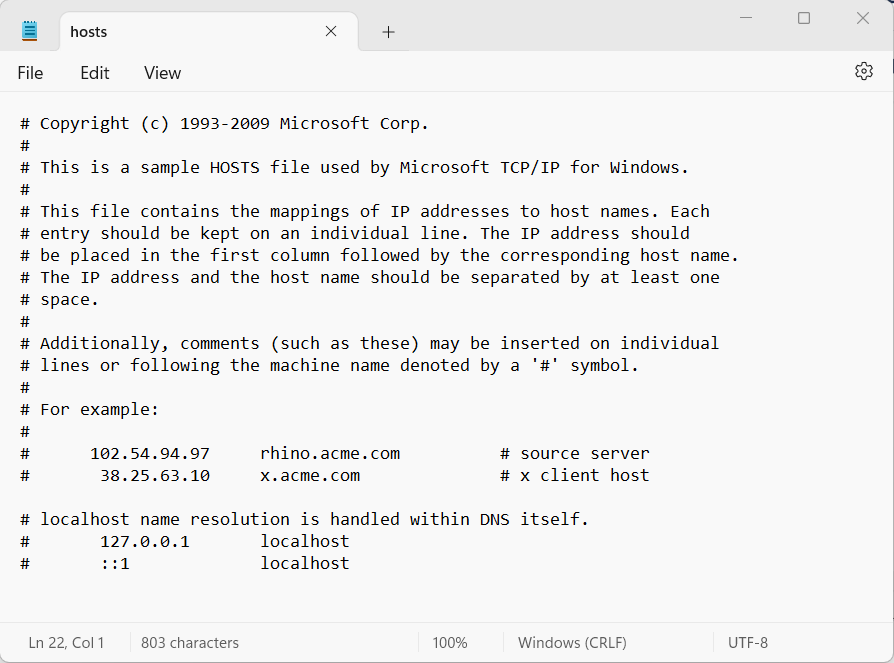
Contents PRIOR to applied changes
Contents FOLLOWING applied changes
-
Click on File and then select Save to save your changes.
Steps for macOS
-
Launch Terminal, type
sudo vim /etc/hostsand press Enter.
Enter your administrator password (if needed). -
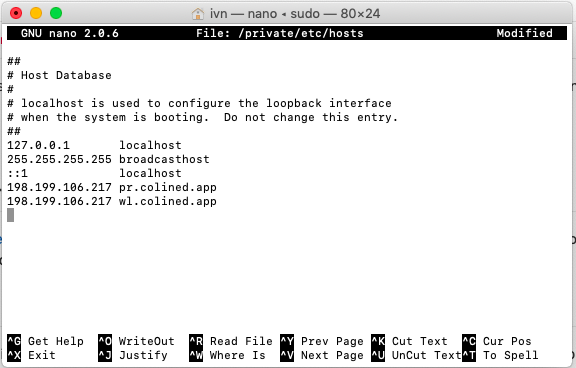
You will now have the hosts file open.
-
Make the necessary changes to the file, by including:
198.199.106.217 pr.colined.app 198.199.106.217 wl.colined.app -
Press Control-O to save the file.
-
You may need flush the cache with
dscacheutil -flushcache
Steps for other operating systems
For other operating systems, the process is similar. If you need assistance, please reach out to your IT department or search online for instructions on how to add a hosts file for your specific operating system.
What can you do if the error persists?
This procedure aids in resolving the error. If the error persists, follow these steps: capture a screenshot of the gadget displaying the error code, generate HAR files, and include both files along with a description of your reproduction steps in an email to our Support team support@colined.com.
If you have questions or need assistance, contact our support team via email or service desk. Our team is available Monday through Friday (9:00 AM to 7:00 PM GMT+7) to help with technical challenges or discuss improvements.