
This article explains how to verify and troubleshoot errors in JQL queries when creating a report, modifying its source, or adding a JQL Post Filter.
How can you verify a source using a JQL query?
Whether you create a report from the Create New Report pop-up on the Manage Pivot Reports page or edit the source from the report sidebar, follow these steps to verify JQL search results:
-
Verify that the Source type is set to JQL / Search results.
-
Enter the JQL query to be used in the report.
-
Verify which checkmark appears:
If the query is valid, a green checkmark appears. No other action is required, and you can skip the remaining steps.
-20251002-025750.png?cb=a7d8ecfb670cbb6d75be794fc51cc64b)
If the query is invalid, a red checkmark appears.
-20251002-025258.png?cb=3ad4166fc9ba761a7cd6931466346398)
-
If the query is invalid, click Search.
-
Troubleshoot the query using Basic or Advanced JQL search modes in the Issue Navigator.
-
After the errors no longer appear in the Issue Navigator, copy the JQL query from Advanced JQL search mode back to the report.
-
Click Save and Reload.
Repeat these steps when troubleshooting a JQL Post Filter after entering a query in the Related work items section of the Source tab in the report sidebar.
How can you switch to Basic or Advanced search?
In the Issue Navigator, you can switch between Basic and Advanced (JQL) search modes.
If Basic mode is selected, click JQL to switch to Advanced mode.
If Advanced (JQL) mode is selected, click Basic to switch back.
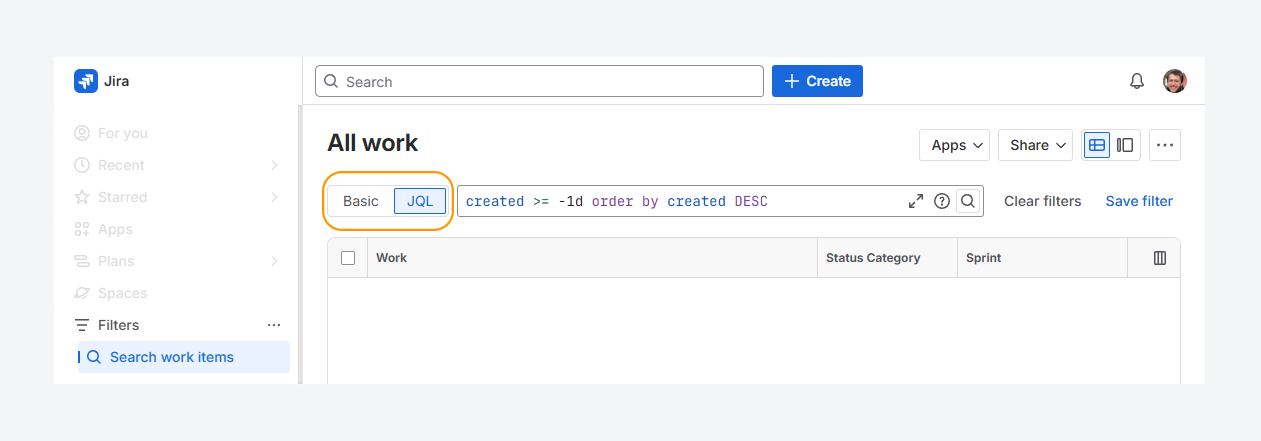
For more details on using Basic / Advanced search for Cloud and Basic / Advanced search for Data Center, refer to Atlassian's documentation.
How can you troubleshoot edge cases?
Private Space
-20260710-202419.png?cb=551a25744b998c2d66fcae7b4b7cd311)
The error message above appears when you no longer have access to a space referenced in a JQL query.
Contact a Space admin or Jira admin to request access.
Nested filters
-20260710-202045.png?cb=6a04c11a261cdaa0303c5ad5a7bde6c9)
The error message above appears when you no longer have access to a nested filter referenced in the JQL query.
Contact a Jira admin to request Viewer access, Editor access, or both.
Missing work items
If you suspect that some work items are missing from the Issue Navigator search results while no errors appear, contact a Jira admin to verify that you have permission to view all work items in the space, including work items restricted by an Issue Security Scheme.
For example, you may only see work items assigned to you and not all work items in a space, as described in the related article.
Unbound query
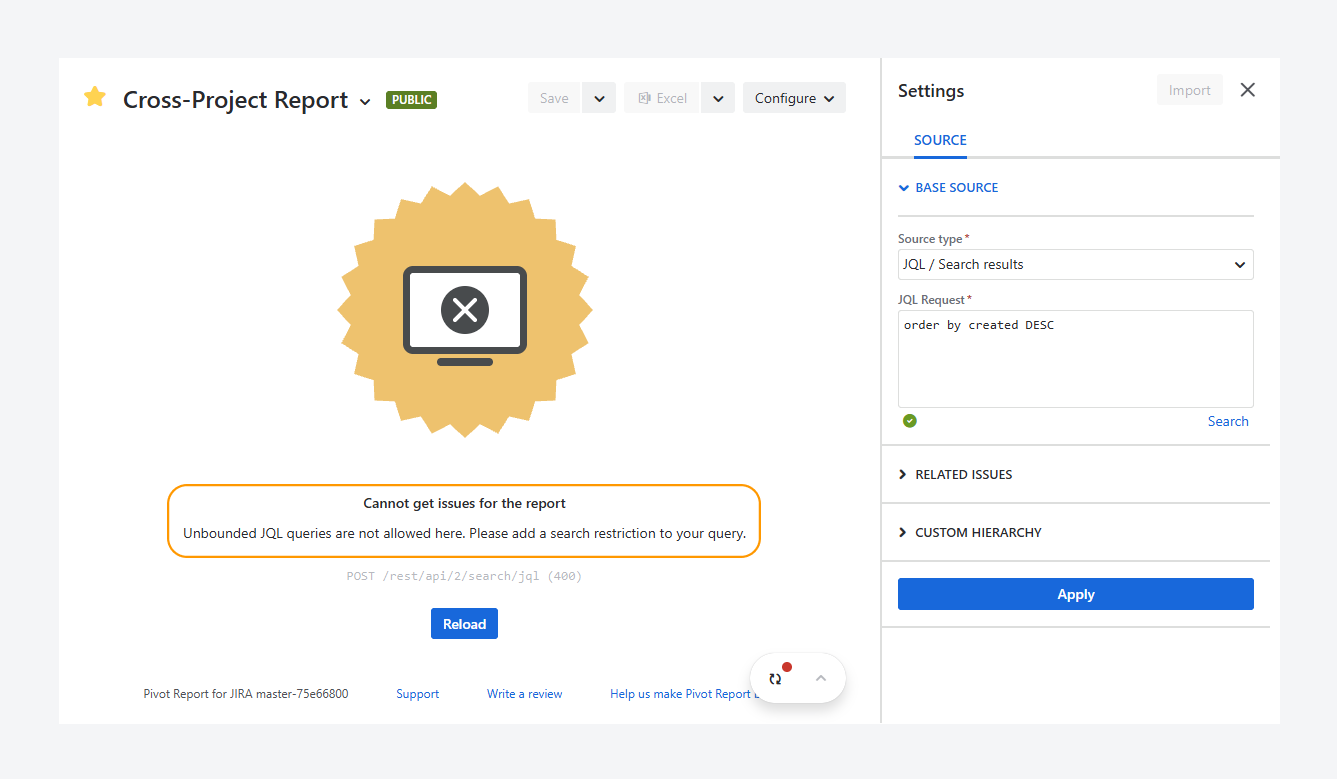
The error message above appears when you use an unbound JQL query in a report source. It can appear even when the query is valid, as indicated by the displayed green checkmark.
Refer to the related article to troubleshoot this error.
Archived Space
-20260710-183749.png?cb=8d397bb086fdac29596e663488331329)
The error message above appears when a JQL query points to an archived space. Even if you previously had permission to access the space, archived spaces are excluded from search results.
Request that a Jira admin unarchive the space.
Deleted work item
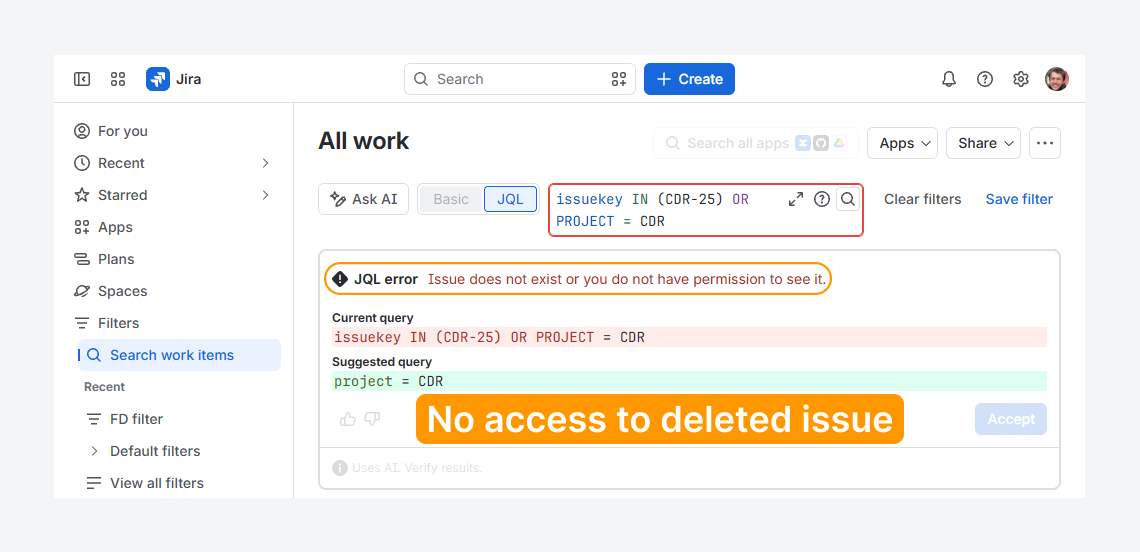
The error message above appears when a JQL query points to a deleted work item in a space that you have permission to access.
While you can access other work items in this space, deleted work items cannot be restored natively in Jira.
If you have questions or need assistance, contact our support team via email or service desk. Our team is available Monday through Friday (9:00 AM to 7:00 PM GMT+7) to help with technical challenges or discuss improvements.