
Pivot Reports, like Boards, Spaces, and Saved Filters in Jira, are named entities that can be edited within the report sidebar.
Why and how should you edit the name and description?
Over time, a report's audience and focus may shift, even if its configurations stay the same. Updating the report's name and description to align with its current scope helps users understand its purpose before exploring its tabs.
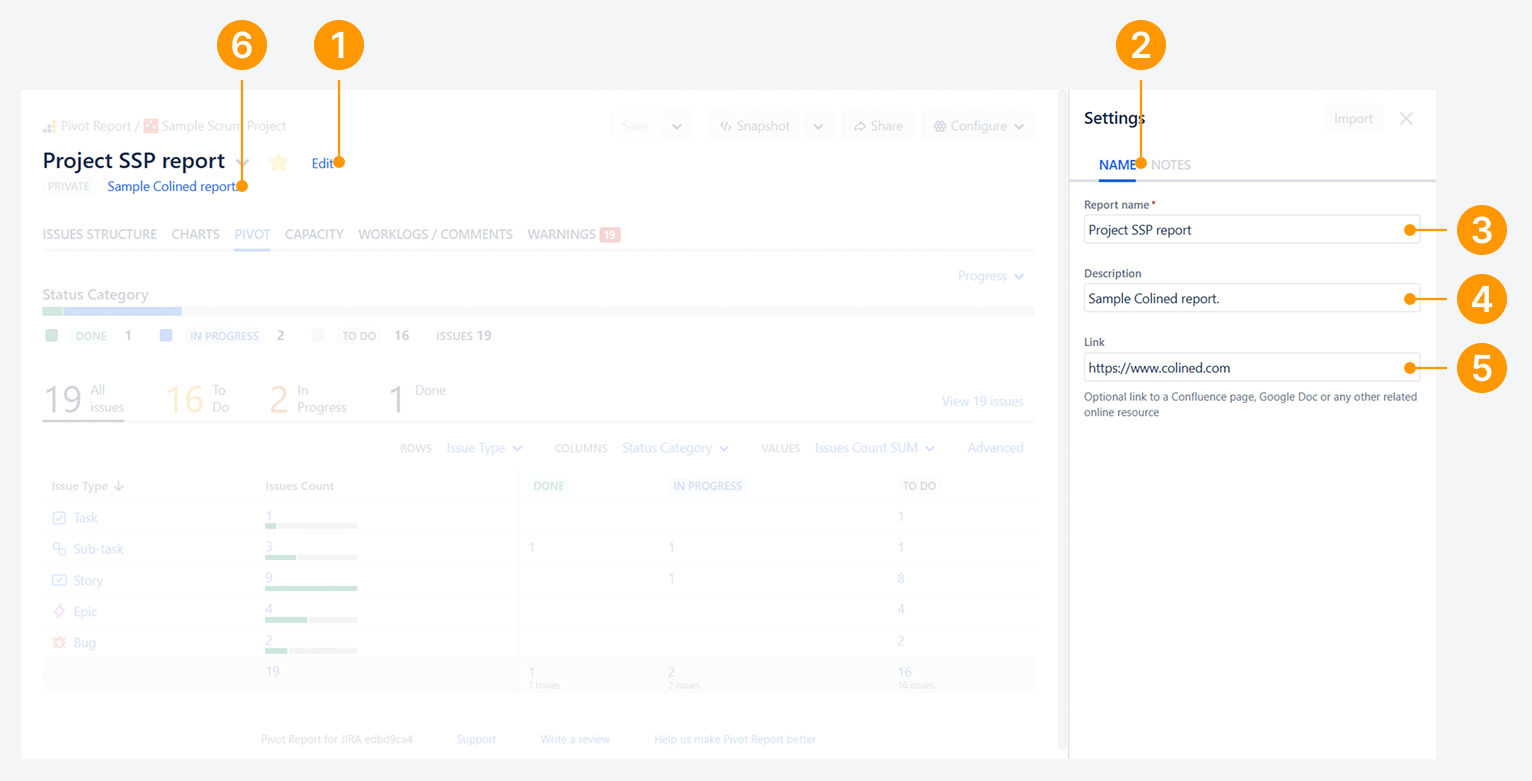
As a report owner or administrator, follow the steps shown below to access the Name and Notes tabs in the report sidebar. These tabs include the report's name, description, and additional notes, as demonstrated in the two examples provided.
Can a report be nameless?
The Report name field is mandatory. You cannot save a report without a name.
Can a report name and its description be auto-generated?
The report name and description are automatically generated when creating a report from a Board, an Work item, widgets, a Saved filter, or JQL/search results in the Issue Navigator. Both can be modified by using the steps in the following sections.
Why should you add a hyperlink to a description?
In the header section, you can add a hyperlink to an external webpage—such as a Confluence article, web document, or other relevant resource. This link can explain the source data or provide context for the report’s insights.
How can you change the report name, description, and hyperlink?
To configure the report name, description, and hyperlink fields:
-
Hover over the report name in the header and click the Edit link.
-
In the report sidebar, go to the Name tab.
-
Modify the report title. This title appears in both the header and the report list.
-
In the Description field, enter supporting text to explain the report’s purpose (max 1024 characters).
-
In the Link field, enter the URL to a Confluence article or other external page.
-
The Description takes on a Dynamic or Static behavior, as noted below.
Dynamic Behavior
-
If the ‘Description’ is empty and a ‘Link’ is provided, a clickable link appears below the report name.
-
If both a ‘Description’ and a ‘Link’ are provided, the Description becomes a hyperlink.
Static Behavior
-
If a ‘Description’ is provided but there is no ‘Link’, the text appears as plain text below the report name.
Why and how should you use Notes?
You can use the Notes comment box to add retrospective meeting minutes, observations about the report, or other internal notes. This box supports up to 1024 characters and offers more space than the ‘Description’ for easier editing.
To access it:
-
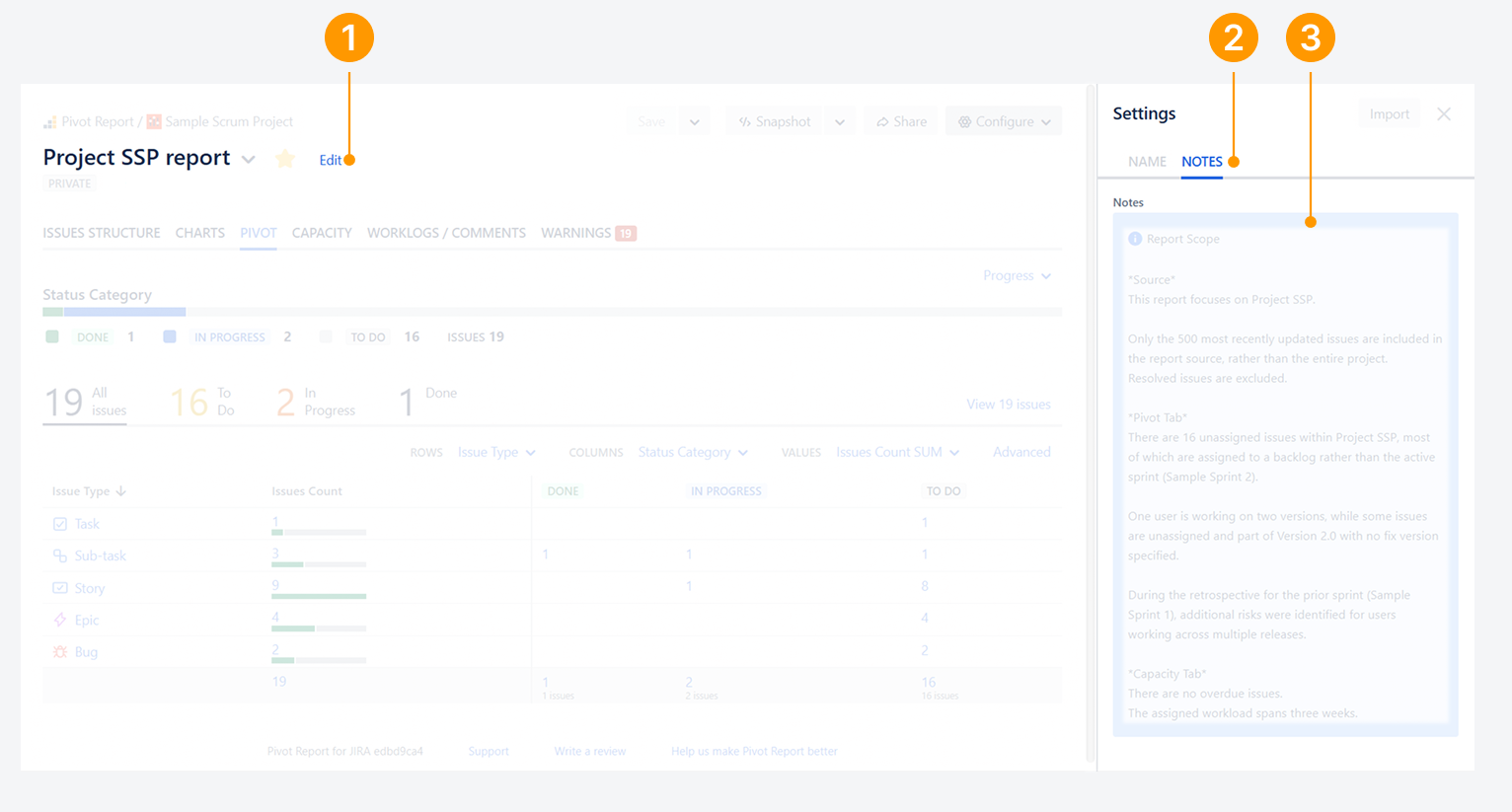
Hover over the report name in the header and click the Edit link.
-
In the report sidebar, select the Notes tab.
-
Click inside the Notes panel to enter your content in the text box.
How do Notes appear in the header section?
To view notes from the header section:
-
Hover over the notes icon below the report name. If no notes are present, the icon will not appear.
-20250718-000353.png?cb=ee897cf0bd6046c0895fb942f2b6b484)
-
Click the icon to open the full notes in the report sidebar.
-20250718-135525.png?cb=1588f288d3b421af0cfc5955cf087699)
How do Notes appear in the report sidebar?
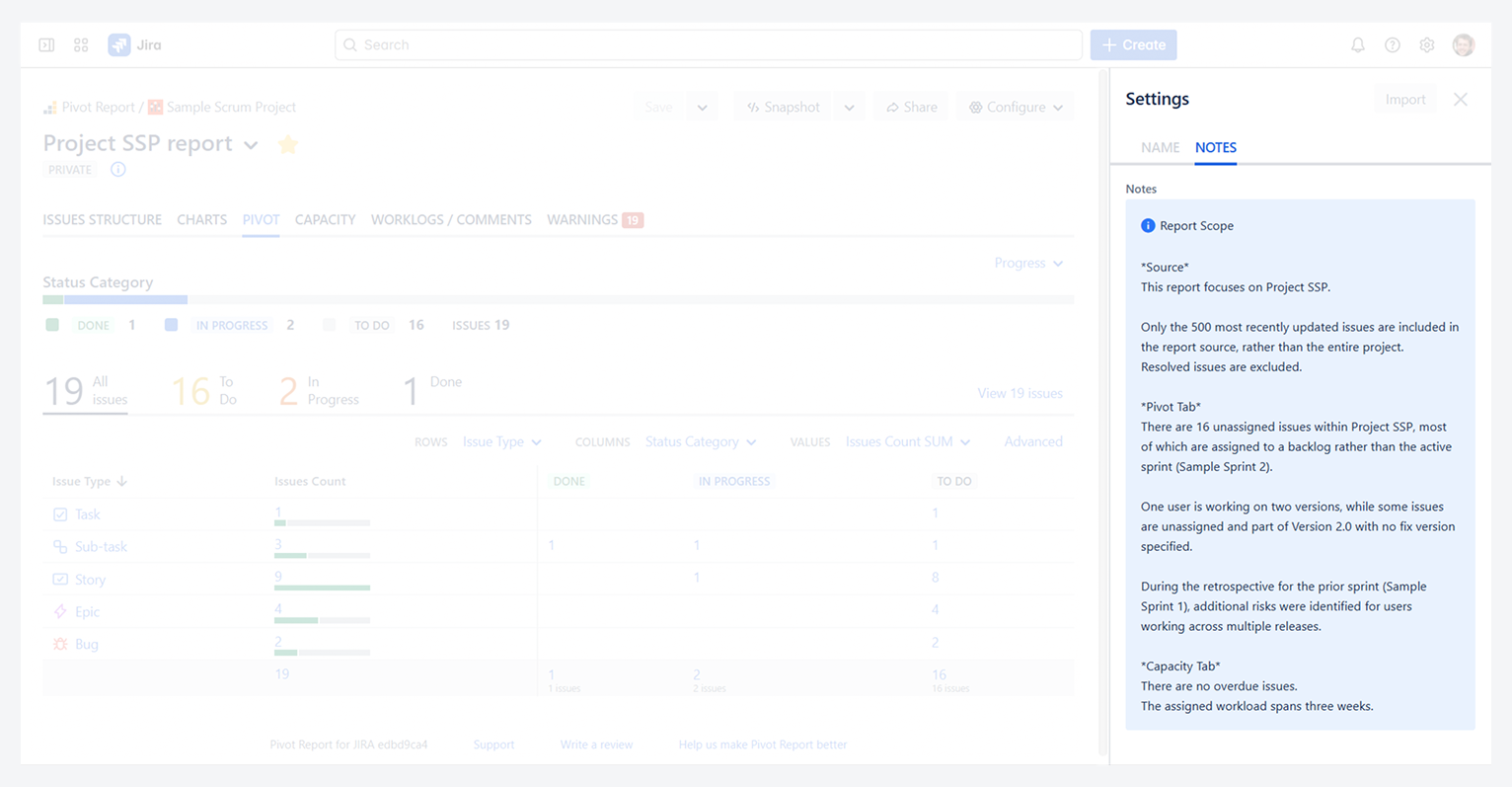
As shown in the previous screenshot, the ‘Notes’ panel appears as a blue box with a text area that resizes automatically. In this example, it displays the report’s goals.
How else can you use Notes?
The ‘Notes’ tab in the report sidebar can capture sprint retrospective notes, insights across multiple active tabs, and details about the report source, as illustrated in the screenshot below.
FAQ
If you have questions or need assistance, contact our support team via email or service desk. Our team is available Monday through Friday (9:00 AM to 7:00 PM GMT+7) to help with technical challenges or discuss improvements.