
This article explains how progress indicators based on issue count, such as Completion Rate, appear by default and how those indicators can be configured to consider only leaf issues.
How is progress calculated by default?
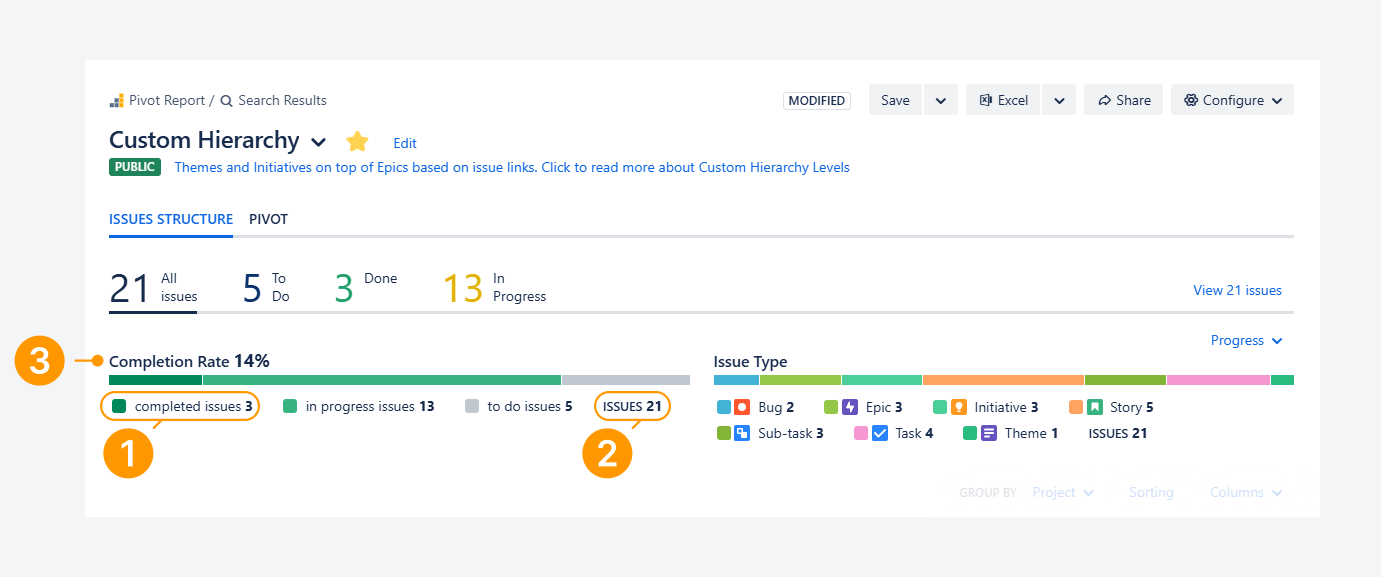
When the app is installed, based on the default settings, the Completion Rate indicator is composed of three elements:
-
Completed issues: The number of issues in the Done status category. This value is used as the numerator in the Completion Rate calculation.
-
Issues: The total number of issues, regardless of issue type. This value is used as the denominator in the Completion Rate calculation.
-
Completion Rate: A percentage calculated by dividing the number of completed issues by the total number of issues. In the example above, 3 out of 21 issues are in the Done status category. Dividing 3 by 21 results in a Completion Rate of 14%.
How is progress calculated when using leaf issues?
-20260528-040918.png?cb=f3d15e1dd118b7bd584b11d9b10f1684)
When you modify issue count–based progress indicators to include only leaf issues, both the number of completed issues and the total issue count may change.
After this adjustment, the Completion Rate indicator is calculated using three elements:
-
Completed issues: The number of leaf issues in the Done status category. This value is used as the numerator in the Completion Rate calculation.
-
Issues: The total number of leaf issues, regardless of issue type. This value is used as the denominator in the Completion Rate calculation.
-
Completion Rate: A percentage calculated by dividing completed leaf issues by total leaf issues.. In the example above, there are still 3 leaf issues in the Done status category, but the total number of leaf issues decreases to 13. As a result, dividing 3 by 13 produces a Completion Rate of 23%.
You can test these settings by using the available demo.
What are leaf issues?
Whether you use a default or custom issue hierarchy, issues are organized into a tree structure. A leaf issue is any issue that does not have child issues.
A leaf issue can be of any type—such as a story, bug, task, or sub-task—as long as it is the lowest-level item in a branch of the hierarchy.
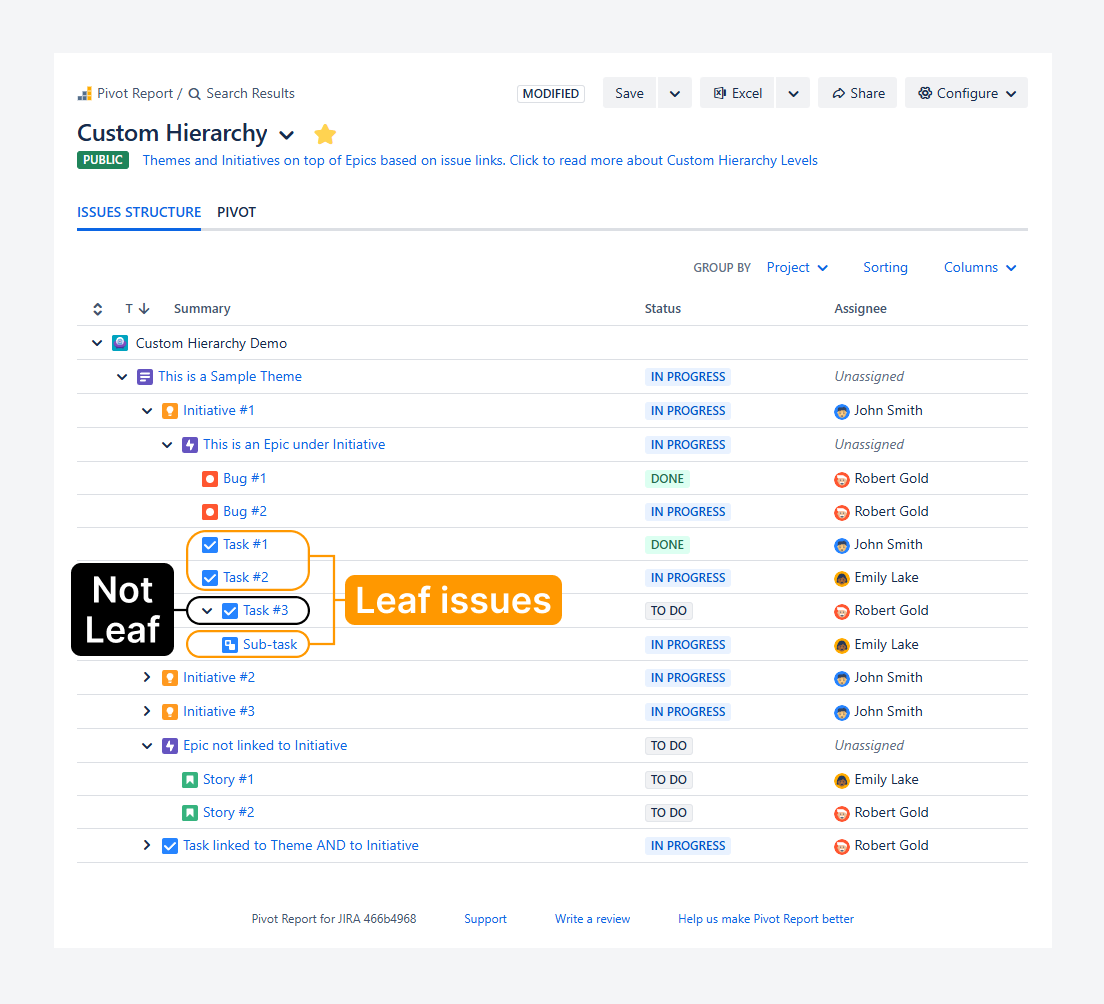
Within the example:
-
Tasks with no child issues are leaf issues, such as Tasks #1 and #2.
-
A task with sub-tasks is not a leaf issue because it has child issues, such as Task #3. In contrast, the Sub-task is a leaf issue since it has no children.
Why use leaf issues when calculating progress?
When parent issues act only as containers—without logged time and with statuses updated only after all child issues are complete—using leaf issues provides a more accurate view of progress.
Features and use cases
Display a more accurate completion rate
-20260512-050336.png?cb=c3f6f6d8489e67a06cf8d99376a6c285)
Parent issues do not always reflect true progress when they are used as containers.
In the example above, only one story (Story #3) is in the Done status category. The Epic will remain incomplete until all three stories are finished, and no work is typically logged against it, as is expected for parent issues used as containers.
When parent issues are included in the calculation, 3 out of 21 issues are completed, resulting in a 14% completion rate.
-20260512-052554.png?cb=3459150f26d797ae66682772145d799a)
By focusing only on leaf issues, the progress calculation becomes more accurate because parent container issues are excluded.
In this case, there are 3 leaf issues in the Done status category (Bug #1, Task #1, and Story #3) out of 13 total leaf issues, resulting in a 23% completion rate.
Extend the report source
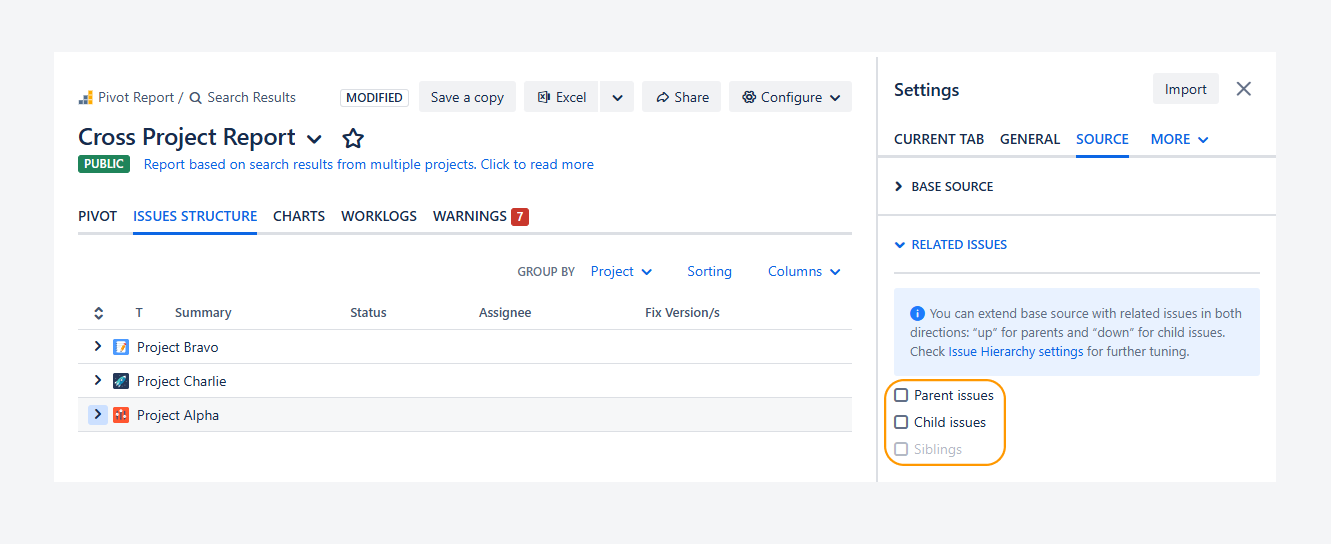
When creating or editing a report, you can extend it to include parent and child issues using several options. These options determine which leaf issues are used in progress indicators.
-
Extend with parent issues: Includes the parent of each issue in the report source. For example, if your source includes Stories, this adds their parent Epics. In this case, Stories remain the leaf issues.
-
Add sibling issues as well: Includes issues that share the same parent. For example, if your source includes Stories, this adds other issues under the same Epics, such as additional stories and their sub-tasks. In this case, sub-tasks become the leaf issues.
-
Extend with child issues: Includes child issues for each item in the report source. For example, if your source includes Stories, this adds their sub-tasks. In this case, sub-tasks are the leaf issues.
Filter rollup fields and show the count per status
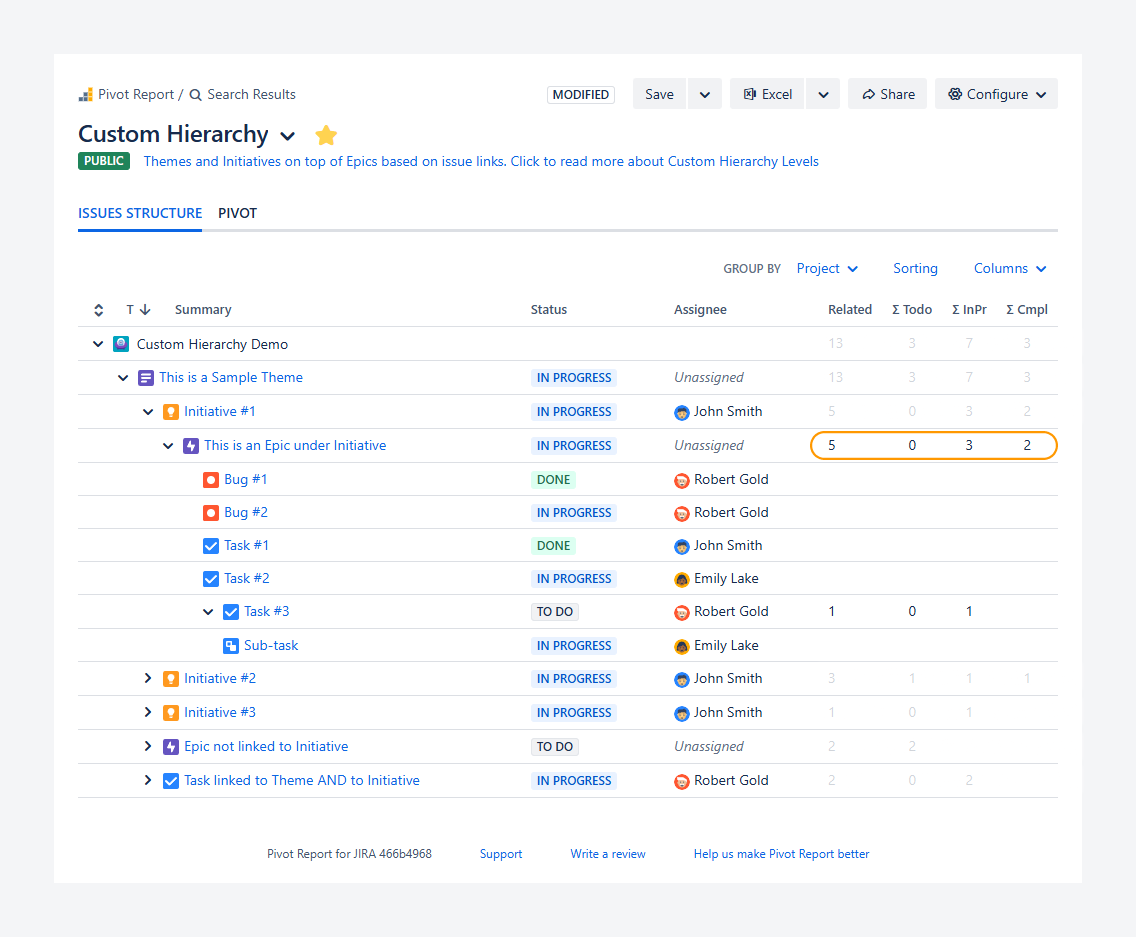
You can filter rollup fields—such as ∑ Related issues, ∑ Related issues Completed, ∑ Related issues In Progress, and ∑ Related issues To Do—to include only leaf issues.
This approach is useful when status updates are tracked only at the leaf level. For the Epic shown:
-
There are 5 child issues (2 bugs, 2 tasks, and 1 sub-task).
-
3 issues are in progress (shown in the ∑ InPr column).
-
2 issues are completed (shown in the ∑ Cmpl column).
To display filtered rollup fields:
-
In the General tab of the report sidebar, go to the Misc section.
-
Enable Leaf issues only.
-
In the report summary section, click Columns.
-
Select the related issue rollup fields you want to display.
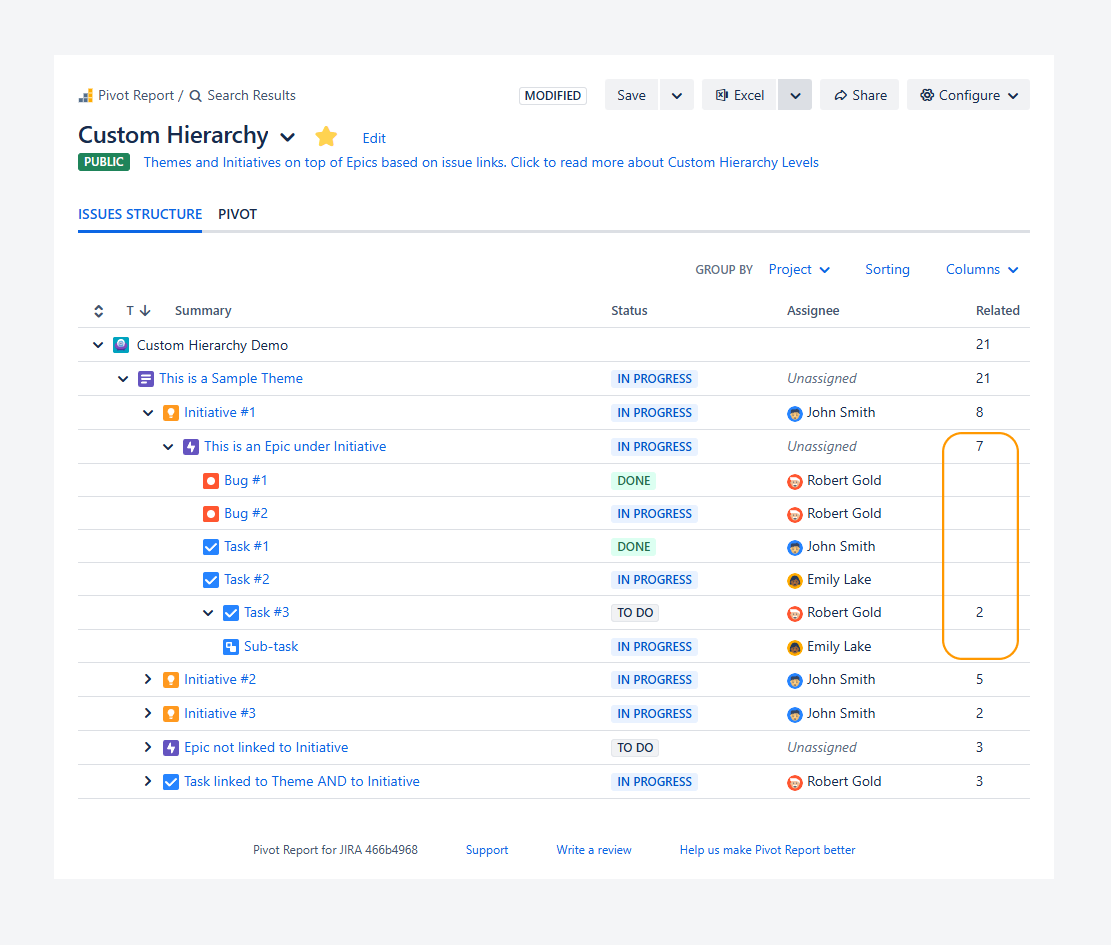
When these fields are not filtered, all issues under a parent—including the parent itself—are considered. In the example below, the ∑ Related issues column counts 7 issues for an Epic (1 Epic, 2 bugs, 3 tasks, and 1 sub-task).
Display filtered progress
-20260430-024011.png?cb=ccf19906949ea57fc92095bad709502f)
You can configure the Completion Rate progress indicator to count only leaf issues in the report summary section in Jira.
In the example above, the progress indicator shows a 40% completion rate, based only on the 5 child issues in the Epic (2 bugs, 2 tasks, and 1 sub-task). This approach is useful when work is logged at the leaf level, while progress is tracked at the parent level.
To display this filtered progress indicator:
-
In the General tab of the report sidebar, go to the Misc section.
-
Enable Leaf issues only.
-
In the report summary section, click Columns.
-
Select Completion Rate.
How can you use progress indicators based on leaf issues only?
Follow these steps to control whether progress indicators based on issue count use all issues or only leaf issues:
-
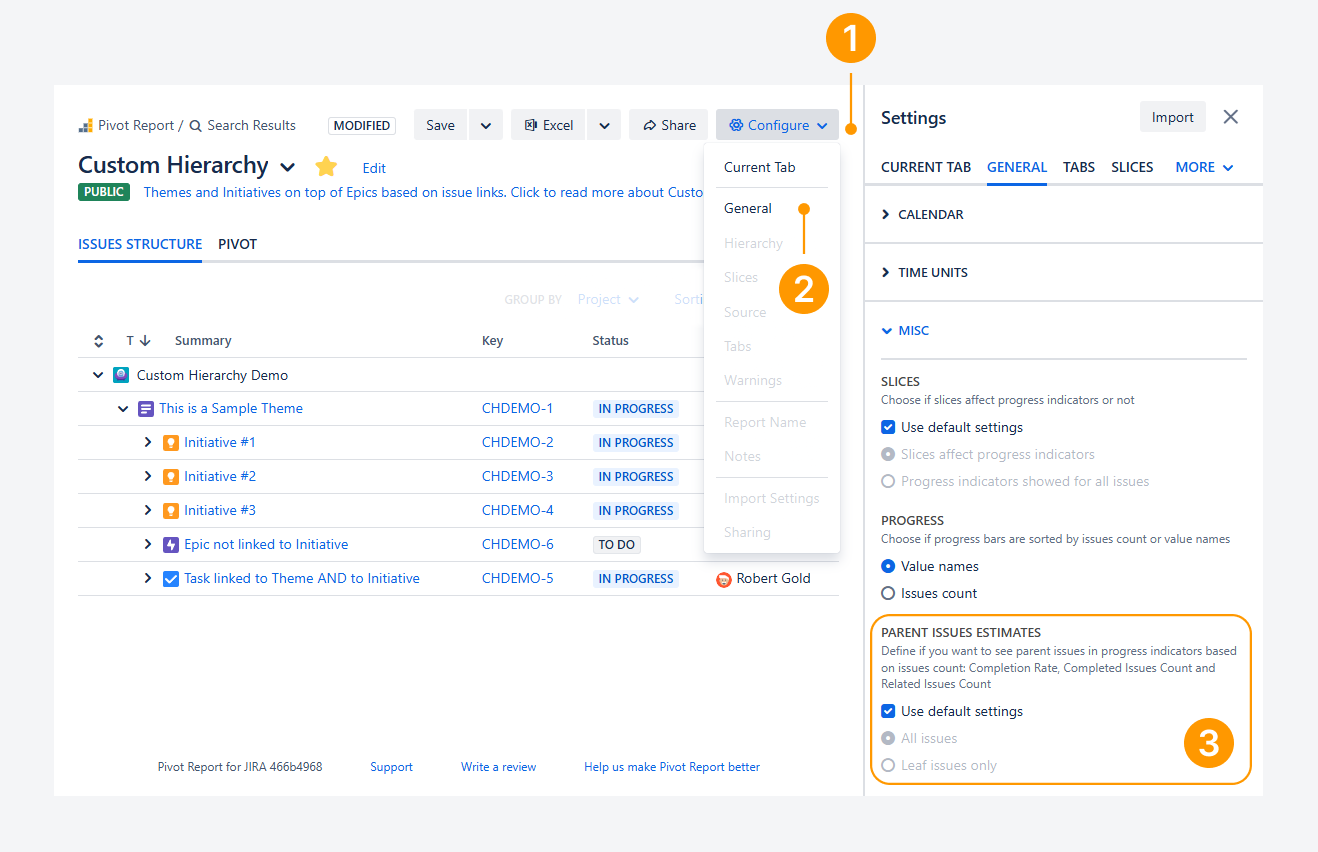
Click Configure in the header.
-
Select General from the dropdown.
-
Open the Misc section and choose one of the following options:
-
Use default settings: Applies the app-level behavior (selected by default when a report is created).
-
All issues: Includes all issues when calculating progress.
-
Leaf issues only: Uses only leaf issues when calculating progress.
Why and how should you change settings at the app level?
After installing the app, All Issues is selected by default. This setting includes all issues in the hierarchy when calculating progress for indicators based on issue count.
It is most suitable when the status of container issues—such as Epics and Stories—is updated throughout the project duration, rather than only after all child issues (such as sub-tasks) are completed.
If your teams follow a consistent approach across projects and you want progress calculations to include only leaf issues for issue count–based indicators, you can change this setting at the app level. To do so, follow these steps as a Jira admin:
-
Open the Settings menu in Jira’s top navigation bar, by clicking on the gear icon.
-
From the dropdown, choose Manage apps.
-
Under Pivot Report, click Settings.
-
On the Pivot Report Settings page, select the General tab.
-
Navigate to the Parent issues estimates section, select Leaf Issues Only.
FAQ
What happens if you assign deliverables under stories or bugs in Jira?
A leaf issue can be of any type.
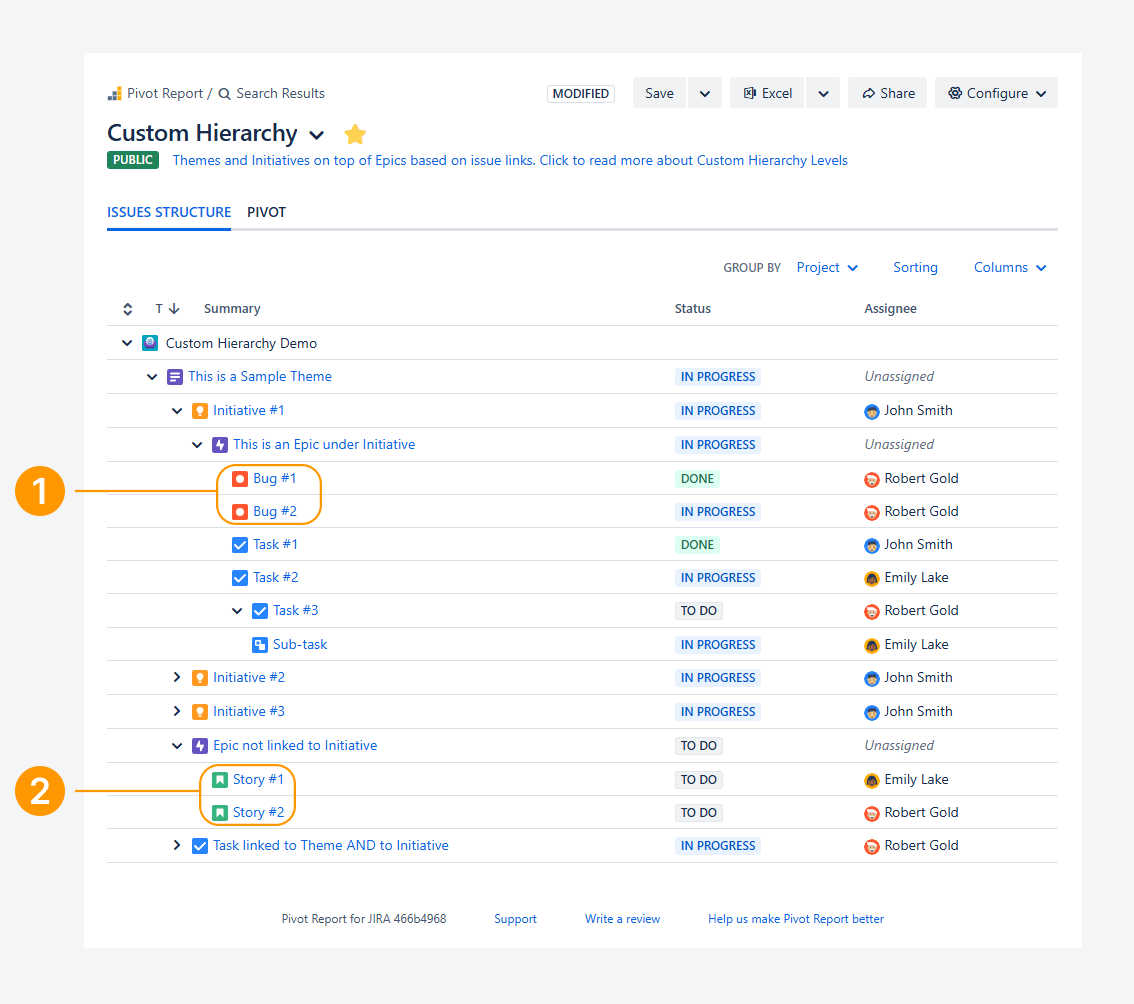
Within the example:
-
Stories with no child issues are leaf issues, even if they have a different parent (such as an Epic) than other leaf issues.
-
Similarly, Bugs are also are leaf issues, in the above hierarchy.
If you create a child issue type (similar to a sub-task) under stories or bugs, those child issues become the lowest-level items in the hierarchy.
As a result:
-
Each child issue under a bug is considered a leaf issue.
-
A bug that has child issues is not a leaf issue.
-
A bug with no child issues remains a leaf issue.
If you have questions or need assistance, contact our support team via email or service desk. Our team is available Monday through Friday (9:00 AM to 7:00 PM GMT+7) to help with technical challenges or discuss improvements.