
This article explains how to exclude custom fields and optimize Epic extension.
Why should you exclude specific custom fields from reports?
Pivot Report supports all types of custom fields. However, importing calculated fields from Jira Data Center can slow down report loading times.
For example, using 700 calculated fields created with ScriptRunner by Adaptavist can noticeably impact the app’s performance.
To optimize loading times, you can exclude specific custom fields from your reports by selecting the appropriate checkboxes.
How can you access custom field options?
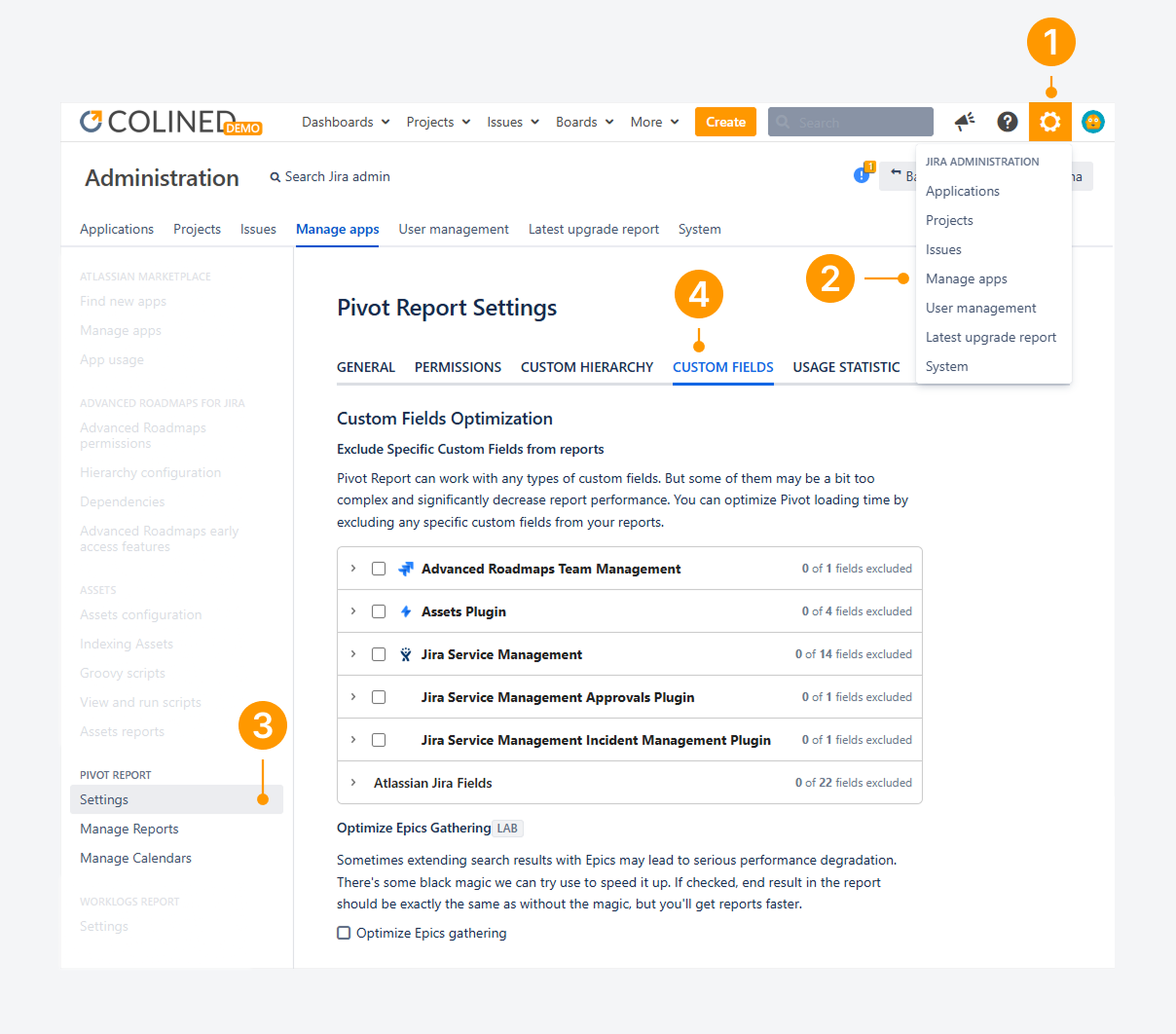
As a Jira admin, you can access Custom Field Optimization options by following these steps:
-
Click the cogwheel to open the Administration dropdown.
-
Select Manage apps.
-
Under Pivot Report, click Settings.
-
On the Pivot Report Settings page, click the Custom Fields tab.
Why should you optimize epics gathering?
Including Epic issues in search results can sometimes cause severe performance issues, especially if an Epic has many child issues. To help prevent this, Colined can adjust your application’s back-end settings.
If you have questions or need assistance, contact our support team via email or service desk to schedule a call. During the call, we will guide you on when to check Optimize Epics Gathering. This option preserves the report’s contents but may slightly increase load times.
-20260228-042733.png?cb=1696f4736bba781c40081eb6eab4d4e4)
Will custom fields from other apps be supported?
Yes. Pivot Report currently supports custom fields created using Power Custom Fields for Jira by Appfire and Jira Workflow Toolbox by Decadis AG.
Can you customize Marketplace apps?
Yes. If these apps are installed, a table appears within Pivot Report Settings page, which you can use to select display templates for proper field rendering.
Some apps create complex fields that slow down or prevent the loading of the Pivot Report. There is a way to load the report with the default field in debug modes and use this tool to determine which specific fields are affected the report.
If you have questions or need assistance, contact our support team to schedule a call. During the call, we will guide you on when to select display templates.
If you have questions or need assistance, contact our support team via email or service desk. Our team is available Monday through Friday (9:00 AM to 7:00 PM GMT+7) to help with technical challenges or discuss improvements.