
This article introduces each section of the app settings.
If you want to modify project-level settings, such as whether users can create reports from the Issue view, see the related article.
Which settings can you modify?
Settings
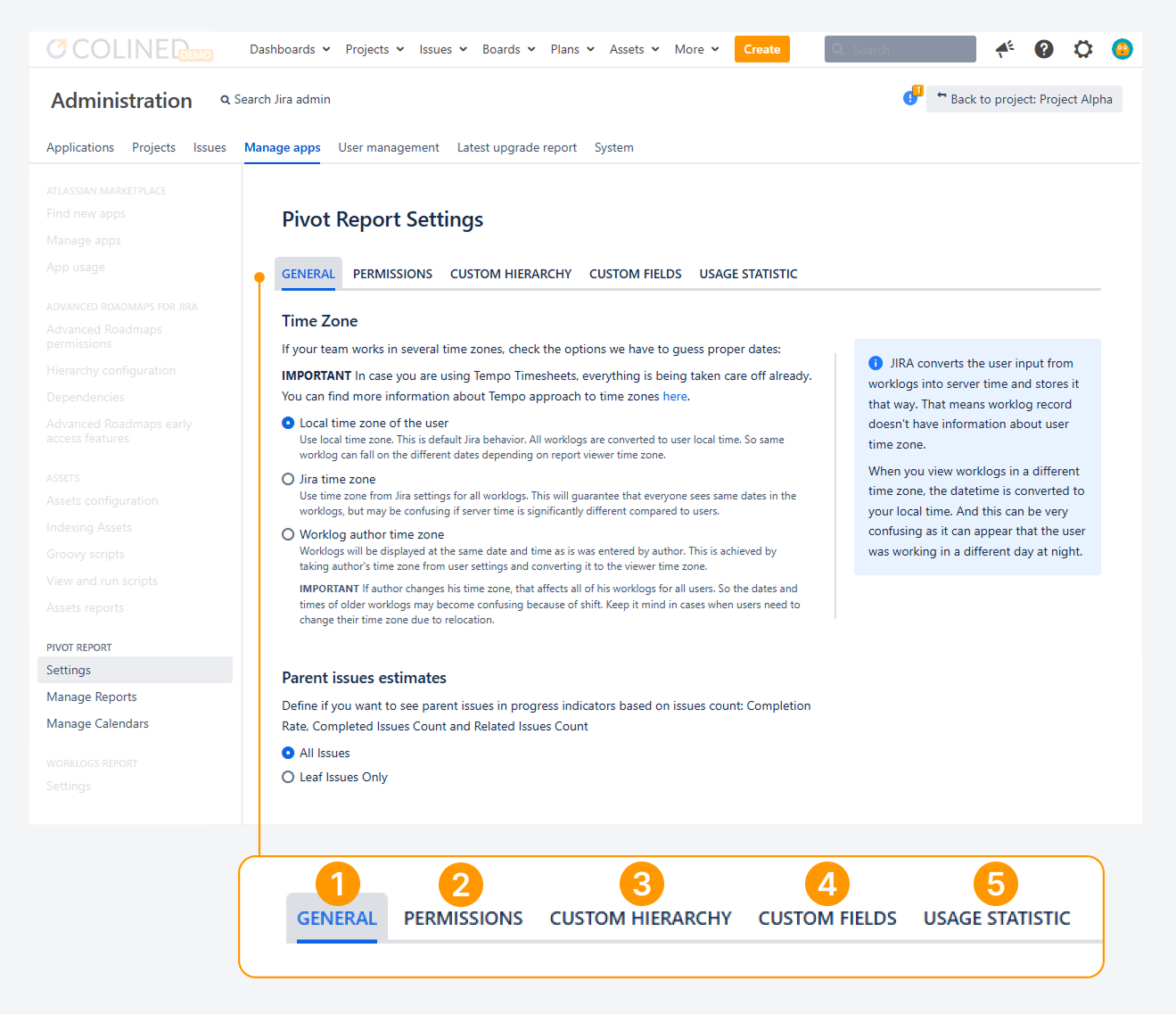
When you click Settings, the Pivot Report Settings page opens on the General tab by default.
-
Settings > General: Use this tab to manage how worklogs and report sections appear.
-
Time Zone: Control how worklogs are displayed in reports when they are entered from multiple time zones.
-
Parent issues estimates: Define how the Completion Rate progress indicator is calculated.
-
Slices and Progress: Determine whether slices affect progress indicators.
-
-
Settings > Permissions: Use this tab to control access to the app and its content.
-
Users and user groups: Define who can access the app.
-
Public reports restrictions: Control who can view public reports.
-
Worklogs tab restrictions: Define who can access the Worklogs tab content.
-
-
Settings > Custom Hierarchy: Use this tab to define a default hierarchy applied to all reports. This avoids the need to modify your issue hierarchy directly in Jira. You can still override this hierarchy within individual reports.
-
Settings > Custom Fields: Use this tab to exclude custom fields and optimize Epic extension. This helps improve report loading time in Jira.
-
Settings > Usage Statistics: Use this tab to enable the app to collect usage data. This information helps with troubleshooting and allows Colined to better understand how reports are used.
Other settings
-
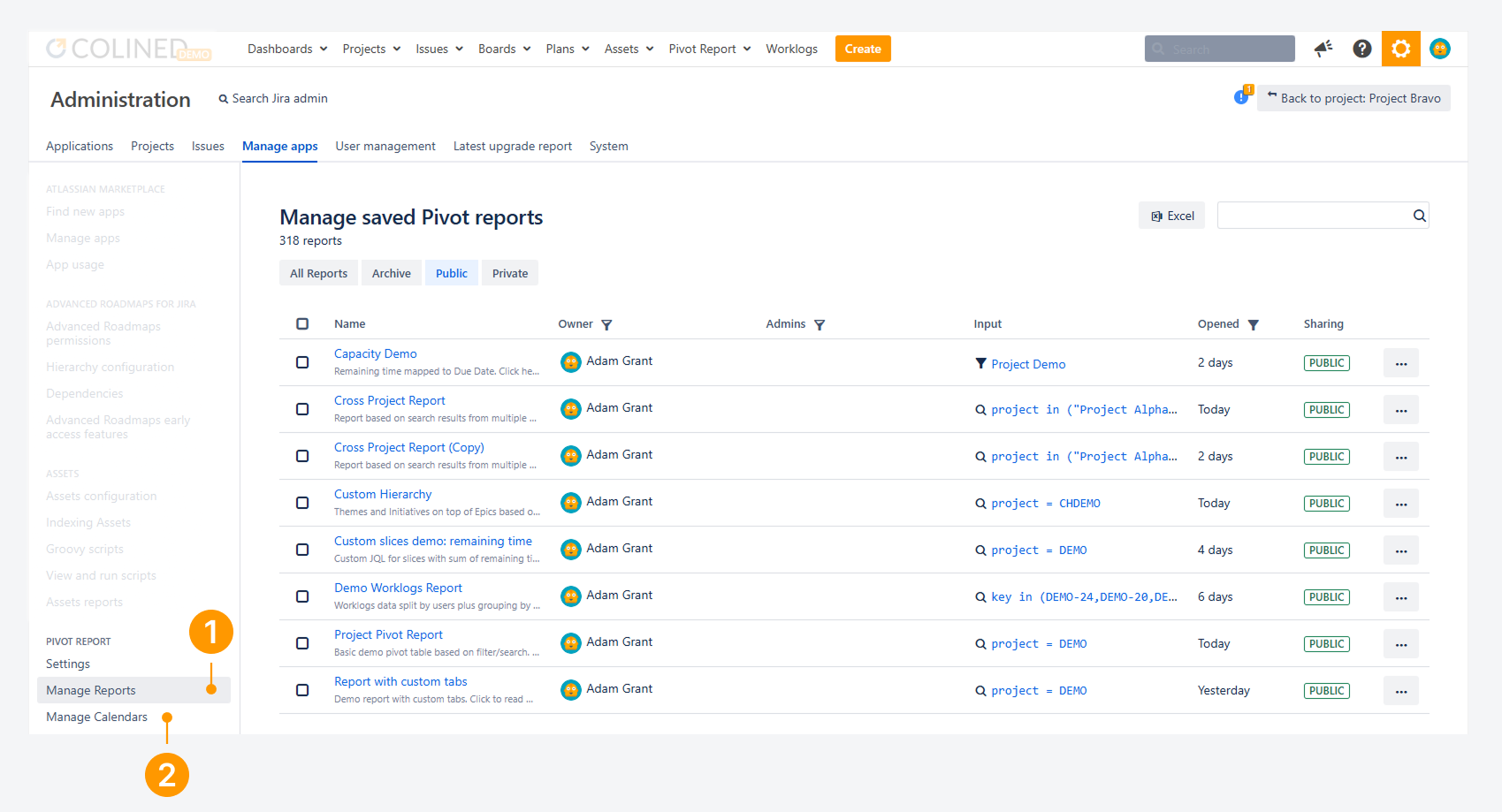
Manage reports: Use this page to transfer ownership, copy, archive, unarchive, or delete reports (individually or in bulk). You can also view all reports and update their settings.
-
Manage Calendars: Use this page to define default and custom calendars.
How can you access app settings?
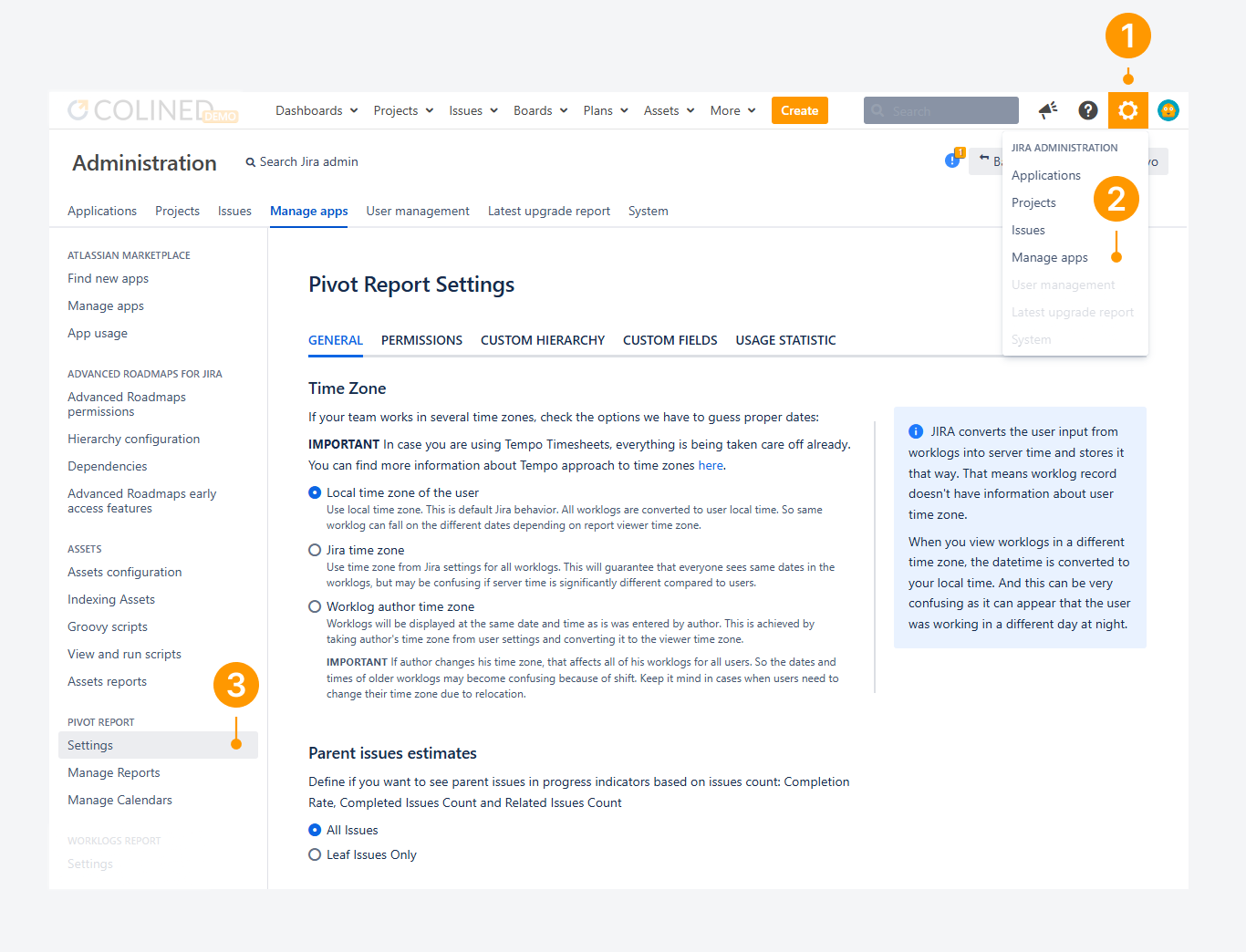
If you need to modify settings at the app level, follow these steps. You must either have Jira admin rights or ask someone who does to complete the process.
-
Open the Settings menu in Jira’s top navigation bar, by clicking on the gear icon.
-
From the dropdown, choose Manage apps.
-
Under Pivot Report, click Settings.
FAQ
Can you access app settings without opening Jira's settings?
Yes. In Jira Cloud, a Jira admin can open app settings directly from the sidebar without first opening Jira settings by following these steps:
-
In the Apps list from the Jira sidebar, select Pivot Reports.
-
Click the actions (•••) menu.
-
Select App settings.
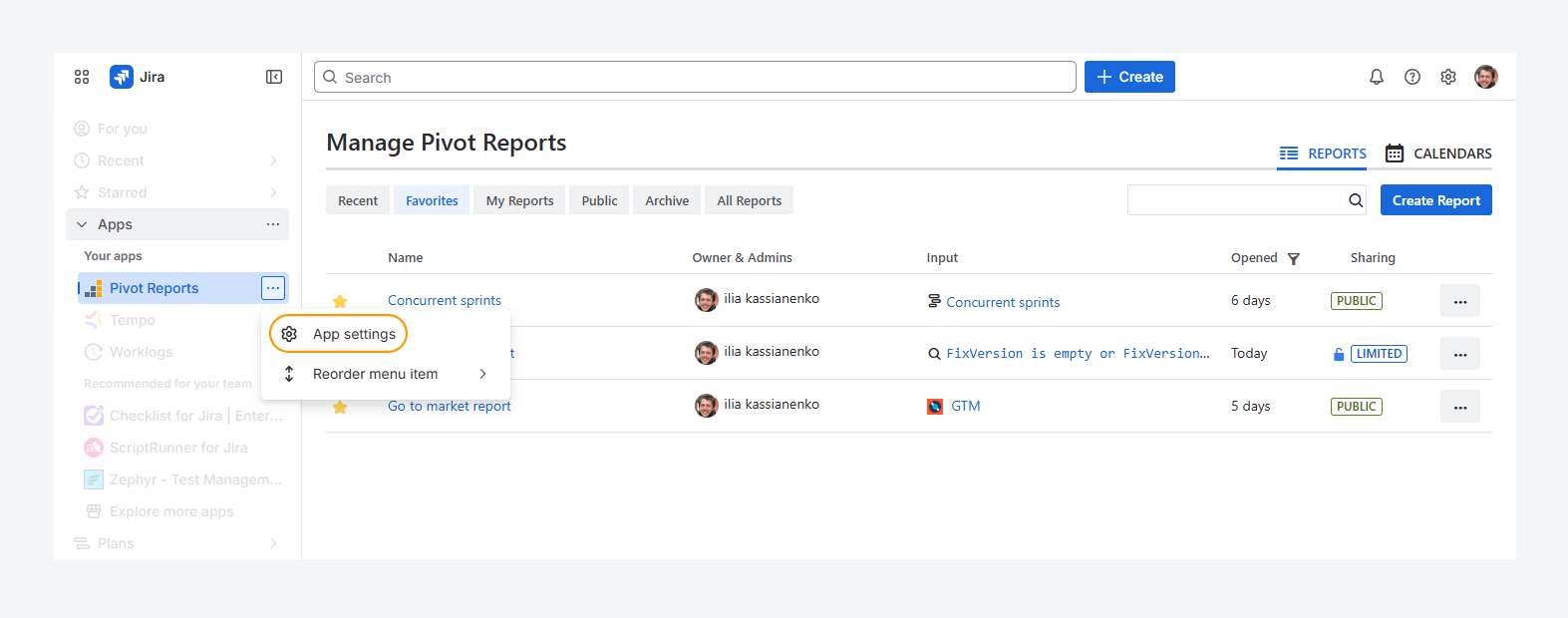
If you are a regular user, follow the same steps. If App settings does not appear, your user does not have Jira admin permissions in the instance.
-20260311-211521.png?cb=c0ee5c18b28e6d41e649291fd5f6eae5)
If Pivot Reports is missing from the list, you not have permission to use the app.
To request access, contact a Jira admin and ask them to enable the app, as explained in a related article.
If you have questions or need assistance, contact our support team via email or service desk. Our team is available Monday through Friday (9:00 AM to 7:00 PM GMT+7) to help with technical challenges or discuss improvements.