
You may have reached this article after being unable to locate a report that you or another user previously created.
This article explains how to locate the list of saved reports that you have permission to access. It also explains how to filter the list to find the report you are looking for.
How can you find a report?
You can find your report by:
-
using the search box and dropdown list of most recent reports, within a report
-
using the Manage Worklogs Reports page, which lists all reports that you can access in your Jira instance
If a report does not appear in the search results, it may be due to your user permissions, the report being archived, or your user being signed out of Jira.
If you are a Jira admin and want to access the full list of reports, including those archived, see the related article.
You can find your report by:
-
using the search box and dropdown list of most recent reports, without leaving a report
-
using the Manage Worklogs Reports page, which lists all reports that you can access in your Jira environment
If a report does not appear in the search results, it may be due to your user permissions, the report being archived, or your user being signed out of Jira.
If you are a Jira admin and want to access the full list of reports, including those archived, see the related article.
Within a report
The Header section includes a search box and a dropdown list of recent reports to help you locate a report. Follow these steps:
-
Click the report name to open the dropdown.
-
Enter the report name in the search box. Matching keywords are highlighted in the results, making it easier to locate the report.
-
To view the full list of reports, click View all reports and access the Manage Worklogs Reports page.
Within the Manage Worklogs Reports page
The Manage Worklogs Reports page lets you find a report using a search box and predefined options. You can access this page by following the steps described earlier.
Features and use cases
FAQ
Troubleshooting
How can you verify if you've lost access to the app?
-20260704-230434.png?cb=c37cd503d11d5829e075ee972247d438)
The error message above appears when you have lost access to the app and you are attempt to access the Manage Worklogs Reports page.
A Jira admin can prevent users from creating or accessing reports by removing their permission to use the app.
To revoke or restore access, follow the steps described in the related article.
Can a signed-out user access a report?
No.
Colined protects your data by not storing it on its servers and by blocking access to the app for signed-out users.
If you are signed out of Jira, you cannot edit reports or use the app’s features, such as the report list. You can only access exported reports to Excel.
You also cannot view embedded reports. Even if a Confluence space allows anonymous access, embedded reports display an error message until you sign in to Jira.
How can you tell if you’re logged out of Jira?
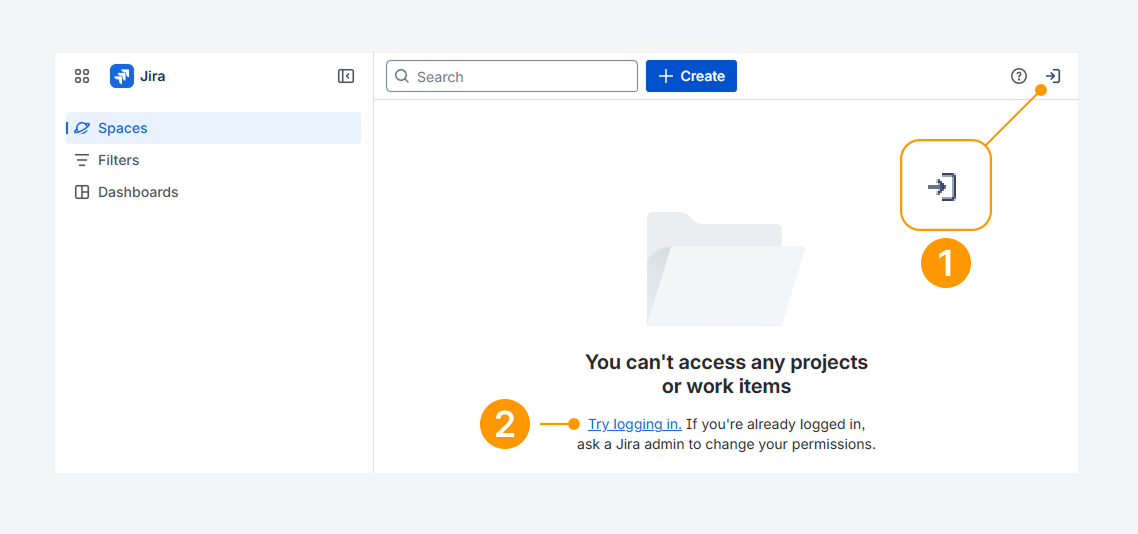
You can tell if you’re logged out of Jira by checking whether:
-
An arrow pointing right is shown the top navigation bar.
-
Spaces, Filters, or Dashboards load as blank pages.
These signs indicate your account is signed out.
Click the arrow or the Try logging in link to log back into your Jira account.
Can you account be logged out due to inactivity?
Yes. Your organization may set an idle session duration, which logs you out automatically after a period of inactivity, as explained in a related Atlassian article.
Also, check your browser’s site data settings, since closing the browser often signs users out.
Will Jira notify you before logging you out?
By default, Jira does not show a warning before ending your session. To change this behavior, see the related Atlassian article.
Can you lose access to a report?
Yes. You can lose access to a report, as shown in the screenshot below.
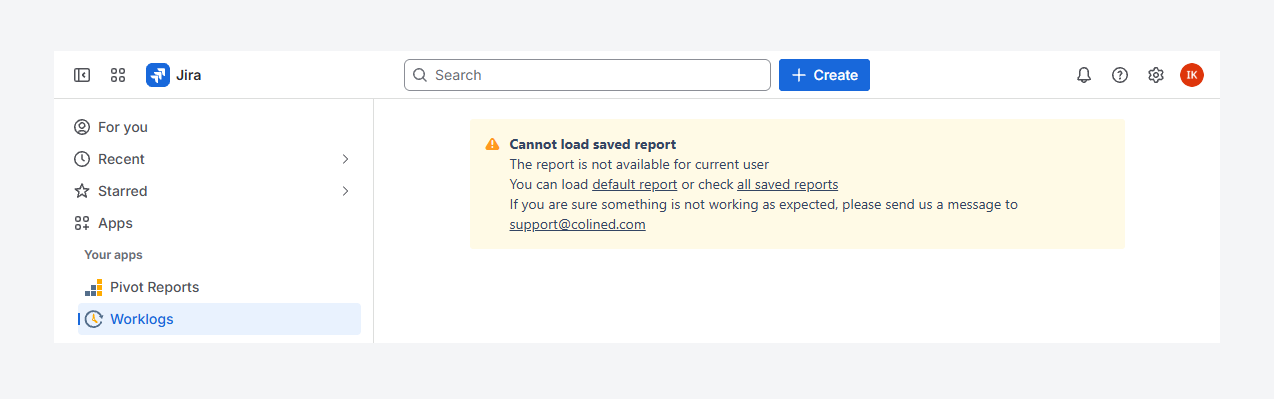
The error message appears when you try to open the URL of a report you no longer have permission to view, even if you previously had access.
After confirming that you are signed in by following the steps in the previous troubleshooting section, follow the steps in a separate article to check and restore your access to the report.
How can you verify if you've lost access to a report source?
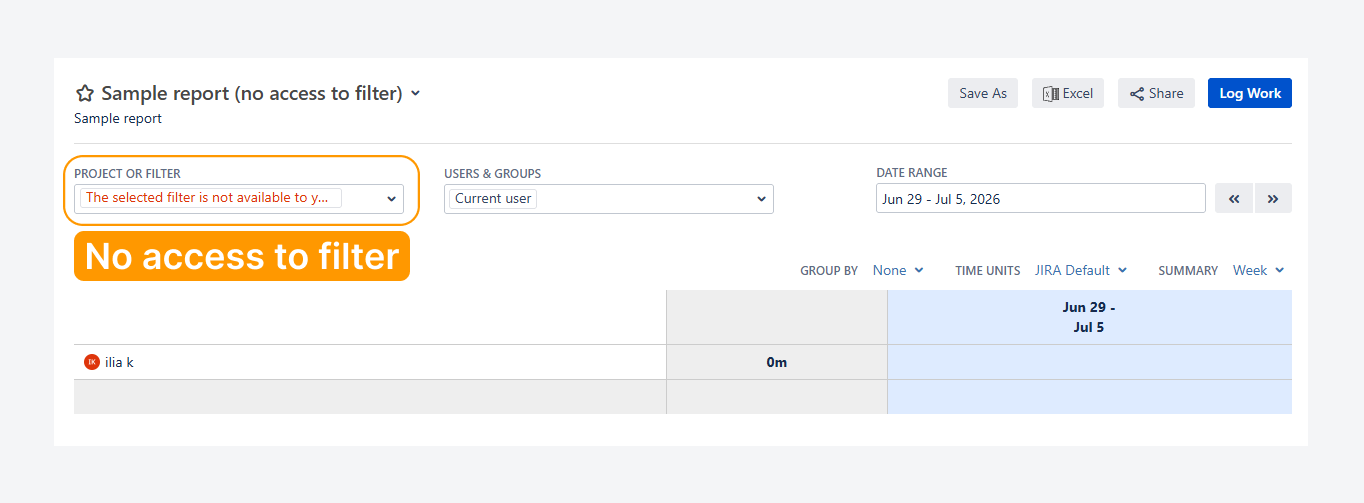
The screenshot above shows the error message that appears when you no longer have permission to access a filter.
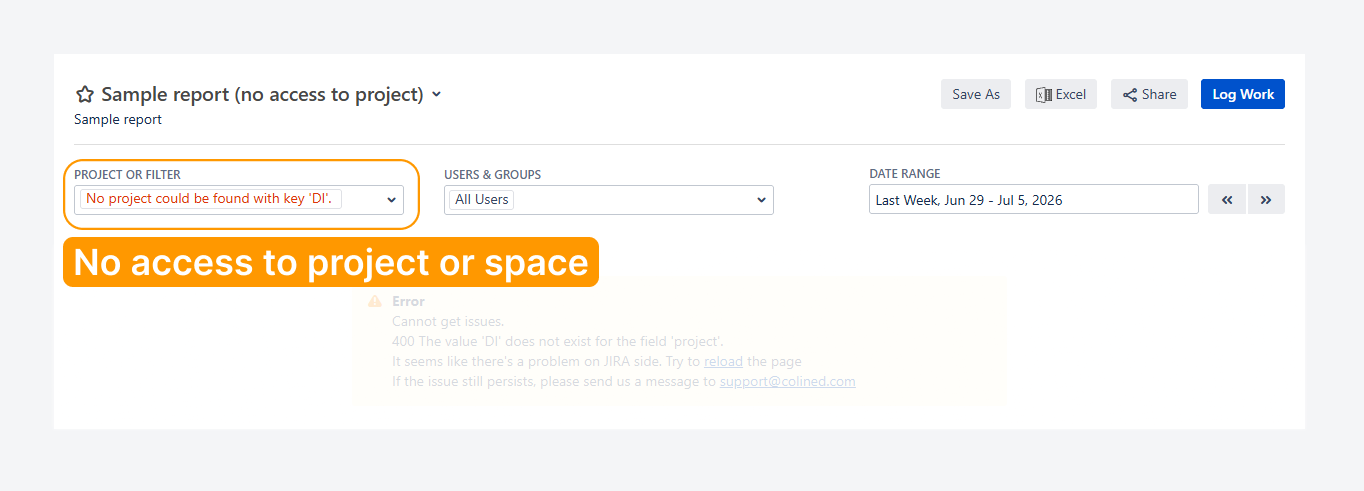
In comparison, the screenshot above shows another error message that appears when you no longer have permission to access a project.
These errors occurs because the app can access only data that you have permission to view. The app follows all permissions and third-party app restrictions configured in your Jira instance and cannot override them.
For example, you may have permission to open a report, but if you do not have access to its source, such as a filter or project, the report data cannot be displayed.
To resolve this work item:
-
If the report source is a filter, contact the report owner, report admin, or Jira admin to confirm who owns the filter and who can update its sharing permissions.
-
If the report source is a project, contact your Jira admin to verify that you have permission to view the project.
If you have questions or need assistance, contact our support team via email or service desk. Our team is available Monday through Friday (9:00 AM to 7:00 PM GMT+7) to help with technical challenges or discuss improvements.