
This article explains why to use the app to identify scope and non-scope changes to a release within a report.
If you are not tracking changes to a release, the following article provides examples and explanations of JQL functions, fields, and increments that you can use to monitor work items that are being added or removed from 2-week sprints or those of a different duration.
Why use the app?
You can use the app to create reports without creating multiple filters for a Jira dashboard.
For example, you can use a single report with multiple slices to monitor scope changes as a version is developed and review those changes after the version is released. You can display the slices in a single dashboard gadget.
By using slices to separate scope and non-scope changes, you can measure their impact on a released version based on the number of additional hours added beyond the version's estimated scope.
For example, adding a new user story may require other work to be postponed to a future release, such as fixing bugs, to meet the committed release date.
Features and use cases
Display recent changes to a fix version
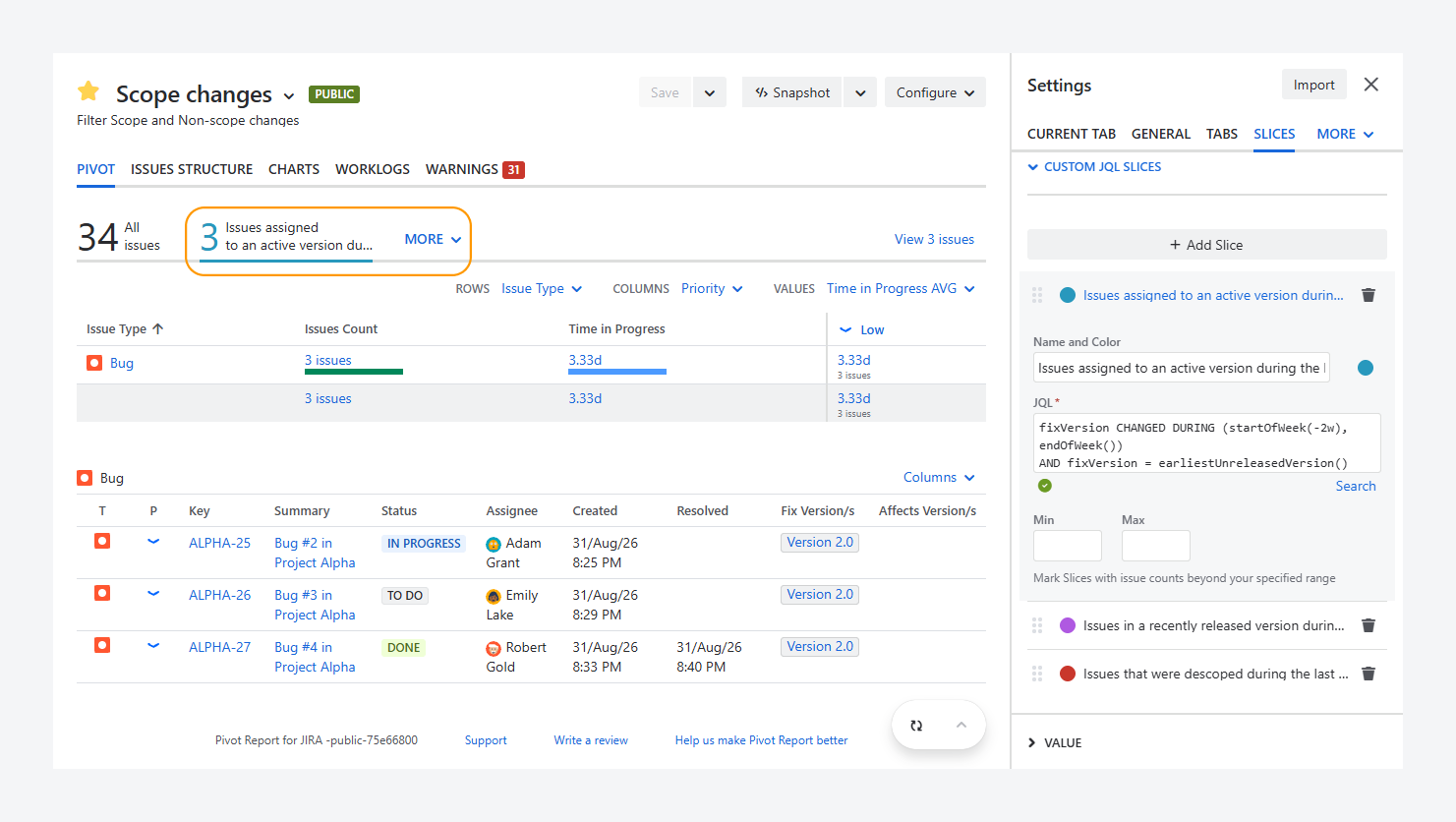
You can use the report to display added and removed scope change by using slices instead of filters.
For example, you can also use the queries below to create and save filters in the Issue Navigator, and then display each filter in a separate gadget on a Jira dashboard.
Alternatively, instead of creating multiple gadgets, you can create a slice for each filter within the report, as shown in the screenshot above, and use a single gadget to display the results.
You can use or add your custom slices to this demo report, shown in the above screenshot.
Which queries can you use?
You can use these queries as custom JQL slices or as a report source to identify recent changes to versions. To change the search interval to one or three weeks, adjust the increments in the functions.
-
Work items created for the active version during the prior 2 weeks: This query finds work items created during a specific two-week period in the past that are currently assigned to the next upcoming unreleased version.
created >= startOfWeek("-2w")
AND created <= endOfWeek("-1w")
AND fixVersion = earliestUnreleasedVersion()
The
startOfWeek()function returns the very start of a week (Sunday at 00:01) based on Jira’s default week settings. By using the-2wincrement inside the function, the query returns the start of the week that occurred two weeks ago.You can use other increment values, such as minutes, hours, and days. However, for reporting purposes, weeks and months are used more frequently.
The
endOfWeek()function returns the very end of a week (Saturday at 23:59) based on Jira’s default week settings. By using the-1wincrement inside the function, the query returns the end of the previous week.The
earliestUnreleasedVersion()function finds work items assigned to the earliest unreleased version (active version) in a space. It is called the "earliest" version because it is the first unreleased version in the space's version list, based on the version order configured in Jira.
If a space has a single version that is currently being worked on, you can use this function to track changes to that version. This approach assumes that the version's scope is largely defined before work begins.
Other unreleased versions that have not yet started can continue to change without those changes needing to be tracked. The function helps focus the report on the version that is currently closest to release.The
project = SSPclause limits the results to work items in space SSP.
-
Work items created for the active version following the scope freeze date: This query finds work items created after a defined scope freeze date and assigned to the active version.
Use this approach when you know the date on which the version's scope was frozen and any work items added after that date, such as stories, are considered scope changes.
created >= "2026-01-01"
AND fixVersion = earliestUnreleasedVersion()
AND project = SSP
When you use a date without a time component, Jira assumes 00:00 (midnight) in your account's time zone.
For example, for a user in Montreal (EDT, UTC-4), this query returns work items created on or after January 1, 2026, at 00:00 EDT that are assigned to the active version.
-
Work items created for a released version with known start and end dates: This query finds work items created between a defined kick-off or scope freeze date and a known release date.
Use this approach when you know the dates that define the version's scope period and want to identify work items added during that period, such as stories added after the scope freeze date.
created >= "2026-01-01"
AND created <= "2026-03-01"
AND fixversion in releasedVersions()
AND project = SSP
-
Work items created for the active version following the scope freeze date: This query finds work items created after a defined scope freeze date and assigned to the active version. Use this approach when you know the date on which the version's scope was frozen and any work items added after that date, such as stories, are considered scope changes.
-
Work items moved to the active version during the prior 2 weeks: This query finds work items whose Fix Version/s field changed during the prior two weeks and that are currently assigned to the earliest unreleased version.
fixVersion CHANGED DURING (startOfWeek(-2w), endOfWeek(-1w))
AND fixVersion = earliestUnreleasedVersion()
AND project = SSP
The
CHANGED DURINGexpression finds work items whose Fix Version/s field changed during the specified period. In this query, the period covers the week before last through the end of the previous week.For example, a story from a future release might be moved into the current version after a dependency is discovered. A task that was not included in an Epic's original estimate might also be added to the current version. These changes can be tracked as potential scope changes.
-
Work items moved to the latest released version during the prior 2 weeks: This query finds work items whose Fix Version/s field changed during the prior two weeks and that are currently assigned to the most recently released version in space SSP.
fixVersion CHANGED DURING (startOfWeek(-2w), endOfWeek(-1w))
AND fixVersion = latestReleasedVersion()
AND project = SSP
The
latestReleasedVersion()function finds work items assigned to the most recently released version.
-
Work items descoped from the active version during the prior 2 weeks: This query finds work items whose Fix Version/s field changed during the prior two weeks. It then identifies work items that are now assigned to an unreleased version other than the earliest unreleased version, while their Affects Version/s field still includes the active version.
fixVersion CHANGED DURING (startOfWeek(-2w), endOfWeek(-1w))
AND fixVersion CHANGED TO unreleasedVersions()
AND fixVersion CHANGED FROM earliestUnreleasedVersion()
AND affectedVersion = earliestUnreleasedVersion()
AND project = SSP
The
fixVersion CHANGED TO unreleasedVersions()clause limits the results to work items recently assigned to an unreleased version.
ThefixVersion CHANGED FROM earliestUnreleasedVersion()clause limits the results to work items recently reassigned from the active version. Together, these clauses identify work items that were moved from the active version to a future unreleased version.The
affectedVersion = earliestUnreleasedVersion()clause identifies work items that still affect the active version in space SSP.For example, you might discover a bug after completing a story for the active version. You decide to fix the bug in a future version, so you move it out of the active version by changing its Fix Version/s. However, because the bug affects the active version, you keep that version in its Affects Version/s field. The query identifies the bug as a work item that was descoped from the active version.
You can apply the scopechange label to work items, such as stories, that are added to the current version or to a version that has since been released. You can then use the label to filter these work items in a report.
You can use the following queries as custom JQL slices or as a report source.
-
Work items created or moved to the active version: This query finds work items labeled scopechange that are assigned to the earliest unreleased version in space SSP.
fixVersion = earliestUnreleasedVersion()
AND project = SSP
AND labels = scopechange
-
Work items created or moved to a version that is now released: This query finds work items labeled scopechange that are assigned to the most recently released version in space SSP.
AND fixVersion = latestReleasedVersion()
AND project = SSP
AND labels = scopechange
If you want to treat tasks or sub-tasks added to an estimated Epic as non-scope changes, you can apply a different label, such as nonscopechange, to those work items.
You can then update the query to include both labels:
fixVersion = earliestUnreleasedVersion()
AND project = SSP
AND labels IN (scopechange, nonscopechange)
This approach lets you track both scope changes and explicitly identified non-scope changes without maintaining separate reports, creating new work item types, or changing a work item's Summary.
To learn how to use the Slices gadget, refer to the related article.
FAQ
How can you track when an issue is added to an active sprint?
You can track work items added to an active sprint by using a custom field together with a Jira automation.
The automation below is triggered when a user logs work on a work item that is not assigned to the active sprint. It then adds the work item to the active sprint and marks it using a custom field. This allows you to identify work items that were added after the sprint began.
This solution is intended for a single active sprint on a single board. If you use multiple boards or run several active sprints simultaneously, create a separate automation for each board.
This approach assumes users log work after creating their work items.
If a work item is added to the sprint manually before any work is logged, the automation will not mark it as an addition. In this case, manually set the Addition to Sprint field for any work item added after the sprint has already started.
Create custom field and automation
As a Jira admin, complete the following steps:
-
Open Settings (gear icon) in the Jira navigation bar.
-
Select Work items.
-
In the sidebar, select Fields, then click Create new field.
-
Set Field type to Select List (single choice).
-
Name the field Addition to Sprint.
-
Click Add option and enter a value, such as Added or ✓.
-
Click Create.
Next, create the automation:
-
Open Settings (gear icon) in the Jira navigation bar.
-
Select System.
-
Select Global automation.
-
Click Create flow, then select Create from scratch.
-
Add the Work logged trigger.
-
Add a JQL condition with the following query:
(sprint NOT IN (openSprints()) OR sprint IS EMPTY)
This query matches work items that are either not assigned to an active sprint or are not assigned to any sprint.
-
Add an Edit work item action.
-
Update the following fields (shown in the screenshot below):
Sprint: Select the active sprint.
Addition to Sprint: Select the value you created earlier. -
Save and enable the automation.
-20260804-015058.png?cb=2c227299367b4370fa4020f8eecfe4cf)
Find all sprint additions
Use the following JQL query:
"Addition to Sprint[Dropdown]" IS NOT EMPTY AND sprint IN openSprints()
This query returns all work items in the active sprint that have been marked as additions after the sprint started.
Clear the custom field before the next sprint
If you do not clear the custom field, work items will continue to appear as sprint additions in future sprints. Create another automation to clear the field when a new sprint starts.
As a Jira admin:
-
Open Settings (gear icon) in the Jira navigation bar.
-
Select System.
-
Select Global automation.
-
Click Create flow, then select Create from scratch.
-
Add the Sprint started trigger.
-
Select the board.
-
Add a Branch rule for Issues in the sprint.
-
Add a JQL condition:
"Addition to Sprint[Dropdown]" IS NOT EMPTY AND statusCategory != Done
This query matches work items that were previously marked as sprint additions and are not yet completed.
-
Add an Edit work item action.
-
Clear the Addition to Sprint field by leaving it empty (shown in the screenshot below).
-
Save and enable the automation.
-20260804-030619.png?cb=4e353f355cf6cfc83488da5005348db6)
Keep a history of sprint additions
If you want to keep a historical record of work items added after a sprint started, export the results of the following query before starting the next sprint:
"Addition to Sprint[Dropdown]" IS NOT EMPTY AND statusCategory != Done
Before the next sprint begins, export the query results from the Issue Navigator to a CSV file, or create a Pivot Report for the query and export it to Excel, as shown in the following screenshot.
-20260804-033440.png?cb=de6a067cacab7befb82f3acd5964f33a)
Troubleshooting
How can you change which fix version is pulled by functions?
You can change which Fix Version (release) is returned by certain JQL functions by changing the order of the versions in Jira's configuration.
Follow these steps:
-
In the Jira sidebar, open Spaces.
-
Click the ••• actions menu for the space used as the report source.
-
Click Space settings.
-
In the sidebar, click Versions.
-
On the Releases page, select All statuses from the dropdown next to the search box.
-
Make sure the Releases column is not sorted. No arrow should appear next to the column name. In this unsorted view, the version at the bottom of the list is considered the earliest unreleased version. For example, in the screenshot below,
earliestUnreleasedVersion()returns Version 2.0.(Optional) Return to the unsorted view, then click and hold a release row and drag it up or down to change its position. Place the active, or earliest unreleased, version at the bottom of the list.
-
(Optional) Review the release names and update them if necessary.
In the sorted view, Jira sorts release names alphabetically. For example, 1A appears before A1, while A 1 (with a space) appears before A1 (without a space).
-
Repeat the previous steps for released versions. In the unsorted view, the version at the top of the list is considered the latest released version and is returned by
latestReleasedVersion().
-20260915-045106.png?cb=f015f7d62f9cd5765909776a10d05698)
You cannot use lowercase and uppercase variations of the same release name. For example, Jira considers 1A and 1a to be the same value and allows only one option.
If you have questions or need assistance, contact our support team via email or service desk. Our team is available Monday through Friday (9:00 AM to 7:00 PM GMT+7) to help with technical challenges or discuss improvements.
If you have questions or need assistance, contact our support team via email or service desk. Our team is available Monday through Friday (9:00 AM to 7:00 PM GMT+7) to help with technical challenges or discuss improvements.