
This article explains how to sort fields and arrange columns in the Breakdown sections of the Pivot, Worklogs/Comments, and Capacity tabs. Similar steps for the Work item Structure tab are described in a related article.
For the Warnings tab, fields cannot be sorted, and columns can only be rearranged from the report sidebar.
How can you sort rows using any field?
You can sort rows using any field by following these steps, even if the field is not used in a Column.
-
In the report sidebar, click Add field, open the dropdown menu, and select the field you want to sort by, such as Assignee. The field is added to the bottom of the sorting queue, and it is sorted in ascending order, indicated by an upward arrow (↑). You can use up to three fields at a time.
-
To change the sorting priority, drag a field using the grid icon (the dotted handle on the left side of the field card) to reposition it in the sorting queue. In the provided example, Assignee is ranked in descended order, indicated by a downward arrow (↓), and there are no other fields in the sorting queue.
-
Alternatively, to remove a field from the sorting queue, click the bin icon on the field card.
-20260205-054142.png?cb=779e307df4d7998abdc98bd9ff693e2b)
You can also sort a column by clicking its header in the Breakdown section. On the first click, the column values are sorted in ascending order, indicated by an upward arrow (↑). Click the header again to sort the values in descending order, indicated by a downward arrow (↓).
Can you impact the hierarchy by using sorting?
No. Sorting does not affect the Jira work item hierarchy.
Sorting rules are applied separately at each level of the hierarchy. As a result, work items that share the same parent are sorted only among themselves, while the overall tree structure remains unchanged.
How can you change the order of Column appearance?
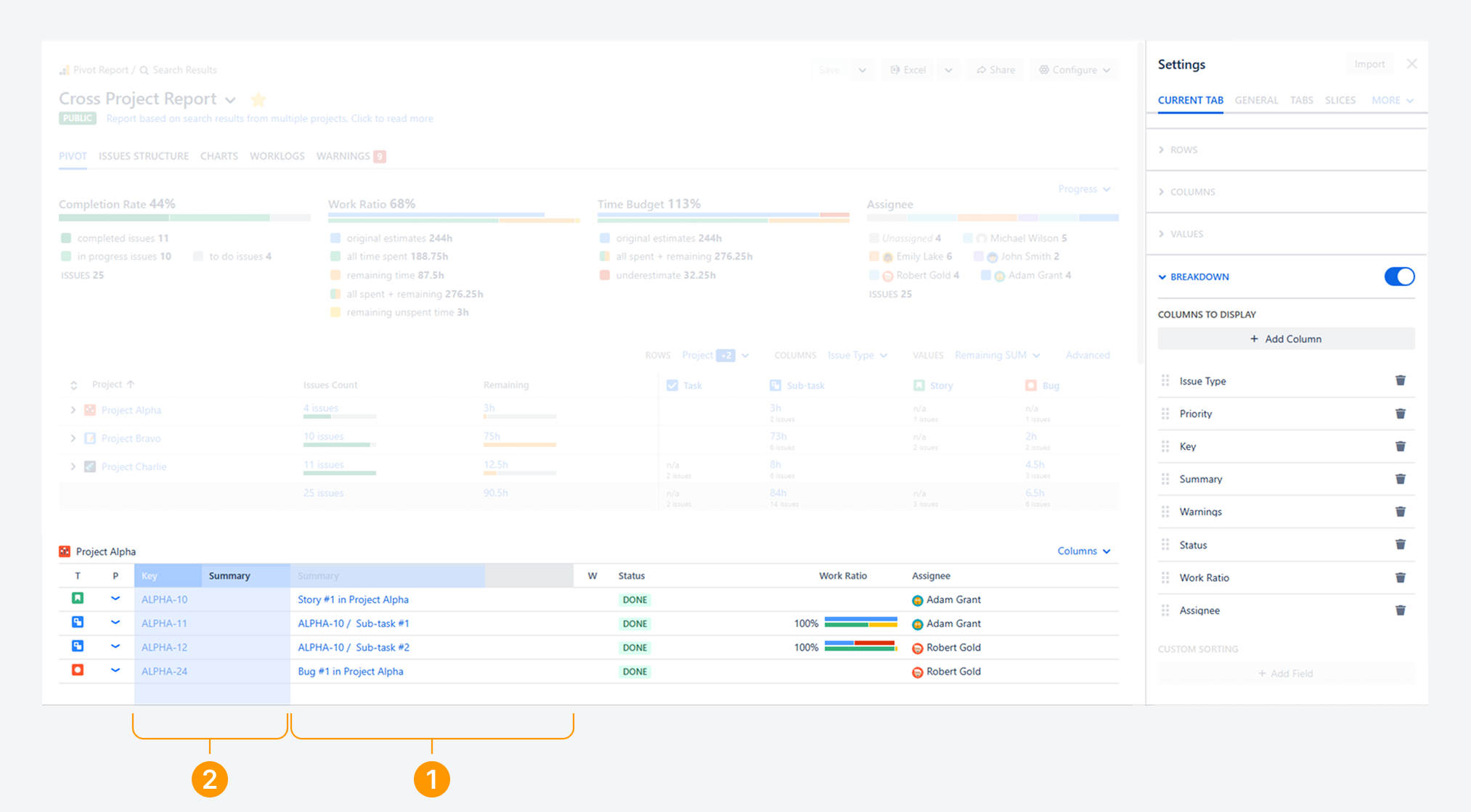
You can change the order in which columns appear by using either of the following methods.
-
Select any part of a column header. In the example shown, Summary is the column being moved.
-
Drag it to the desired position until a rectangle appears over the target column. In this example, Summary is moved to replace Key.
-
Alternatively, you can change the column order from the report sidebar.
-
Drag a field using the grid icon (the dotted handle on the left side of the field card) to reposition it. In this example, drag Summary above Key to replace it.
-20260205-052633.png?cb=0db012e6cf3cf0c2ab34524e4cfc5fa7)
If you have questions or need assistance, contact our support team via email or service desk. Our team is available Monday through Friday (9:00 AM to 7:00 PM GMT+7) to help with technical challenges or discuss improvements.