
You may have reached this article after being unable to create a report from a board in a Team-managed space—by following steps intended for a Company-managed space in a related article.
-20260305-210812.png?cb=2f5f381fb433669bfa2f9c25089d11ae)
This article explains why a report cannot be created from a board in a Team-managed space and shows the options for displaying such a report within a board.
What is the difference between the space types?
In Jira Cloud, there are two project types: company-managed and team-managed. To learn about the differences between these project types, refer to the related Atlassian article.
To determine the space type, select a space from Jira’s sidebar, then select the actions (•••) menu.
-20260305-211728.png?cb=e598aab65ab366beecf1bb6e991189df)
Can you create a report for Team-managed space?
Atlassian restricts third-party apps like Pivot Report from adding buttons, icons, or menus to Boards of Team-managed projects (formerly next-gen). This restriction in Jira prevents reports from being created directly in Boards.
How can you create a report for Team-managed projects?
As a workaround, you can create a report for Team-managed spaces from the Issue Navigator or the Manage Pivot Reports page. This can be done by referencing a filter or JQL, or by adding the space to the source after the report is created.
You can also update the source for reports created through Work item View actions and widgets.
How can you create a report for Company-managed projects?
In comparison, reports can be created from boards in company-managed projects (formerly classic projects), as well as from the Issue Navigator or the Manage Pivot Reports page.
How can you display a report in a Team-managed board?
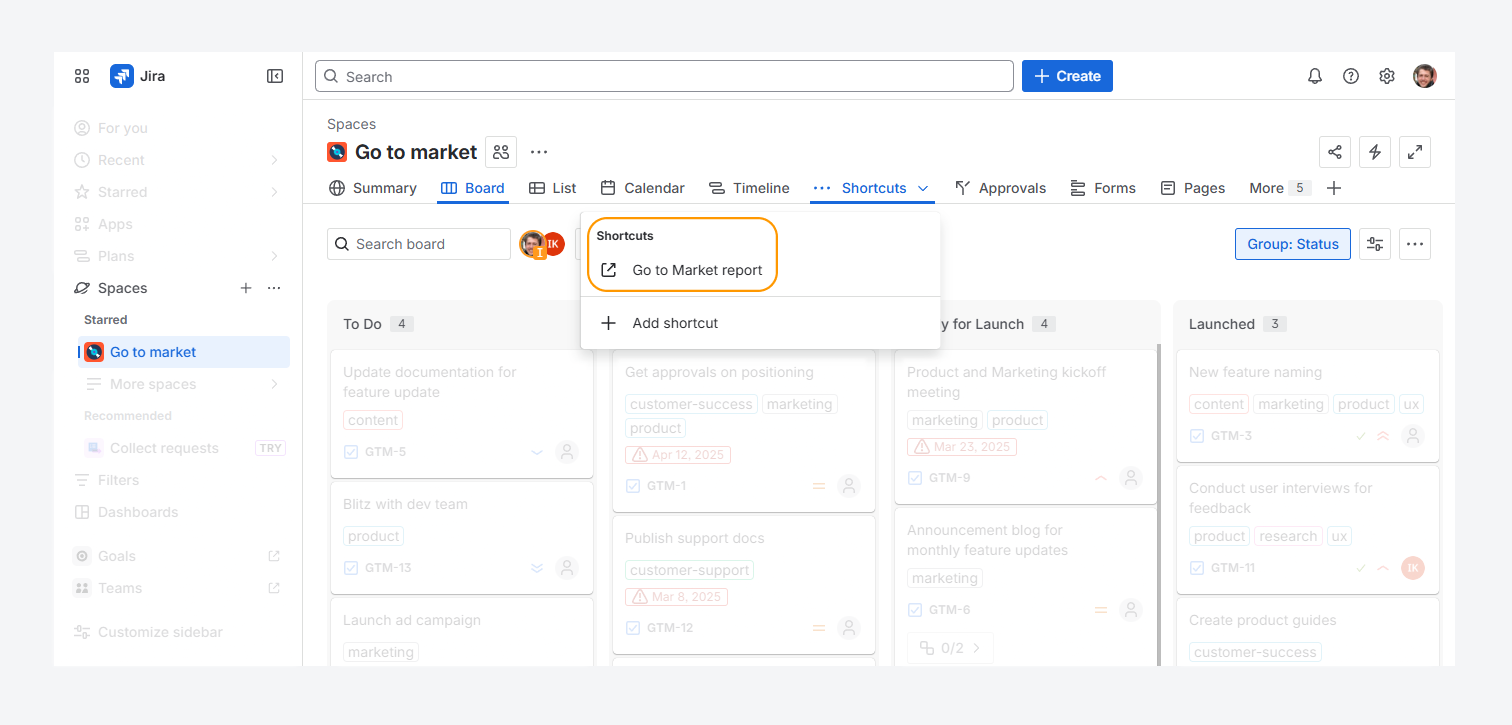
While Atlassian prevents creating reports directly from boards in Team-managed spaces, you can still add a shortcut to a report in the board navigation.
Before adding it, make sure you save the report that uses a Team-managed space as its source.
If you update the board, such as by transitioning work items from To Do to In Progress, reload the report to ensure it reflects the latest changes.
To add a shortcut in the space navigation:
-
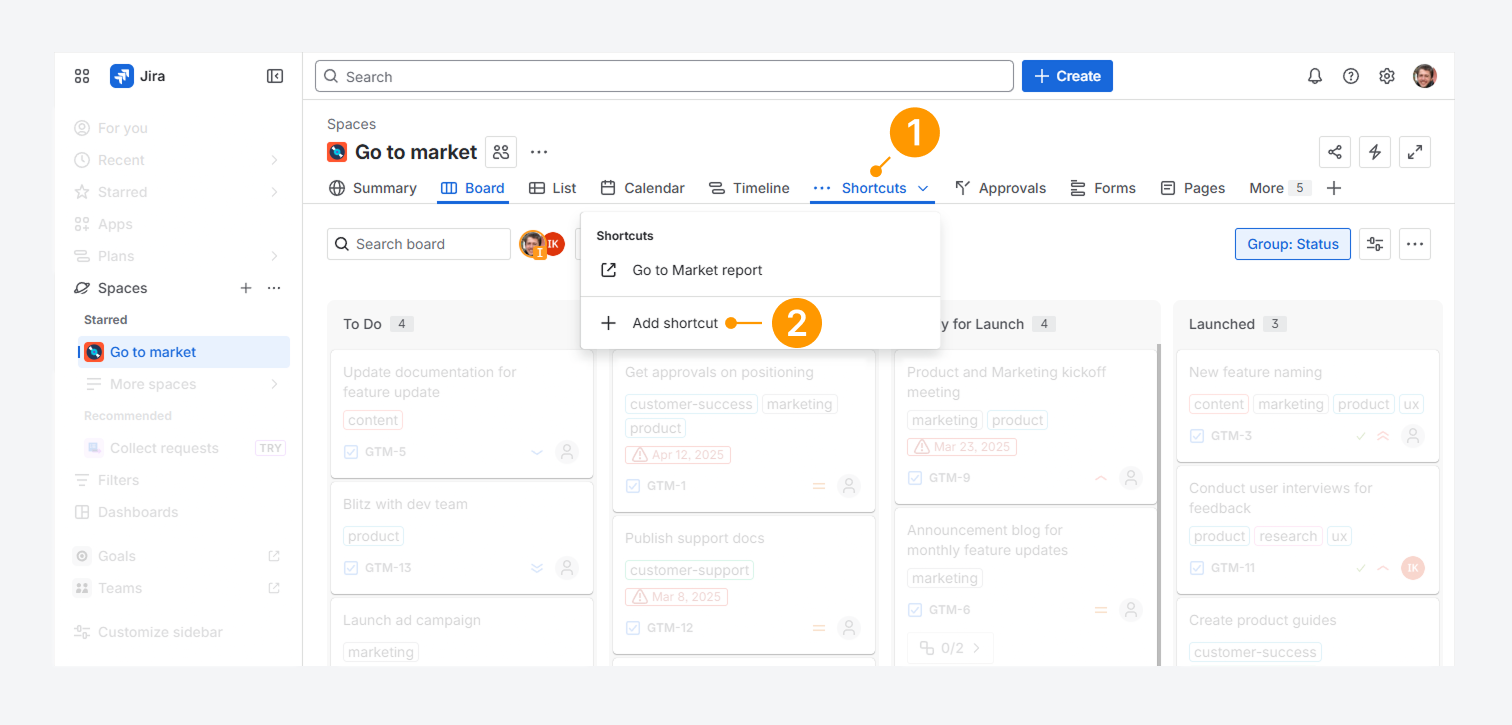
Click Shortcuts in the space navigation.
-
Select + Add shortcut.
-
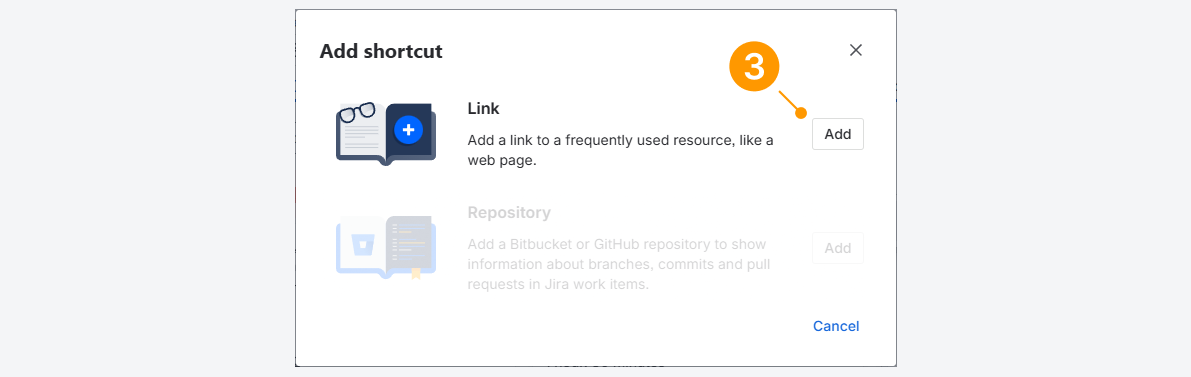
In the pop-up, click Add next to the Link option.
-
In the next window, enter the web address (URL) and the shortcut name.
The shortcut name can be different from the report name. -
Click Add to save the shortcut.
-20260305-194935.png?cb=55e1e3363e7ef55610b6e4ee897794c4)
Because the report stays in sync with the board, any unmapped statuses that do not appear on the board will also be excluded from the report.
To check whether you have work items with unmapped statuses, refer to the related article.
Can you migrate to a Company-managed space?
Yes. You can migrate between Company-managed and Team-managed spaces. For example, if a Team-managed space doesn’t fit your needs, you can move work items to a Company-managed space.
Follow the migration steps in the related Atlassian article.
If you have questions or need assistance, contact our support team via email or service desk. Our team is available Monday through Friday (9:00 AM to 7:00 PM GMT+7) to help with technical challenges or discuss improvements.