
This article explains how to import the settings from an existing report into a new one.
Why should you import settings from another report?
You should import settings from another report to quickly reuse an existing configuration without creating a report copy.
Importing settings allows you to apply the same scope and structure—such as enabled tabs and the configuration of the Summary and Breakdown sections for each tab—directly to your current report. This reduces the number of steps needed to reapply the settings, since you do not need to leave the report, create a copy, or rename it afterward.
How can you import settings?
To import settings from an existing report, follow these steps:
-
In the Header section, click Configure and select Import settings from the dropdown.
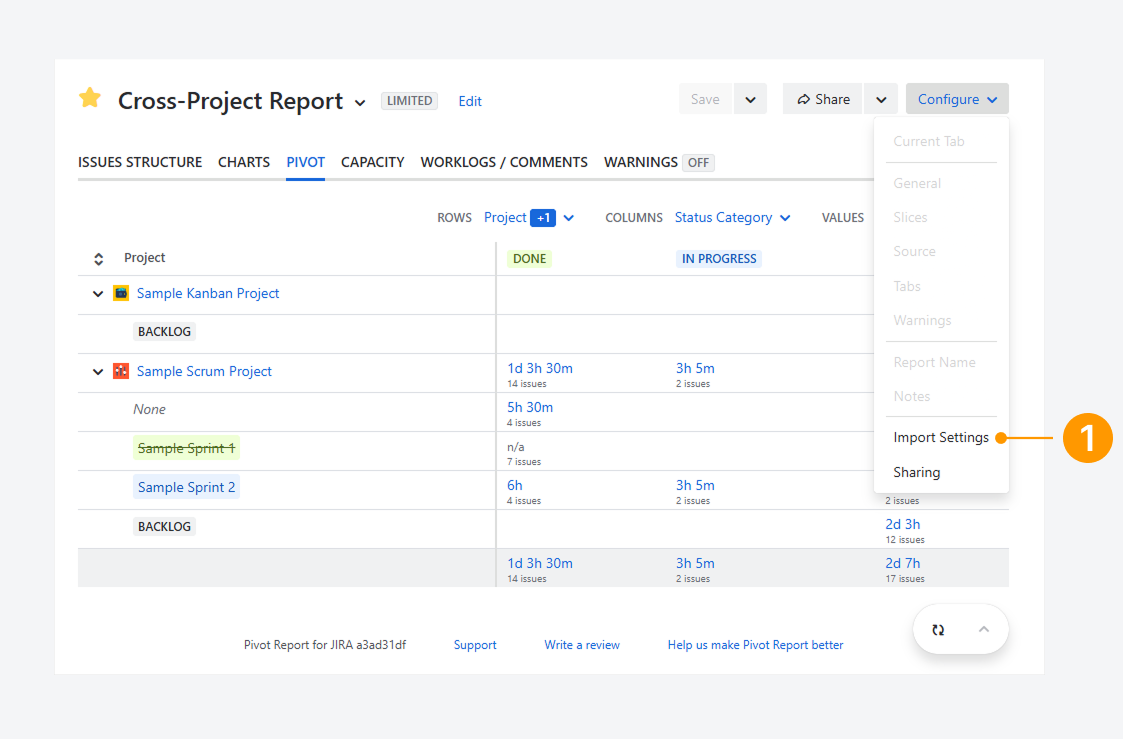
-
In the Import Settings pop-up, select the source report from which you want to import settings, by using the dropdown, search textbox, or report list.
-20260226-040024.png?cb=d9dfd4b39ce5172e43b73662edfb054f)
-
Select which settings will be imported from the source report.
-
Click Import.
-20260226-040441.png?cb=bbe04859ec682773cae045c46a5362b9)
-
Click Save in the report’s Header section.
-20260226-041139.png?cb=8ea7972b2d13c782168d9f8879a905bd)
Optionally, while review the Import Settings, after step 2, click on Open to check the source report and make changes, before import importing its settings. Save your changes before importing the source report.
-20260226-041717.png?cb=877557deff4d57d1a9a1ba00643559e0)
FAQ
Troubleshooting
If you have questions or need assistance, contact our support team via email or service desk. Our team is available Monday through Friday (9:00 AM to 7:00 PM GMT+7) to help with technical challenges or discuss improvements.