
This article explains why and how to save a new report or a copy of an existing one.
Why should you save a report?
The URL for unsaved report must be shared repeatedly with your audience after each configuration change. In contrast, a saved report only needs to be shared once, as it automatically reflects all ongoing changes.
How does an unsaved report appear?
Work item view, Issue Navigator or Filter, and Agile Board
When you create a report from the Work item view, Issue Navigator, Filter, or Agile Board, an instant version is generated.
The report’s unique URL includes parameters that define the report’s contents and configurations, for example:
report?ac.jql=project%20%3D%20SSP%20ORDER%20BY%20created%20DESC&ac.parents=0&ac.children=2&ac.siblings=0
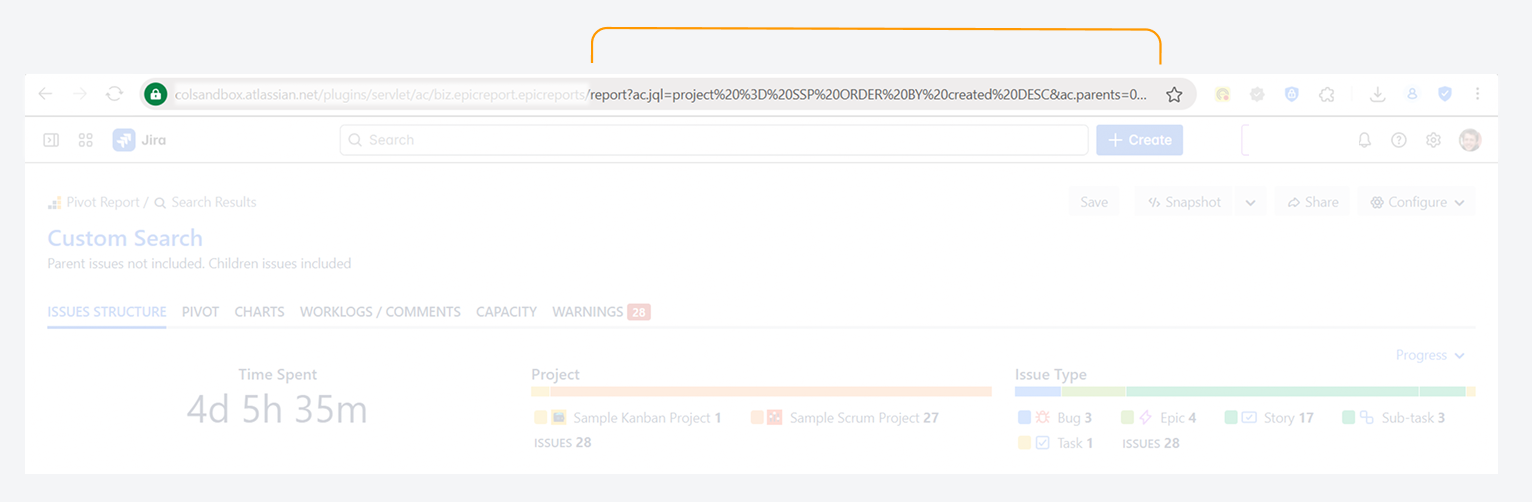
If you make changes to an instant report, its URL will also change. To share the updated version, you must send the new link—changes won’t be visible to others unless they use the latest URL.
Manage Pivot Reports page
When you create a new report from the Manage Pivot Reports page, a saved report is created alongside its unique permanent ID. The steps for creating this report are listed in a related article.
How does a saved report appear?
When you save a report that was created temporarily, the saved report is assigned a unique, permanent ID.
The report’s unique URL includes parameters that define the report’s contents and configurations (e.g. WD3qZrSOQom71uGlXdMBqw), which is shorter than an unsaved instant report.
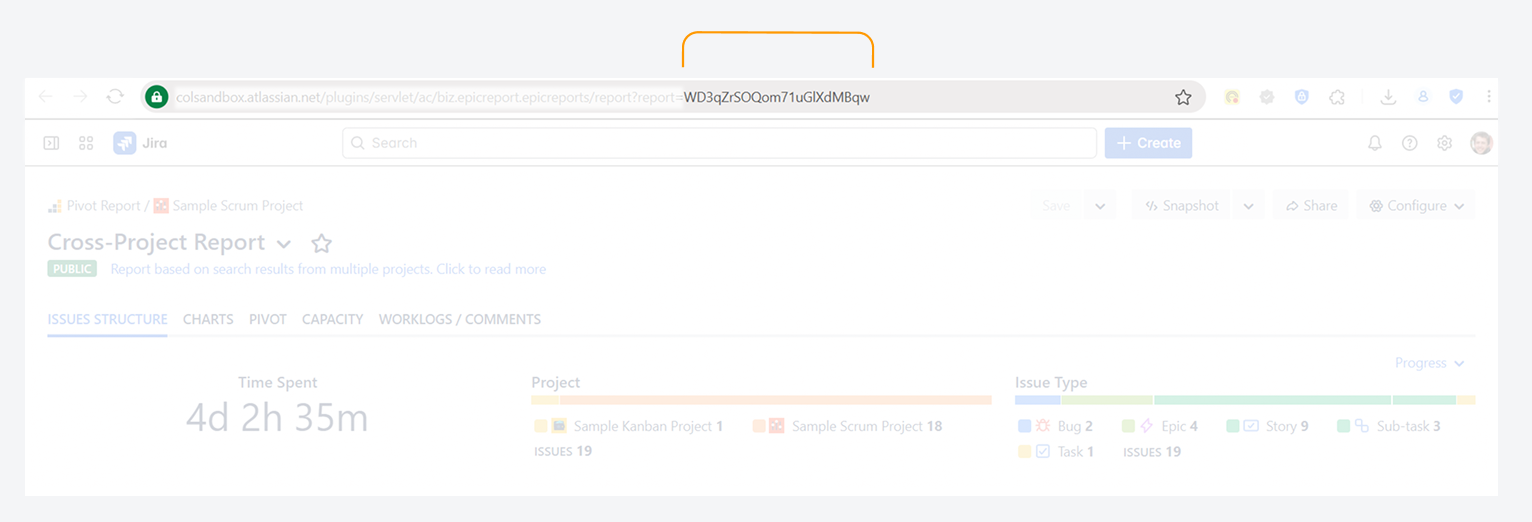
If you update a saved report, its URL stays the same. Any changes to the report’s configuration—such as switching its source to a different work item or filter—are automatically shared with others who have access to the report. The report ID does not change.
How does a copy of saved report appear?
When you save a copy of an existing report, which is was saved previously by yourself or another user, it becomes a separate saved report with its own unique, permanent ID.
The report’s unique URL includes parameters that define the report’s contents and configurations (e.g. 5g1aAY6RS3CC23PjtI5Sw).
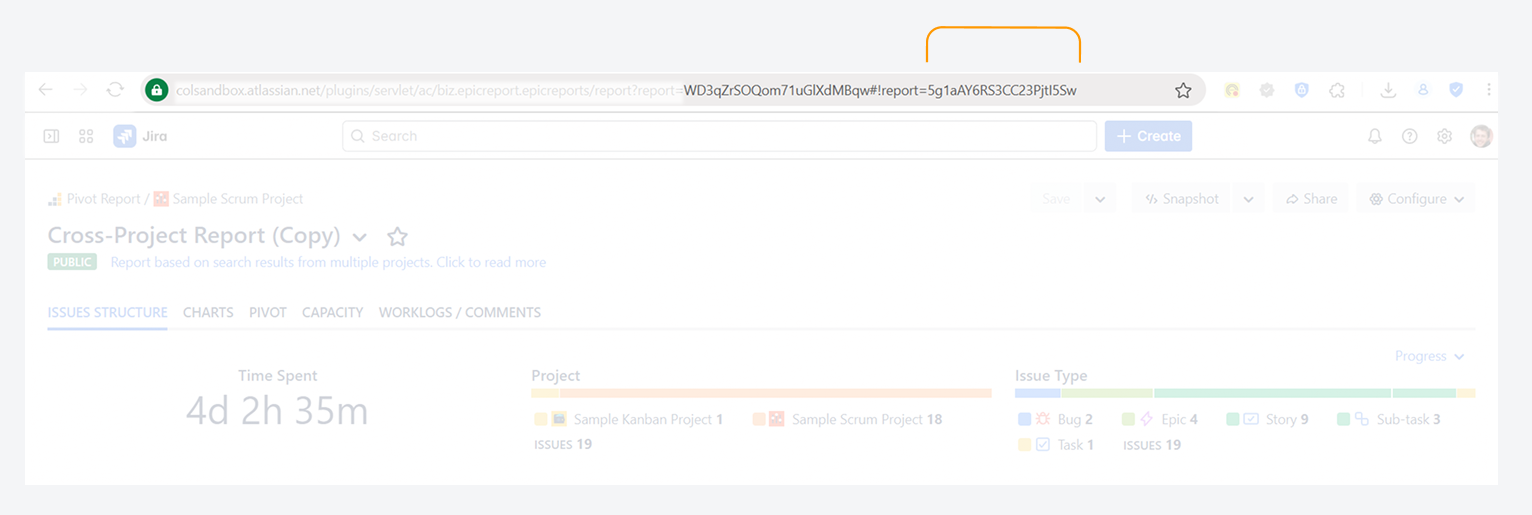
If the URL still appears long, navigate to the Manage Pivot Reports page to find and open the report and retrieve the direct URL (e.g. 5g1aAY6RS3CC23PjtI5Sw).
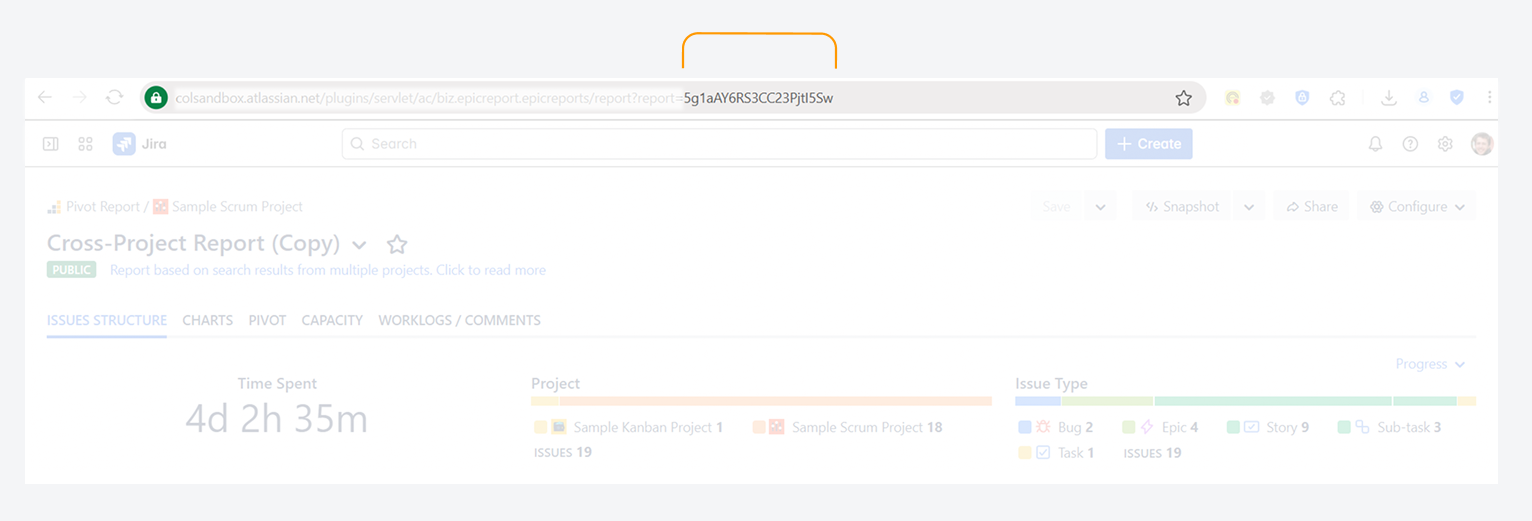
Like the original, updating a copy of a saved report does not change its URL or the URL of the original report, which was copied.
How can you save a report?
To save a new Pivot report or to save a copy of an existing report, follow these steps.
Save a copy of a report you own
-
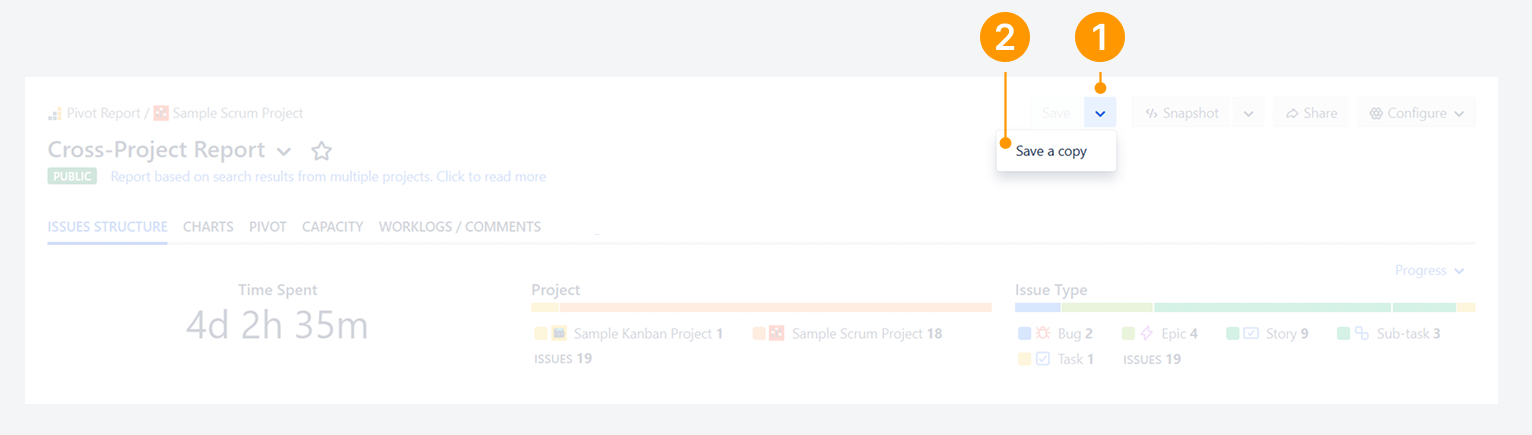
Click to the dropdown menu next to the Save button in the header section.
-
Select Save a copy in the menu.
-
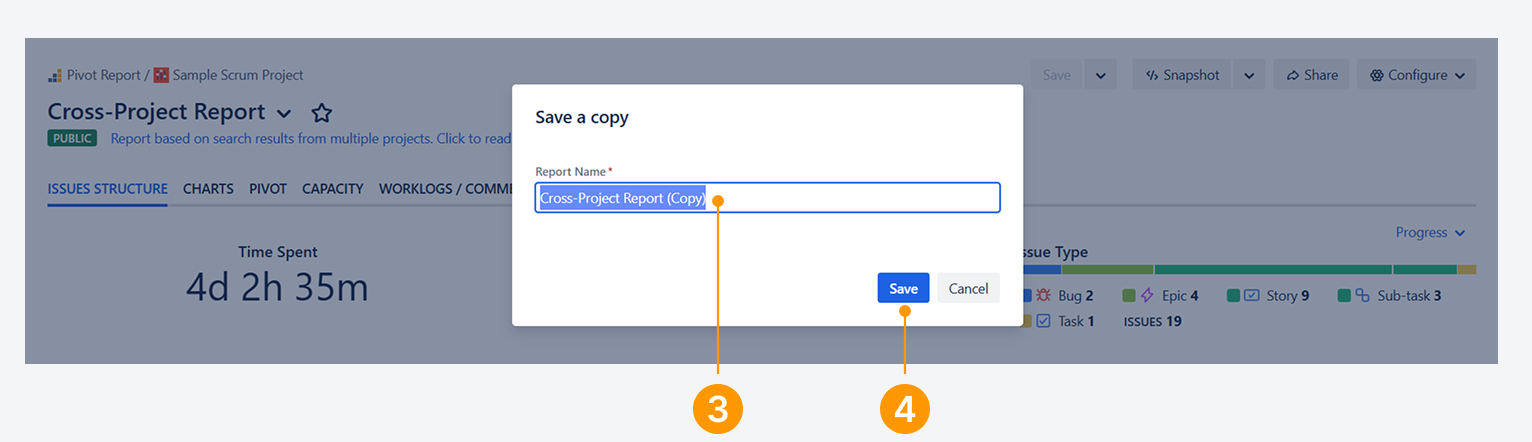
Enter a report name in the Save a copy pop-up.
This name will help you and others identify the report within the list. -
Click Save in the pop-up.
Save a copy of a report owned by another user
-
Click Save a copy in the header section.

-
Enter a report name in the Save a copy pop-up, as shown in the prior section.
This name will help you and others identify the report within the list. -
Click Save in the pop-up.
How do you benefit from using a saved report?
App-level settings
You can override some app-level settings for a saved report to create custom reports tailored to your needs. Although this override is available for an unsaved report, it will not take effect when sharing the URL. For example, you can adjust the positioning and impact of Slices on Progress indicators.
Dashboard gadgets
Saved reports are also used as sources for Jira dashboard gadgets, allowing you to compare data with other Jira tables and charts on dashboards—helpful for analyzing and monitoring lead and lagging indicators.
Embedded Confluence reports
Additionally, saved reports are ideal for embedding in Confluence, as they serve as a single source of truth on any page where they are added. Since saved reports cannot be edited within the page, they maintain consistency. In contrast, an unsaved report could be modified by any user with permissions to the Confluence page.
FAQ
If you have questions or need assistance, contact our support team via email or service desk. Our team is available Monday through Friday (9:00 AM to 7:00 PM GMT+7) to help with technical challenges or discuss improvements.