
This article explains why and how to save an existing report, either one you own or one you are saving as a copy. A related article explains how to save a newly created report.
Why should you save an existing report?
A report will display a MODIFIED label in the header section while you make changes.
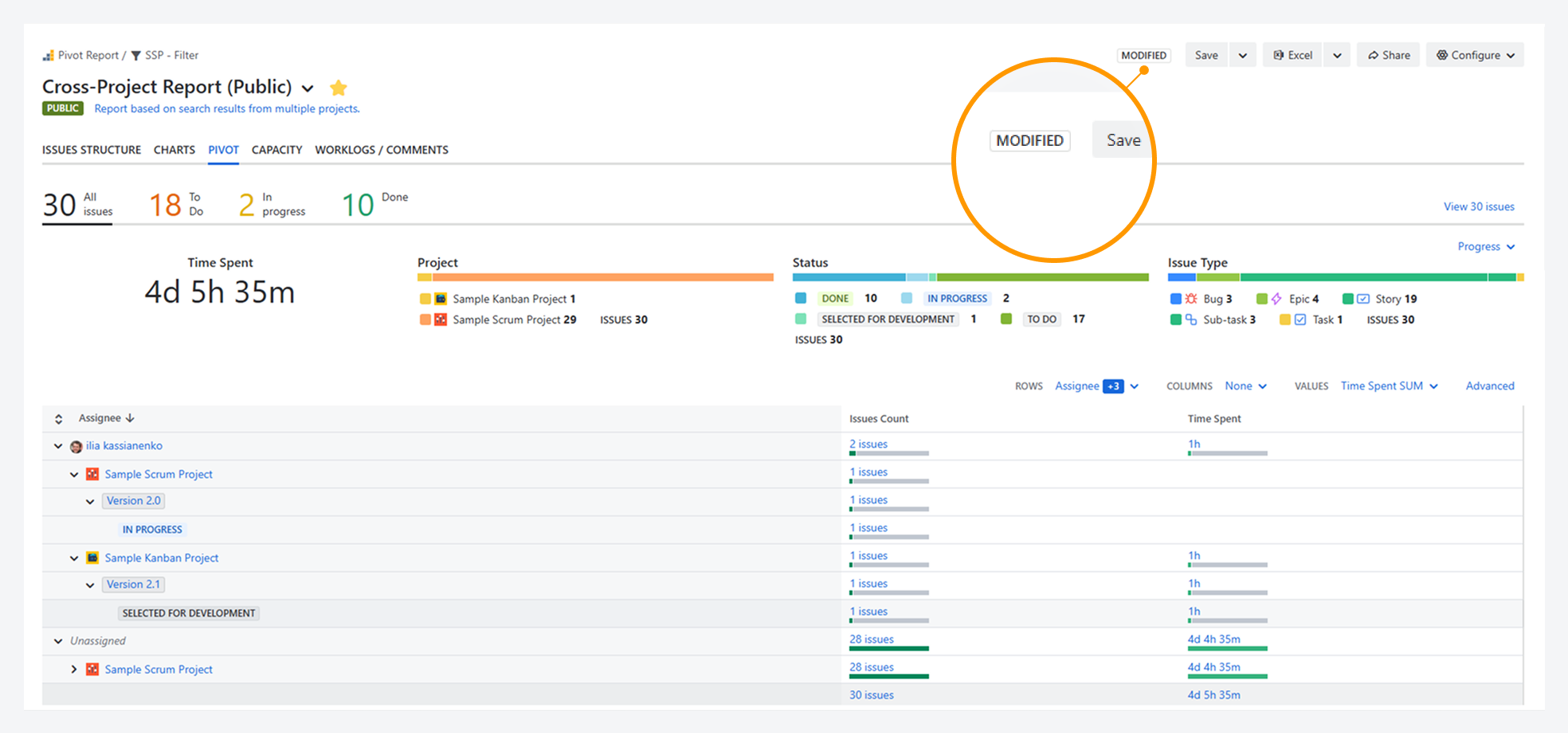
You should save an existing report when making changes, such as adding progress indicators or adjusting fields in the Pivot tab. Otherwise, any edits will be lost if you refresh or reopen the webpage.
If you are a report owner or admin, you can save changes directly to the existing report. If you do not have admin permissions, you can only save changes by creating a copy.
How can you save changes for an existing report?
If you are a report owner or admin, click Save in the header of the existing report.
If you do not have admin permissions, click Save As in the header to save a copy of the report. Alternatively, on the Manage Pivot Reports page, use the Copy option from the actions (•••) menu for the report.
What contents are inherited in the copy?
All fields from the original report, including sharing settings, are inherited when you create a copy. Available settings are listed in a separate article.
For example, if the original report is set to Public, making it available to other users in your Jira instance, the new copy will also be set to Public.
FAQ
If you have questions or need assistance, contact our support team via email or service desk. Our team is available Monday through Friday (9:00 AM to 7:00 PM GMT+7) to help with technical challenges or discuss improvements.