
This article explains how to verify and restore lost access to a report source, such as a saved filter or a project.
How can you verify if you've lost access to a report source?
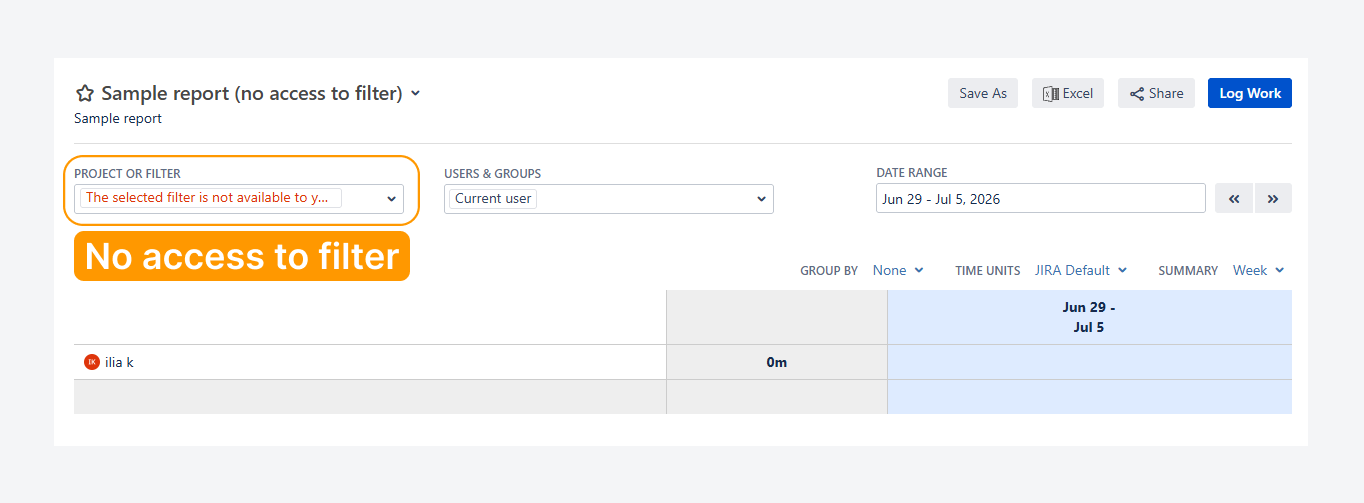
The screenshot above shows the error message that appears when you no longer have permission to access a filter.
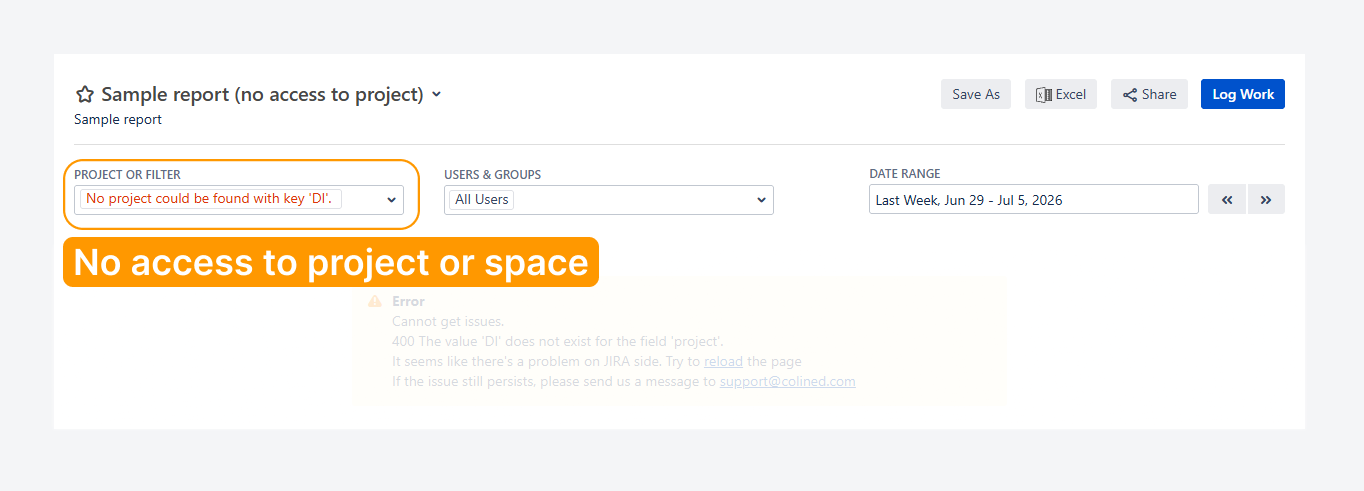
In comparison, the screenshot above shows another error message that appears when you no longer have permission to access a project.
These errors occurs because the app can access only data that you have permission to view. The app follows all permissions and third-party app restrictions configured in your Jira instance and cannot override them.
For example, you may have permission to open a report, but if you do not have access to its source, such as a filter or project, the report data cannot be displayed.
To resolve this work item:
-
If the report source is a filter, contact the report owner, report admin, or Jira admin to confirm who owns the filter and who can update its sharing permissions.
-
If the report source is a project, contact your Jira admin to verify that you have permission to view the project.
If another message appears, verify whether you have access to the report, by following the steps mentioned in a related article. Similarly, if a blank page appear instead of a message, verify if you have access to the app.
How can you verify and request access to a filter?
-20260706-191039.png?cb=3a591aa600a96e04ec613d33c13a1a82)
The screenshot above shows another error message that appears when you open a filter URL that you no longer have permission to access.
If you do not have the URL, you can verify your access to a report filter by following these steps or by referring to the related Atlassian article.
-
Confirm the name of the report filter with the report users, report admins, or report owner.
-
In the Jira sidebar, select Filters.
-
Select View all filters.
-
Search for the report filter.
If the filter does not appear in the list, you do not have permission to view it.
If the report owner or report admins do not know who owns the filter, contact a Jira admin to identify the filter owner or someone who can update its sharing permissions.
To identify the owner of any filter, including private filters, a Jira admin can:
-
Select the Settings (gear) icon in Jira's top navigation bar.
-
Under Jira admin settings, select System.
-
In the left sidebar, under Shared items, select Filters.
-
Search for the report filter.
The filter owner or one of the filter editors can grant you Viewer access, Editor access, or both.
-20260706-193029.png?cb=40c84f28ebfae9990fd3f74a855d116d)
The screenshot above shows another error message that appears when you open a filter URL that you no longer have permission to access.
If you do not have the URL, you can verify your access to a report filter by following these steps or by referring to the related Atlassian article.
-
Confirm the name of the report filter with the report users, report admins, or report owner.
-
In Jira's top navigation bar, select Issues.
-
Select Manage filters.
-
Search for the report filter.
If the filter does not appear in the list, you do not have permission to view it.
If the report owner or report admins do not know who owns the filter, contact a Jira admin to identify the filter owner or someone who can update its sharing permissions.
To identify the owner of any filter, including private filters, a Jira admin can:
-
Select the Settings (gear) icon in Jira's top navigation bar.
-
Under Jira admin settings, select System.
-
In the left sidebar, under Shared items, select Filters.
-
Search for the report filter.
The filter owner or one of the filter editors can grant you Viewer access, Editor access, or both.
How can you verify and request access to a space?
-20260706-203859.png?cb=54d3c61d26a5514cd6b49fcb9259cf6d)
The screenshot above shows another error message that appears when you open a space URL that you no longer have permission to access.
If you do not have the URL, you can verify your access to a space by following these steps.
-
Confirm the name of the space or spaces used as a source with report users, report admins, or the report owner.
-
In the Jira sidebar, select Spaces.
-
Click More Spaces, and select View all spaces.
-
Search for the space or spaces.
If the space does not appear in the list, you do not have permission to view it.
Contact a Jira admin to grant you the permissions to view work items within the space.
To configure a project, including hidden projects, a Jira admin can:
-
Select the Settings (gear) icon in Jira's top navigation bar.
-
Under Jira admin settings, select Projects.
-
Search for the project.
If user access needs to be restricted to a specific space, refer to this separate article or other article.
-20260706-193426.png?cb=bbace5df1d90b7efeb0345d545b19308)
The screenshot above shows another error message that appears when you open a project URL that you no longer have permission to access.
If you do not have the URL, you can verify your access to a project by following these steps.
-
Confirm the name of the project or projects used as a source with report users, report admins, or the report owner.
-
In Jira's top navigation bar, select Projects.
-
Select View all projects.
-
Search for the project or projects.
If the project does not appear in the list, you do not have permission to view it.
Contact a Jira admin to grant you the required permissions to view issues within the project.
To configure a project, including hidden projects, a Jira admin can:
-
Select the Settings (gear) icon in Jira's top navigation bar.
-
Under Jira admin settings, select Projects.
-
Search for the project.
A Jira administrator can also verify whether a project lead is assigned to ensure the project is visible in search results. This can be done by following the steps described in a separate article.
How can you verify if you've lost access to parts of the report source?
The error message above appears when the report source points to a nested filter or project that you no longer have permission to access.
-20260710-202045.png?cb=6a04c11a261cdaa0303c5ad5a7bde6c9)
If you still have access to the report filter, open it in the Issue Navigator.
-
If you no longer have access to a referenced nested filter (as shown above) or space, Jira displays an error indicating that the filter or space does not exist. Contact your Jira administrator to request access.
-
If the filter opens successfully but you suspect that some space work items are missing from the Issue Navigator search results and no errors appear:
Contact your Jira admin to verify that you have permission to view all work items in the space, including items restricted by an Work item Security Scheme.
For example, you may only see work items assigned to you and not all items in a space, as described in the related article.
If you still have access to the report filter, open it in the Issue Navigator.
-
If you no longer have access to a referenced nested filter (as shown above) or project, Jira displays an error indicating that the filter or space does not exist. Contact your Jira administrator to request access.
-
If the filter opens successfully but you suspect that some project issues are missing from the Issue Navigator search results and no errors appear:
Contact your Jira admin to verify that you have permission to view all issues in the project, including issues restricted by an Issue Security Scheme.
For example, you may only see issues assigned to you and not all issues in a project, as described in the related article.
If you have questions or need assistance, contact our support team via email or service desk. Our team is available Monday through Friday (9:00 AM to 7:00 PM GMT+7) to help with technical challenges or discuss improvements.