
This article lists several advantages that Pivot Report provides compared to Jira’s built-in Issue Navigator, especially for exporting issues within an Excel Workbook.
Why should you use Pivot Report to create an Excel file?
Jira’s Issue Navigator lacks a native export to Microsoft Excel. Instead, you can only export as CSV and Excel CSV, and additional configuration may be required. Additionally, exporting more than 1,000 issues at a time using the Issue Navigator’s export feature is unsupported by Atlassian, requiring a workaround for larger exports.
Pivot Report addresses these limitations by enabling you to export an Microsoft Excel workbook without additional configurations or add-ons.
This ensures you avoid formatting issues, eliminates the need to separate text into columns, and allows you to quickly explore, visualize, and share data.
For example, once a tab is downloaded into an Excel Workbook, you can analyze its contents, create custom charts, or embed a copy into presentation slides.
Features and use cases
Export contents from each report section
Summary section
The contents of the Summary section get exported depending on your selection of Rows, Columns, Values, and Function.
The Summary section of the Issue Structure tab displays the hierarchy among work items in the report. This hierarchy is maintained when exporting the contents of this tab into an Excel file.
Breakdown section
When the Breakdown section is enabled in the Pivot, Capacity, Worklogs, or Warnings tabs, only the columns you select are exported to an Excel workbook.
As shown in the example below, columns marked with a checkbox will be included in the export.
-20250820-033337.png?cb=1fed902cd23d2264edc2ad4edc8b7e85)
Progress and Slices sections
Progress indicators and Slices do not appear in the Workbook.
Display Excel Worksheets contents differently for specific tabs
Issue Structure
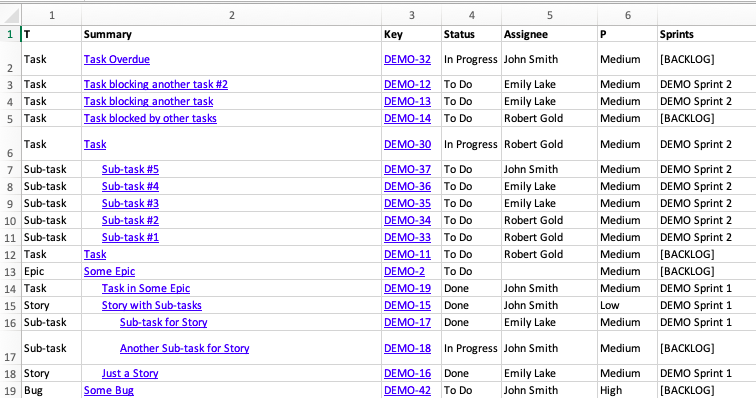
If you’ve exported a Workbook using the Issue Structure tab, the Worksheet mirrors its source in the Pivot Report, maintaining the tree view displayed in the tab, as shown in the screenshot below.
Additionally, in the Excel file, the Issue Key (T) and Issue Summary (Summary) columns are hyperlinked to your Jira instance, replicating their functionality in the report.
Warnings
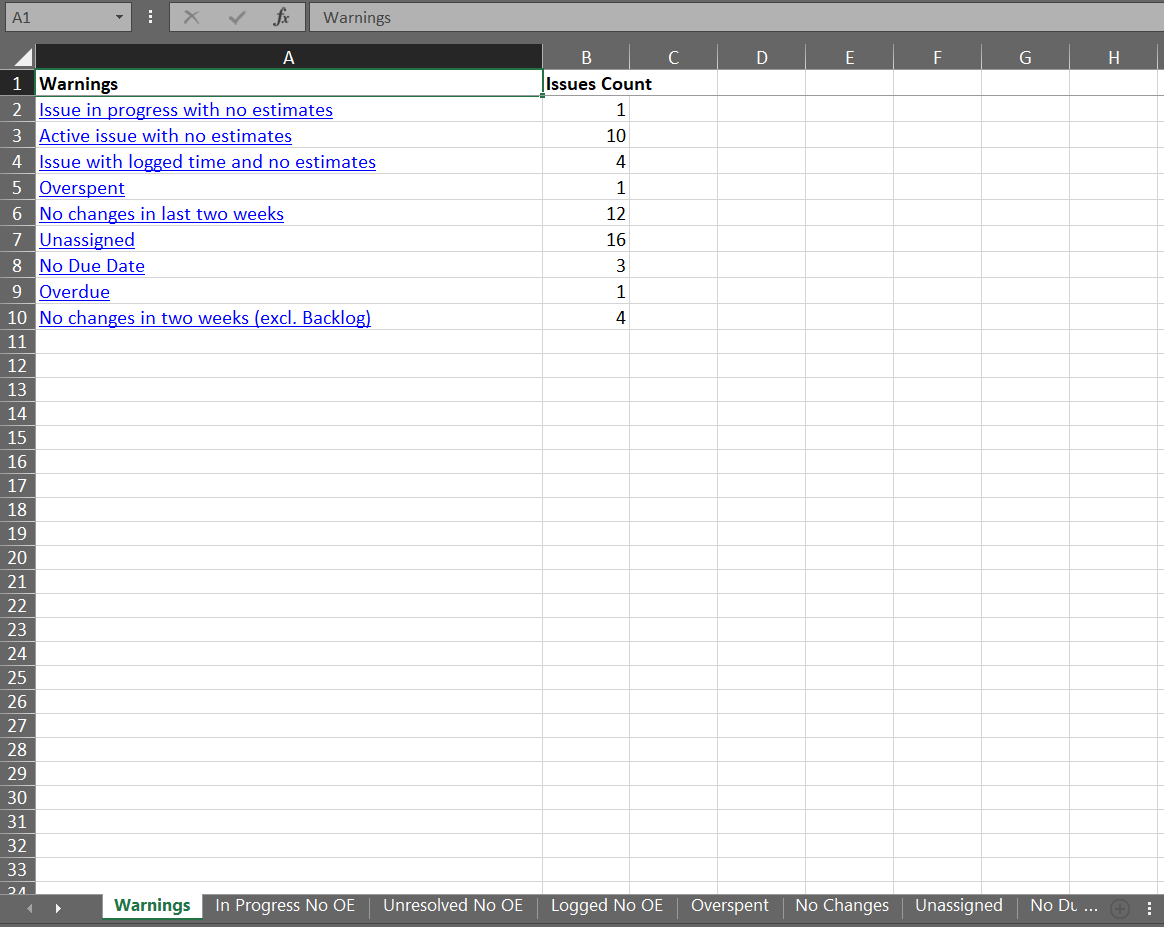
If you are exporting from the Warnings tab and have enabled the Breakdown section, the first worksheet will contain the tab’s summary section.
Subsequent worksheets will display the contents of the Breakdown section, with each worksheet associated with an enabled warning and listing issues specific to that warning. The screenshot below shows these worksheets.
How can you export a report into an Excel Workbook?
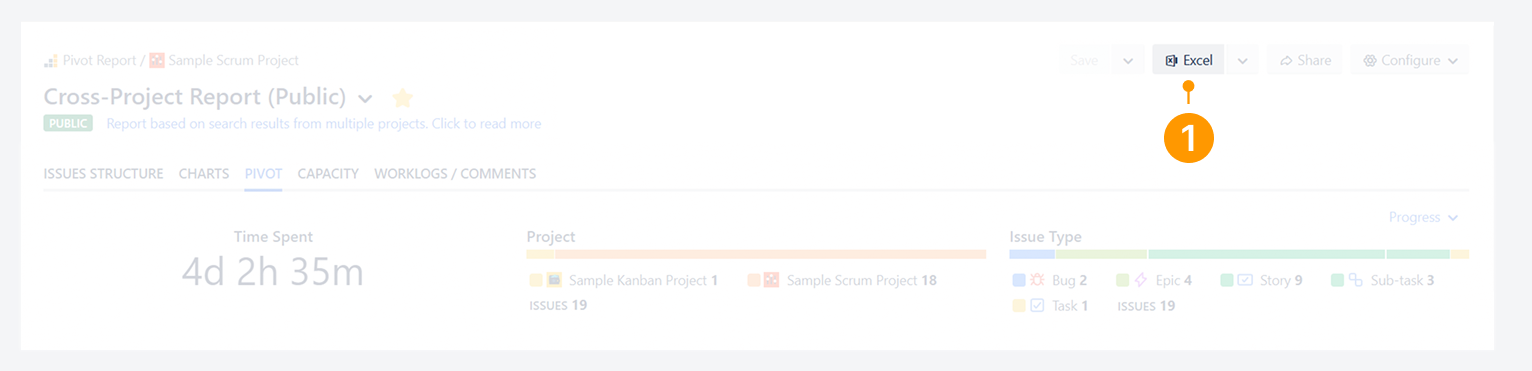
To create an Excel Workbook for a specific tab, use one of the two options in the report’s Header section: the ‘Excel’ button or the ‘Excel’ option in the Export dropdown menu. To create a Workbook for a specific set of issues, use the ‘Excel’ button appearing in the Breakdown pop-up.
Unlike an HTML Snapshot, an Excel Workbook can only be generated from the header section and not from a Breakdown pop-up.
‘Excel’ button
-
Click on Excel in the header section of a selected tab, and access the resulting Excel Workbook for this tab.
‘Excel’ option in the dropdown menu
-
Click on the dropdown menu beside the ‘Excel’ ('Snapshot') button.
-
Select Excel in the menu, and access the downloaded Excel Workbook for this tab.
-20250820-040551.png?cb=a21c0bd54b5aab5ab0f28a87e25192da)
Breakdown pop-up
-
Click on Excel in the Breakdown pop-up, and access the downloaded Excel Workbook for this pop-up.
-20250820-034414.png?cb=5981cb53babb5b5496de29656495cf51)
FAQ
Troubleshooting
Why is the Breakdown section not appearing?
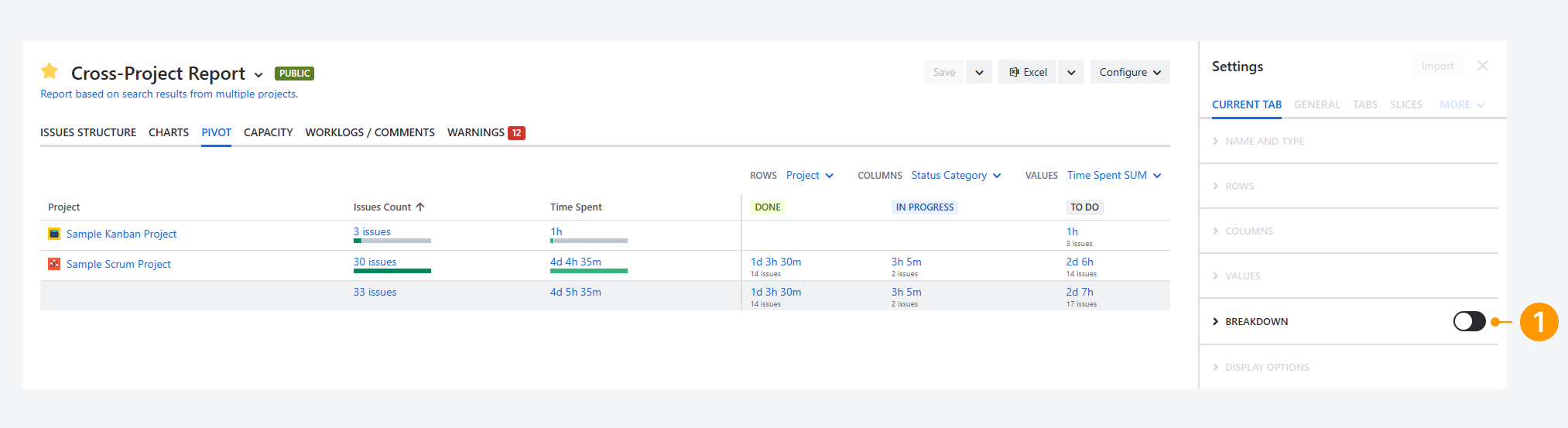
The Breakdown section may not appear because it is not enabled in the report sidebar.
If you want it to appear:
-
Turn on the Breakdown section before exporting the tab. If it is disabled, it will not be included in the exported Excel file. In the screenshot below, the section is disabled.
If you have questions or need assistance, contact our support team via email or service desk. Our team is available Monday through Friday (9:00 AM to 7:00 PM GMT+7) to help with technical challenges or discuss improvements.