
This article presents several advantages that Pivot Report offers over Jira’s Issue Navigator for exporting to Adobe PDF.
For instance if you want to digitally or physically print a list of issues and their hierarchy, printing the contents of the 'Issue structure’ tab required fewer steps than using Jira’s Issue Navigator.
Why should you use Pivot Report to print a PDF file?
-20250716-141644.png?cb=885279b85933cfb3c4500ca017650dc2)
Jira’s Issue Navigator doesn’t offer a built-in PDF export option. However, you can use the ‘Printable’ or ‘Full Content’ views to open a printable version of the page. Then, use your web browser’s Print feature to save it as a PDF.
The PDF or printed page will include a timestamp in the header and a URL in the footer.
-20250716-145307.png?cb=639733dcb60794725101fc2e2d647cb0)
Pivot Report overcomes these limitations by allowing you to save a PDF directly within the report’s selected tab, while hiding browser information (e.g. timestamp and URL) and report buttons.
How can you print or save a report as a PDF?
The steps illustrate how to create a PDF for a specific report tab by using the ‘Print’ button in the header section.
-
Click the drop-down menu next to the Excel ('Snapshot') button in the header section of the tab you want to print.
-
Then, select Print from the menu.
-20250820-042650.png?cb=5c1e7f2d6f8da73ff46d10396efda7b9)
-
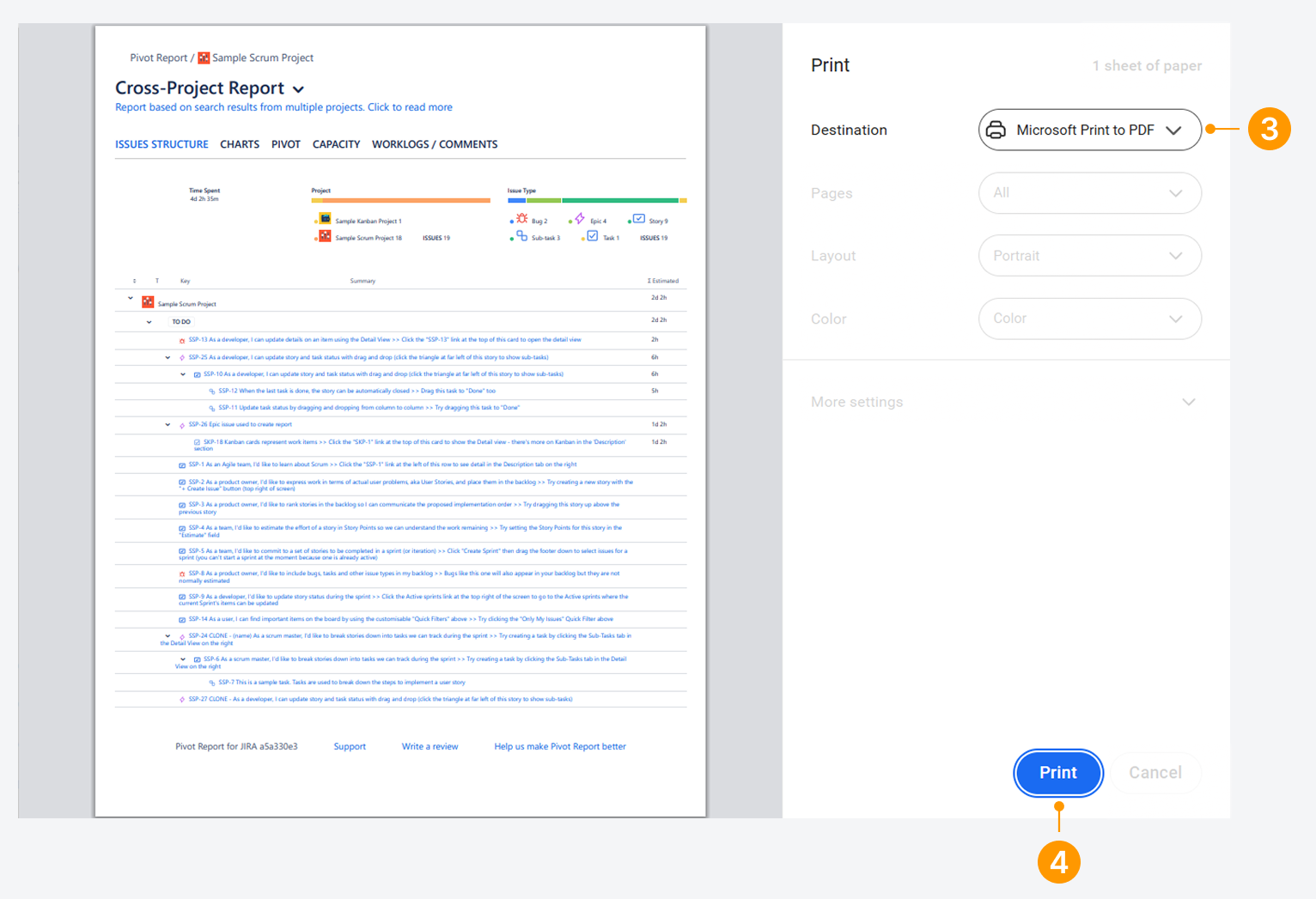
Choose Microsoft Print to PDF or ‘Save as PDF’ as the destination to save a PDF document, or select the printer you want to use.
-
Afterwards, click on Print.
How will the PDF be named?
After clicking the ‘Print’ button, as outlined in the previous step, a prompt will appear. In this prompt, you can choose a file name before saving.
Why should you use the header ‘Print’ button?

When saving a report as a PDF using the 'Print' button in the header, the report generation timestamp is omitted.
The examples below show how the report header appears depending on the method used to save the report, in contrast to using the ‘Print’ button.
Example of a HTLM snapshot saved as a PDF
-
When you save an HTML snapshot as a PDF, the timestamp appears in the header of the resulting file.
-20250820-011445.png?cb=54c4e14e66788f62f10cb2d1976b2285)
Example of a report webpage printed as a PDF
-
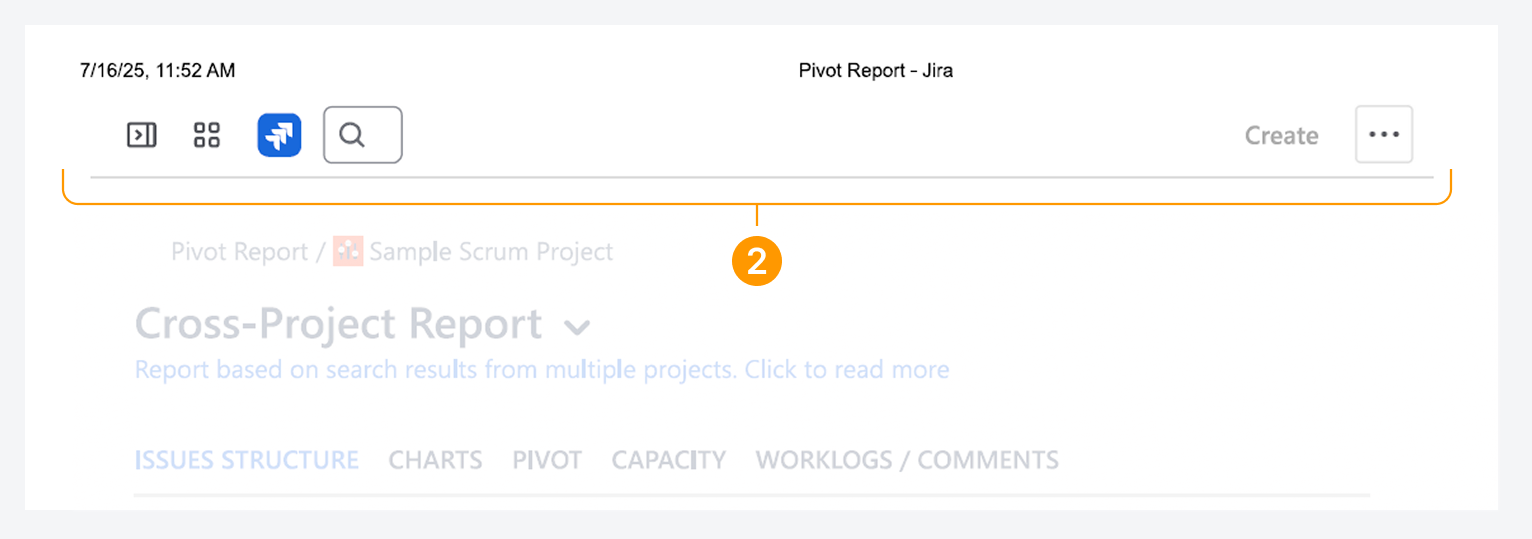
When you save a report webpage as a PDF, the resulting file will include the timestamp in the header along with Jira’s navigation buttons.
If you have questions or need assistance, contact our support team via email or service desk. Our team is available Monday through Friday (9:00 AM to 7:00 PM GMT+7) to help with technical challenges or discuss improvements.