
This article lists several advantages that Pivot Report provides compared to Jira’s built-in Issue Navigator, especially for sharing issues and metrics with external users.
Why should you create an HTML Snapshot?
Jira’s Issue Navigator and Dashboards do not allow you to share read-only search results with external users of your Jira environment without making additional permission changes.
Pivot Report overcomes this limitation by allowing you to share a report as a standalone, read-only HTML Snapshot without altering the report’s sharing type or permissions.
The Snapshot can be shared or emailed to internal or external recipients like any other downloaded file, without affecting the report’s permissions. Recipients can interact with the file as if they were connected to your Jira instance.
How can you export an HTML Snapshot?
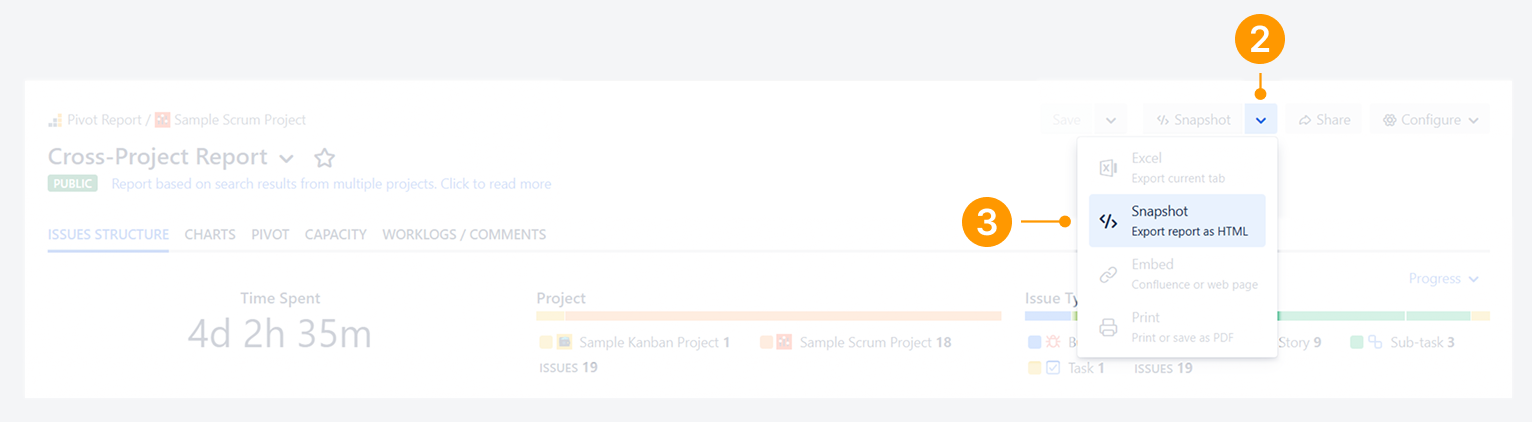
To create an HTML Snapshot for a report, use one of the two options in the report’s Header section: the ‘Snapshot’ button or the ‘Snapshot’ option in the Export dropdown menu.
Unlike an Excel Workbook, a Snapshot can only be generated from the header section and not from a Breakdown pop-up. The steps for generating an Excel Workbook are shown in a related article.
‘Snapshot’ button
-
Click on Snapshot in the header section of a selected tab, and access the resulting HTML file.
-20250820-031016.png?cb=0e81e0954166c99b0fbc9293f50d2dea)
‘Snapshot’ option in the dropdown menu
-
Click on the dropdown menu beside the ‘Snapshot’ ('Excel') button.
-
Select Snapshot in menu, and access the downloaded HTML file.
Why is the Snapshot button not appearing?
The title of the button changes dynamically between Snapshot and Excel based on your selection in the dropdown menu.
Repeat steps 2 and 3 from the prior section to display the ‘Snapshot’ button in the header section.
Are there browser requirements?
Yes. Once the HTML file is downloaded, you can share it like any other file attachment using a portable drive, chat interface, or email.
The recipient can view the contents of the HTML file in their web browser, provided they use a compatible browser such as Google Chrome, Mozilla Firefox, or Microsoft Edge, which supports rendering HTML content.
Can you save report changes to the Snapshot?
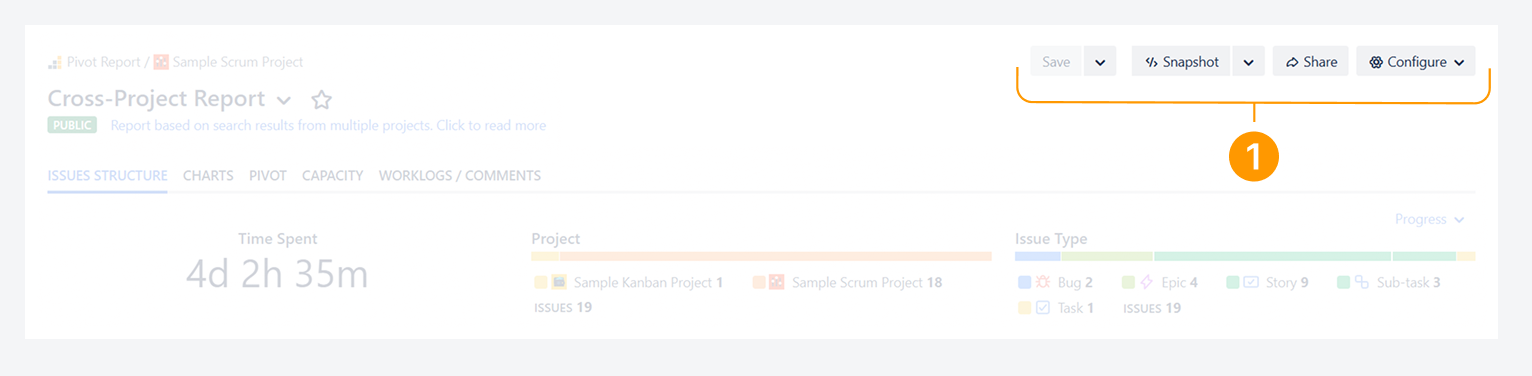
Example of Header section for original report
-
The header section of a report includes configuration alongside other buttons.
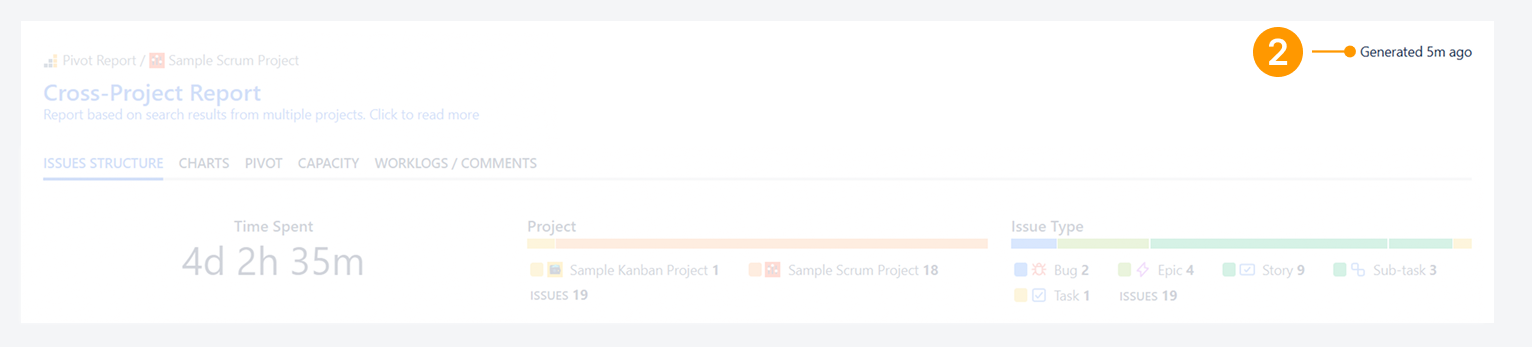
Example of Header section of HTLM Snapshot
-
The header section of the HTML Snapshot excludes the save, export, share, and configuration buttons, as shown in the following screenshots. This exclusion ensures a single version of the read-only Snapshot is in circulation among its users. Only the timestamp is shown.
Will the Snapshot be refresh as the report evolves?
No. Unlike an embedded Confluence report, a snapshot is a static HTML file with no live connection to the source report. If the original report's source or configuration changes in Jira, you must generate a new snapshot to reflect those updates.
The steps for embedding a report within a Confluence space are shown in a related article.
Can you email the report instead of creating a Snapshot?
No. Report and Jira permissions cannot be configured via email. Instead, you can:
-
Share a report URL with an existing Jira user, who will be able to access it based on their Jira, app, and report permissions.
-
Send an HTML Snapshot to eliminate the need for pre-configured permissions.
We do not have access to historical data or admin rights in your Jira environment, so HTML Snapshots must be created manually.
Can you import an HTML Snapshot into Confluence?
No. Atlassian allows importing HTML content into Confluence spaces. However, Pivot Report Snapshots cannot be imported because they include JavaScript-generated HTML with <script> tags, which Confluence does not support. Only static or plain HTML files are allowed.
If you have questions or need assistance, contact our support team via email or service desk. Our team is available Monday through Friday (9:00 AM to 7:00 PM GMT+7) to help with technical challenges or discuss improvements.