
-20260512-032154.png?cb=694d9e0907853bf81aca04b49fbe4689)
This article explains why and how to embed reports in Confluence using an iframe macro.
Why should you embed a report?
By embedding report within a page, your team can visualize the contents of a Data Center environment without leaving a Confluence space.
These reports provide additional information beyond those available through Jira’s Reports template or Jira Charts Macro, by being sharable and highly interactive through the use of Slices and customizable tabs. As a result, these Slices allow you to filter and differentiate the contribution of each dataset, while using sequential tabs to add depth to each step of your analysis.
How can you embed a report within an iframe Macro?
Start by navigating to your Jira instance and creating your report. Customize it as needed, then save it. If modifying another user’s report, save your changes as a copy.
Follow these steps to embed a saved report into a Confluence page by using the iframe Macro.
-
Click the dropdown menu, and select Embed.
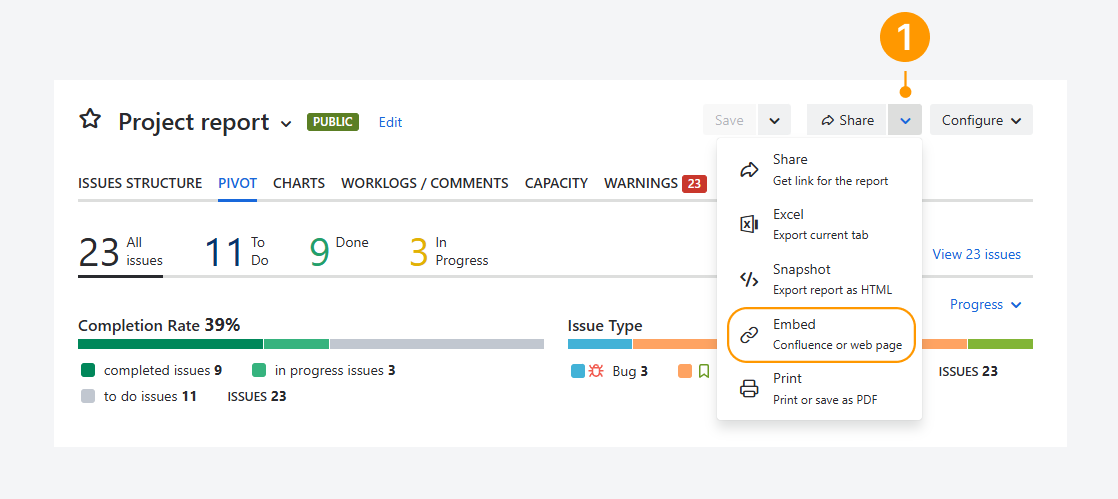
-
A pop-up confirms that the embed link has been copied to your clipboard. The link appears as follows:
https://YOUR_JIRA_INSTANCE_NAME.atlassian.net/plugins/servlet/pr/embed-report?report=YOUR_REPORT_ID
-
Open the Confluence page where you want to embed the Pivot Report.
-
Click Edit.
-
Add the HTML Macro, by following the steps provided by Atlassian in a related article. The HTML Include Macro is not supported.
-
Insert an iframe tag and reference the embeddable report address as the source. For example:
<iframe src="YOUR_JIRA_INSTANCE_NAME.atlassian.net/plugins/servlet/pr/embed-report?report=YOUR_REPORT_ID" title="Name of embedded report" width="100%" height="1000px"></iframe>
-
Save the page and share it with your team.
You will need the View permission to access the content in this Confluence space. Also, you’ll need Add page permission to edit existing pages in this space. If the page is restricted for editing, refer to the separate article and contact a Space or Confluence admin.
You need View permission to access content in the Confluence space. To edit existing pages, you also need the required Add page permission for that space.
If the page is restricted from editing, refer to the related article and contact a Space admin or Confluence admin.
FAQ
What Jira permissions do you need to access the embedded report?
-20260507-011336.png?cb=2313cc3c6030857171715d11f9ff5a5b)
Jira permissions
Permissions set for the Confluence space are independent of those set for the report in Jira. The required permissions are as follows:
-
A user must have access to the Confluence space where the report is embedded using an iframe macro.
-
A user must have access to Jira and permission to open the report.
-
A user must have access to the report source, such as the Jira project where the issues are located or the saved filter used to create the report.
To review your access to a report source, refer to the related article.
For example, a user (such as a client) or a group of users may not have permission to view a report in Jira but may still have access to the Confluence page where it is embedded.
In this case, they will see the error message shown above for the embedded report.
App-level permissions
In addition to the required permissions listed above, users or groups must also have access to the app. The steps to restrict or restore access are described in a related article.
Troubleshooting
Can you lose access to a confluence space or page?
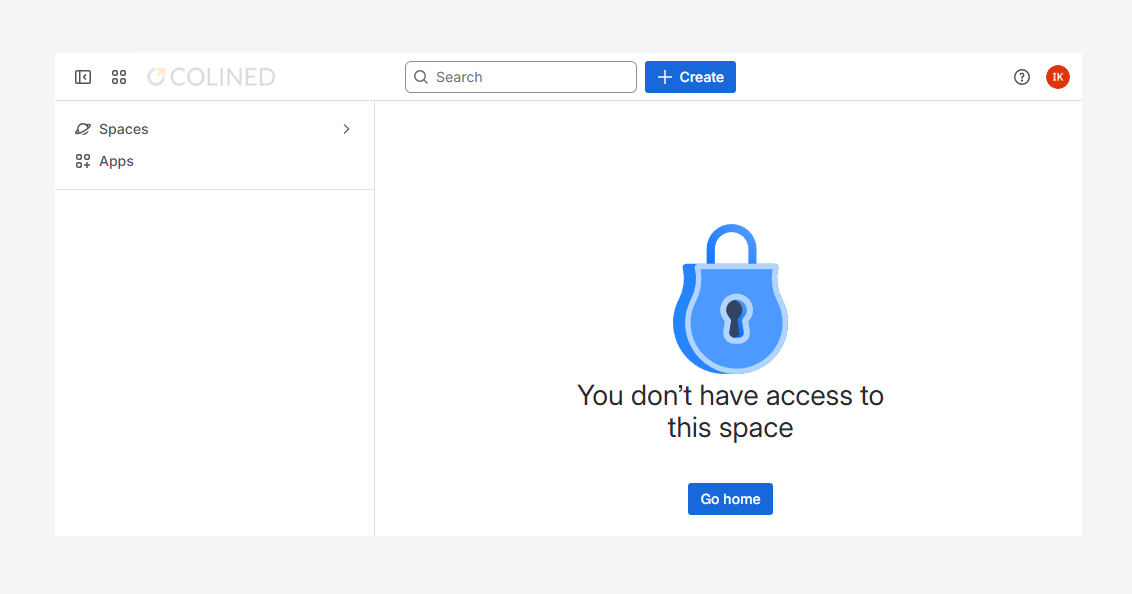
Yes. The error shown in the screenshot above may appear if you lose access to a Confluence space or page.
To restore access, contact a Space or Confluence admin responsible for managing permissions for that space.
Can you lose access to a report?
Yes. The error shown in the screenshot above may appear in a Confluence page if you lose access to a report.
To restore access:
-
Refer to the related article explaining how to restore access to public reports.
-
If the report is not shared publicly in Jira, contact the report owner or an administrator. They can update the report’s sharing settings, as described in a separate article.
Can you embed a report in an external Cloud?
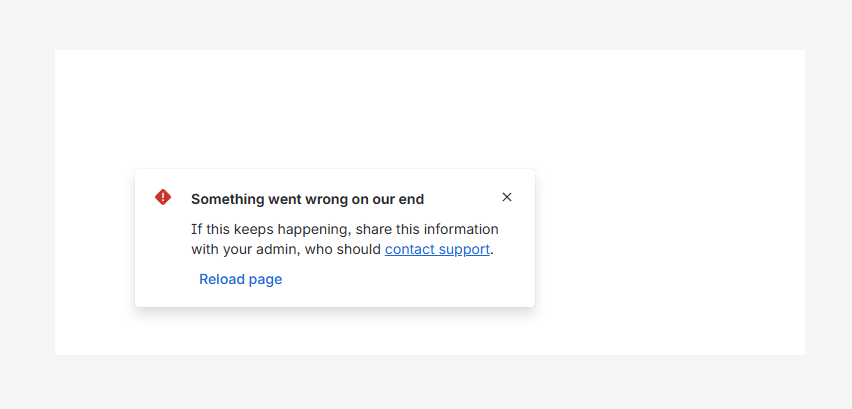
No. The error shown in the screenshot above may appear in a Confluence page when another user views a report embedded from a different Cloud instance.
For example, a report created in a Jira instance hosted on https://YOUR_JIRA_INSTANCE_NAME.atlassian.net cannot be embedded in an iframe macro within a Confluence page hosted on: https://OTHER_JIRA_INSTANCE.atlassian.net
To embed reports successfully, Jira and Confluence must belong to the same Atlassian Cloud environment.
Can a signed-out user access an embedded report?
No. A signed-out user cannot access an embedded report.
Colined protects your data by not storing it on its servers and by blocking access to the app for signed-out users.
If you are signed out of Jira, you cannot edit reports or use the app’s features, such as the report or calendar list. You can only access exported reports, including Excel files, HTML snapshots, and PDFs.
You also cannot view embedded reports. Even if a Confluence space allows anonymous access, embedded reports display an error message until you sign in to Jira.
How can you tell if you’re logged out of Jira?
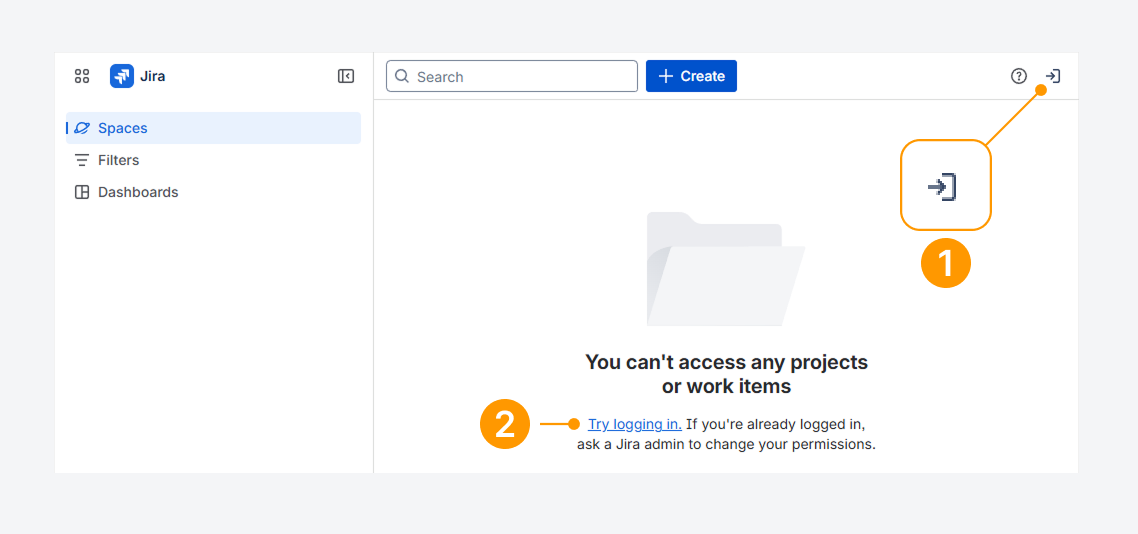
You can tell if you’re logged out of Jira by checking whether:
-
An arrow pointing right is shown the top navigation bar.
-
Projects, Filters, or Dashboards load as blank pages.
These signs indicate your account is signed out.
Click the arrow or the Try logging in link to log back into your Jira account.
Can you account be logged out due to inactivity?
Yes. Your organization may set an idle session duration, which logs you out automatically after a period of inactivity, as explained in a related Atlassian article.
Also, check your browser’s site data settings, since closing the browser often signs users out.
Will Jira notify you before logging you out?
By default, Jira does not show a warning before ending your session. To change this behavior, see the related Atlassian article.
If you have questions or need assistance, contact our support team via email or service desk. Our team is available Monday through Friday (9:00 AM to 7:00 PM GMT+7) to help with technical challenges or discuss improvements.