
This article explains list the most common questions about accessing and editing reports, along with a table of restrictions that may affect which content is visible in your report.
How can you find and change a report?
Finding an existing report
Saving a report
Changing a report’s source
Changing permissions and ownership
-
How do you set permissions for users and user groups for the app?
-
Can you lose access to using the app while being a report owner or administrator?
What additional restrictions can affect a report’s content?
After accessing a report using one of the methods above, review the following types of restrictions if any content appears hidden or differs based on your user permissions.
Jira and App permissions
Worklogs Report adheres to all Jira permissions and cannot override them, including permissions from third-party apps such as Timesheets by Tempo.
Ensure that you have the required permissions in both Jira and Tempo.
Report modifications
Multiple report admins can edit a report simultaneously. If another admin or the report owner saves changes while you're editing, your unsaved work may be lost.
To prevent this loss, coordinate with other users to avoid editing the report at the same time.
Filter permissions
If a user tries to open a report that includes issues from a project they don’t have access to, an error message will appear.
Verify that you can access the relevant issues, filters, boards, and project when working with a report that references them.
Can you lose access to a report source?
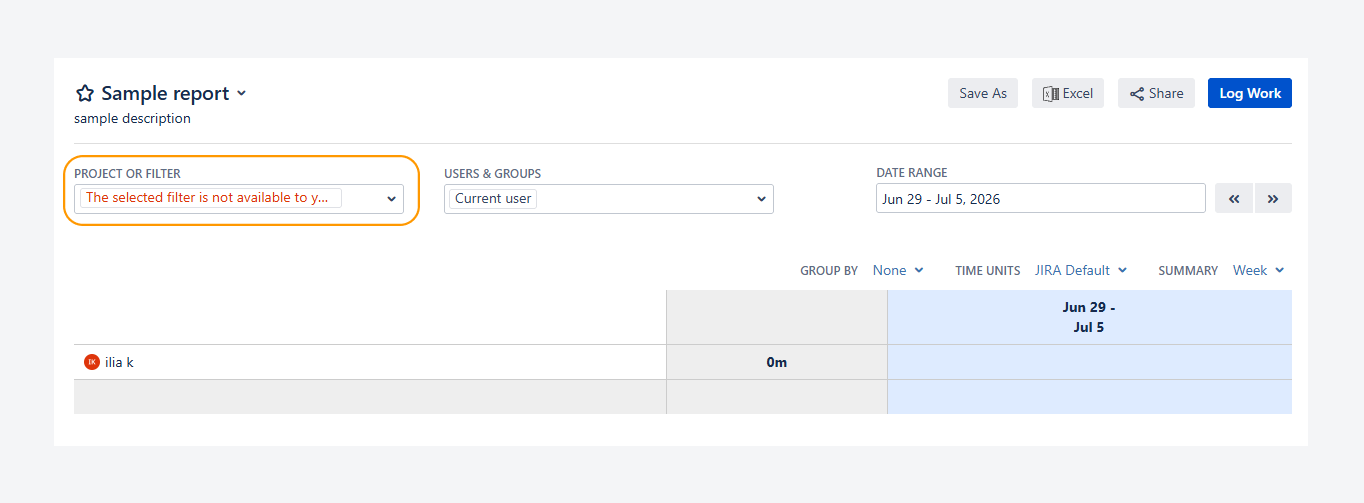
Yes. You can lose access to a report source. For example, you may lose permission to view or edit a filter used by a report. When this happens, the report displays an error message, as shown in the screenshot below.
This error is explained in a related article.
Can you restrict access to Public reports for specific projects?
No. Public reports cannot be restricted on a per-project basis.
However, Jira permissions can be restricted for individual projects or filters. As a result, users may lose access to reports that use those projects or filters as their source.
If you open a public report from the Manage Worklogs Reports page and its source is a project or filter that you do not have permission to access, the report displays an error message.
The example below shows a report that uses a filter you do not have permission to access.
If you have questions or need assistance, contact our support team via email or service desk. Our team is available Monday through Friday (9:00 AM to 7:00 PM GMT+7) to help with technical challenges or discuss improvements.