
This article explains which app permissions report owners, report admins, space admins, and Jira admins can modify.
Features and uses cases
Collaborate and share reports
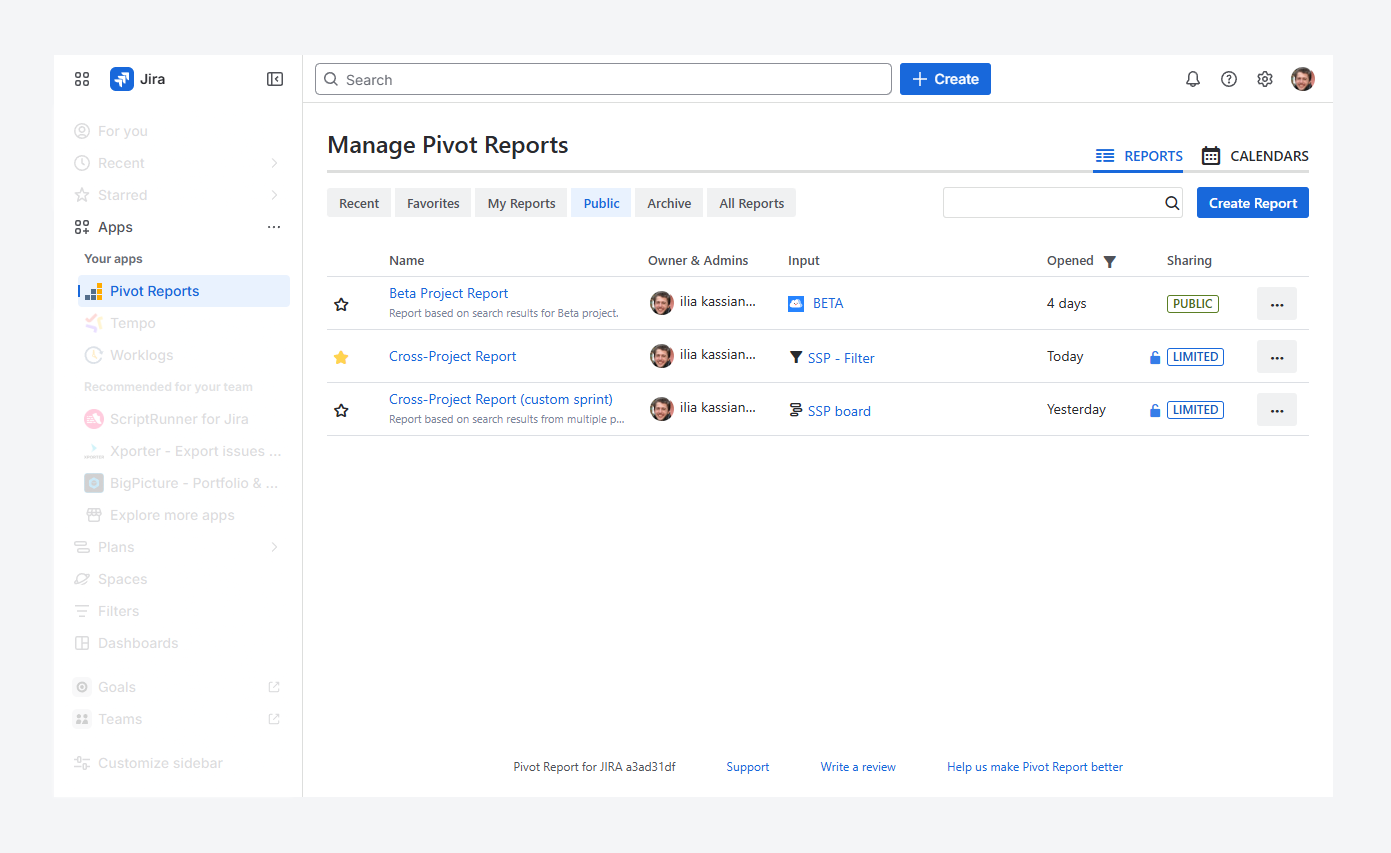
You can grant selected users access to your reports from the Manage Pivot Reports page, shown in the above screenshot, or from within the report by editing the sharing settings.
This allows selected users to collaborate with you on modifying the report. They can not only view the report contents but also make changes, such as adding custom slices or extending the report source.
To edit the sharing settings for a report, you must have report owner, report admin, or Jira admin permissions. To learn about sharing settings, refer to the related article.
Display a report shortcut in a Board
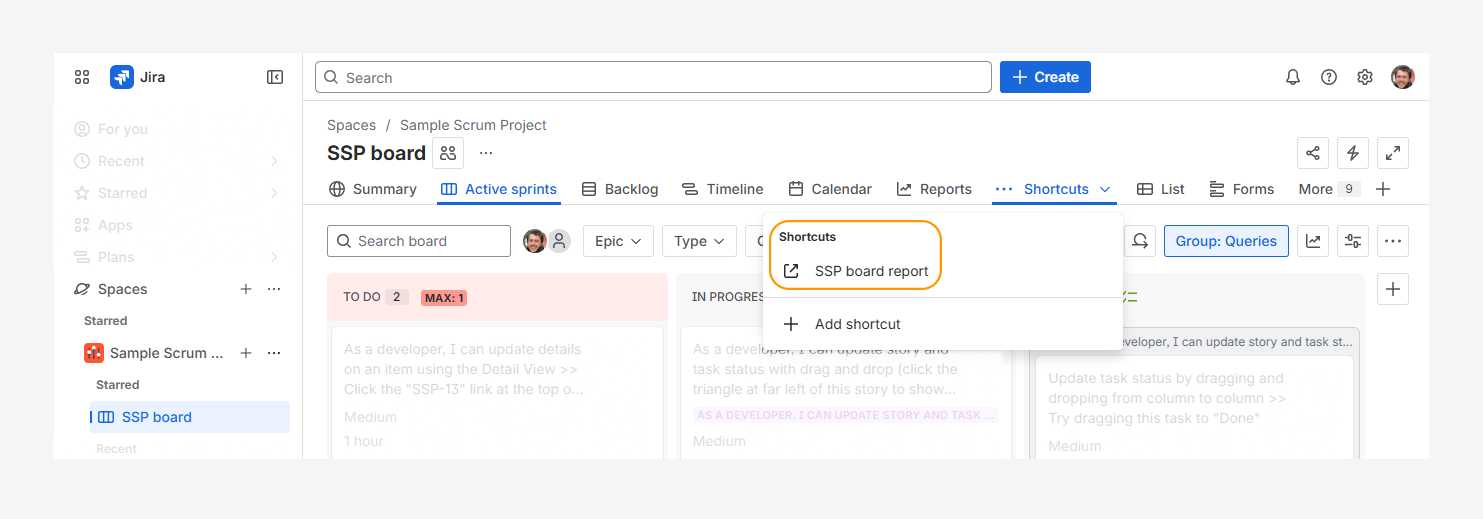
When a report uses the same source as a board (such as a JQL filter or space), it reflects changes made to that source, including status updates, sprint closures, or other board configuration changes.
By adding a shortcut, as shown in the screenshot above, you can access the report directly from the board, as described in a related article.
To add, delete, or edit navigation shortcuts on a board, you must have Jira admin or Space admin permissions. Users with only view or edit access cannot modify the board navigation.
Transfer ownership of one or several reports
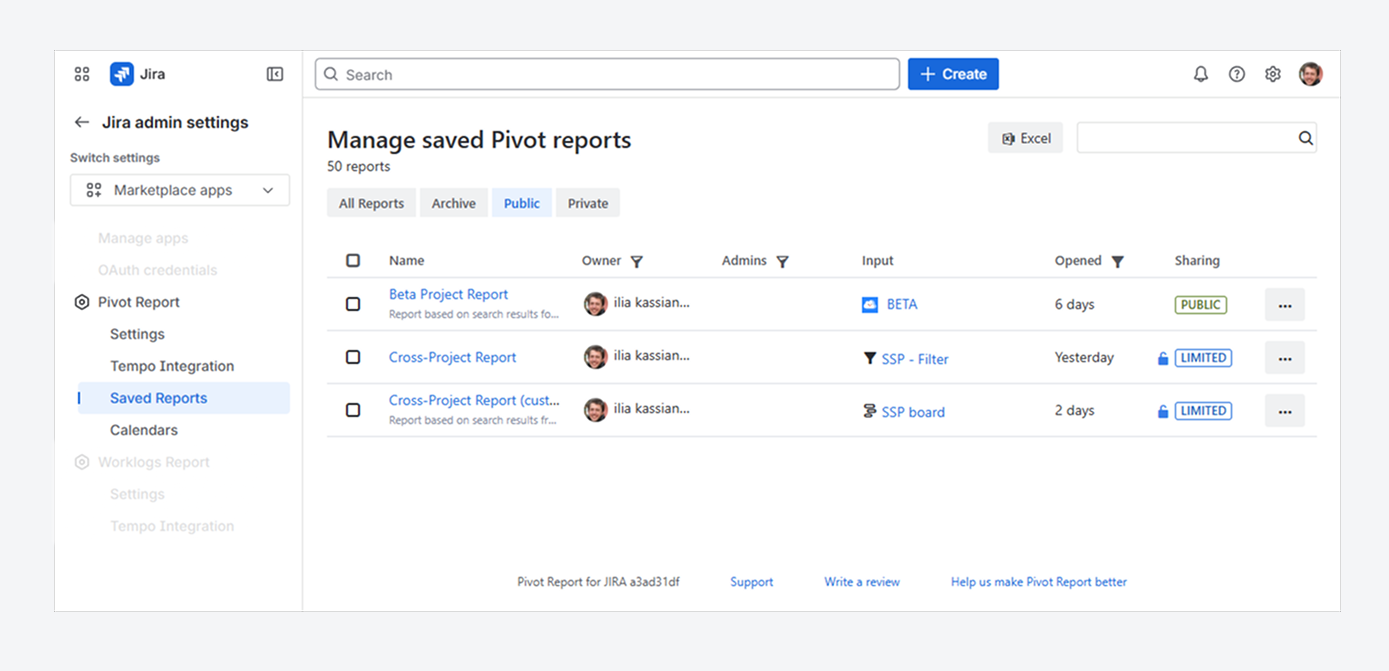
You can use the Manage saved Pivot reports page to:
-
Find any created or archived report, regardless of whether it is private, public, or limited to specific users or groups.
-
Transfer report ownership from one user to another, such as when the original owner becomes inactive in Jira.
-
Change who can access a report, archive or unarchive reports, and delete reports that are no longer in use.
You can perform these actions individually or in bulk by selecting a single report, multiple reports, or all reports, as described in the related article.
To access this page, you must have Jira Admin permissions.
Grant access to an embedded report in Confluence
-20260512-032154.png?cb=694d9e0907853bf81aca04b49fbe4689)
You can grant users access to embed a report within a Confluence page, which allows them to:
-
Display the default or custom hierarchy of Jira work items, along with their associated worklogs and comments.
-
Filter data using Slices and visualize it using Charts.
-
Preview the feasibility of assigned work items and due dates using Capacity.
-
Identify potential work items in the report using Warnings.
Users can perform these actions only if they already have permission to open both the report and its source in Jira. To learn how to embed a report, refer to the related article.
To grant users access to the Confluence page, you must have Space admin or Confluence admin permissions.
-
Users need View permission to access content in the Confluence space.
-
To edit an existing page by embedding a report, they also need the required Add page permission for that space.
Display widgets within Work item View on Jira Cloud
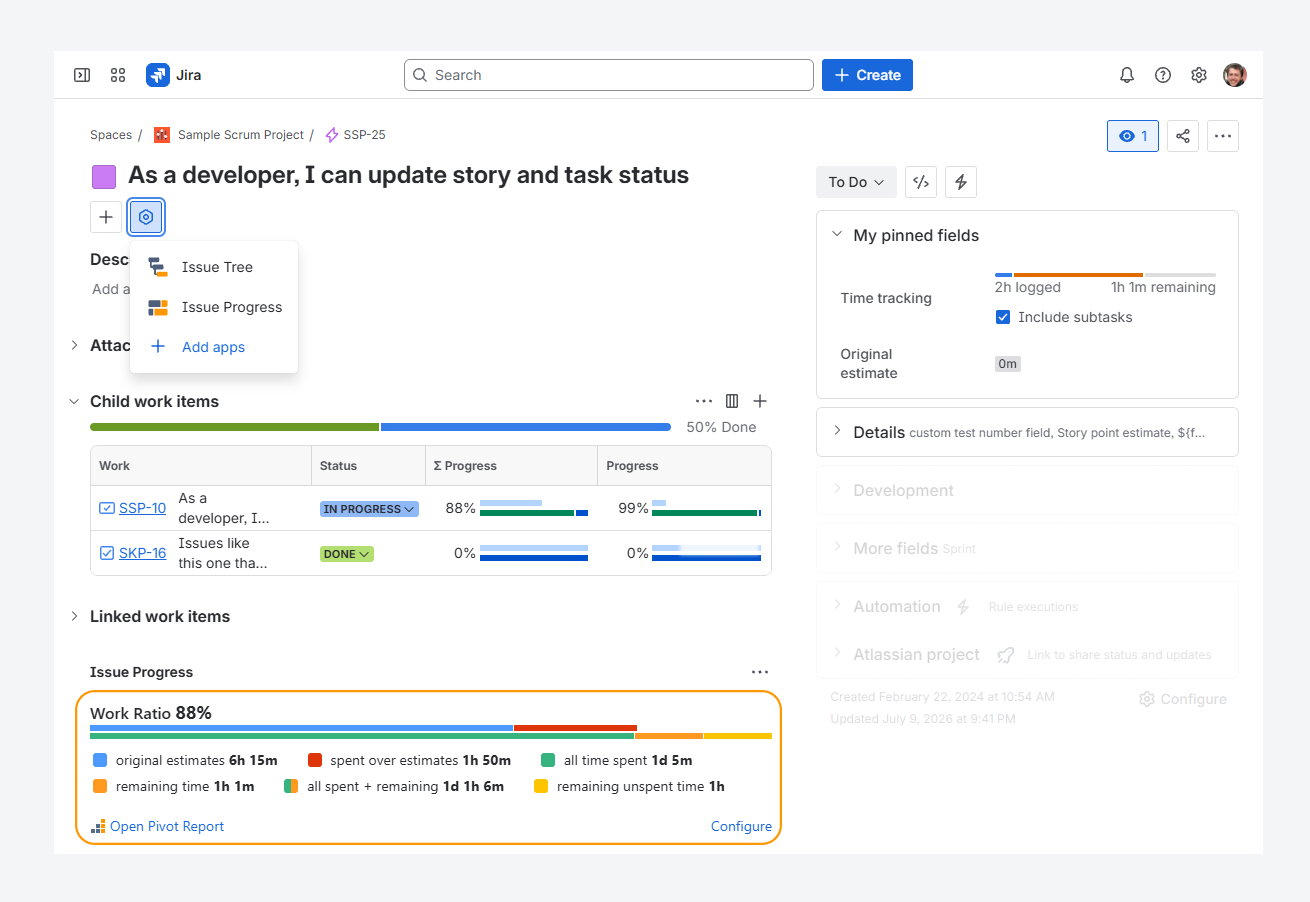
You can grant users access to widgets, which allows them to:
-
Access progress indicators directly from the Work item View in Jira Cloud using the Work item Progress widget, as shown in the screenshot above.
-
Display the complete work item tree without navigating to lower levels of the hierarchy, such as subtasks, by using the Work item Tree widget.
-
Display report columns and their values for each level of the hierarchy, such as Time in To Do or Time in Progress, by using the Work item Tree widget.
To grant users access to widgets for one or more work types, you must have Space admin or Jira admin permissions and follow the steps described in the related article.
When the app is installed, all users can use widgets for all work types by default.
Allow users to create reports from the Issue View
-20260713-223252.png?cb=6e7fc2af9f8db7a0775cf5fd645c5bda)
You can grant users access to create reports directly from the Work item View. This allows them to select a parent work item and create a report for the entire hierarchy beneath it.
To grant users access to create reports from the Work item View for one or more work item types, you must have Space admin or Jira admin permissions and follow the steps described in the related article.
When the app is installed, all users can create a report from the Work item View.
Select users that can access Public
You can grant selected users access to public reports from the Manage Pivot Reports page, shown in the above screenshot.
By limiting which users or groups can access public reports, you can ensure that external users, such as clients or partners, only see private and limited reports for which they are report owners, report admins, or authorized users.
To grant selected users access to all public reports, you must have Jira admin permissions and follow the steps described in the related article.
By default, when the app is installed, all users have access to public reports.
Allow users to see their own worklogs in a report
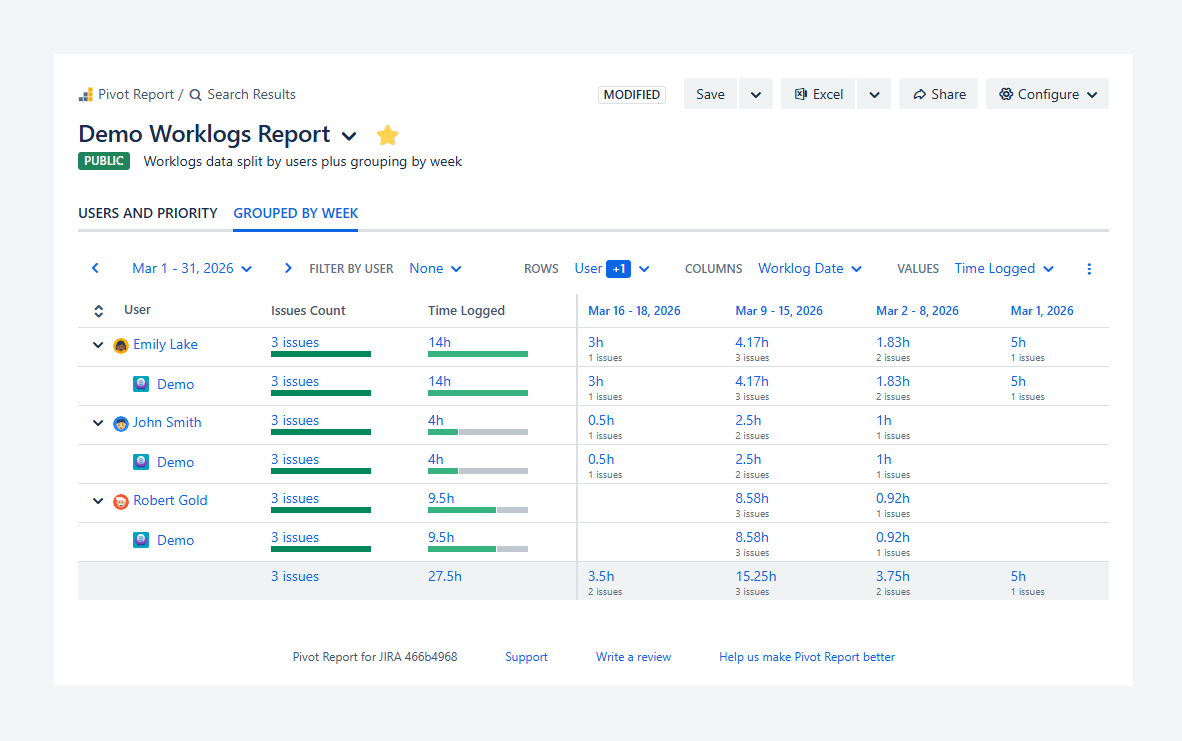
The example above shows a user with access to their own worklogs and those of their team. You can grant users access to view their own worklogs when they are individual contributors, or access to all worklogs when they collaborate in groups, such as paired programming teams.
This allows users to identify when estimates are exceeded and determine whether assistance is needed to re-evaluate the remaining work.
To grant users access to worklogs, you must have Jira admin permissions and follow the steps described in the related article.
When the app is installed, all users can view their own logged time and the worklogs of other users for the work items included in the report.
Allow users to view all worklogs based on Jira’s default time zone
-20260423-040746.png?cb=59dd26d6a3418a410720a15562e680cc)
The example above shows a user with access to their own worklogs and those of their team. Team members may be working from different time zones.
You can allow users to view all worklogs based on Jira’s default time zone instead of their own, ensuring that all users see the same values.
To allow users to view worklogs based on Jira’s default time zone, you must have Jira Admin permissions and follow the steps described in the related article.
By default, when the app is installed, worklogs are converted to the viewer’s local time.
FAQ
Can you create a report for a space with disabled app features?
Yes. The above screenshot shows a work item in a space where the Pivot Report button is enabled.
If the button is disabled for this work type or all work types in a space, or if the app is disabled for the space, you can still reference those work items or spaces as report sources.
The report creation buttons in the Issue Navigator and on a Board are not affected by these space-level settings. They are available unless your user account loses access to the app.
For example, when creating a report from the Manage Pivot Reports page, you can select any work item or space that you can access in Jira, regardless of whether Pivot Report is enabled for that work item or space.
Similarly, you can use the Issue Navigator or a saved filter to reference any accessible work item or space when creating a report.
If you are unable to reference a nested filter, space, work item, or another source type when creating a report using JQL, refer to the steps described in the related article.
Troubleshooting
Can the app be disabled or re-enabled for a project?
Yes.
A Jira admin can disable the app for one or more spaces while keeping it available in all other spaces. Alternatively, the app can be enabled only for selected spaces and unavailable in all others.
To define which spaces can use the app’s features, follow these steps:
-
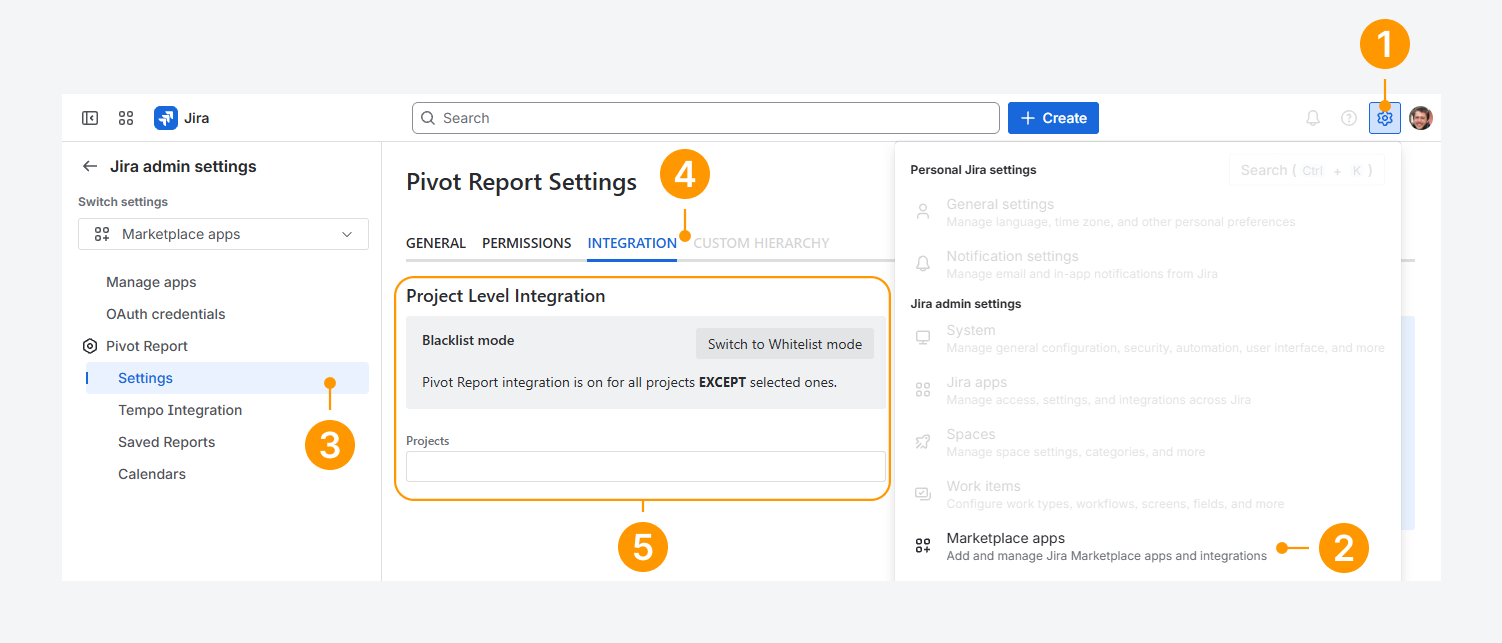
Open the Settings menu in Jira's top navigation bar by clicking the gear icon.
-
Select Marketplace apps.
-
Under Pivot Report, click Settings.
-
On the Pivot Report Settings page, select the Integration tab.
-
In the Project Level Integration section, choose Whitelist mode or Blacklist mode.
-
Whitelist mode enables the app's features only for the spaces listed in the Projects field.
-
In comparison, Blacklist mode disables the app's features only for the spaces listed in the Projects field. All newly created spaces have the app's features enabled until they are added to the Projects field.
To make the app's features available for all spaces, leave the Projects field empty regardless of the selected mode.
By default, when the app is installed, the Projects field is empty and the app's features are available in all spaces.
Can a signed-out user access an embedded report?
No. A signed-out user cannot access an embedded report.
Colined protects your data by not storing it on its servers and by blocking access to the app for signed-out users.
If you are signed out of Jira, you cannot edit reports or use the app’s features, such as the report or calendar list. You can only access exported reports, including Excel files, HTML snapshots, and PDFs.
You also cannot view embedded reports. Even if a Confluence space allows anonymous access, embedded reports display an error message until you sign in to Jira.
How can you tell if you’re logged out of Jira?
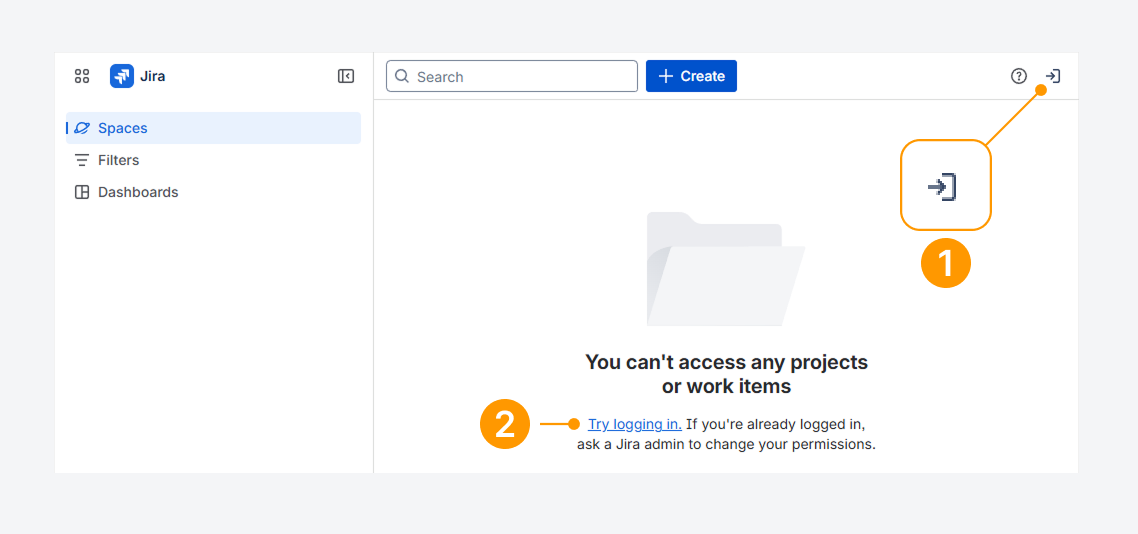
You can tell if you’re logged out of Jira by checking whether:
-
An arrow pointing right is shown the top navigation bar.
-
Spaces, Filters, or Dashboards load as blank pages.
These signs indicate your account is signed out.
Click the arrow or the Try logging in link to log back into your Jira account.
Can you account be logged out due to inactivity?
Yes. Your organization may set an idle session duration, which logs you out automatically after a period of inactivity, as explained in a related Atlassian article.
Also, check your browser’s site data settings, since closing the browser often signs users out.
Will Jira notify you before logging you out?
By default, Jira does not show a warning before ending your session. To change this behavior, see the related Atlassian article.
Can a user lose access to a board in sync with a report?
-20260707-190748.png?cb=b0a3ee6b4c5aa4759712218548fb0c83)
Yes. The error message above appears when the report source points to a board that a user no longer has permission to access.
To resolve this error, you must be an owner or editor of the board filter, or a Jira admin, to restore a user’s Viewer or Editor permissions for the filter.
If another error appears in the report, refer to the related article.
Can a user lose access to a report's contents?
-20260707-190030.png?cb=224020acc33a4345f7af9bbc2f5869ce)
Yes. The error message above appears when the report source points to a source that a user no longer has permission to access.
To resolve this error, you must have Space admin or Jira admin permissions to verify and restore access to the report source by following the steps described in the related article.
Why can't you find the list of reports from the board navigation?
-20260305-215314.png?cb=6bb6729936ddd2cf3e29a1ce5c61ae8c)
The screenshot above shows the Pivot Report tab appearing in the board navigation, which allows you to display a list of reports within a tab.
If this tab is missing, you must have Space admin or Jira admin to verify and restore access by following the steps described in the related article.
If you have questions or need assistance, contact our support team via email or service desk. Our team is available Monday through Friday (9:00 AM to 7:00 PM GMT+7) to help with technical challenges or discuss improvements.