
-20260324-024406.png?cb=fb17651b139d08bf0683c58c26b62ed7)
You may have reached this article after creating a custom hierarchy within a report by following the steps in a related article, and now want to apply changes to the work item hierarchy across all reports.
This article explains why you might need to update a report’s work item hierarchy and how to modify it for all reports using the app settings.
If you want to modify the report’s appearance instead of its hierarchy, see the related article. To update the report source, refer to the corresponding article.
Why you should you create a custom hierarchy?
A custom hierarchy lets you extend beyond Jira’s default structure (Epic → Story → Sub-task) without changing Jira settings.
By using work item links, such as Blocked by, you can build a hierarchy directly within a report and use it in the Work item Structure tab, or define a custom hierarchy and apply it across all reports. This approach lets you create relationships across multiple levels—from Sub-task up to Initiative, Theme, or any structure you define—even across multiple spaces included in the report.
What is the difference between a Jira and a custom hierarchy?
-20260324-011306.png?cb=cebbad7ae4d0b6c0fa5ef9c3bddddf1e)
Jira hierarchy: Jira provides a default hierarchy based on standard work types, such as Sub-task, Task, Bug, Story, and Epic. This built-in structure follows a fixed order and does not include higher levels like Themes or Initiatives.
Custom hierarchy: A custom hierarchy lets you define your own work item structure using existing work item links created in the Work item View. This allows you to extend the hierarchy beyond Epics to include levels such as Themes and Initiatives.
You can also create a custom hierarchy even if you don’t use standard work types like Stories or Epics, without modifying your Jira settings.
Features and use cases
Use a common hierarchy across all reports
-20260325-161202.png?cb=e33e2145b1d10cd94eb53b6852cc1821)
You can create a common hierarchy in the app settings, which is automatically applied to newly created reports and to any report where Use default settings is selected.
To verify that the common hierarchy is applied, open the report sidebar and ensure that Use default settings is enabled, as shown in the screenshot below.
-20260325-160644.png?cb=cc029e86db857e2af1d8fd8c48b32fe0)
How can you create custom hierarchy for all reports report?
As a Jira admin, follow these steps:
-
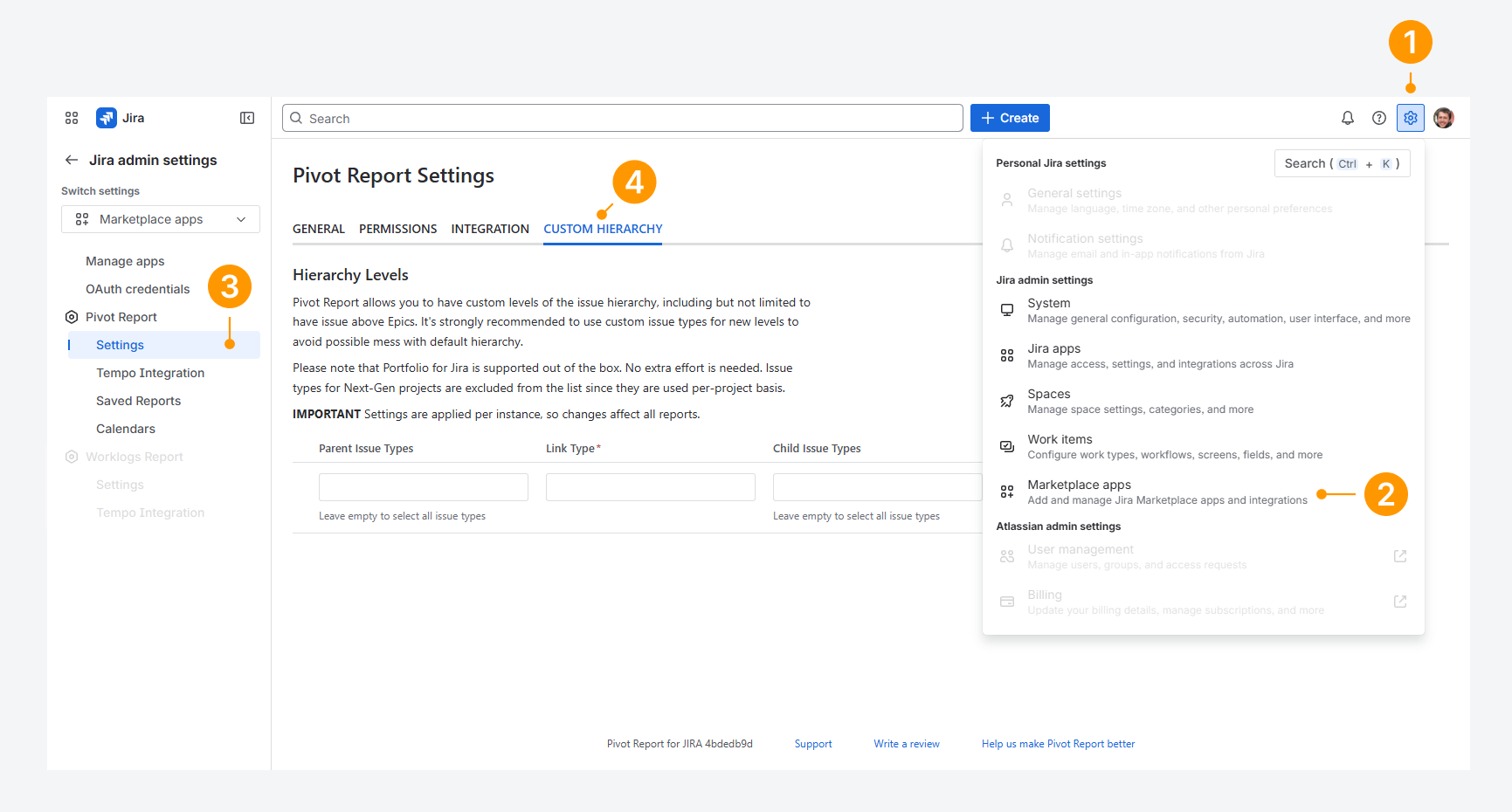
Open the Settings menu in Jira’s top navigation bar, by clicking on the gear icon.
-
From the dropdown, choose Marketplace apps.
-
Within the Apps settings page, click on Settings from the list of Pivot Report configuration options.
-
Click the Custom Hierarchy tab.
-
Select a Parent work type, Link Type, and Child item types.
-
Click Add.
FAQ
Can you override a common hierarchy in a report?
Yes. You can override the common hierarchy by disabling Use default settings in the report sidebar. In the screenshot above, this option is enabled.
Can you use a custom hierarchy to any issue type?
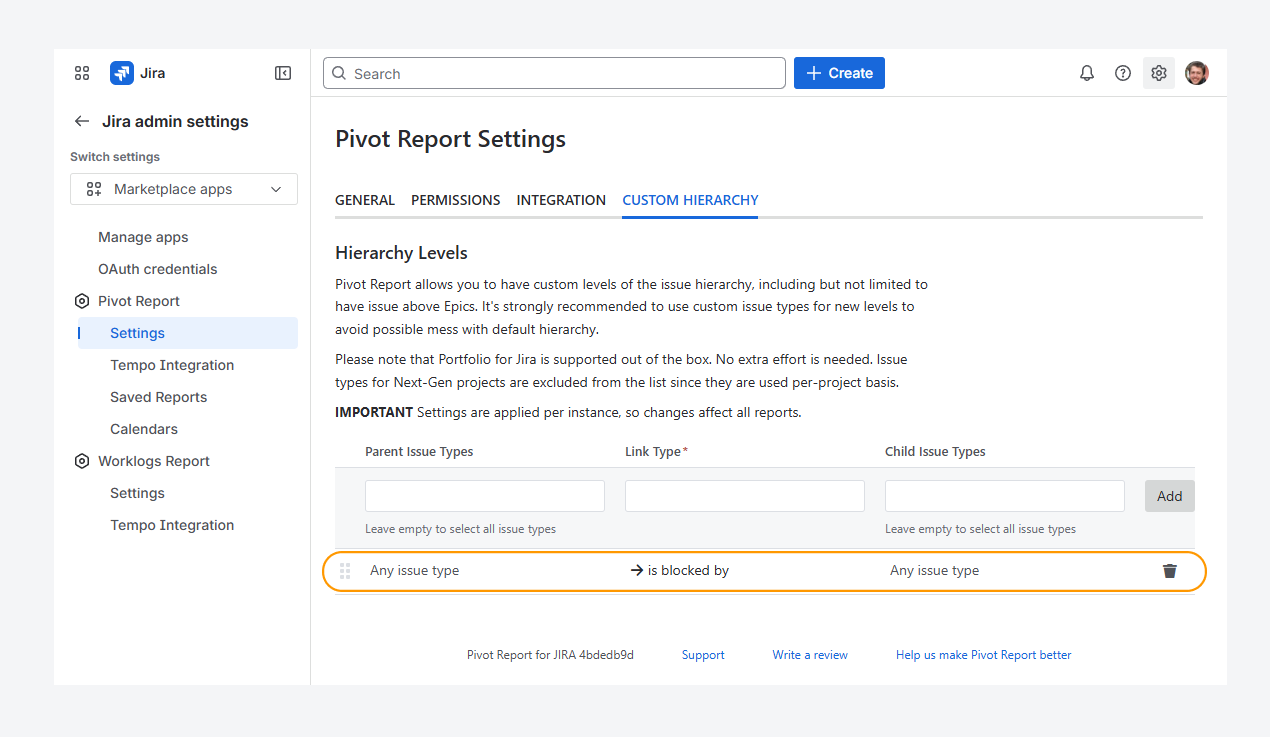
Yes. You can define a custom hierarchy for a specific work type or apply it to all work types, as shown in the screenshot above.
Leave the Parent work types and Child item types boxes empty to apply the hierarchy to any work type. However, this may cause a work item to appear multiple times in the hierarchy—across all reports.
Troubleshooting
Why is one your deliverables linked to multiples parents?
-20260319-205759.png?cb=e7c655fc8509ec7274018475182f0371)
A work item can appear under multiple parents in the hierarchy when using a custom hierarchy.
For example, a task can be linked to both a Theme and an Initiative. In this case, the work item may appear under both parent types.
-
The task and its sub-tasks can appear under the Theme.
-
Only the task appears under the Initiative. The Initiative itself may also be linked under the same Theme.
-
Without using a custom hierarchy, the task and its sub-tasks would not appear under both a Theme and an Initiative.
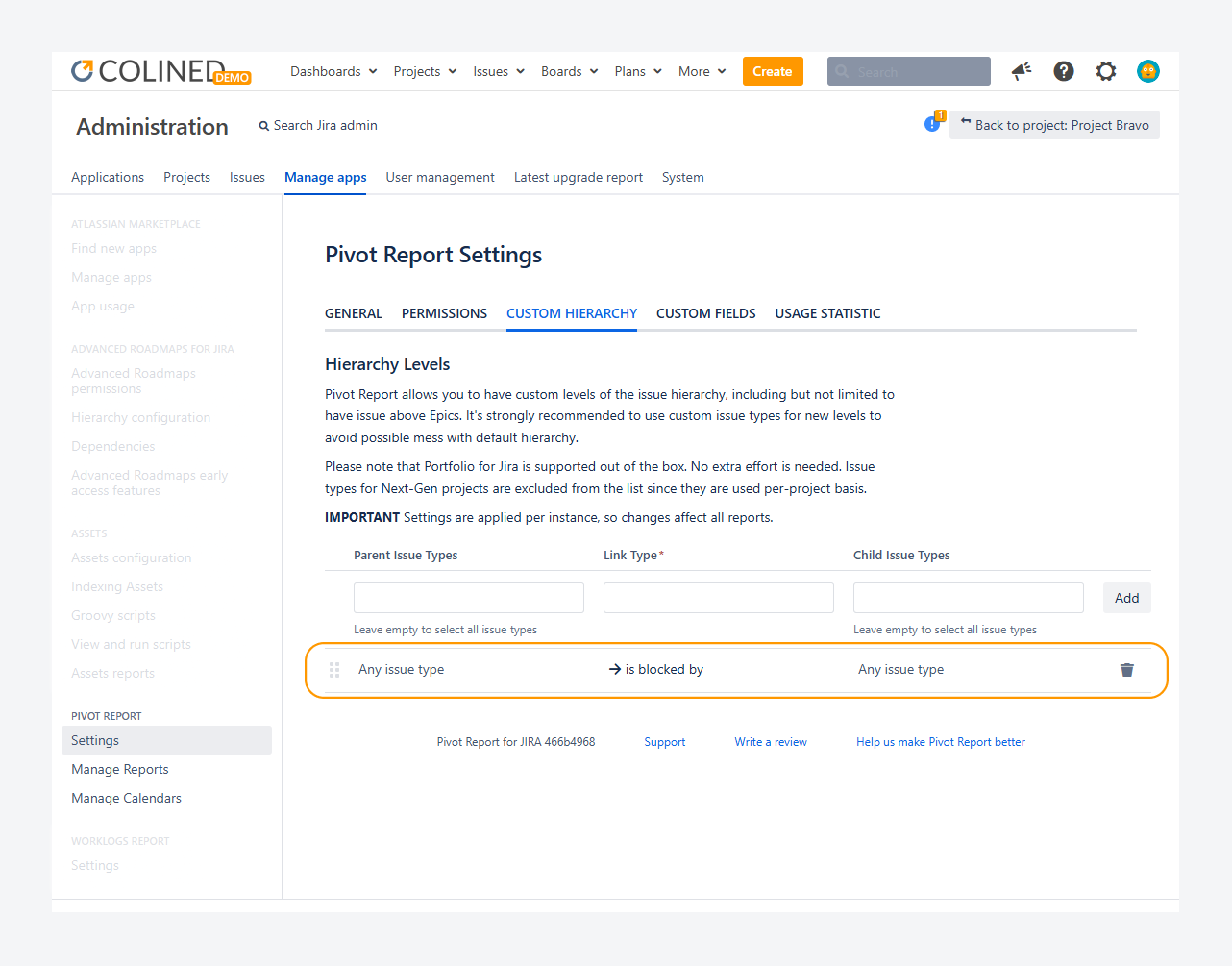
To prevent a work item from appearing multiple times in the hierarchy, either unlink it from the Initiative or specify values in the Parent Work item Types and Child Item Types fields.
Leaving these fields empty allows any work item type to be included in the relationship, as shown in the screenshot below.
If you have questions or need assistance, contact our support team via email or service desk. Our team is available Monday through Friday (9:00 AM to 7:00 PM GMT+7) to help with technical challenges or discuss improvements.