
This article explains why and how to modify which app features appear at the space level.
Why would modify the app’s feature for a space?
Teams often use the app differently based on their specific needs. One team may rely primarily on widgets to monitor progress, while another may need detailed cross-space reports to coordinate work across multiple spaces.
For example, a team working under a lump-sum contract in single space may use the Work item Progress widget to display Completion by Estimate and Time Budget. These metrics help the team monitor delivery progress and determine how much of the estimated budget is expected to be spent. Because team members only need to view these metrics, they may not require access to the Pivot Report button in the work item view.
Completion by Estimate =
(Original Estimate of Resolved Work items ÷ Total Original Estimate) × 100%Time Budget = ((Time Spent + Remaining Time) ÷ Original Estimate) × 100%
By contrast, another team working across multiple spaces may depend on Pivot Report to analyze work items from several spaces in a single report. For these users, quick access to the report from the space board is more valuable than space-level widgets.
The app lets you configure its features to match each team's processes instead of forcing every team to use the same approach.
Whether you are tracking progress using Story Points, monitoring delivery against original estimates, or switching from a lump-sum contract to a time-and-materials contract, you can enable the features that best support your team's business process.
Which app features can you modify for a space?
-20260715-151930.png?cb=ac709c884941cb6ec1ec1caf74984e03)
For the Work item view, a Space admin or Jira admin can configure:
-
Which app widgets are available from the Actions menu for one or all work types in the space.
-
Which hierarchy levels, columns, and progress indicators are displayed in widgets and in reports created from those widgets.
-
Whether the Pivot Report button appears, allowing users to create a report from the current work item.
To learn more about creating reports using widgets, refer to the related article.
To learn how to create reports using the Pivot Report button, refer to the corresponding related article.
-20260715-162805.png?cb=2a26c2848914a4de6f60aa0471f411c4)
For the Board, a Space admin or Jira admin can configure:
-
Whether the Pivot Report tab appears as a tab in the board navigation.
When users click this tab, the Manage Pivot Reports page opens within the tab. -
Whether a shortcut to a report, which may or may not use a the board as its source, appears in the navigation. The ability to add shortcuts is controlled by Jira permissions, not by the app.
To learn more about creating reports using boards, refer to the related article.
To learn how to create reports from the Manage Pivot Reports page, whether embedded in a tab or opened separately, refer to the corresponding related article.
To learn more about adding shortcut to the navigation, refer to the related article.
How can you disable or enable the app’s features for space?
A Jira admin can disable the app for one or more spaces while keeping it available in all other spaces. Alternatively, the app can be enabled only for selected spaces and unavailable in all others.
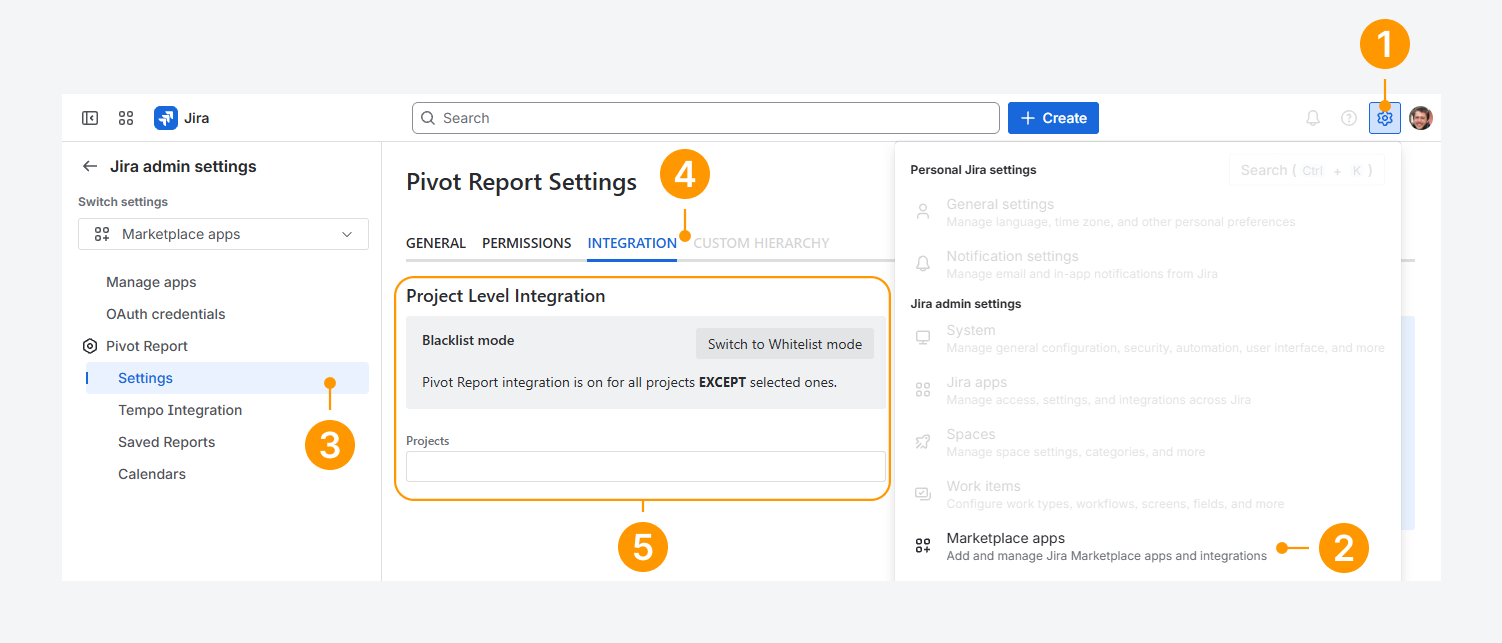
To define which spaces can use the app’s features, follow these steps:
-
Open the Settings menu in Jira's top navigation bar by clicking the gear icon.
-
Select Marketplace apps.
-
Under Pivot Report, click Settings.
-
On the Pivot Report Settings page, select the Integration tab.
-
In the Project Level Integration section, choose Whitelist mode or Blacklist mode.
-
Whitelist mode enables the app's features only for the spaces listed in the Projects field.
-
In comparison, Blacklist mode disables the app's features only for the spaces listed in the Projects field. All newly created spaces have the app's features enabled until they are added to the Projects field.
To make the app's features available for all spaces, leave the Projects field empty regardless of the selected mode.
By default, when the app is installed, the Projects field is empty and the app's features are available in all spaces.
Can you create a report for a space with disabled app features?
-20260713-223252.png?cb=6e7fc2af9f8db7a0775cf5fd645c5bda)
Yes. The above screenshot shows a work item in a Space where the Pivot Report button is enabled.
If the button is disabled for this work type or all types in a space, or if the app is disabled for the space, you can still reference those work items or spaces as report sources.
The report creation buttons in the Issue Navigator and on a Board are not affected by these space-level settings. They are available unless your user account loses access to the app.
For example, when creating a report from the Manage Pivot Reports page, you can select any work item or space that you can access in Jira, regardless of whether the app is enabled for that work item or space.
Similarly, you can use the Issue Navigator or a saved filter to reference any accessible work item or space when creating a report.
If you are unable to reference a nested filter, space, work item, or another source type when creating a report using JQL, refer to the steps described in the related article.
FAQ
Troubleshooting
If you have questions or need assistance, contact our support team via email or service desk. Our team is available Monday through Friday (9:00 AM to 7:00 PM GMT+7) to help with technical challenges or discuss improvements.