
This article explains how slice and progress sections appear by default and how can slices be used to filter progress indicators.
To modify how progress is calculated based on work item count, refer to the related article.
How are Slice and Progress sections positioned by default?
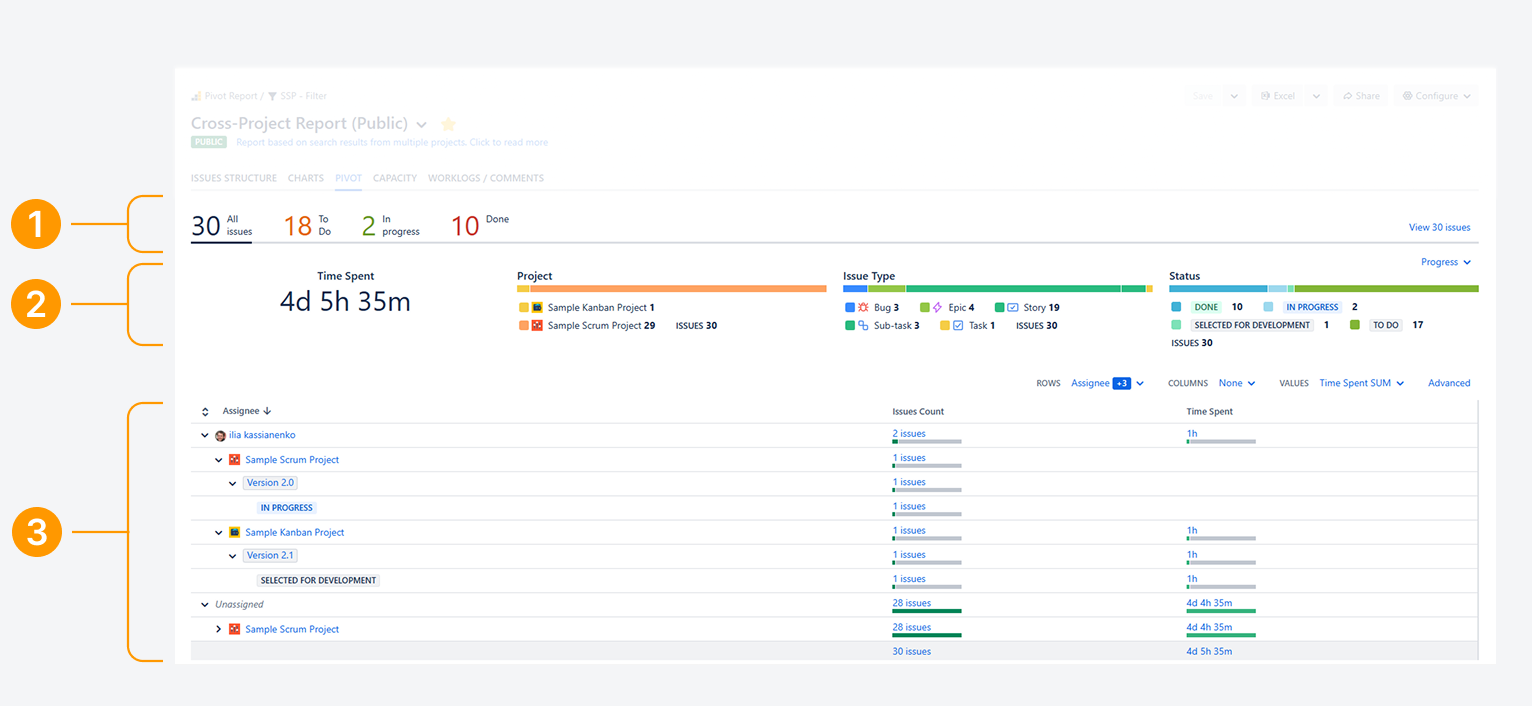
After the app is installed, the Slices section appears above the Progress section by default. The Summary section stays fixed. Here’s a quick overview of what each section contains:
-
Slices: Uses JQL to filter the report and display custom indicators.
-
Progress: Shows indicators that track status, completion, and other metrics.
-
Summary: Groups and tabulates the report’s contents and lets you explore indicators in more detail.
What happens to a progress indicators when you click on a slice?
In this default layout, selecting a slice changes numerical and time-based progress indicators, along with all other data in the report. It also updates the Summary and Breakdown sections for every tab, including Charts. The example below shows how this works:
-20251202-035344.png?cb=7cb51759467245bab8732370d414befd)
-
All Work items: This default slice is selected. No content is filtered in the progress indicators.
-
Time Spent: The total time spent for all work items appears.
-
To Do: This slice is selected, and the progress indicators are filtered.
-
Time Spent: Only the time spent for work items in the To Do status category appears.
Why should you use Slices to filter progress indicators?
When you need personalized indicators, slices can be used to filter the contents of your progress indicators. Here are examples for not using and using slices are filters.
Slices impacting indicators
Slices are also helpful in space reports where each slice represents a version. When you select a version, you can see the amount of work completed for it through numerical and time-based indicators.
Slices not impacting indicators
In a report that focuses on team performance, each slice may represent an assignee. In this setup, slices can appear below the progress indicators. When you select an assignee, the indicators do not change. Only the Summary and Breakdown sections update.
This approach works well when work items are reassigned within the same team or when several members log time on a work item owned by one assignee. In these situations, team-level metrics, such as total time spent or progress toward completion, often give a clearer picture than individual metrics.
How can you use Slices to filter progress indicators?
Following these steps to allow Slices to filter indicators or to change their default behavior:
-
Click Configure in the header.
-
Select General from the dropdown.
-20260325-222346.png?cb=07f31a87476a6b7589e3f08ba7414a64)
-
Open the Misc section and choose one of the behavior options:
-
Use default settings: Uses the app-level behavior described in the next section. This option is selected by default when a report is created.
-
Slices affect progress indicators: Places the Slices section above the Progress section. Progress indicators will be affected when a slice is selected.
-
Progress indicators shown for all work items: Places the Progress section above the Slices section. Progress indicators remain unchanged when a slice is selected.
Why and how should you change the settings at the app level?
After the app is installed, Keep progress indicators on top of slices is unchecked by default. This setting places progress indicators below slices. This keeps indicators affected by slices in every new report.
If you don’t want slices to filter indicators in all newly created reports, follow these steps as a Jira admin:
-
Open the Settings menu in Jira’s top navigation bar, by clicking on the gear icon.
-
From the dropdown, choose Apps.
-
Within the Apps settings page, click on ‘Settings’ from the list of Pivot Report configuration options.
-
On the ‘Pivot Report Settings’ page, select the General tab.
-
In the Slice and Progress section, verify that Keep progress indicators on top of slices is checked.
-20250718-140757.png?cb=cf10536ad77fc70a75af52e4ff551822)
Troubleshooting
If you have questions or need assistance, contact our support team via email or service desk. Our team is available Monday through Friday (9:00 AM to 7:00 PM GMT+7) to help with technical challenges or discuss improvements.