
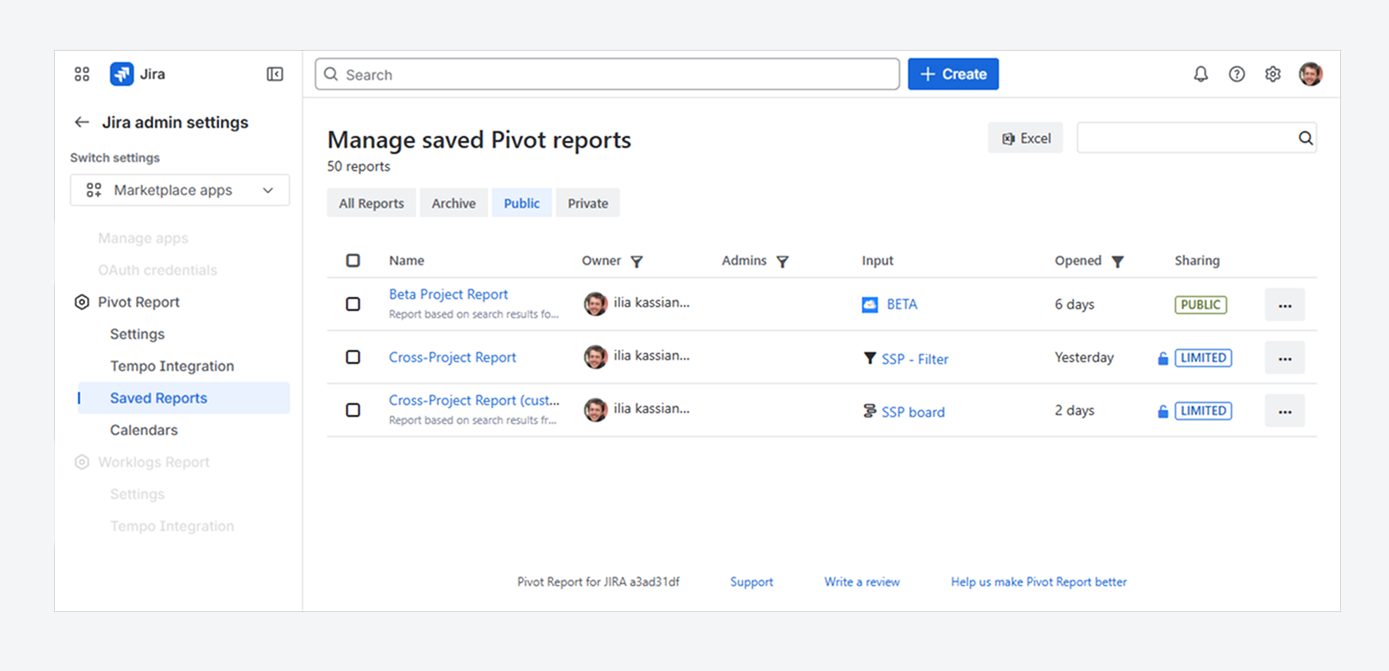
You may have reached this article after being unable to find a report using the Manage Pivot Reports page, as described in a related article. You may also be here because you want to transfer report ownership from one user to another.
This article explains when and how a Jira admin can transfer report ownership from the Manage Saved Pivot Reports page.
Why should you transfer report ownership?
By default, the person who creates a report is its owner. If that user becomes inactive or unavailable for a long period, ownership can be reassigned to another user.
Report admins can continue viewing and editing the report both during and after the transfer.
Features and use cases
Refine your search using predefined filters
-20260310-225545.png?cb=e72605c6562ba73eeac2d5d998e61216)
Like the Manage Pivot Reports page, you can use this page to locate a report from the list. You can do this by searching for keywords, using predefined filters, or combining both methods.
-
Enter keywords from the report name in the search bar.
-
Click one of the four predefined filters:
-
All Reports: Shows a combined list of Archived, Public, and Private Reports.
-
Archived Reports: Shows reports you have archived. These reports are hidden from the other filters, excluded from title searches, and do not appear in All Reports, even if they are set to Public.
-
Public Reports: Shows reports accessible to all users in your Jira instance, including those shared with specific users or groups.
-
Private Reports: Shows reports accessible only to the report owner and report admins.
-
You can also locate a report by spotting the highlighted keywords in the search results.
Filter bulk reports you want to transfer, delete, archive, or unarchive
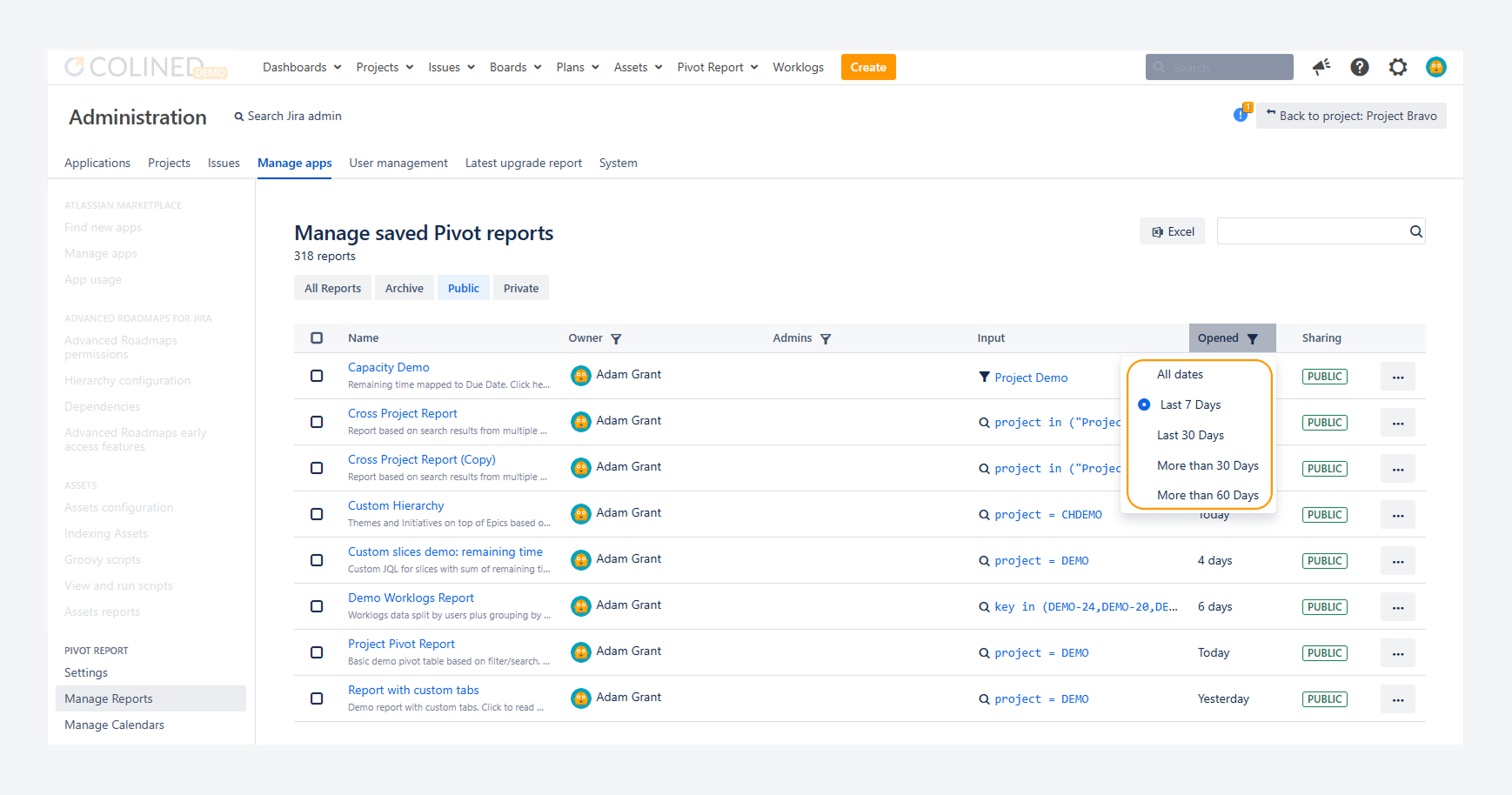
You can filter reports by the Owner, Admins, and Opened columns. In the Opened column, you can display reports accessed within a specific time frame, such as the last 7 or 30 days.
After applying filters, you can select reports individually or in bulk. You can then transfer ownership to another user, delete the reports, archive them, or restore them from the archive.
Bulk filtering and selection help you manage reports more efficiently. For example, you can reassign or archive reports when organizational changes occur or when a user becomes inactive, instead of editing each report individually on the Manage Pivot Reports page.
Export list of reports to Excel
-20260310-221744.png?cb=e7c8d8b49a1dbfa7ec789e333575905d)
You can export the list of reports to Excel, which includes these fields, regardless of the selected predefined filter:
-
Name
-
Description
-
Owner
-
Report Admins
-
Input type (source type)
-
Input (report source)
-
Date Last Accessed
-
Sharing type
This exported file helps you track changes to report ownership, admins, and sharing settings. For example, it can show when a report changes from private to public or when its ownership is reassigned.
Modify the source and other fields for private reports
-20260717-013317.png?cb=1486a0acf43b8f5933fe706db021d941)
As a Jira admin, you can configure any report, including Private and Limited reports, from the Manage Saved Pivot Reports page. Click the … menu next to a report and select Configure, as shown in the above screenshot.
In the Edit Report pop-up, you can update the report name, description, notes, hyperlink, and source type.
For example, if a report owner becomes inactive or is unavailable for an extended period, you can update these fields without adding yourself as a report admin or transferring ownership of the report.
By comparison, the Manage Pivot Reports page lets you update these fields only for Public reports, reports that you own, or reports where you are a report admin.
How can you transfer ownership of one or multiple reports?
As a Jira admin, access the Manage Saved Pivot Reports page by following these steps:
-
Open the Settings menu in Jira’s top navigation bar, by clicking on the gear icon.
-
From the dropdown, choose Marketplace apps.
-
Within the Apps settings page, click on Saved Reports from the list of Pivot Report configuration options.
-20260304-202455.png?cb=9731767d494278b0e2d253768558b117)
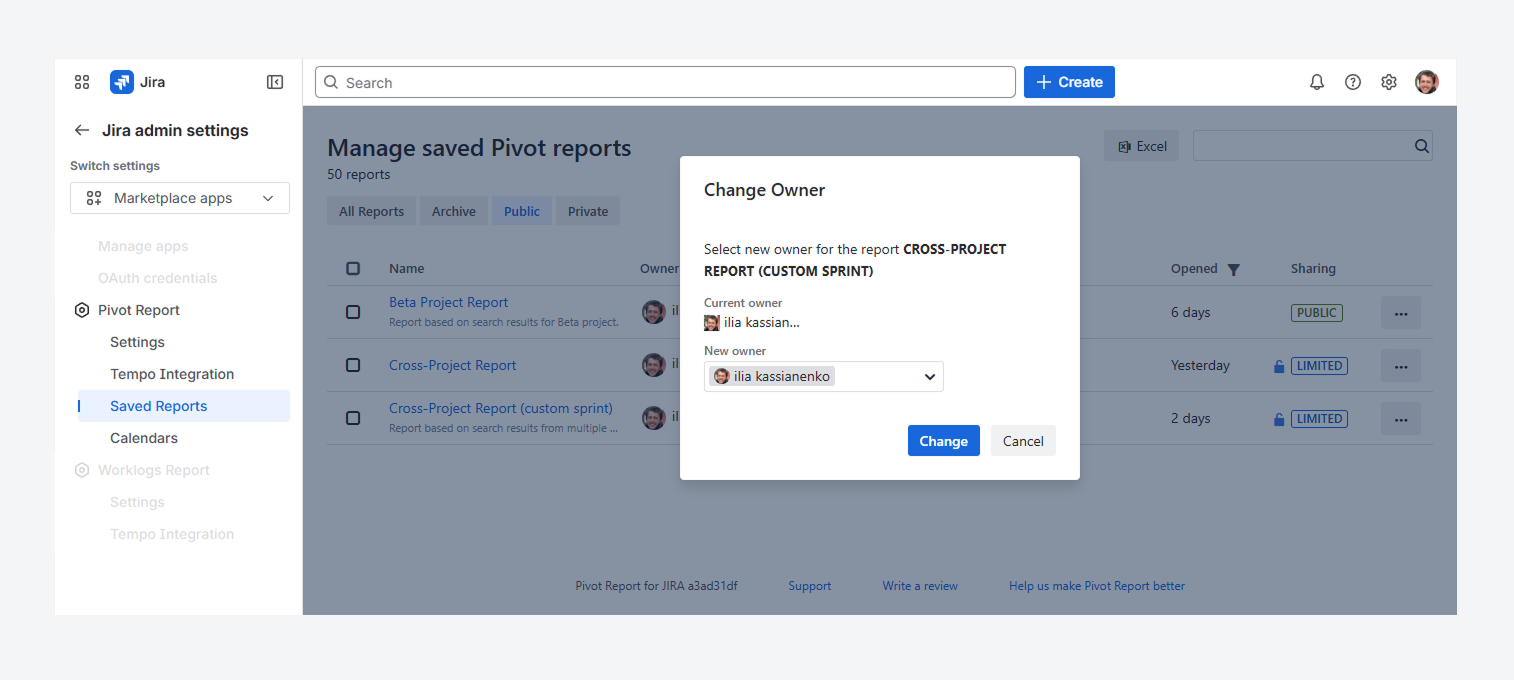
Select one or more reports to open the Change Owner pop-up and transfer ownership on the Manage Saved Pivot Reports page.
Single report
A report can be reassigned from a single owner to another using the ‘Change Owner’ option in the dropdown, by following these steps as a Jira admin.
-
Click […] in the right hand side of a report.
-
Select Change Owner.
-20260304-202858.png?cb=54abf25183ac3592c0b2a425e8156468)
After you click Change Owner, the following pop-up appears.
Multiple reports
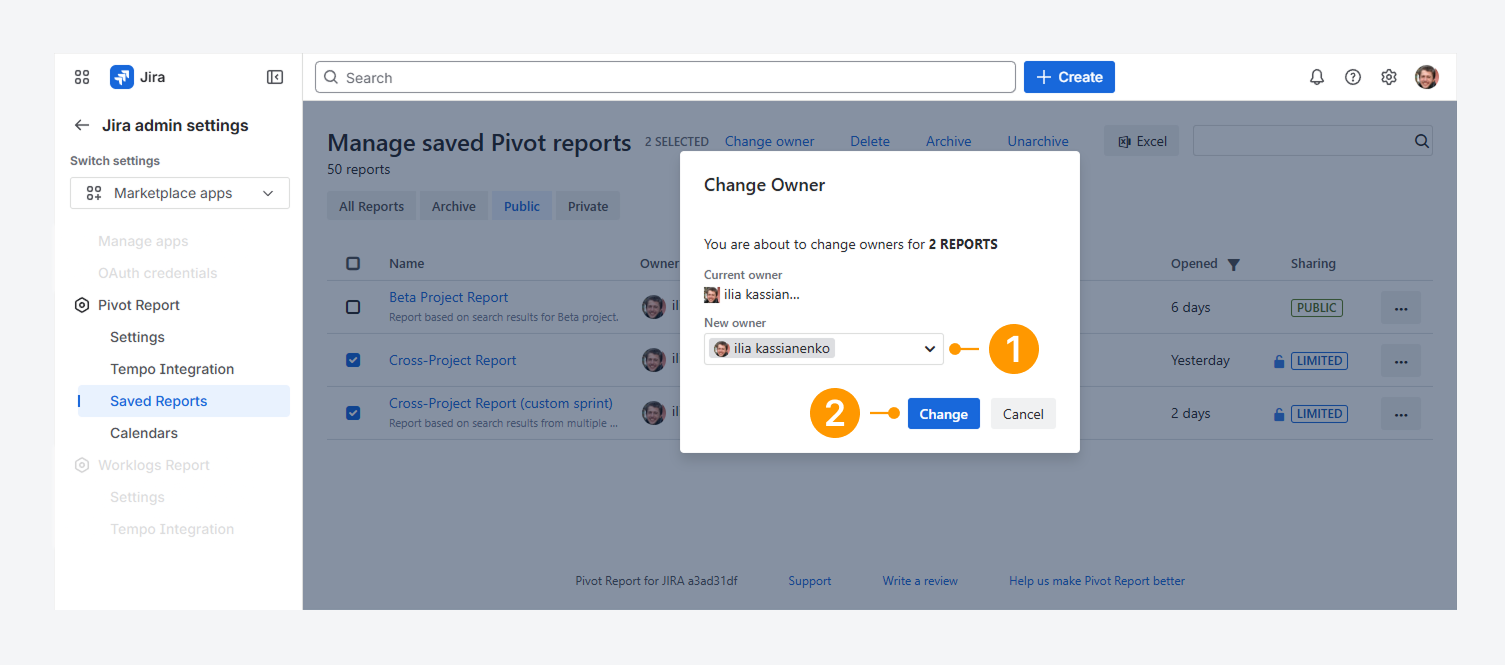
Multiple report can be reassigned from a single owner to another using the ‘Change Owner’ hyperlink, by following these steps as a Jira admin.
-
Select individual reports using the checkbox to the left of the report name or select the entire set of reports by using the top checkbox in the column.
-
Click the Change owner link that appears.
-20260304-203354.png?cb=4d7ab99984982eae1324eb7fc4549192)
After you click Change Owner, the following pop-up appears.
-20260304-203644.png?cb=9f783ac074cba2e736f9adb6418a945a)
Change Owner pop-up
After selecting one or more reports, use the pop-up to transfer ownership.
-
In the pop-up, the current owner is displayed. Open the New owner dropdown, search for the user, and select the new owner.
-
Click Change to confirm.
FAQ
If you have questions or need assistance, contact our support team via email or service desk. Our team is available Monday through Friday (9:00 AM to 7:00 PM GMT+7) to help with technical challenges or discuss improvements.