
This article explains why and how to modify the default fields and columns that appear in widgets within the Work item View.
Features and use cases
Create reports using predefined settings
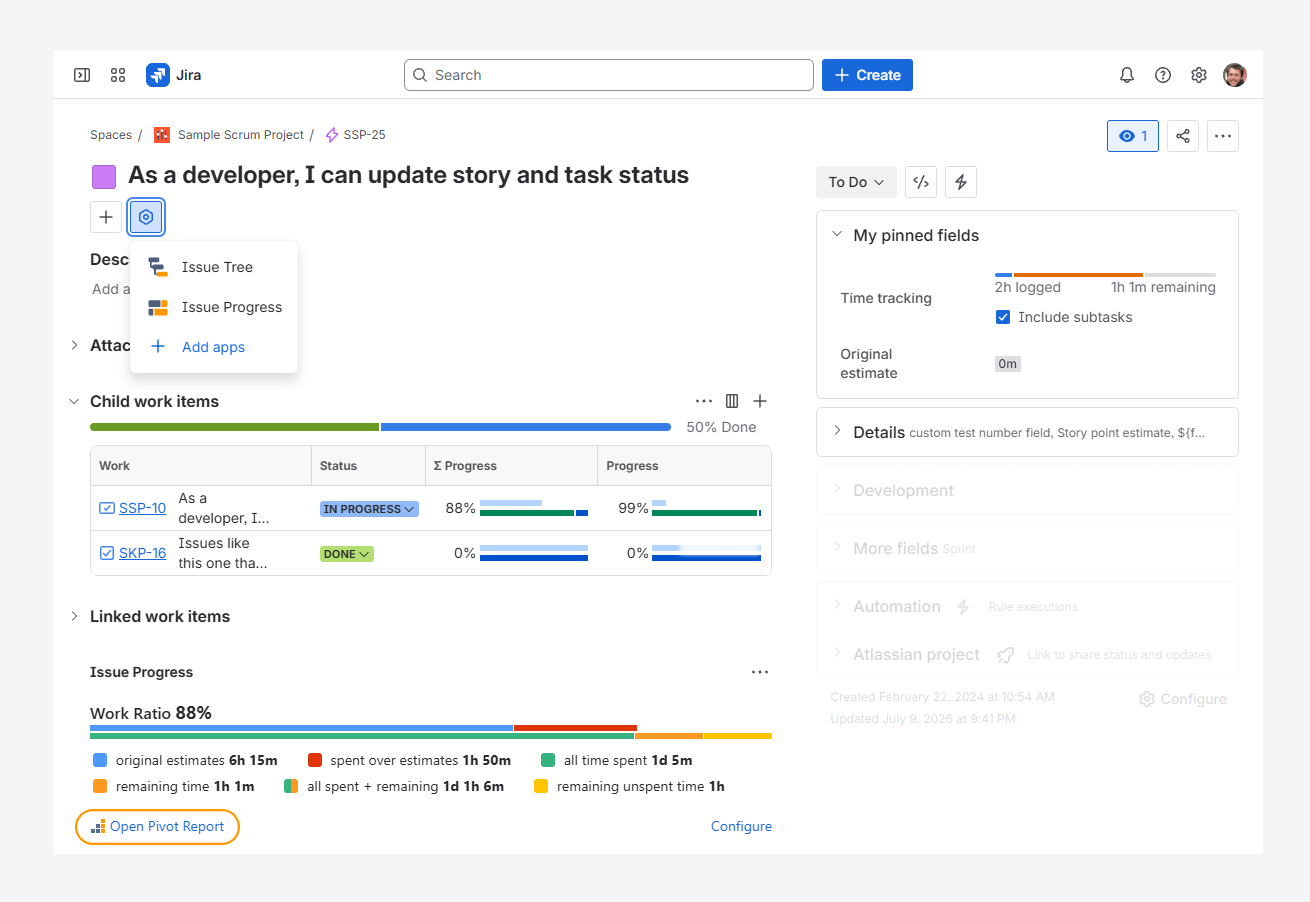
You can create a report by clicking Open Pivot Report, as shown in the above screenshot.
The created report inherits the widget settings, including whether they override the app-level settings (defined at the space level) or use the default app-level settings.
For example, a report created from a widget inherits settings such as whether the Completion Rate considers only leaf items and whether the source work items are extended to include parent and child items.
How can you set default widget fields?
A Jira admin can define the default widget fields and columns for all spaces.
To define the default widget contents, follow these steps:
-
Open the Settings menu in Jira's top navigation bar by clicking the gear icon.
-
Select Marketplace apps.
-
Under Pivot Report, click Settings.
-
On the Pivot Report Settings page, select the Integration tab.
-20260716-020620.png?cb=3a5c4eb41d3c99b2972df9006617846f)
A Space admin or Jira admin can then customize these fields and columns at the space level by following the steps in the related article.
Configure default Work item Progress Widget contents
-
In the Defaults for Work item Progress Widget section, click Add Progress to add a progress indicator.
-
(Optional) Drag a chart using the grid icon (the dotted handle on the left side of the chart card) to change its order when multiple charts are displayed.
-
(Optional) Click the bin icon on the chart card to remove a chart.
-
(Optional) Select how to extend the work item where the widget is displayed.
-
Select how indicators in the widget are sorted:
Values names: Sorts indicators alphabetically.
For example, components in a progress indicator appear in alphabetical order, such as Design, Management, and Web.Work item count: Sorts indicators from the highest to the lowest item count.
For example, statuses in a progress indicator are displayed based on the number of work items in each status.
Configure default Work item Tree Widget contents
-
In the Defaults for Work item Tree Widget section, click Add Column to add a column.
-
(Optional) Drag a column using the grid icon (the dotted handle on the left side of the column card) to change its order when multiple columns are displayed.
-
(Optional) Click the bin icon on the column card to remove a column.
-
(Optional) Select how to extend the work item where the widget is displayed.
-
Select how many levels of the work item tree are displayed:
None: Displays only the work item where the widget is added.
One, Two, or Three: Displays the selected number of child levels.
All: Displays the entire work item tree.
For example, if the widget is added to an Epic and the source work item is extended to include parent and child items, selecting All displays the complete hierarchy. Selecting None displays only the Epic.
-20260716-031008.png?cb=c558e64acf8be2765c289fbd1a042b31)
By default, when the app is installed, the Defaults for Work item Progress Widget section has the following settings:
-
Completion Rate, Priority, and Work Type are selected as progress indicators.
-
Progress bars are sorted by count.
-
The source work item is not extended with parent, child, or sibling items.
In comparison, the Defaults for Work item Tree Widget section has the following settings:
-
Work Type, Priority, Key, Summary, and Status are selected as columns.
-
No levels are expanded by default.
-
The source work item is extended only with parent work items.
FAQ
Troubleshooting
If you have questions or need assistance, contact our support team via email or service desk. Our team is available Monday through Friday (9:00 AM to 7:00 PM GMT+7) to help with technical challenges or discuss improvements.