
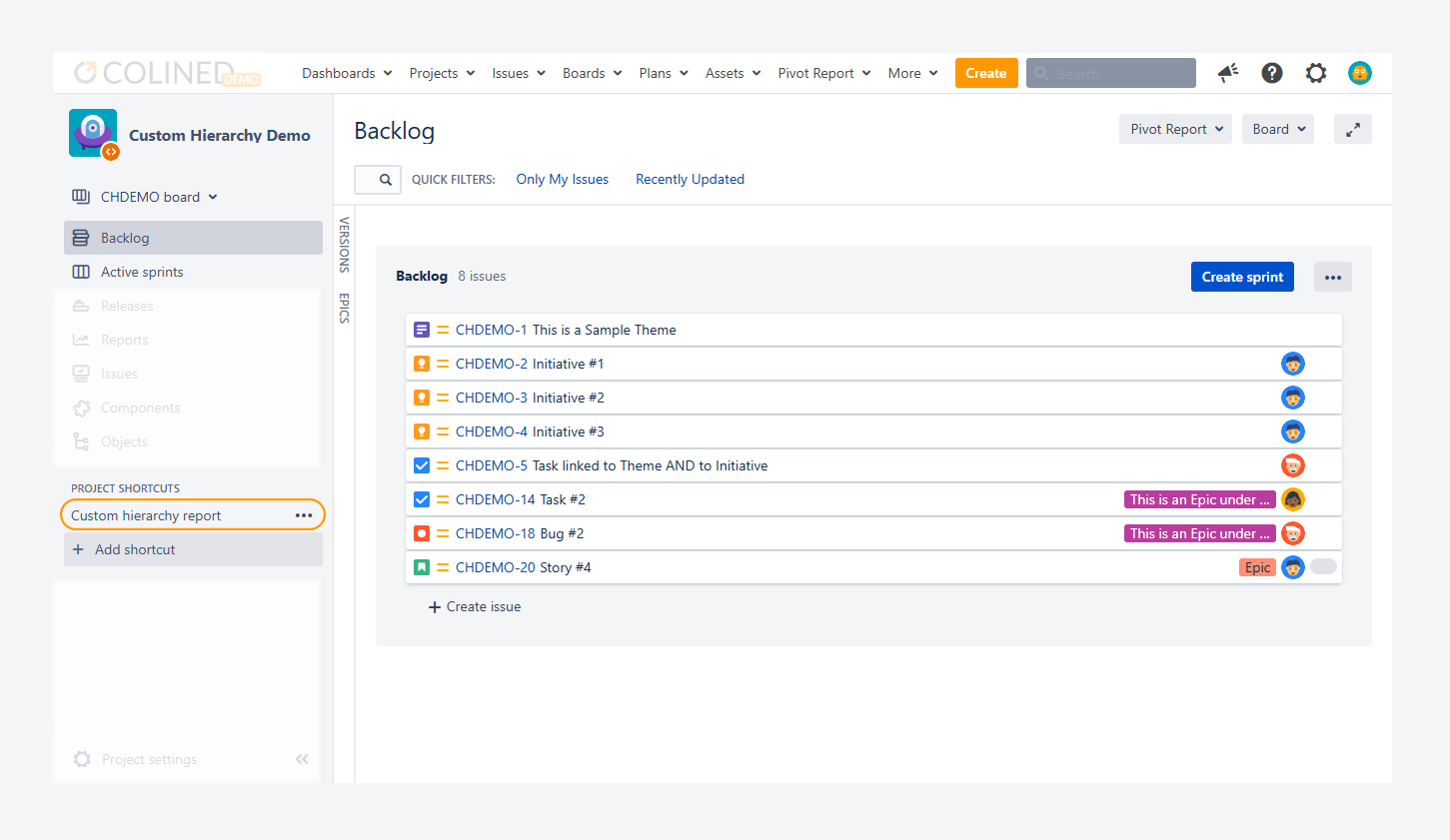
This article explains how to display a report in sync with a board using a shortcut, as shown in the screenshot above.
Why should you display a shortcut?
When a report uses the same source as a board (such as a JQL filter or projcet), it reflects changes made to that source, including status updates, sprint closures, or other board configuration changes.
By adding a shortcut, as shown in the screenshot above, you can access the report directly from the board. If you update the board while the report is open, reload the report to ensure it reflects the latest changes.
To add, remove, or edit navigation shortcuts on a board, you must have Jira admin or Project admin permissions, as described in the related article.
How can you display a shortcut?
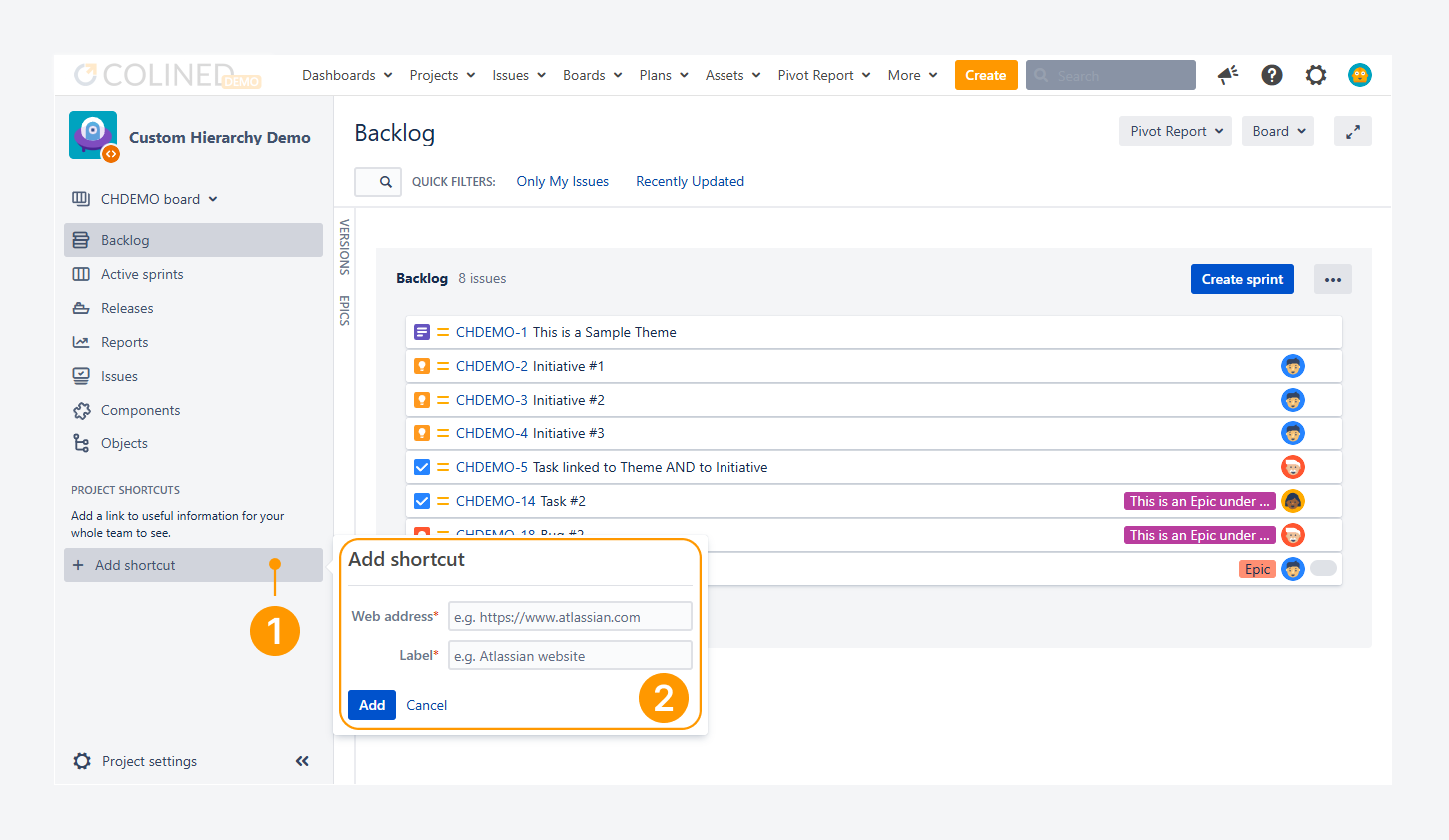
To add a shortcut to the project sidebar:
-
Under Project shortcuts, click + Add shortcut.
-
Enter the web address (URL) and a label for the shortcut. The label can be different from the report name. Afterwards, click Add to save the shortcut.
Because the report stays in sync with the board, any unmapped statuses that do not appear on the board will also be excluded from the report.
To check whether you have issues with unmapped statuses, refer to the related article.
If you have questions or need assistance, contact our support team via email or service desk. Our team is available Monday through Friday (9:00 AM to 7:00 PM GMT+7) to help with technical challenges or discuss improvements.