Pivot Report

Zendesk integration

This article explains why you should use Pivot Report in a Jira instance integrated with Zendesk. The app works without any additional setup and allows you to use Zendesk fields, such as jira_escalated, within reports. To learn how to configure the integration, refer to the separate Zendesk article.

If you are not using Zendesk, the following article provides examples and explanations of JQL functions, fields, and increments that you can use to monitor issues that have not been started, are blocked, were resolved during a quarter, and more.

Why use the app?

You can use the app to create reports without creating multiple filters for a Jira dashboard.

For example, you can monitor Service Level Agreement (SLA) goals and internal performance indicators by using a single report with slices, which can be displayed in a single dashboard gadget.

You can also use reports to display the complete issue hierarchy for issues linked to Zendesk incidents, whether you use the default hierarchy or a custom hierarchy configured in the app.

For example, an incident may require a patch that is delivered in a future release. By extending the report source, you can display the story containing the patch, along with the other stories that must be completed before the release can be deployed.

Features and use cases

Display resolved and unresolved incidents using slices
Group 599-20260725-231417.png

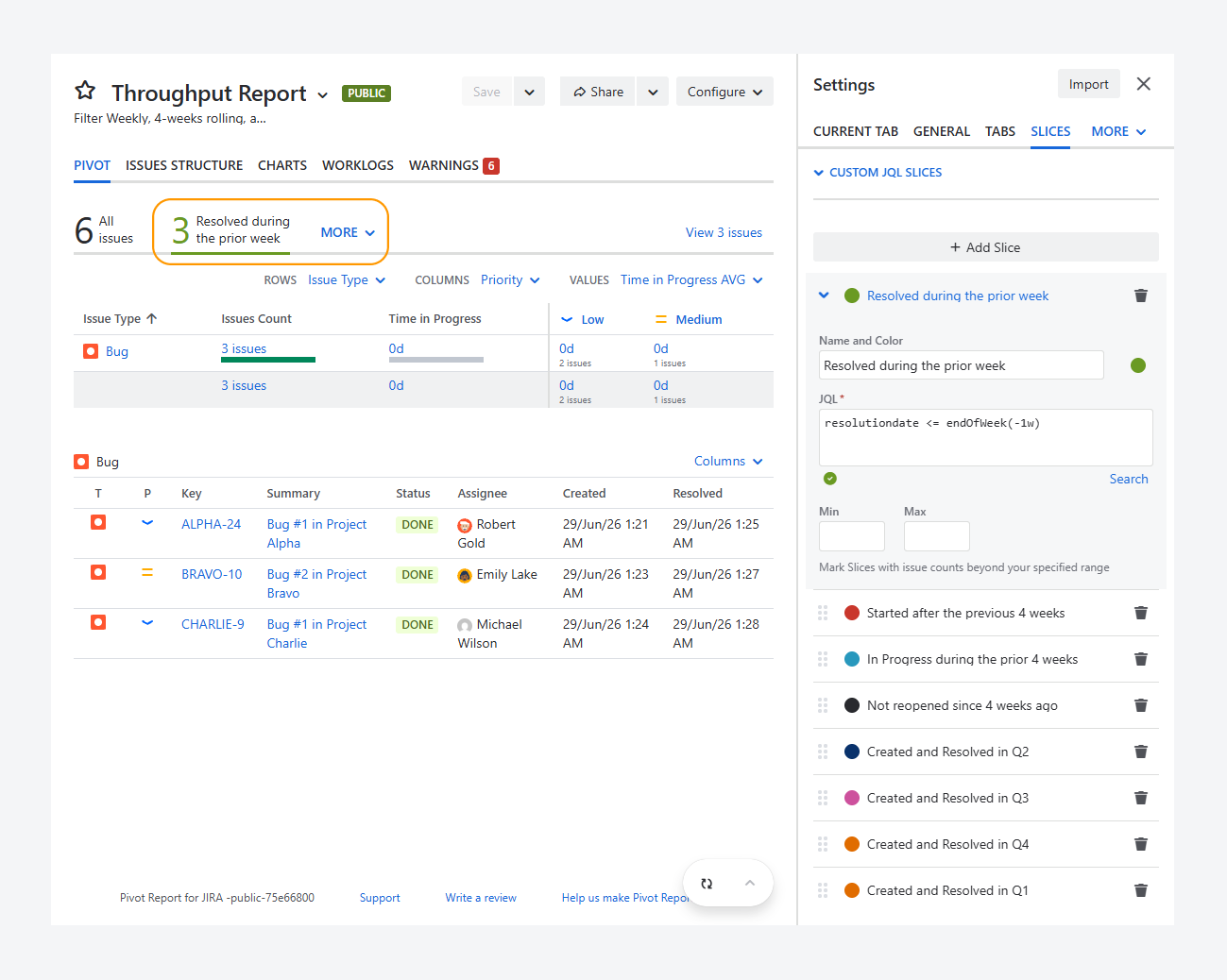
You can use the report to display resolved and unresolved incidents by using slices instead of filters.

For example, you can also use the queries below to create and save filters in the Issue Navigator, and then display each filter in a separate gadget on a Jira dashboard.

Alternatively, instead of creating multiple gadgets, you can create a slice for each filter within the report, as shown in the screenshot above, and use a single gadget to display the results.

You can use or add your custom slices to this demo report, shown in the above screenshot.


How will slices and reports appear on a Jira dashboard?
Group 603-20260811-011920.png

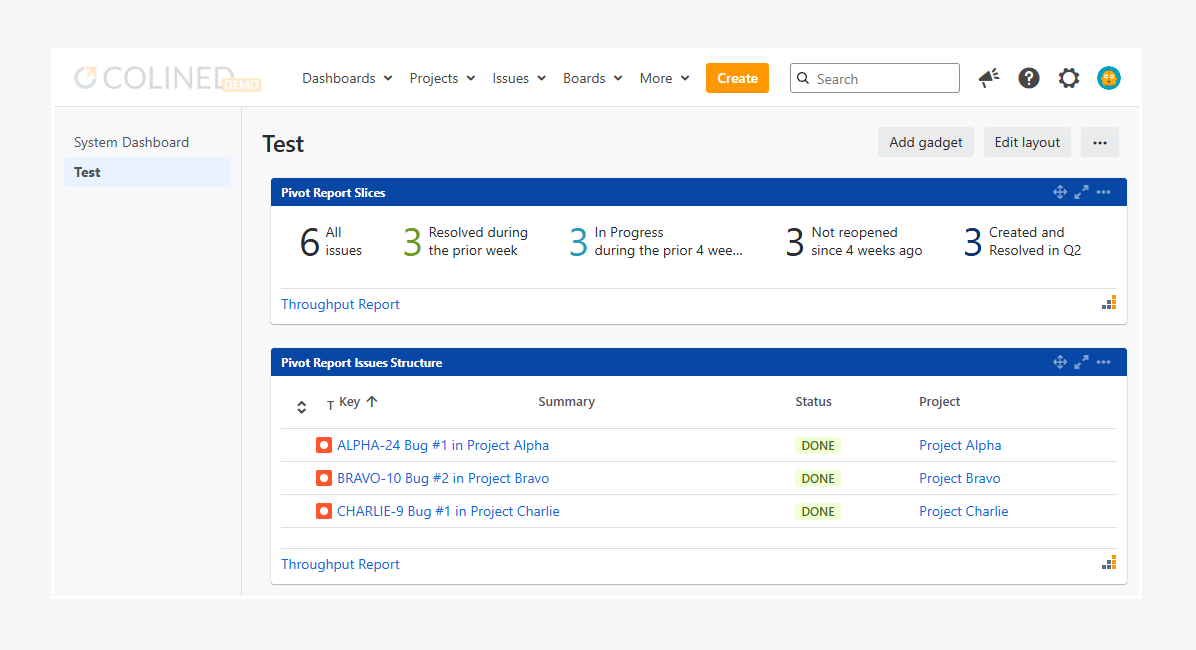
The screenshot shows two gadgets linked to the report above.

  • The first gadget displays all custom slices with a non-zero value in a single row. When you click a slice, the report opens with that slice selected.

  • The second gadget displays the Issue Structure tab for the selected Resolved during the prior week slice.


Which queries can you use?

The queries below can be used to filter incidents created in Zendesk and synced to Jira, or other issue types, such as Bugs, as shown in the report above.

You can use these queries as custom JQL slices or as a report source.

  • Issues resolved during the previous week: This query finds Jira issues that were resolved on or before the end of the previous calendar week, as shown in the custom slice above.

project = csd
and resolutiondate <= endOfWeek(-1w)
and resolutiondate >= startOfWeek(-1w)
ORDER BY resolved ASC

The resolutiondate field filters issues based on the exact date and time when they were marked as resolved, which is when the Resolution field was set. You can also use its alias, resolved.

The endOfWeek() function returns the very end of a week (Saturday at 23:59) based on Jira’s default week settings. By using the -1w increment inside the function, the query returns the end of the previous week.

You can use other increment values, such as minutes, hours, and days. However, for reporting purposes, weeks, months, and years are used more frequently.

The startOfWeek() function returns the very start of a week (Sunday at 00:01) based on Jira’s default week settings. By using the -1w increment inside the function, the query returns the start of the previous week.

The ORDER BY resolved ASC clause is optional. It sorts issues by their resolution date from oldest to newest in the Issue Navigator. This sorting does not affect the report, because you can define the sorting order separately for each report section.

  • Issues created and resolved last week: This query finds Jira issues that were created and resolved during the previous calendar week.

project = csd
and resolutiondate <= endOfWeek(-1w)
and created >= startOfWeek(-1w)
ORDER BY resolved ASC

The startOfWeek() function returns the very beginning of a week (Sunday at 00:00) based on Jira’s default week settings. By using the -1w increment inside the function, the query returns the start of the previous week.

  • Issues created and resolved in the third quarter: This query finds Jira issues that were created during the third calendar quarter and resolved before the start of the fourth quarter.

project = csd
and resolutiondate < startOfYear("+9M")
and created >= startOfYear("+6M")
ORDER BY resolved ASC

The startOfYear() function returns the first calendar day of the year (January 1 at 00:00) based on Jira’s date settings.

By using the +6M increment inside the function, the query returns the date six months after the start of the current year, which is July 1. The +9M increment returns the date nine months after the start of the year, which is October 1. Therefore, the query includes issues created on or after July 1 and resolved before October 1.

Use an uppercase M for months, because lowercase m represents minutes.

  • Issues that have not progressed or were returned to To Do at the end of the previous week:

    This query finds Jira issues that were still in the To Do status at the end of the previous week, including issues that never started or issues that were moved back to To Do after work had begun due to changing priorities.

project = csd
and status WAS "To Do" ON endOfWeek(-1w) 
and status = "To Do"
and created >= startOfWeek(-1w)
ORDER BY resolved ASC

The status WAS "To Do" ON endOfWeek(-1w) expression checks whether an issue was in the To Do status at the end of the previous week.

The status = "To Do" query ensures that the issue is currently in the same status.

  • Unblocked issues: This query finds issues that were waiting for support from an agent or developer during the previous calendar week and are no longer waiting for support.

project = csd
and status WAS "Waiting for support" ON endOfWeek(-1w)
and status != "Waiting for support"
and created >= startOfWeek(-1w)
ORDER BY resolved ASC

The status WAS "Waiting for support" ON endOfWeek(-1w) expression finds issues that were in the Waiting for support status at the end of the previous week.

The status != "Waiting for support" query ensures that these issues have since moved to another status.

  • Issues waiting on a customer: This query finds issues created during the previous calendar week that were in the Waiting for customer status at the end of that week and remain in the same status currently.

project = csd
and status WAS "Waiting for customer" ON endOfWeek(-1w)
and status = "Waiting for customer"
and created >= startOfWeek(-1w)
ORDER BY resolved ASC
  • Issues started after the previous 4 weeks: This query finds issues that were previously in the To Do status during the previous four calendar weeks but have since moved to another status.

status WAS "To Do" DURING (startOfWeek(-5w), endOfWeek(-1w))
and status != "To Do"

The DURING predicate defines a relative time range from the beginning of the week five weeks ago through the end of the previous week.

The status WAS "To Do" DURING (startOfWeek(-5w), endOfWeek(-1w)) expression finds issues that started during the previous four complete calendar weeks.

  • Issues In Progress during the prior 4 weeks: This query finds issues that currently have, or previously had, the In Progress status during the previous four calendar weeks.

status WAS "In Progress" during (startOfWeek(-5w), endOfWeek(-1w) )
  • Not reopened since 4 weeks ago: This query finds issues that are currently in the Done status and have not changed status during the last four weeks.

status = "Done" 
AND NOT status CHANGED during (startOfWeek(-4w), now() )

The startOfWeek(-4w) function calculates the beginning of the week four weeks ago, while now() represents the current date and time.

The NOT status CHANGED DURING queryt excludes issues that had any status change during this period.

As a result, the query returns issues that have remained in the Done status without being reopened or moved to another status during the last four weeks.

To learn how to use the Slices gadget, refer to the related article.

Display an issue hierarchy linked to Zendesk tickets

When you create or link a Jira issue from a Zendesk ticket, Zendesk automatically adds the jira_escalated tag to the ticket and the same label to the linked Jira issue.

For example, a ticket might be linked to an incident created to investigate an error and to a story created to deliver the fix in a future release.

You can use the jira_escalated label as the report source to display the complete issue hierarchy, including the incident and the story. To do so, follow these steps.

  1. Open the report sidebar and select the Source tab.

  2. Expand the Base Source section and select JQL / Search results as the source type.

  3. In the JQL Request field, enter: labels = jira_escalated

  4. Expand the Related Issues section and select Parent issues, Child issues, and Siblings, to extend the report source.

  5. (Optional) Use the JQL Post Filter to limit the report to a specific project, fix version, or Zendesk ticket ID.

  6. (Optional) Expand the Custom hierarchy section and select Use default settings, or configure a custom hierarchy.

For example, if you use Blocks to define the relationship between Initiatives and Epics, enabling the custom hierarchy lets you display all Epics that must be completed under an Initiative before the related Zendesk ticket can be resolved.

  1. Click Apply.

Group 461 (2)-20260324-003932.png
  1. (Optional) Open Columns and select Zendesk ticket ID. This column lets you identify which Jira issues are blocking specific Zendesk tickets.

  2. (Optional) To include all related issues in a specific fix version, open Columns and select Fix Version/s. This column lets you identify the fix version, such as Version 1.0, for all related issues. Then update the JQL / Search results query to: labels = jira_escalated or fixVersion = "Version 1.0".

To learn more about custom hierarchies, refer to the related article. To learn more about changing a report's source, refer to the separate article.

FAQ

How you create an issue through Zendesk?

You can create an Incident or another issue type in Jira by using the Zendesk pop-up. The created issue is linked between both platforms.

For example, the Zendesk ticket ID is displayed in a custom field in the Issue View, as shown in the related article.

When you link additional tickets to the Incident, the custom field value is updated to include all linked ticket IDs.

Can you change the default settings that determine the start and end of the week?

Yes. You can change how JQL functions, such as startOfWeek() and endOfWeek(), determine the start and end of the week.

By default, when you install Jira Data Center, these functions treat Sunday as the first day of the week and Saturday as the last day when the ISO8601 for Date Picker option is disabled in Look and Feel.

When ISO8601 for Date Picker is enabled by a Jira admin, Monday becomes the first day of the week and Sunday becomes the last day for all users in the Jira This setting applies regardless of the number of working days per week defined in Time Tracking.

On Jira Data Center, enabling ISO8601 for Date Picker may not change the first day of the week if you are running Jira earlier than version 9.0.0. In affected versions, Sunday may still appear as the first day of the week because of the JSWSERVER-7238 bug.

This issue was fixed in Jira 9.0.0.

How do time zones impact JQL queries?

System fields

System fields such as Created, Updated, and Resolved automatically display dates and times in the time zone configured in your Atlassian account preferences.

For example, if you change your account time zone from Montreal (EDT, UTC-4) to Jakarta (WIB, UTC+7), the displayed values for these fields change to match your selected time zone. The underlying timestamps remain unchanged.

Functions

Calendar functions, such as startOfWeek(), endOfWeek(), and startOfYear(), are evaluated using the time zone configured in your Atlassian account. You cannot specify a different time zone for an individual JQL query, saved filter, or Issue Navigator search.

For example, if your account time zone is set to Montreal (EDT, UTC-4), the startOfWeek() function returns Sunday at 00:00 EDT, based on Jira's default week settings.

Similarly, if your account time zone is set to Montreal (EDT, UTC-4), the startOfYear() function returns January 1 at 00:00 EDT.

Fields

The Due date field stores only a calendar date (YYYY-MM-DD). It does not store a time or time zone, so its value does not change when users view the issue from different time zones.

duedate >= startOfWeek()

For example, for a user in Montreal, this query returns issues whose due date falls on or after Sunday at 00:00 EDT of the current week, based on Jira's default week settings.

Date stings

When you use a date string without a time component, Jira assumes the time is 00:00 (midnight) in your account's time zone.

created >= "2026-01-01"

For example, for a user in Montreal (EDT, UTC-4), this query returns issues created on or after January 1, 2026, at 00:00 EDT.

created >= "2026-01-01 23:59"

For a user in Montreal (EDT, UTC-4), this query returns issues created on or after January 1, 2026, at 23:59 EDT, using the YYYY-MM-DD HH:mm format.

duedate >= "2026-01-01"

This query returns issues whose Due date is January 1, 2026, or later. Because Due date is a date-only field, Jira ignores hours and minutes.

Increments

Relative increments such as -1d, -1w, and -1M represent calendar-based periods rather than exact elapsed time. For -1d, Jira calculates the date from the start of the day (00:00 or midnight) in the Jira server time zone, unless you specify an exact time.

updated >= -1d

For a user in Montreal, this query returns issues updated since 00:00 EDT yesterday. The result is the same regardless of when the user searchs in the Issue Navigator or open a saved filter.

Time-based values

Time-based values such as 24h represent exact elapsed time. Jira calculates an exact rolling time window based on the time when the query is executed.

updated >= -24h

This query returns issues updated during the previous 24 hours from the exact time the query is executed. For example, if a user in Montreal runs the query at 2:15 PM EDT, Jira returns issues updated since 2:15 PM EDT on the previous day.

Why does the resolutiondate function return missing or incorrect results?

Yes. The resolutiondate function depends on the Resolution field, not on the issue status.

If the Resolution field is empty or is not managed correctly by your workflow, your JQL query can return missing results, unexpected results, or both.

Missing results

A JQL query can return no results if the Resolution field is empty.
In this case, the resolutiondate value is EMPTY (null) because Jira sets the resolution date only when the Resolution field receives a value, regardless of whether the issue is in a Closed or Done status. For example:

project = csd
AND resolutiondate <= endOfWeek(-1w)
AND created >= startOfWeek(-1w)
ORDER BY resolved ASC

To troubleshoot:

Exclude unresolved issues from the query

Add a condition to return only issues that have a resolution:

project = csd
AND resolution IS NOT EMPTY
AND resolutiondate <= endOfWeek(-1w)
AND created >= startOfWeek(-1w)
ORDER BY resolved ASC

Update your workflow

Configure your workflow so that the Resolution field is set automatically when an issue is transitioned to a closed status. Alternatively, add the Resolution field to the transition screen used to close an issue.


Incorrect results

You can also get incorrect results if the Resolution field was set before the issue was actually closed.

For example, an issue may be reopened and moved back to In Progress.

If your workflow does not clear the Resolution field during the transition, the issue still has a resolution date and can continue to appear in queries that use the resolutiondate function, even though it is no longer resolved.

To troubleshoot:

Return only resolved issues

Update your query to include only resolved issues:

project = csd
AND status = "Resolved"
AND resolutiondate <= endOfWeek(-1w)
AND created >= startOfWeek(-1w)
ORDER BY resolved ASC

Update your workflow

Configure your workflow so that the Resolution field is cleared when an issue is reopened or moved from a resolved or closed status to another status.


Extended results

A report can help you investigate a combination of missing and unexpected results.

Unlike the Issue Navigator, a report can display related parent, child, and sibling issues, making it easier to identify workflow or Resolution field inconsistencies across the issue hierarchy.

For example, an issue may be reopened and moved back to In Progress, while its parent issue remains in Done without a Resolution value. By displaying the issue hierarchy, you can determine whether the Status and Resolution values are correct for both the issue and its parent.

To display the issue hierarchy:

  1. Open the report sidebar and select the Source tab.

  2. Expand the Base Source section and select JQL / Search results as the source type.

  3. In the JQL Request field, enter:

project = csd
AND ( (status = "Resolved" AND resolution IS EMPTY)
OR (status != "Resolved" AND resolution IS NOT EMPTY) )
  1. Expand the Related Issues section and select Parent issues, Child issues, and Siblings.

  2. (Optional) Use the JQL Post Filter to limit the report to a specific time period.
    For example: created >= startOfWeek(-1w)

  3. Click Apply.

  4. Open Columns and select Status and Resolution.
    These columns help you identify issues where the Resolution value is missing or should be cleared.

  5. (Optional) Select Zendesk ticket ID to identify which Jira issues are blocking specific Zendesk tickets.

To learn more about recommended Resolution field configurations, related Atlassian article. For example, Atlassian recommends not using Unresolved or None as values for the Resolution field.

If you reopen an issue to update the Resolution field or another field, Jira updates the resolution date when you close the issue again. If you need to preserve the original resolution date, you can override it by following the instructions provided by Atlassian.

Can you use the app if Zendesk is integrated to Jira Service Management?

Yes. You can use the app with Jira Service Management (JSM) when it is integrated with Zendesk.

The app works with JSM without any additional setup, regardless of whether JSM is integrated with Zendesk.

To learn how to use the app with a Jira Service Management project, see the related article. To learn how to integrate Zendesk with JSM, see the separate Atlassian article.

Troubleshooting

How can you overcome the difference between using days or weeks and time values?

JQL increments, such as days (1d) and weeks (1w), are calculated differently from time-based values, such as hours (24h). As a result, they may return different results because they use calendar boundaries instead of exact rolling time periods.

Increments

When you use a value such as -1d, Jira calculates the date from the start of the day (00:00 or midnight) in the Jira server time zone, unless you specify an exact time.

As a result, the query may include the current day when you run it. It does not calculate exactly 24 hours back from the time you execute the query.

updated >= -1d

For example, the above query returns issues updated since 00:00 (midnight) of the previous calendar day. The result is the same regardless of when you search in the Issue Navigator or open a saved filter.

Another example, assume that you changed an issue's status to Closed yesterday at 3:00 PM. You run the following queries today at 1:00 PM.

status changed to "Closed" after -1d

The above query pulls all issues changed to closed today starting at 00:01, since yesterday is excluded from the query. As a result, it does not return the issue changed to Closed yesterday at 3:00 PM. Therefore, the calculated range starts after the issue was changed.

status changed to "Closed" after -2d

In comparison, this query pulls all issues changed to closed starting from yesterday at 00:01. As a result, it does return the issue because the calculated date range includes yesterday at 3:00 PM.

Time-based values

When you use a time value such as 24h, Jira calculates an exact rolling time window based on the time when the query is executed.

updated >= -24h

This query returns issues updated during the previous 24 hours from the exact time you run the query. For example, if you run it at 2:15 PM, Jira calculates the range from 2:15 PM yesterday to 2:15 PM today. The calculation uses the time when you search in the Issue Navigator or open a saved filter.

Another example, assume that you changed an issue's status to Closed yesterday at 3:00 PM. You run the following queries today at 1:00 PM.

status changed to "Closed" after -24h

This query returns this issue because Jira calculates exactly 24 hours back from the time the query was executed, which includes yesterday at 3:00 PM.

If you need to find issues within a specific calendar period or define exact time boundaries, use JQL date functions instead of relative increments or time-based values. The following examples show common use cases.

created >= startOfDay(-1) AND created < startOfDay()

This query returns issues created during the previous calendar day, from 00:00 yesterday through 23:59 yesterday. You can use either -1w or -1 as a relative increment inside the function.

created >= startOfWeek()

This query returns issues created from the beginning of the current week. By default, Jira considers Sunday at 00:00 as the start of the week.

created >= endOfWeek(-1) AND created < endOfWeek()

This query returns issues created during the previous calendar week, based on Jira's default week settings. You can use either -1w or -1 as a relative increment inside the function.

Why don't the Updated and Resolved dates match the values shown in Jira?

The Updated and Resolved fields displayed in the report use your desktop operating system's time zone. In contrast, the same fields in the Jira issue view use your Jira account time zone.

For example, a user resolves an issue while working in Jakarta. At that time, their desktop time zone is set to Jakarta. Later, the user returns to Montreal and changes their desktop time zone to Montreal, while keeping their Jira account time zone set to Montreal throughout the trip.

As a result, the Updated and Resolved values in the report differ from the values shown in the Jira issue view because the report uses the current desktop time zone, while Jira uses the account time zone.

If you want the report to display the same values that appeared while the user was in Jakarta, temporarily change the desktop operating system's time zone back to Jakarta.

If you have questions or need assistance, contact our support team via email or service desk. Our team is available Monday through Friday (9:00 AM to 7:00 PM GMT+7) to help with technical challenges or discuss improvements.