
Can you create a report showing a Closed sprint?
Yes.
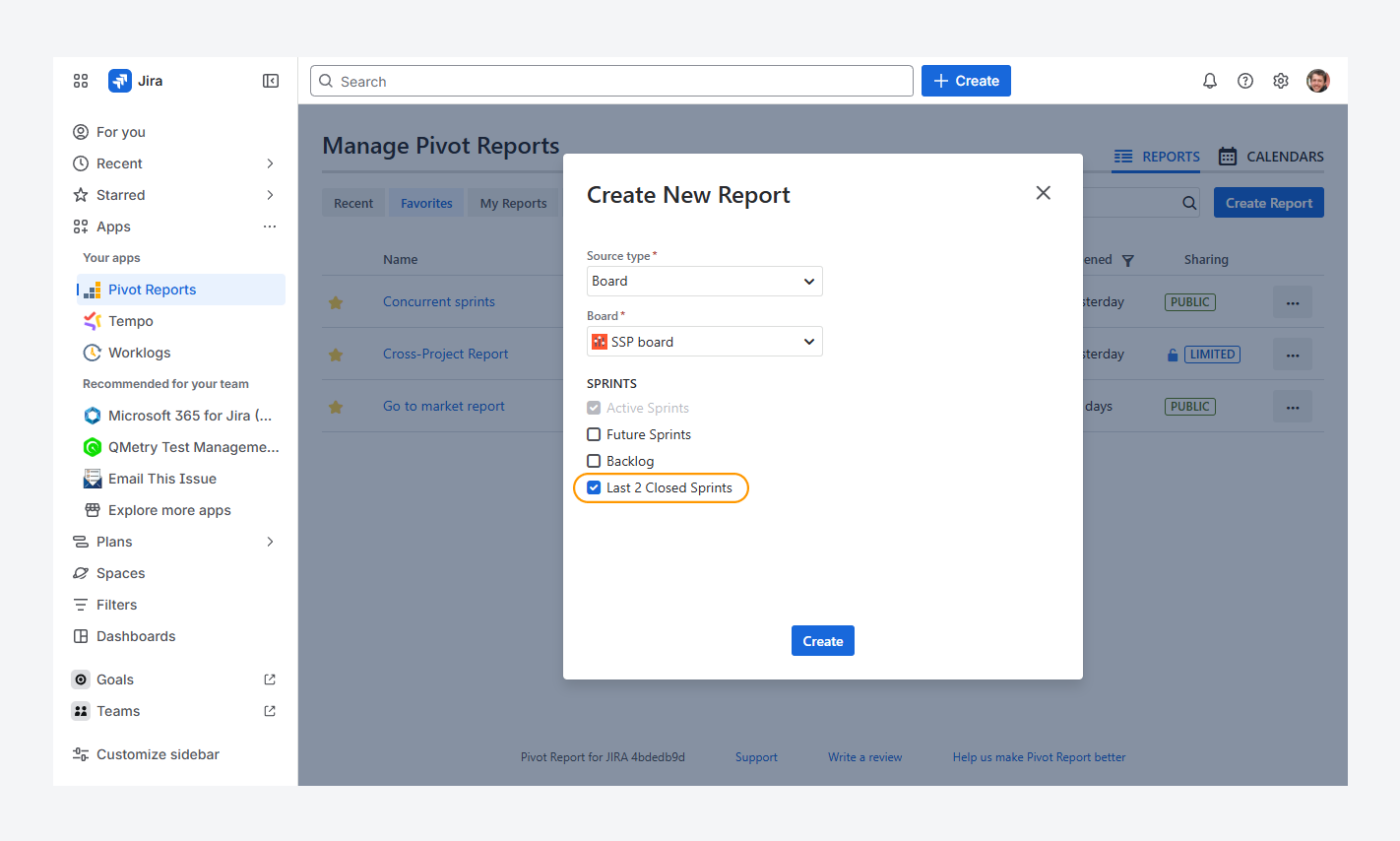
You can create a report from the Manage Pivot Reports page or from within a Board, referencing up to two closed sprints.
-20260306-040437.png?cb=5eb4bad8bd8b18d7862a722b81bef761)
Afterwards, you can update the report source to include up to five closed sprints, as shown in the screenshot above, by following the steps in the related article.
In the example below, a closed sprint appears with a green label and strikethrough text, while an active sprint is shown with a blue label and no strikethrough.
-20260305-194528.png?cb=beeef7ee369a5a97c7e4080b45c76d63)
You can display issues from all completed sprints by using JQL with sprint in closedSprints() as the report source or when creating a report in the Issue Navigator.
However, issues that have spanned more than one sprint will appear regardless of whether they are currently active or closed.
Can you create a report for Custom sprints?
Yes.
You cannot create a report that references custom sprints directly from the board. However, you can update the report source to include them, as described in the related article.
The screenshot below shows a custom sprint added to the report source.
-20260306-040501.png?cb=fa9e2f41fd02266ebe11fd80e338a084)
Can you reference multiple projects when creating a report?
Yes.
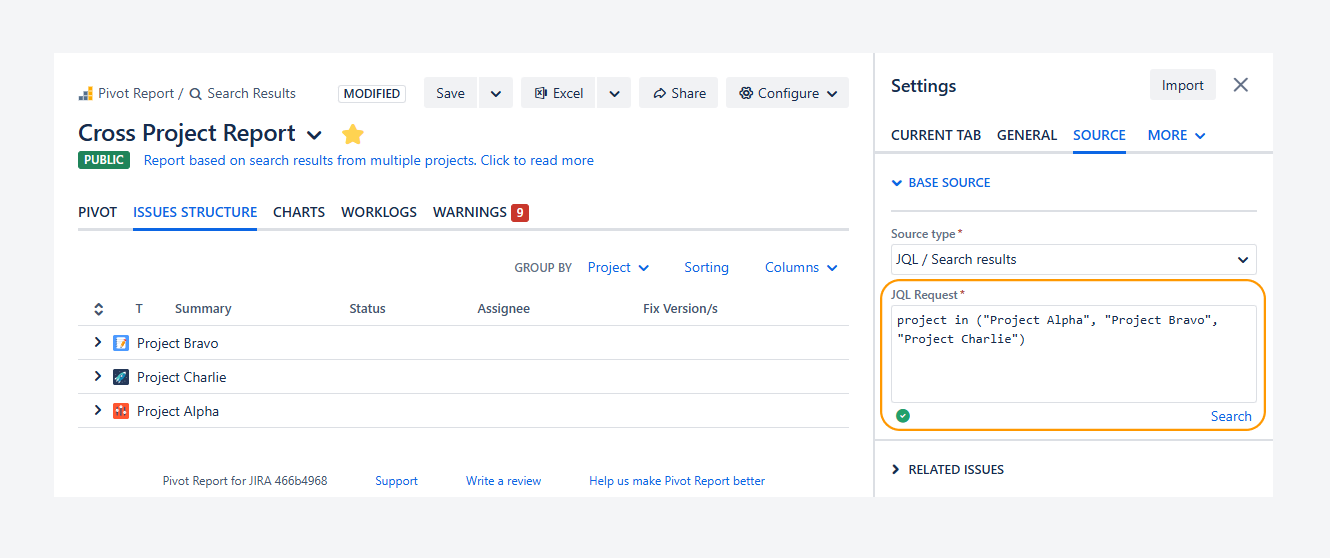
A report’s source can include multiple projects. You can reference multiple projects when creating or modifying a report by using JQL or a filter from Jira’s Issue Navigator.
A Board that references multiple projects through JQL or a filter can also be used as a report source.
The report shown in the screenshot of the Cross Project demo report below is based on JQL referencing three projects.
Can you expand further the scope of the report?
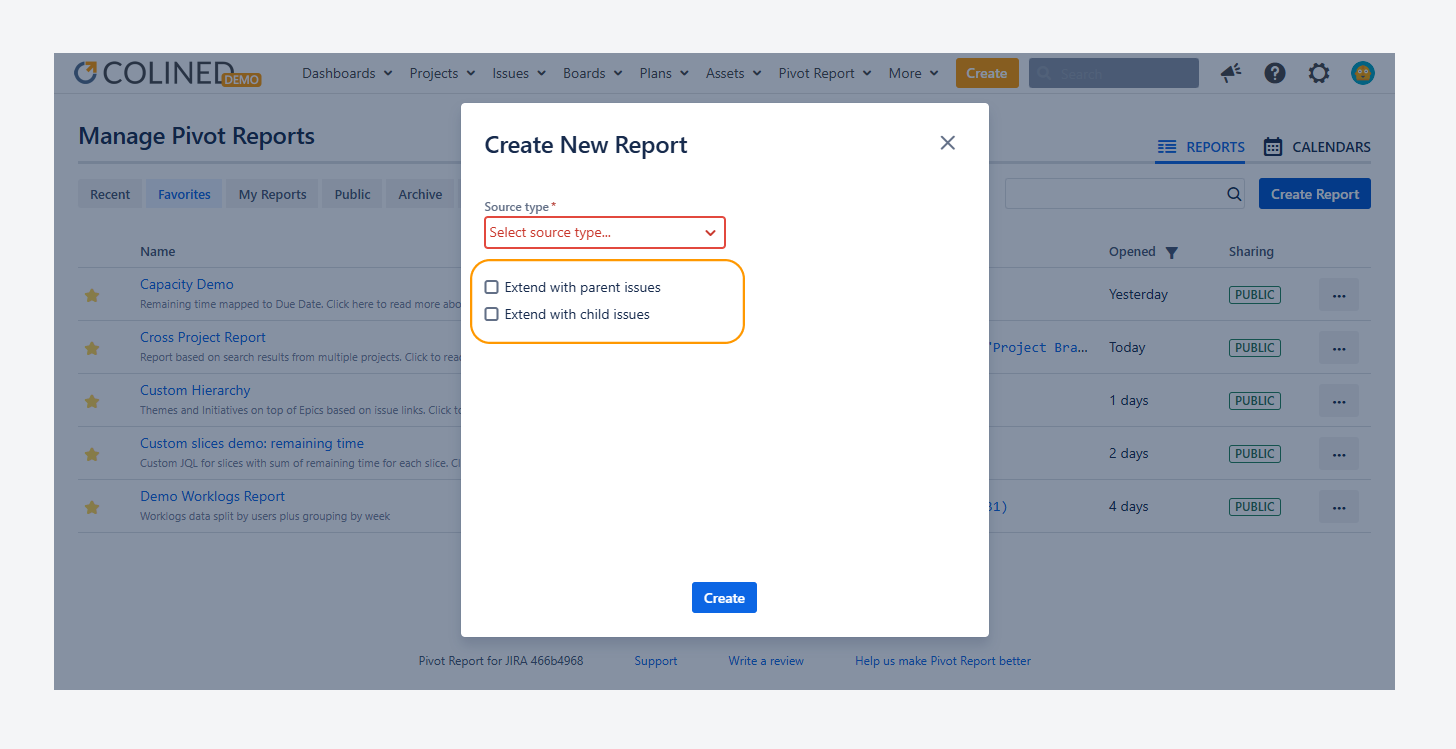
Yes. You can expand the scope of a report using the Create New Report pop-up, which appears when you click Create Report on the Manage Pivot Reports page.
In the pop-up, select the checkboxes below the source type to include Parent and Child issues. This option extends the report source and adds more issues to the report.
For example, if the report source is a Board, you can enable Parent issues to include items such as Epics, which may not appear directly on the board.
You can update this configuration later from the report sidebar, as explained in the related article.
Can you create your own modified copy of the demo report?
Yes. You can change the source of the Cross Project demo report—for example, by reducing the number of referenced projects from three to two—and then save a public copy.
Can you use 'Blocked by' or another link to show a parent relationship?
Yes.
You can add links, such as as Blocked by, in the Issue View to represent a relationship with a parent item in your organization and display it using a custom hierarchy in a report. Other organizations may use different links, such as Belongs to, for the same purpose.
Make sure to extend the report source to include parent issue when they belong to another project. For example, an Initiative may act as a parent issue—through a relationship link—but exist in a different project than its Epic.
If the report source only includes the Epic and is not extended to include parent issues, the Initiative will not appear after enabling the custom hierarchy.
Follow these steps to verify relationship links, extend the report source, and configure a custom hierarchy:
-
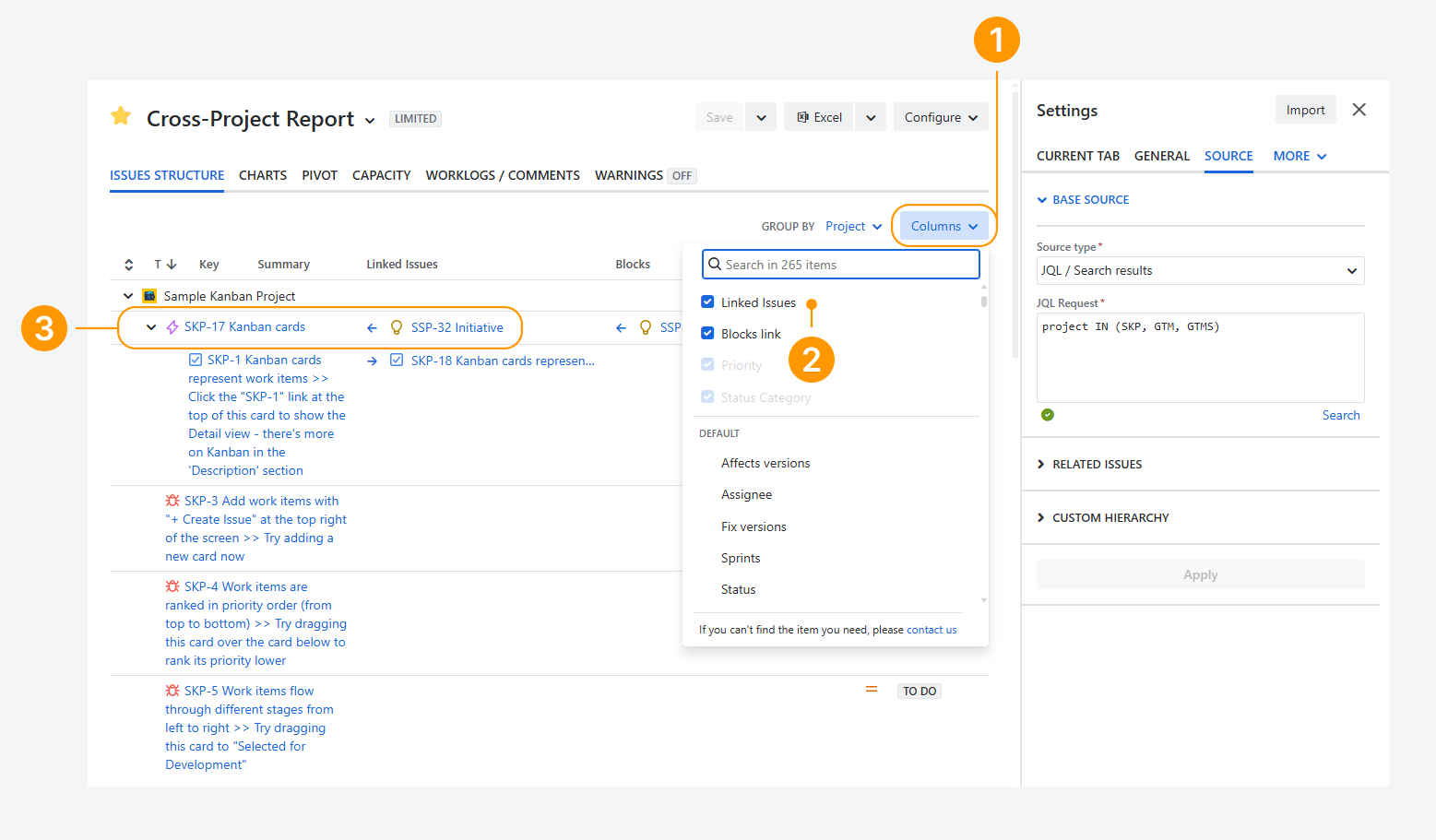
In this example, the report source references three projects using JQL. Click Columns.
-
Select or search for Linked Issues.
-
Identify the highest-level parent and determine the relationship type. In this example, Epic SKP-17 blocks Initiative SSP-32, which belongs to a project not included in the report source.
-
Enable Parent Issues to extend the report source.
-
Click Apply.
-20260325-174927.png?cb=1bccc549d224972b24b462c5584e66b3)
-
Click + Add Link Type.
-
Select a Parent Issue Type, Link Type, and Child Issue Types.
In this example, Initiative SSP-32 is blocked by Epic SKP-17. As a result, Initiative is the parent issue type and Epic is the child issue type.
-
Click Apply.
-20260325-181257.png?cb=8df1d9a687e876c5b139dee6f45ca07f)
After completing these steps, the parent relationship appears in the hierarchy, as shown in the screenshot below.
Note that Epic SKP-17 is grouped under the project associated with its parent Initiative as part of the custom hierarchy.
-20260325-182108.png?cb=e22887566ec9016b81ea3fe72b084a9c)
If you have questions or need assistance, contact our support team via email or service desk. Our team is available Monday through Friday (9:00 AM to 7:00 PM GMT+7) to help with technical challenges or discuss improvements.