
How can Daylight Saving Time impact your worklogs?
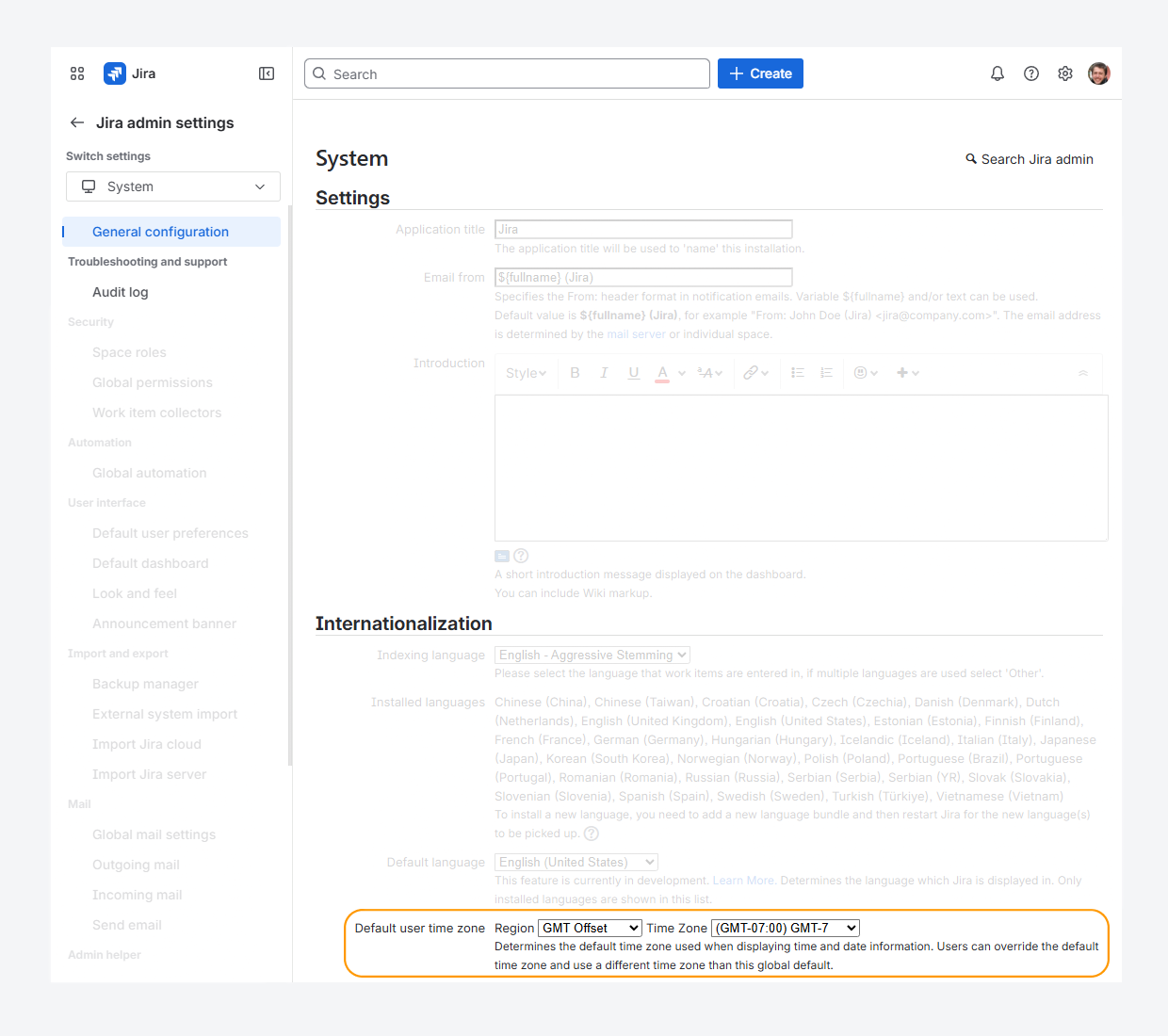
If you operate across regions that observe Daylight Saving Time (DST). Its accuracy depends on your defined Jira default time zone (called the Default user time zone).
Atlassian recommends to set this setting to match your team’s geographic location rather than a GMT offset, shown in the screenshot above, by following these steps:
-
As Jira admin, click the Settings (gear) icon in the top navigation bar.
-
Select System.
-
On the General configuration page, click Edit settings.
-
Go to the Internationalization section.
-
For the Default user time zone, select the region that matches your computer time, such as America.
-
Select the desired the Time zone field, such (GMT-05:00) Toronto.
-20260408-210146.png?cb=fa6a2e7a42aec96337df7aba67670501)
-
Click Update.
Notes for Jira Data Center
-
If you notice that Jira does not reflect the expected time offset for your region, you can resolve this by updating the time zone data used by your environment. To do so, replace the Joda-Time file and run the tzupdater tool, by following the steps mentioned in a related article.
It is also recommended to update your Java Runtime Environment to ensure accurate time zone handling, by changing the Java Virtual Machine (JVM) Timezone and following the steps mentioned in a separate article.
It is also recommended that you update your Java Runtime Environment to ensure accurate time zone handling. To do this, change the Java Virtual Machine (JVM) time zone by following the steps provided in the separate article and related article.
-
If you want Jira to ignore daylight saving time (DST), you can configure a fixed GMT offset instead, as suggested by Atlassian.
-
If you are using Tempo Timesheets, you may also need to update the
JVM_SUPPORT_RECOMMENDED_ARGSsettings, as described in Tempo’s documentation.
Can the Worklog Date differ from the intended value when using the user’s local time zone setting?
Yes. If the local time zone used when entering a worklog does not match the time zone set on the desktop environment, the Worklog Date in the report may appear differently than expected. This can happen even if the worklog author’s account time zone is not changed in Jira.
-20260423-040746.png?cb=59dd26d6a3418a410720a15562e680cc)
For example, the Local Time Zone of the user setting is enabled in the app settings. A user works in Jakarta during the week and later returns to Montreal. While in Jakarta, their desktop time zone is set to the local Jakarta time zone.
After returning, the user changes their desktop time zone to Montreal. As a result, the Worklog Date in the report may display a different value than expected, even if the account time zone in Jira is not updated.
-
The default Jira time zone matches the time zone of a data center in Montreal, where the time is April 8 at 8:30 PM.
-
A user in Jakarta logs work on April 9 at 7:30 AM and includes the local timestamp in the worklog comment. However, after returning to Montreal and updating the desktop time zone, the Worklog Date column in the report shows April 8, as shown in the screenshot above.
-
From another user’s perspective in Montreal, the Worklog Date column in the report also shows April 8. This user’s desktop and account time zone remained set to Montreal throughout the entire period.
To troubleshoot this behavior, you may need to change the user’s desktop environment time zone to view the original Worklog dates from when the user was in Jakarta.
Can the Created and Time in Status fields appear differently in the report?
The Created and Time in Status fields (such as Time in To Do and Time in Status) displayed in the report use your desktop operating system's time zone. In contrast, the Created field in the Jira issue view uses your Jira account time zone.
For example, a user creates an issue and later moves it to In Progress while working in Jakarta. At that time, the user's desktop time zone is set to Jakarta. Later, the user returns to Montreal and changes the desktop time zone to Montreal, while keeping the Jira account time zone set to Montreal throughout the trip.
As a result, the Created value shown in the report can differ from the Created value shown in the Jira issue view. Because the Time in Status values are calculated from the report's Created value, they can also differ.
If you want the report to display the same values that appeared while the user was in Jakarta, temporarily change the desktop operating system's time zone back to Jakarta.
If you have questions or need assistance, contact our support team via email or service desk. Our team is available Monday through Friday (9:00 AM to 7:00 PM GMT+7) to help with technical challenges or discuss improvements.