
This article lists possible errors you may encounter when a gadget linked to a Pivot Report tab malfunctions and explains how to resolve them. A separate article outlines the steps for connecting a tab to a gadget.
Service disruption error
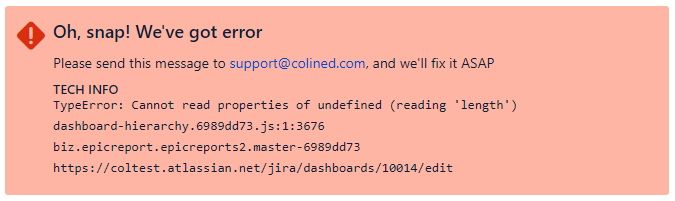
A service disruption error can appear when the gadget’s source is set to a tab that was removed from the report, such as in the case of a Charts gadget.
To troubleshoot this gadget settings error, follow these steps:
-
Open the dashboard you want to edit, and click Edit.
-
Click the actions (•••) menu in the top-right corner of the gadget.
-
Select Configure.
-
Click Save.
-
If the error continues, select Configure again and choose another report from the Saved Pivot Report dropdown.
-
Reselect the report you want to use.
-
Click Save.
To receive assistance for the error, please send a screenshot of the gadget with the error code and the HAR files to support@colined.com. The steps for generating a HAR file are mentioned in a related article.
Configuration error

A configuration error usually occurs when a gadget is not fully configured or when prior configurations not longer apply.
Re-select the gadget source
To troubleshoot this error, start by re-selecting the report used as the gadget source:
-
In a Dashboard, click Edit.
-
Click the actions (•••) menu in the top-right corner of the gadget and select Configure.
-
Check the Saved Pivot Report field:
-
If it is empty, select the desired report from the Select source report dropdown.
-
If it already has a report selected, use the dropdown to re-select the desired report.
-
If the desired report does not appear in the dropdown, follow the procedure in the related article to restore access.
Verify the report source
After re-selecting the report, verify the report source:
-
Click Configure in the header and select Source from the dropdown.
-
Perform the required actions based on the source type:
-
Project, Board, Saved Filter, or Issue: Ensure you have access to the source by locating and adding it from the dropdown.
-
JQL: Ensure you have access to the query results. For example, if the query points to a project, verify that you have permission to view the issues in that project.
-
If you have limited to a source used in the report, follow the related article procedure to restore access.
Permission error
Below is a list of errors caused by permission changes. When you or a teammate updates dashboard permissions, any user who cannot access the dashboard will also be unable to use the gadgets added to it.
In contrast, changes to a report or its source affect gadget use indirectly. Errors caused by these changes must be fixed in the report or in its source before you can confirm that the gadget is working correctly on the dashboard.
Dashboard permission error
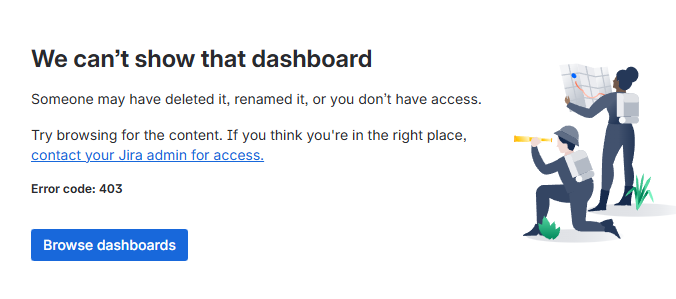
If the error above appears, contact your Jira admin or the dashboard owner. You don’t have permission to view the dashboard or the gadgets displayed on it.
Report permission error

If you can access the dashboard but see this error, it means you do not have access to the report used as the gadget’s source. Contact the report owner, an admin, or the groups with access to request permission. A related article explains the steps to restore access to a report.
Report source permission error

If you see this type of error, it means you cannot access the report because its source is either unavailable to you or has been deleted.
For example, if a filter is made private or removed, any report that uses it as a source becomes inaccessible to users who cannot view that filter. As a result, an error appears in the report and in any gadgets linked to it.
Likewise, if a filter is made private or deleted, any board that relies on that filter will appear empty to users without access. Reports based on that board, and gadgets linked to those reports, will also show an error.
A related article explains how to restore access to a report source.
Report deletion error

If you see this type of gadget error, it means you cannot access the report because it is deleted.
For example, a gadget is configured to reference report B, which is a copy of report A. Report B is deleted within the same week, while the other report is unaffected. When accessing report B or using gadgets associated to it, an error appears.
If you have questions or need assistance, contact our support team via email or service desk. Our team is available Monday through Friday (9:00 AM to 7:00 PM GMT+7) to help with technical challenges or discuss improvements.