
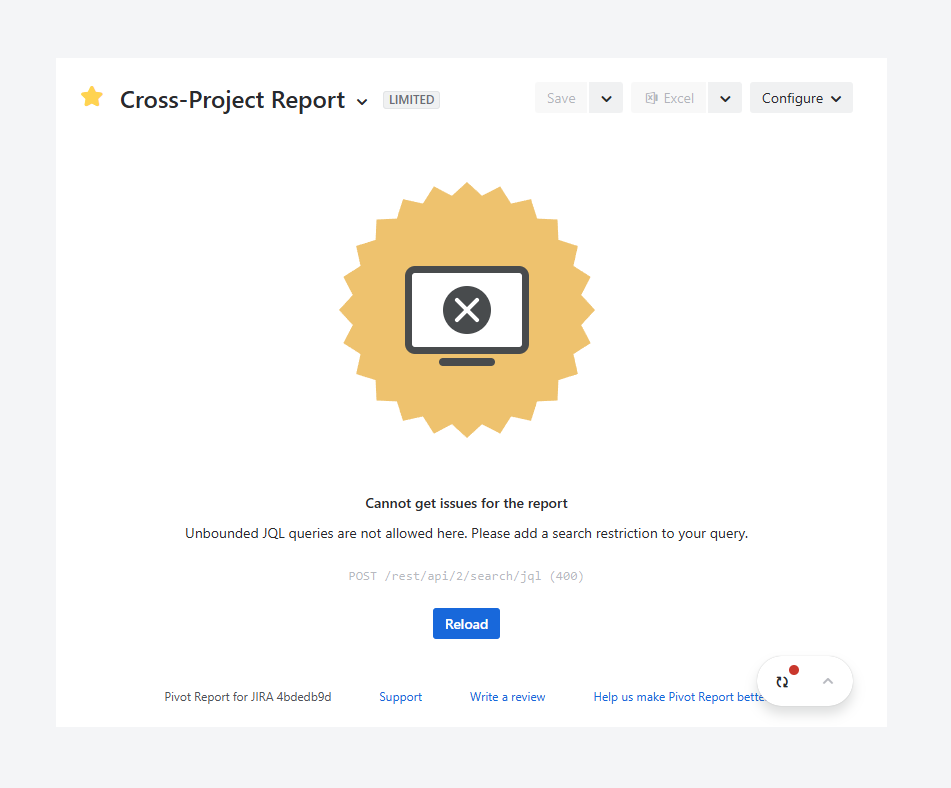
You may have reached this article after seeing the error above while creating a report or after changing the report source.
This article explains how to confirm whether you are using an unbound JQL query, which can cause an error in the report, and how to resolve it.
Once the error is resolve, if you want to return to changing the report source, see the related article.
What is an unbound query?
An unbound JQL query does not specify any fields, such as project, assignee, issue type, release, status, or priority.
It only contains terms that organize the results, such as: order by created DESC. This orders the results based on creation date in descending order.
How can you verify if you are using an unbound query?
If your report uses a Saved Filter or JQL / Search results as the source and the query is unbound, it will produce an error.
For example, if you save the All issues filter from the Issue Navigator under a different name, it becomes a saved filter containing an unbound query.
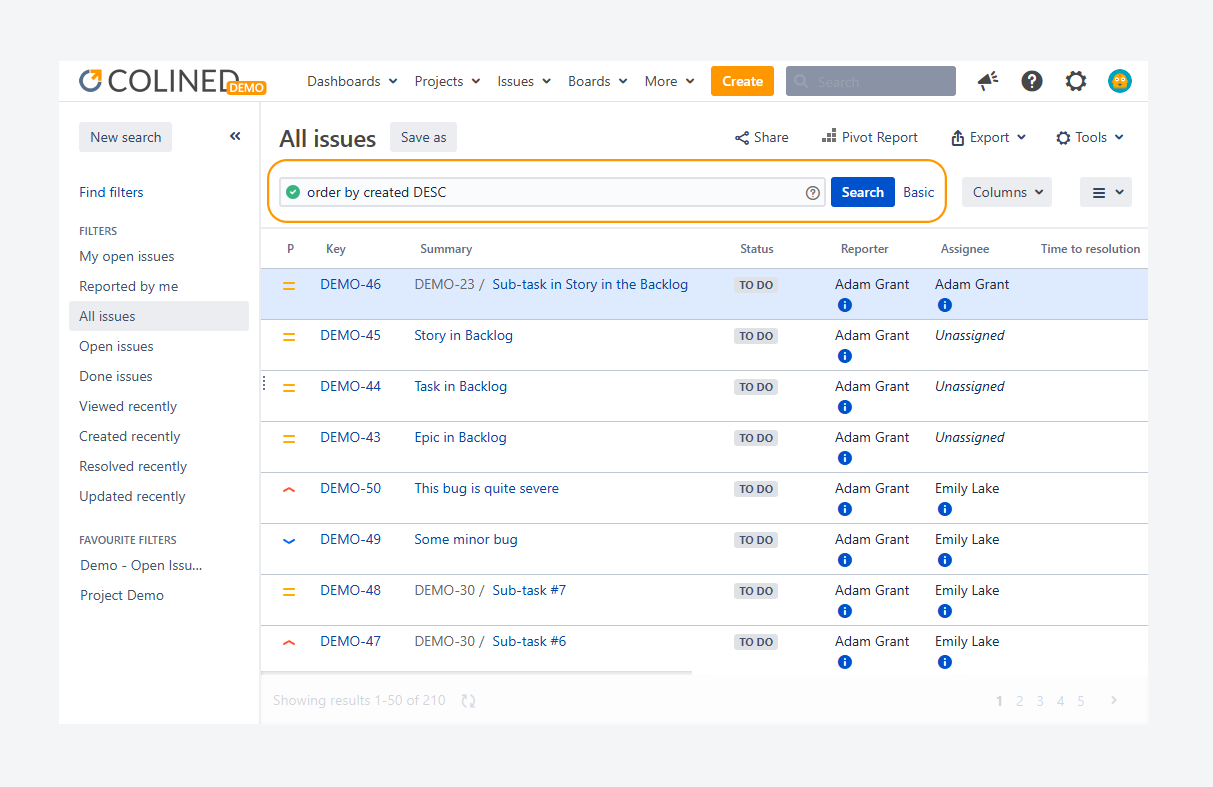
How can you resolve this error?
To troubleshoot the unbound JQL query error, use a different saved filter or modify your query. Alternatively, you can use a Board, which points to an unbound query.
Saved Filter
Access the report sidebar and change the source type to a saved filter, by following these steps:
-
Click Configure in the header section.
-
Select Source from the dropdown.
-
Set the source type to Saved Filter.
-20260312-003011.png?cb=44c29bc42693a4f9667c1238d1a33aac)
-
Choose All issues or another default filter that fits your use case. You can also use any saved filter that includes additional terms, such as a project, assignee, issue type, or release.
-20260312-004744.png?cb=27869e1f064eea78a661f31ed8a67a74)
-
Click Apply.
JQL / Search results
Access the report sidebar and update the query by following these steps:
-
Click Configure in the header section.
-
Select Source from the dropdown.
-
Set the source type to JQL / Search results.
-
Modify the query to include additional terms, such as a space, assignee, issue type, or release.
-
Click Apply.
-20260312-005618.png?cb=4f196b5b7109024584b3e1a0259c9578)
Board
Access the report sidebar and change the source type to a Board by following these steps:
-
Click Configure in the header section.
-
Select Source from the dropdown.
-
Set the source type to Saved Filter.
-
Choose a Board that fits your use case. This board’s filter can include an unbound query and may be limited to terms such as:
order by created DESC -
Click Apply.
A board based on a filter with an unbound query does not include a space. It will search for issues across all projects on your site.
Atlassian notes that this may affect load times and make it harder for your team to access the board, issues, or sprints.
If you have questions or need assistance, contact our support team via email or service desk. Our team is available Monday through Friday (9:00 AM to 7:00 PM GMT+7) to help with technical challenges or discuss improvements.