
This article explains how to confirm whether you have lost access to a report and how to restore access.
Can you lose access to a report?
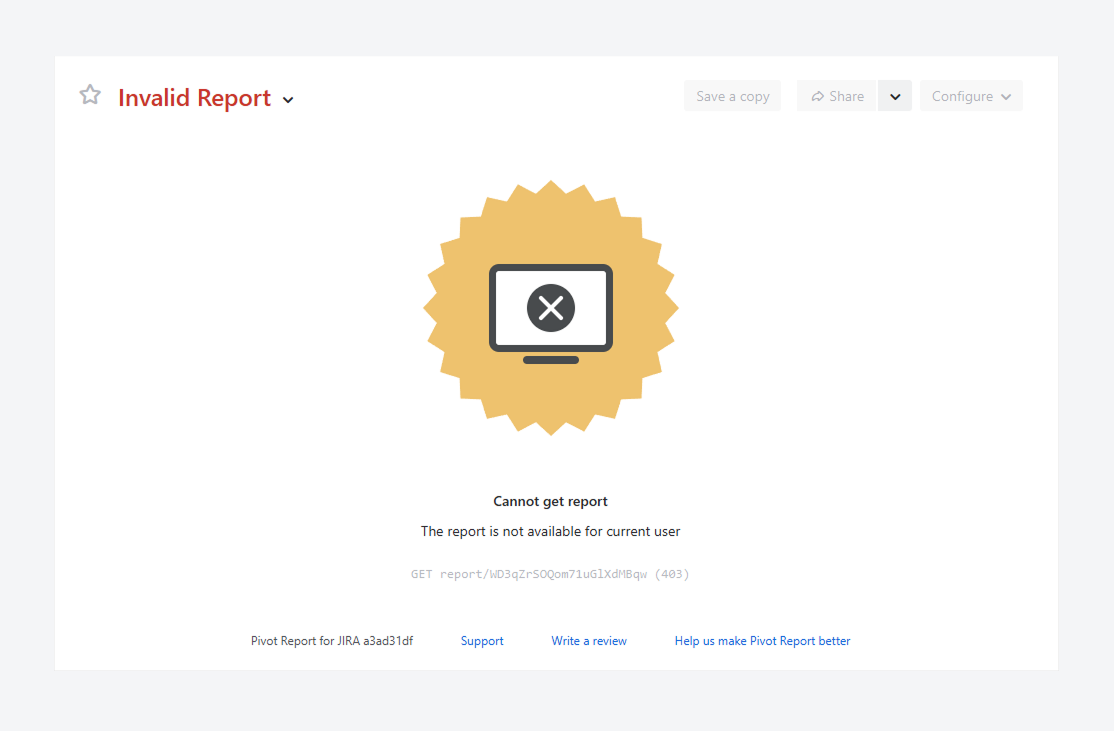
Yes. The error message above appears when you try to open the URL of a report you no longer have permission to view, even if you previously had access.
If another message appears, verify whether you have access to the report source, by following the steps mentioned in a related article. Similarly, if a blank page appear instead of a message, verify if you have access to the app.
How can you verify your access to a report?
By default, after the app is installed, users can access their own reports, Public reports, reports where they are assigned as admins, and reports where they are listed as authorized users.
Follow these steps to verify if you’ve lost access to either of these reports.
Personal reports
-
From Jira’s sidebar, open the Apps list and select Pivot Reports.
-
On the Manage Worklogs Reports page, choose My Reports. This filter displays all reports that you own.
-
If the report you created or owned does not appear, click Archive. Restore any reports you want to include in the search results by opening the actions menu and selecting Unarchive.
-
Repeat step 2 and select All Reports.
-
If the report still does not appear in any of these filters, contact a Jira admin. The report’s ownership may have been transferred to another user. A related article outlines how ownership can be reassigned.
Public reports
Before searching for a specific Public report, first confirm that you can access Public reports.
How can you verify access to Public reports?
To verify access to these reports, follow these steps:
-
From Jira’s sidebar, open Apps and select Pivot Reports.
-
On the Manage Pivot Reports page, select the Public filter. This displays all reports shared publicly.
-
Review the list for reports where you are not listed as the owner or an admin. If you can open these reports, Public access is working as expected.
In the example below, only Public reports where you are the owner or admin are shown.
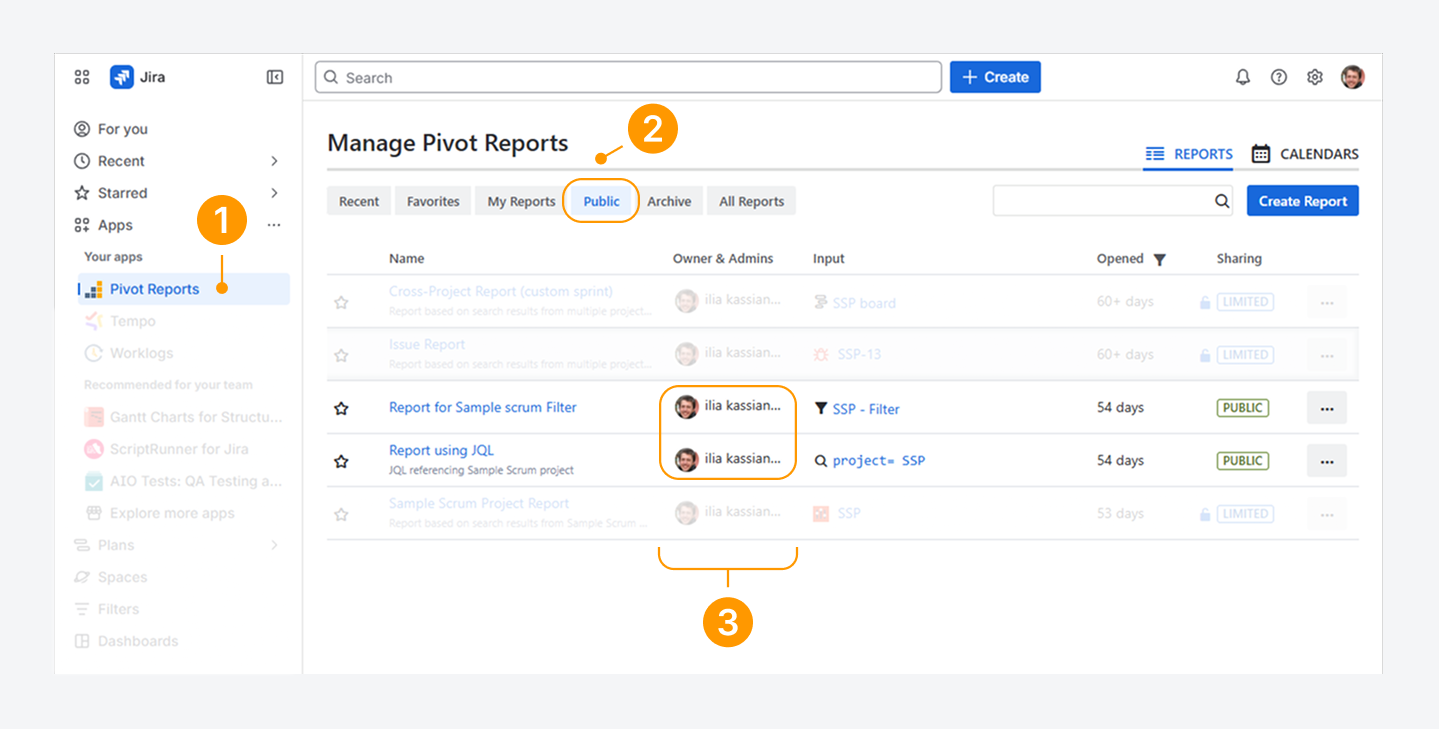
If you can view Public reports, check whether your report appears under Public, Archive (in case it was archived), and All Reports (in case a Public report was changed to Private).
If the report does not appear in any of these filtered lists, contact the report owner, a report admin, or a Jira admin for help.
If you cannot view Public reports, see the following section.
How can you restore access to Public reports?
If you've confirmed that you can’t access Public reports, follow these steps to restore access. You must either have Jira admin rights or ask someone who does to complete the process.
-
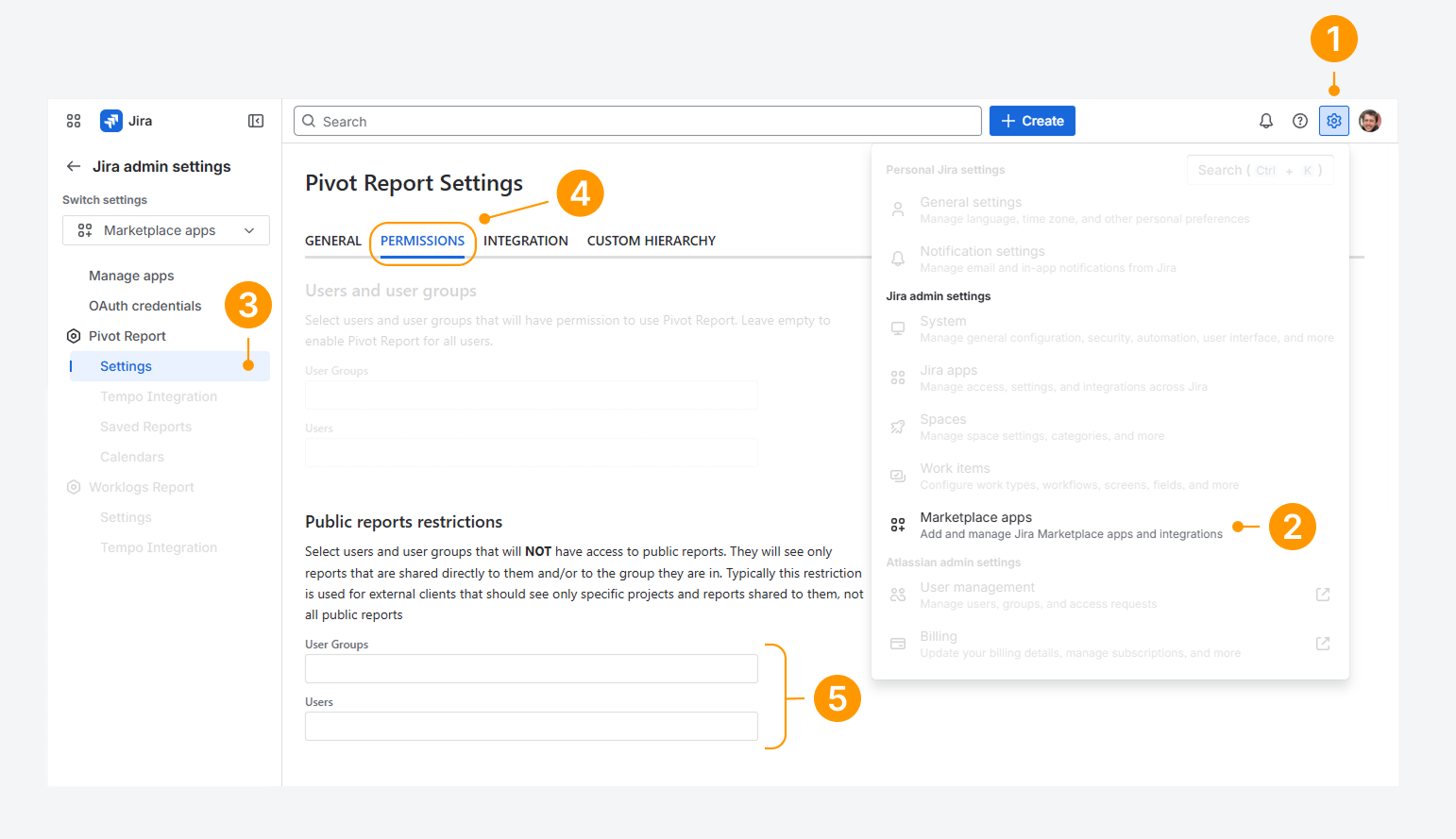
Open the Settings menu in Jira’s top navigation bar, by clicking on the gear icon.
-
From the dropdown, choose Apps.
-
Under Pivot Reports, click on Settings.
-
On the Pivot Report Settings page, select the Permissions tab.
-
Navigate to the Public reports restriction section.
-
Review the current entries in the Users and User Groups fields. To remove a user or group, click the X icon next to their name. This restores their access to Public reports.
-
Click inside the Users or User Groups field to open the search prompt.
The Users field lists all active users, and the User Groups field shows all available groups in your Jira instance. Any user or group you add will lose access to Public reports. -
Use the search box or select from recent results to add a user or group.
Alternatively, leave the fields empty if all User Groups and Users should have access to Public reports.
-20260302-030954.png?cb=bb4c952122dde5b2dedbb63ec78cf010)
After you update the settings in the Public reports restrictions section, reload any browser pages that contain a report. This ensures the changes take effect.
Admin and limited reports
Follow these steps for a report where you were listed as an admin or an authorized user (or member of an authorized user group):
-
From Jira’s sidebar, open the Apps list and select Pivot Reports.
-
On the Manage Pivot Reports page, choose All Reports.
-
If the report you created or administered does not appear, select Archive.
-
If the report still does not show in any of these lists, contact the report owner, another report admin, or a Jira admin for assistance. Your access may have been removed by the report owner or another admin.
If you have questions or need assistance, contact our support team via email or service desk. Our team is available Monday through Friday (9:00 AM to 7:00 PM GMT+7) to help with technical challenges or discuss improvements.