
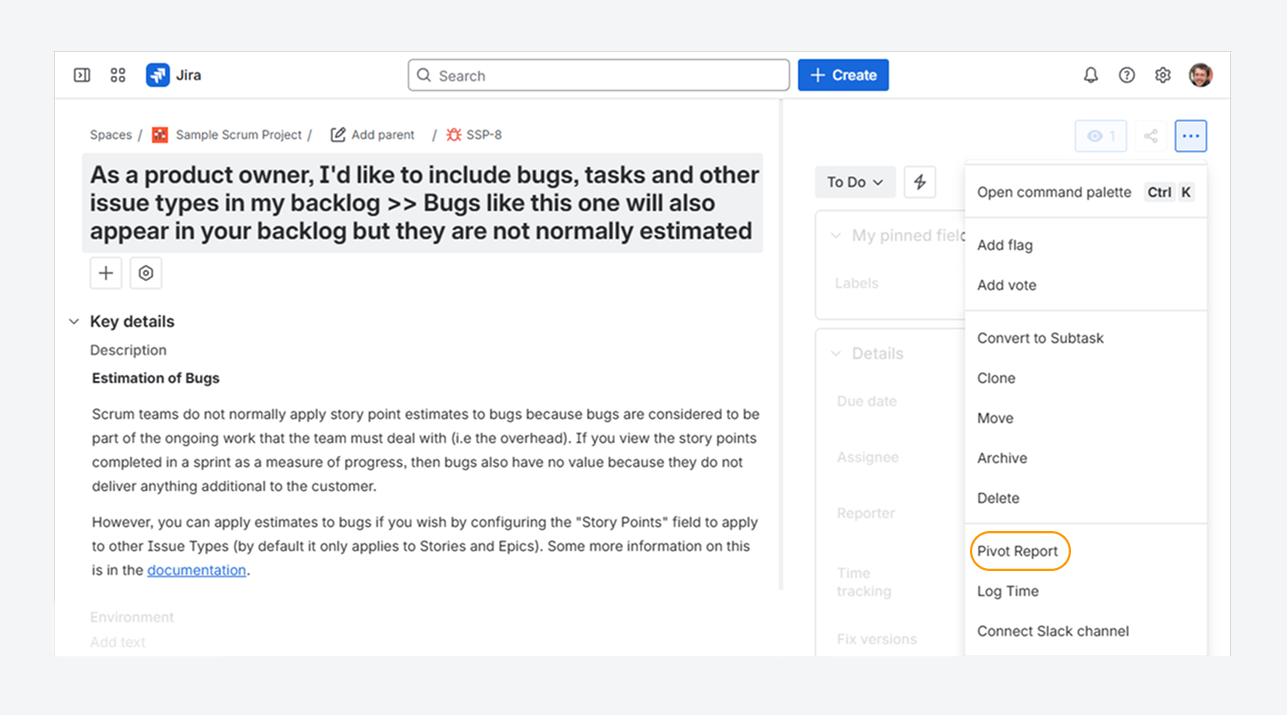
You may have reached this article after being unable to create a report from the Work Item view. If you want to confirm whether a user can use widgets to create reports in the Work Item view, refer to the separate article.
This article explains how to verify whether a user can create reports using the action button, either for specific work item types within a space or for all types.
It also outlines the permissions required to use the Pivot Report action button:
-
If the button is disabled in space settings, a space or Jira admin can review and update those settings.
-
If the button is disabled in app settings, a Jira admin can resolve the work item.
Once the button is enabled, follow the steps in the related article to create reports.
Who can disable the Pivot Report button?
-
Space admins can disable the Pivot Report button for the entire space or specific work item types.
-
Jira admins can disable Pivot Report entirely at the app level for a space or a specific user, which also disables the button.
How can you to determine if the button is disabled?
As a regular user, follow these steps to check if the Pivot Report action button is disabled for your space.
-
Open the Apps list from Jira’s sidebar, and verify if Pivot Reports is listed.
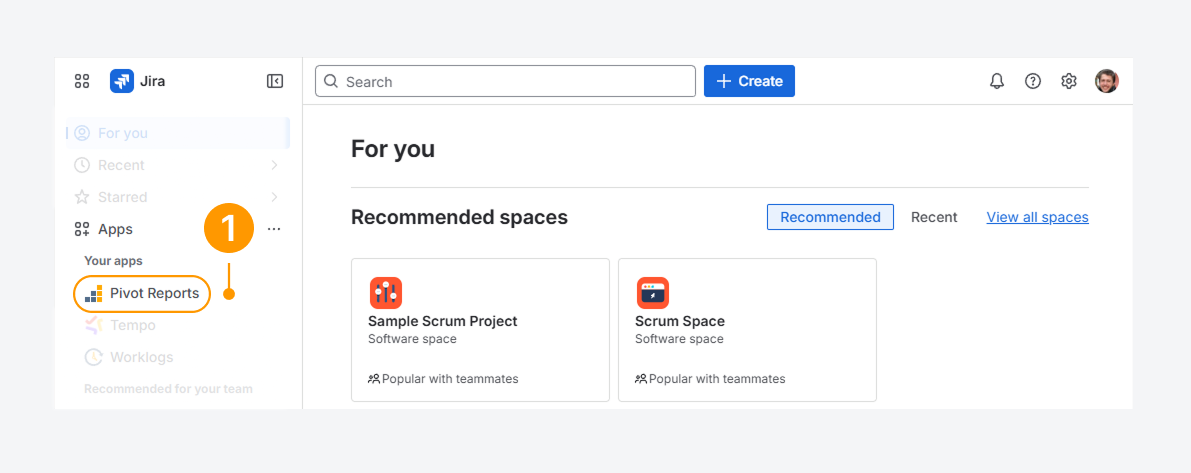
If Pivot Reports is missing from the Apps list, you don’t have permission to use the report features. You can skip the rest of this section.
To request access, contact a Jira admin and ask them to enabled the app, as detailed in a separate article.
-
Navigate to a work item within a space, and click the actions (•••) menu in the Work item view.
-
Verify if the Pivot Report is available in the dropdown for this work item and other work item types in the same space.
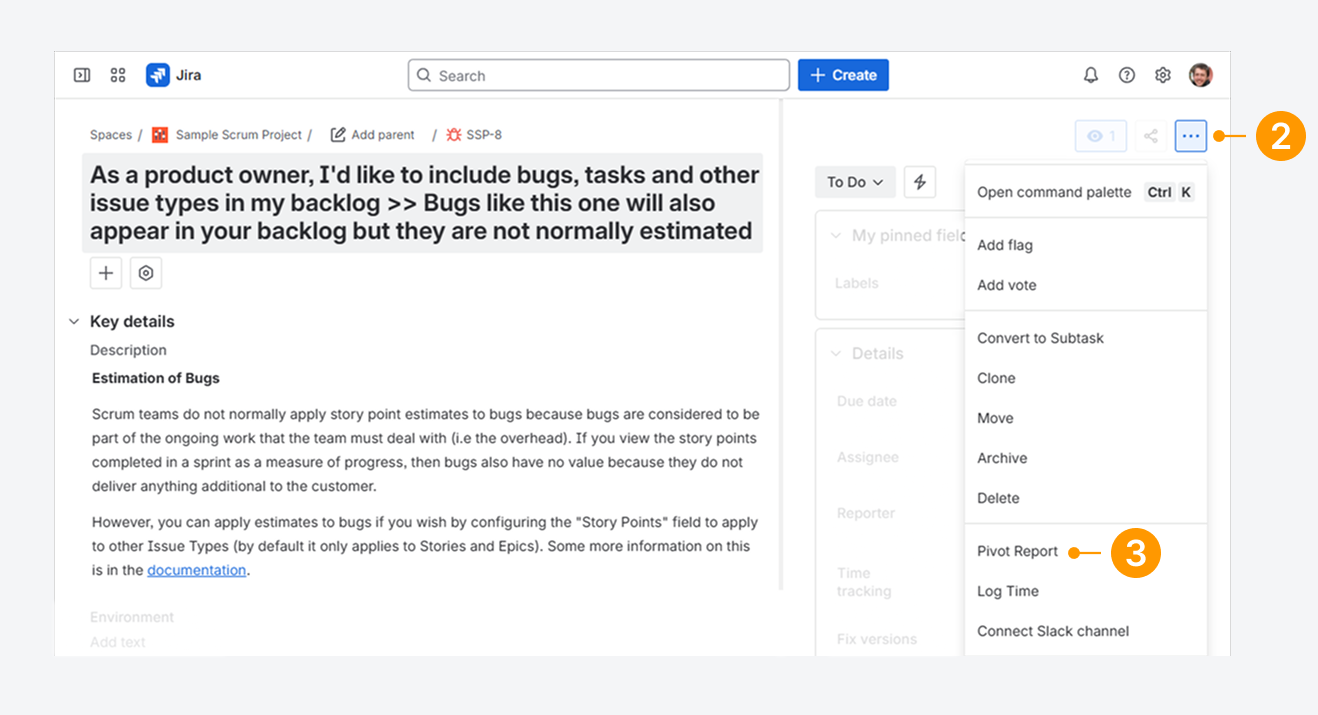
After completing steps 2 and 3:
-
If the button is missing for all work item types, the app is likely disabled for the space, or some required configurations are missing.
-
If the button appears for some work item types, the behavior is likely caused by missing space configurations for those specific types.
You can review and correct these settings in the following section.
Can you disable the button for an entire space?
Yes, the Pivot Report button can be disabled for an entire space.
The steps below help a Space admin—who does not have app-level access permissions—assist a regular user in diagnosing whether the button is disabled within a space.
Missing Space Level Integration
To validate if the button is disabled at the Space level, follow these steps as a Space Admin (or Jira administrator):
-
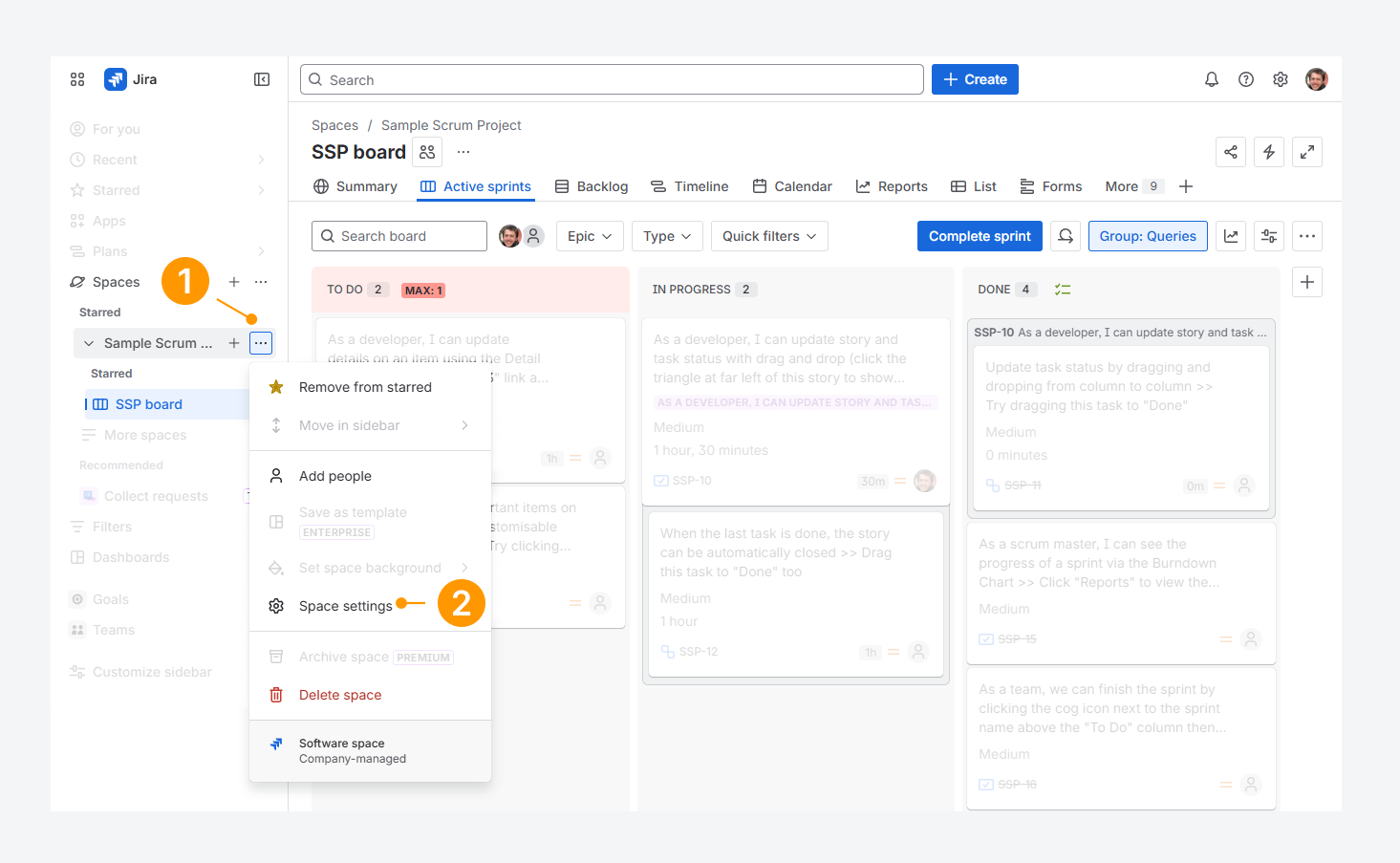
Open the Spaces list, click on the actions (•••) menu for a Space.
-
Click on Space settings.
-
In the Space settings, go to the Apps section in the sidebar and select Pivot Report.
-
On the Pivot Report Space Settings page, click the Work item Progress or Work item Tree tab and check if the message Work item View Integration disabled for entire space appears.
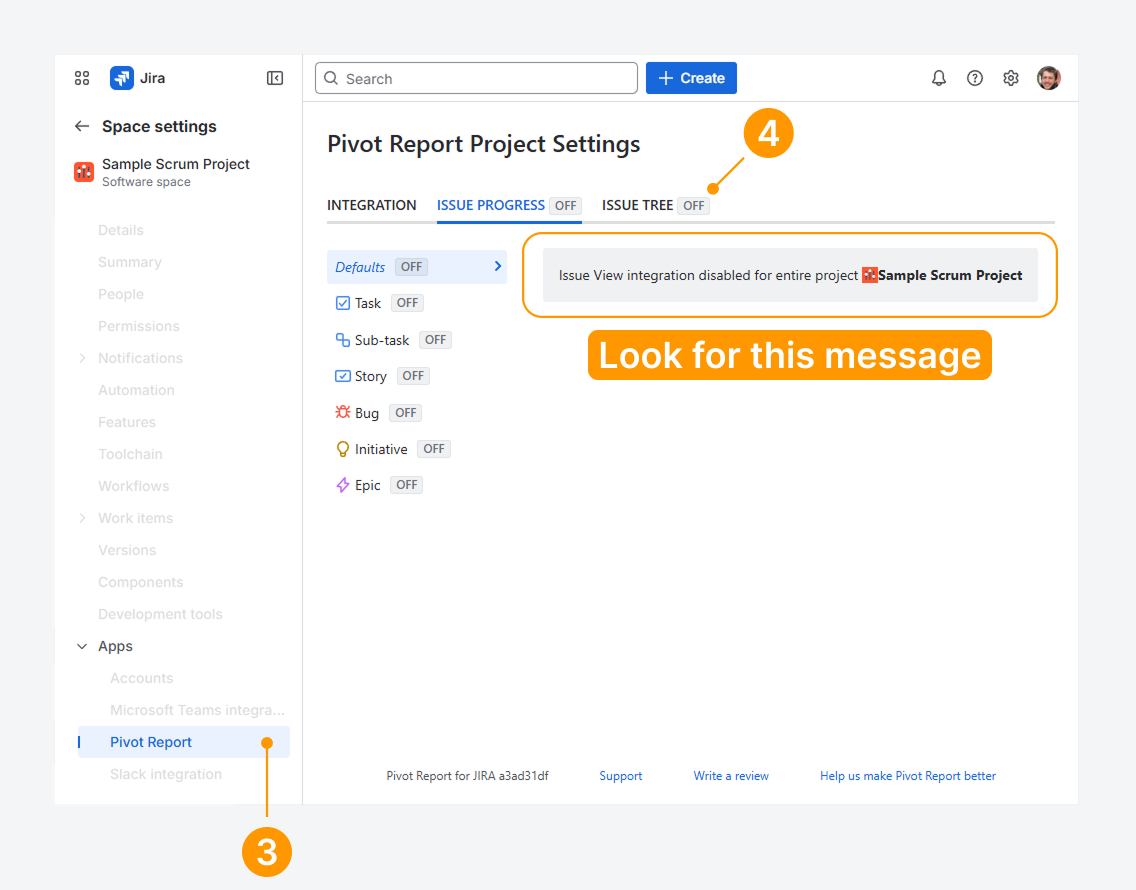
If Off appears in the tab name, along with the message Work item View Integration disabled for entire space (as shown in the previous screenshot), then the app is disabled for this space.
Contact a Jira admin to re-enable Space Level Integration from the ‘Pivot Report Settings’ page in the app-level settings.
Missing space configurations
To validate if the Pivot Report button is missing configurations at the Space level, follow these steps as a Space admin (or Jira admin):
-
Open Space settings, go to the Apps section in the sidebar, and select Pivot Report. (see the prior section)
-
On the Pivot Report Space Settings page, click the Integration tab.
-
Verify if the Enable Pivot Report button checkbox is selected (as shown in the screenshot). If it is unchecked, the Pivot Report button will be disabled for this space.
-
Verify if the Work item types textbox is empty.
-20260304-195056.png?cb=72b8f2d0351758e156179189e40ac333)
If the Enable Pivot Report button checkbox is selected but the Work item types textbox is not empty, the button is enabled but may not appear for certain work item types.
-
To show the button for all work items, clear the Work item types textbox.
-
Alternatively, select only the work item types where the button should appear.
If you have questions or need assistance, contact our support team via email or service desk. Our team is available Monday through Friday (9:00 AM to 7:00 PM GMT+7) to help with technical challenges or discuss improvements.