
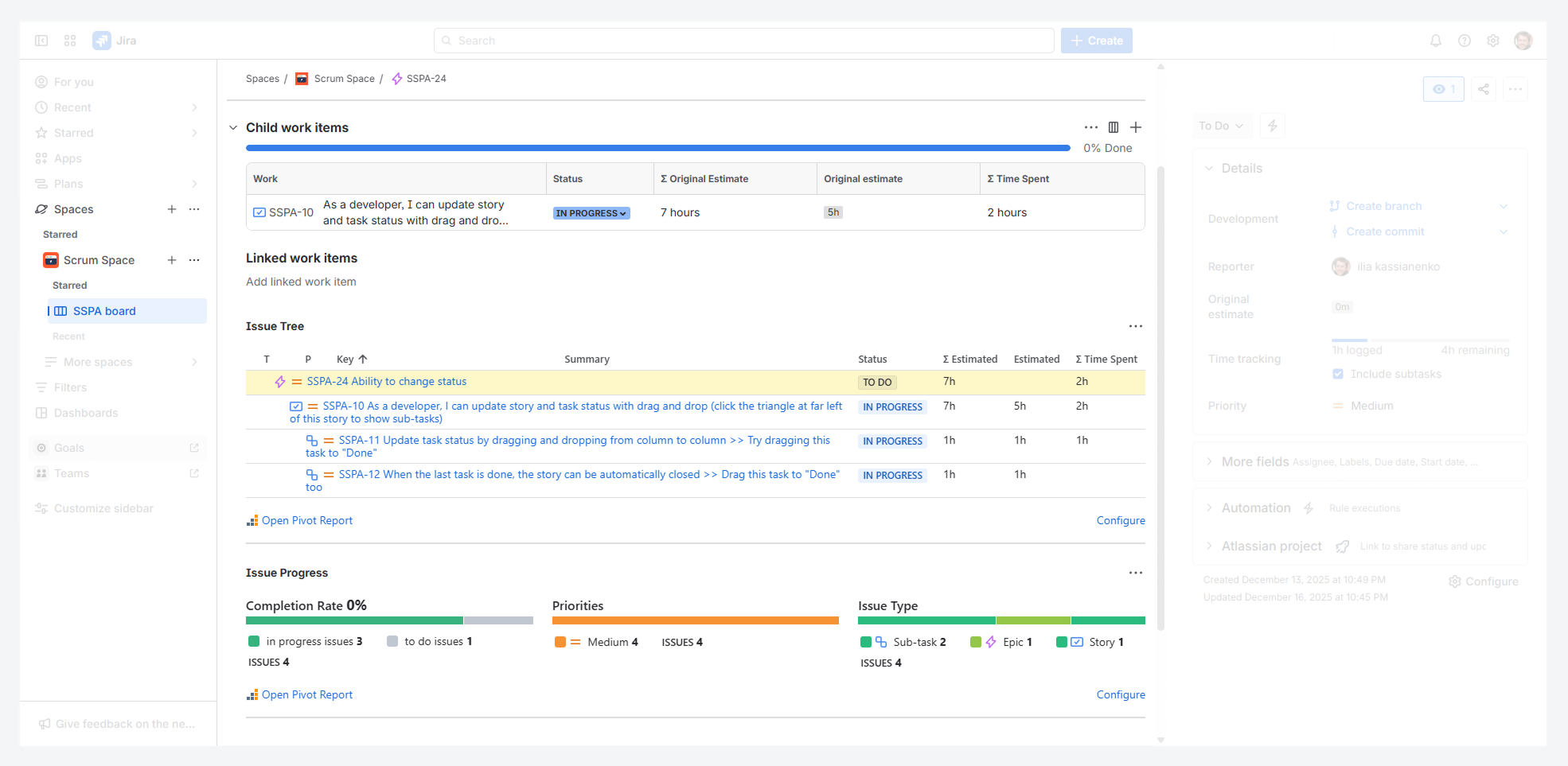
This article explains how to preview report sections directly in the Work item view by using the following widgets, within Jira Cloud:
-
Work Item Tree widget
-
Work Item Progress widget
It also explains how to create a report with these widgets and describes the benefits they offer compared with the default Work item view features.
For configuration examples, refer to the related article.
Why should you use widgets?
Widgets become available after the app is installed in your Jira Cloud instance.
Display the hierarchy without leaving the Work item view
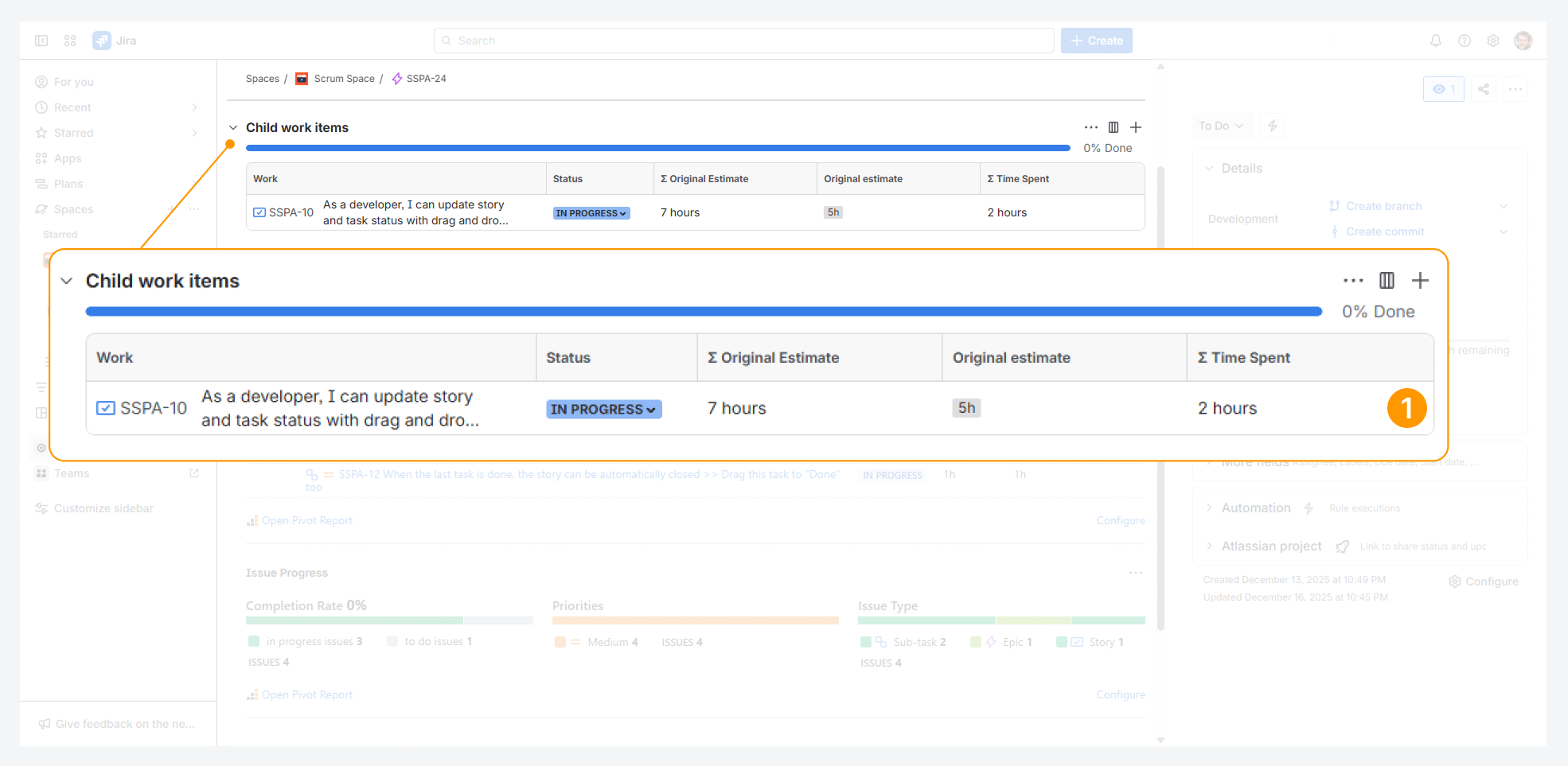
Widgets give you a complete view of the work item hierarchy, unlike Jira’s default Work item View—especially for container work items like Epics.
-
Jira’s table of child-level items shows only part of the hierarchy, leaving out sub-tasks.
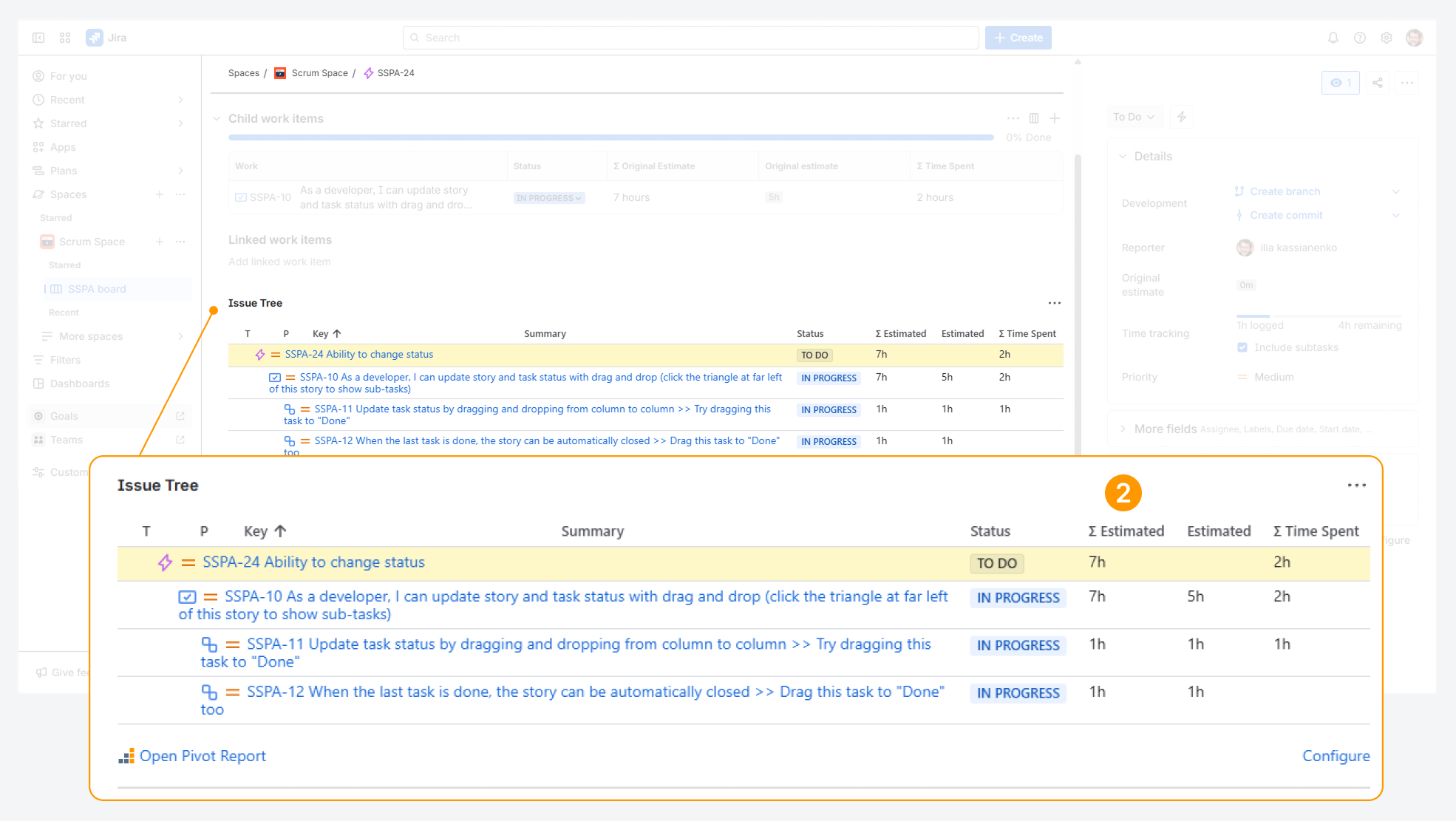
In addition to showing the full hierarchy, the Work Item Tree widget can be configured to display how each item contributes to the overall work.
-
This contribution can appear as numeric time-tracking values or as visual progress indicators—information that is not available in the default Work item view.
Measure how each work item contributes to your Space goals
Widgets provide a complete view of progress indicators.
-20260106-043501.png?cb=53b1bacfd5c4ec480cc5bc90d907c581)
-
Jira’s table of child-level items is limited to showing a completion rate based on status for only it’s child items, excluding sub-tasks.
-20260106-043854.png?cb=64296b371387f4efa522a706e6a08c17)
-
The Work Item Progress widget can display the completion rate and other progress indicators for all work items in the hierarchy, including sub-tasks.
Preview a report before creating it
Widgets give you the means to preview report contents (e.g. the Summary sections for the Progress and Work item Structure tabs) directly from the Work item view.
Features and use cases
Configure Widgets appearance per Work type and per Space
Jira admins and Space admins can configure widgets by:
-
Clicking Configure in the Work item Tree widget.
-
Clicking Configure in the Work item Progress widget.
-20250814-030316.png?cb=357d7b08b1579a2504e7c91cca0efa67)
The Configure link opens the Pivot Report Space Settings page, where you can adjust contents and permissions for either widget in the space, as explained in a related article.
For example, you can change:
-
Whether to extend child, parent, and sibling items, based on the Work type where the widget is added.
-
Which Jira or Colined field columns to display, based on the Work type where the widget is added.
-
Whether to include estimates for all work items or only leaf work items, based on the Work type where the widget is added.
-
Which progress indicators to display, based on the Work type where the widget is added.
Display widgets in the Work item View pop-up
Any logged-in Jira Cloud user with access to both the app and the related space can view and use widgets in a Work item view pop-up within a report, as shown in the screenshot below.
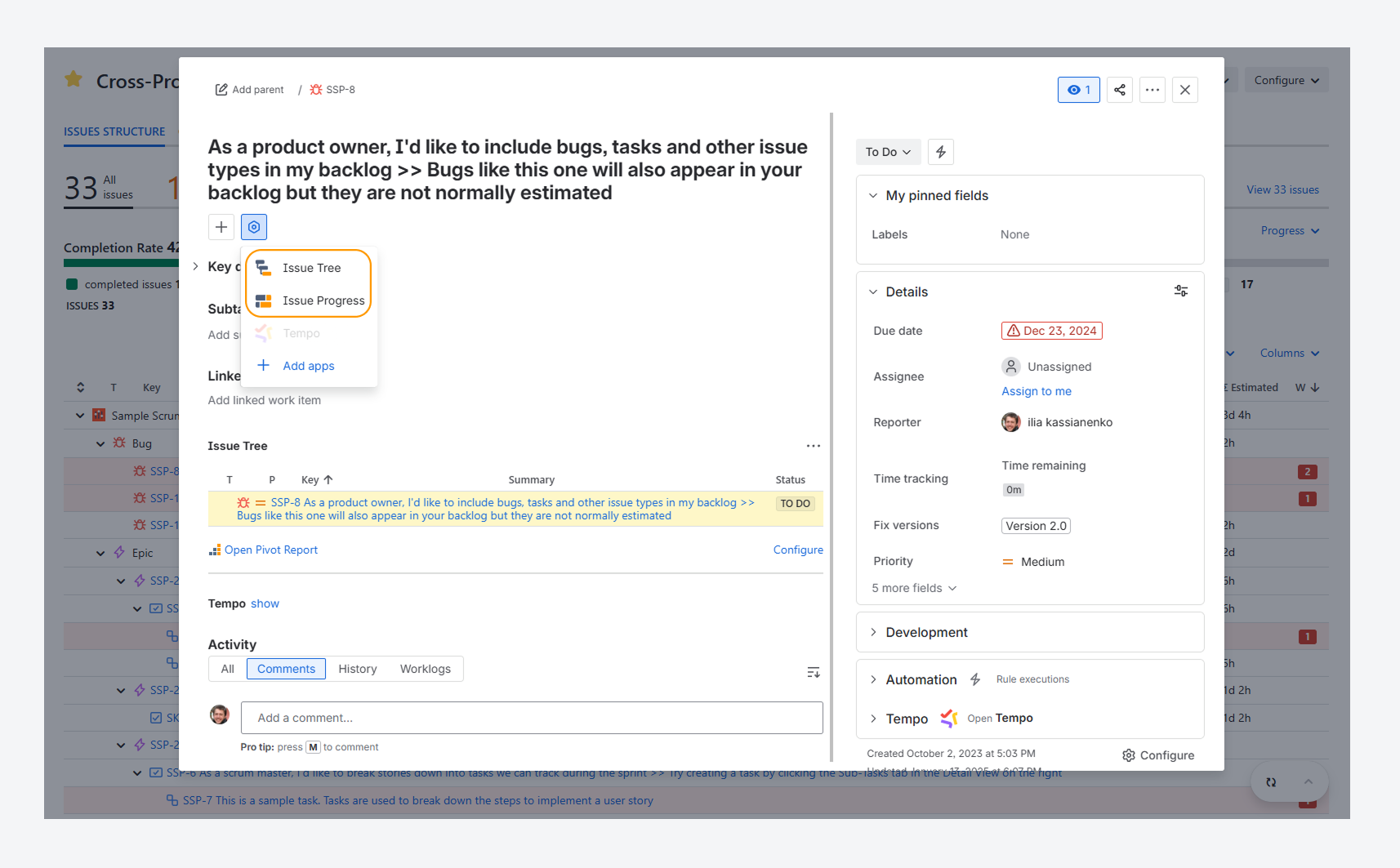
This allows you to analyze a work item in a pop-up using widgets without changing the report hierarchy, columns, or progress indicators.
For example, a report may display the Completion Rate for all work items. Without adding a new column, you can open the pop-up to view the Completion Rate for a specific work item and its child items.
How can you use widgets to create a report?
Any logged-in Jira user with access to both the app and the target space can display and use widgets to create reports using the following steps.
-
Open a work item in the space and click the App actions menu in the Work item view.
-
From the dropdown, select the widgets you want to display. The order you select them does not affect their display order.
-
In either widget, click the Open Pivot Report link to generate a report. The report’s contents depend on the widget’s configuration.
-20250814-002702.png?cb=c680444993e4c5697a35d5ff61e6f1c7)
FAQ
Can you hide widgets on a work item?
Yes. Any logged-in Jira user with access to both the app and the target space can hide a widget by following these steps:
-
Click the actions (•••) menu for the widget you want to hide.
-
Select Hide.
-20250814-004327.png?cb=32c58bda198d60b45f8b70d77a8b330a)
If you display a widget for a work item, another user with the same permissions can hide it. You will then need to display it again.
What is the report's name and description when using this method?
-20250813-230212.png?cb=4693cbfc113cb585f22fe6d61664dde9)
By default, when you create a report using the button in the Work item View:
-
Report name – Matches the work item’s Summary where the widget is used. Until saved, the name remains a hyperlink to the work item.
-
Description – Shows whether Parent, Sibling, and Child items are included, based on the widget’s configuration.
-
Reports from the Work item Tree widget include Parent, Sibling, and Child items related to the source work item.
-
Reports from the Work item Progress widget include Child items related to the source work item.
-
-
Tabs included – Only the Work item Structure tab is included.
To rename the report, update its description, adjust its scope (e.g. remove Parent or Sibling work items), or add more tabs, first save the report, then use the Sidebar to make changes.
Troubleshooting
If you have questions or need assistance, contact our support team via email or service desk. Our team is available Monday through Friday (9:00 AM to 7:00 PM GMT+7) to help with technical challenges or discuss improvements.